Chapter 5.5 — The `<br>` Element
A complete technical reference to the HTML `<br>` element, including syntax, browser behavior, accessibility, DOM representation, rendering, best practices, and real-world examples.
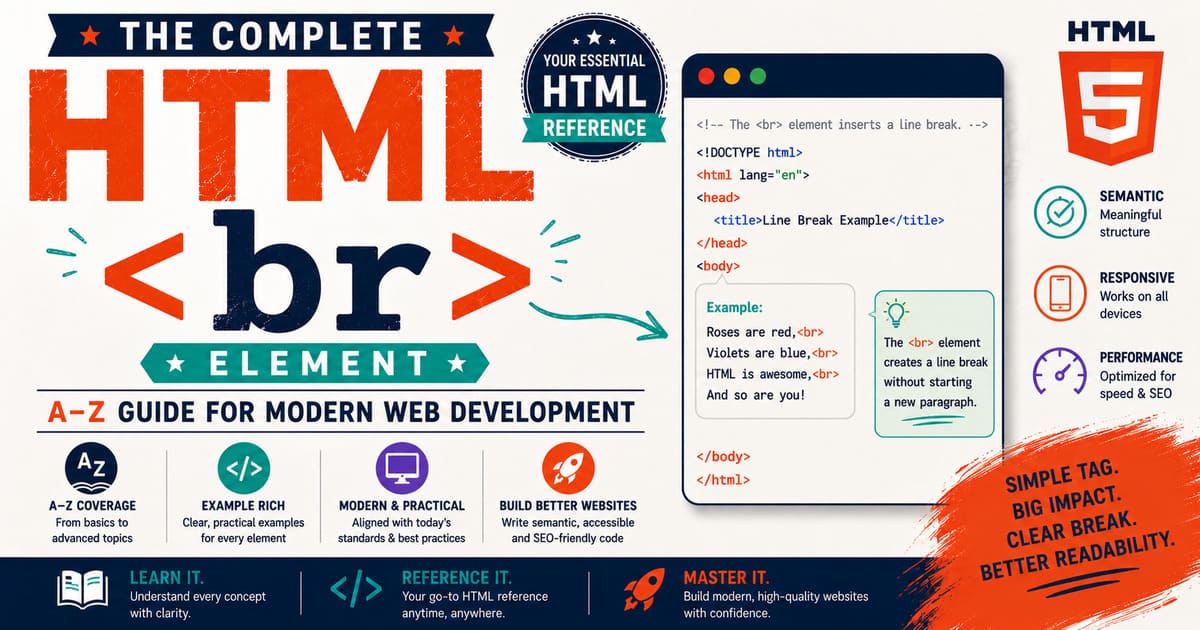
Chapter 5.5 — The <br> Element
The <br> element is one of the smallest elements in HTML, yet it is frequently misunderstood and often misused.
Many beginners believe <br> is simply a way to “move to the next line.”
While that statement is technically true, it tells only a small part of the story.
In reality, the <br> element has a specific semantic purpose, unique parsing rules, accessibility considerations, and an important place in HTML’s content model.
Understanding when to use <br> is just as important as understanding how it works.
5.5.1 Introduction to the <br> Element
The <br> element represents a line break within the current block of text.
Unlike a paragraph (<p>), which separates complete ideas, a line break simply moves the following content onto the next line while keeping everything within the same paragraph or text flow.
Think of it this way:
A paragraph is like starting a new paragraph in a book.
A line break is like pressing Shift + Enter in many word processors—it starts a new line without creating a new paragraph.
Basic Syntax
The <br> element is one of HTML’s void elements.
It has:
- No closing tag
- No content
- No child elements
Example:
1
2
3
4
5
<p>
HTML<br>
CSS<br>
JavaScript
</p>
Browser output:
1
2
3
HTML
CSS
JavaScript
Notice that all three lines still belong to one paragraph.
Why Does HTML Need <br>?
Imagine writing a postal address.
Without <br>:
1
2
3
<p>
John Smith 25 Park Avenue New York USA
</p>
The browser displays:
1
John Smith 25 Park Avenue New York USA
This loses the intended formatting.
With <br>:
1
2
3
4
5
6
<p>
John Smith<br>
25 Park Avenue<br>
New York<br>
USA
</p>
Browser output:
1
2
3
4
John Smith
25 Park Avenue
New York
USA
The information remains one paragraph while preserving the desired line structure.
The Difference Between <p> and <br>
This distinction is fundamental.
<p> | <br> |
|---|---|
| Creates a new paragraph | Creates a new line |
| Represents a new idea | Continues the same idea |
| Block-level element | Void element |
| Adds paragraph spacing | Does not create paragraph spacing |
| Semantic separation | Visual line break within the same content |
Whenever the topic changes, create a new paragraph.
Whenever the same thought simply needs another line, use <br>.
Real-World Uses of <br>
The <br> element is appropriate for content where line breaks are meaningful.
Examples include:
- Postal addresses
- Poetry
- Song lyrics
- Contact information
- Short quotations
- Signatures
- Certificates
- Printed-style formatting
Example:
1
2
3
4
5
<p>
ABC Technologies<br>
Chennai, Tamil Nadu<br>
India
</p>
Situations Where <br> Should Not Be Used
Many beginners use <br> to create vertical spacing.
Incorrect:
1
2
3
4
5
6
7
<p>Paragraph One</p>

<br>
<br>
<br>

<p>Paragraph Two</p>
Although this works visually, it is poor HTML.
Spacing should be handled using CSS.
Correct:
1
2
3
p{
    margin-bottom:2rem;
}
Separating structure from presentation is one of HTML’s core principles.
Browser Interpretation
When the browser encounters:
1
2
3
<p>
HTML<br>CSS
</p>
it performs a process similar to:
1
2
3
4
5
6
7
8
9
10
11
12
13
14
15
16
17
18
19
20
21
Create paragraph

↓

Read text

↓

Encounter <br>

↓

Insert line break

↓

Continue reading text

↓

Display paragraph
Unlike <p>, the <br> element does not create a new block in the DOM.
Instead, it inserts a line-break element within the existing flow of content.
DOM Representation
HTML:
1
2
3
<p>
HTML<br>CSS
</p>
DOM:
1
2
3
4
5
6
7
8
9
10
11
body
│
└── p
     │
     ├── Text
     │     └── HTML
     │
     ├── br
     │
     └── Text
           └── CSS
Notice that <br> is a child element of the paragraph.
It separates two text nodes while remaining inside the same paragraph.
Experiment
Create a file named br-introduction.html.
1
2
3
4
5
6
7
8
9
10
11
12
13
14
15
16
17
18
19
20
21
22
23
24
25
26
27
28
<!DOCTYPE html>
<html lang="en">
<head>
<title>The br Element</title>
</head>
<body>
<h1>The <br> Element</h1>
<p>
HTML<br>
CSS<br>
JavaScript
</p>
<p>
John Smith<br>
25 Park Avenue<br>
Chennai<br>
India
</p>
</body>
</html>
Open the page in your browser.
Observe that:
- Each
<br>starts a new line. - No additional paragraph spacing appears.
- Both examples remain individual paragraphs.
Did You Know?
The
<br>element has existed since the earliest versions of HTML. Despite its simplicity, it remains one of the most frequently misused elements because many developers confuse line breaks with paragraph separation. Understanding the distinction is a hallmark of semantic HTML.
Summary
In this section, you learned:
- What the
<br>element represents. - How it differs from the
<p>element. - Why it is used.
- Common real-world applications.
- Why it should not be used for layout spacing.
- How browsers interpret it.
- How it appears in the DOM.
Coming Up Next — Section 5.5.2
In the next section, we’ll study Void Elements and the Internal Structure of <br>, including:
- What a void element is.
- Why
<br>has no closing tag. - Why
<br></br>is invalid HTML. - Self-closing syntax (
<br />) and HTML vs. XHTML. - Parser behavior.
- DOM characteristics.
- Browser compatibility.
- HTML specification details.
This is where we’ll move from simply using <br> to understanding why HTML was designed this way.
5.5.2 Void Elements and the Internal Structure of <br>
One of the first things developers notice about the <br> element is that it looks different from most HTML elements.
Unlike a paragraph (<p>), heading (<h1>), or division (<div>), the <br> element has no closing tag.
This is not a special exception created only for <br>.
Instead, <br> belongs to an important category of HTML elements known as void elements.
Understanding void elements will help you understand why certain HTML elements never contain content and why browsers parse them differently.
What Is a Void Element?
A void element is an HTML element that cannot contain any content.
Because it cannot contain content, it also does not require—and must not have—a closing tag.
Think of a void element as a self-contained instruction to the browser.
For the <br> element, that instruction is simply:
“Insert a line break here.”
After the browser processes the instruction, it immediately continues parsing the rest of the document.
The Structure of <br>
Unlike most HTML elements, <br> contains:
- No text
- No child elements
- No closing tag
- No nested HTML
Correct syntax:
1
<br>
The element begins and ends at the same point.
There is nothing that can be placed “inside” a <br> element.
Comparison with a Normal Element
A paragraph contains opening and closing tags.
1
2
3
<p>
Learning HTML
</p>
Structure:
1
2
3
4
5
6
7
8
9
Opening Tag

↓

Content

↓

Closing Tag
The <br> element is different.
1
<br>
Structure:
1
2
3
4
5
Line Break Instruction

↓

Continue Parsing HTML
There is no content section because a line break does not contain information—it simply changes where the next text begins.
Why Doesn’t <br> Need a Closing Tag?
Imagine writing:
1
<br></br>
This suggests that the browser should expect some content between the opening and closing tags.
However, a line break cannot contain text or child elements.
The HTML parser therefore treats the closing tag as unnecessary.
According to the HTML specification, <br> is defined as a void element and should be written without a closing tag.
Correct:
1
<br>
Incorrect:
1
<br></br>
Although some browsers may ignore the closing tag, professional HTML should never include it.
HTML Parser Behavior
Suppose the browser encounters:
1
2
3
<p>
Line One<br>Line Two
</p>
A simplified version of the parsing process looks like this:
1
2
3
4
5
6
7
8
9
10
11
12
13
14
15
16
17
Read text

↓

Encounter <br>

↓

Create line-break node

↓

Continue reading text

↓

Finish paragraph
Notice that the parser never waits for a closing </br> tag.
It immediately resumes processing the following content.
DOM Representation
HTML:
1
2
3
<p>
Apple<br>Banana
</p>
DOM:
1
2
3
4
5
6
7
8
9
10
11
body
│
└── p
     │
     ├── Text
     │     └── Apple
     │
     ├── br
     │
     └── Text
           └── Banana
The <br> element exists as its own DOM node.
It has:
- No children
- No text
- No descendants
It simply represents a line break.
Can <br> Have Attributes?
Yes.
Although <br> cannot contain content, it can use global attributes.
Example:
1
<br id="lineBreak1">
Another example:
1
<br class="address-break">
Since <br> is an HTML element, it supports global attributes just like other elements.
Self-Closing Syntax
You may sometimes see:
1
<br />
instead of:
1
<br>
Why?
The answer lies in the history of HTML.
HTML vs. XHTML
In classic HTML:
1
<br>
is the preferred syntax.
However, XHTML required every element to be explicitly closed.
Because <br> cannot have a normal closing tag, XHTML introduced the self-closing form:
1
<br />
Both forms are accepted by modern HTML parsers.
Today, most developers writing standard HTML simply use:
1
<br>
Browser Compatibility
All modern browsers correctly recognize both:
1
<br>
and
1
<br />
However, maintaining a consistent coding style throughout a project is considered a best practice.
Other HTML Void Elements
The <br> element is only one member of the void element family.
Other common void elements include:
| Element | Purpose |
|---|---|
<img> | Displays an image |
<hr> | Represents a thematic break |
<meta> | Provides document metadata |
<link> | Links external resources |
<input> | Creates form controls |
<source> | Specifies media sources |
<track> | Adds captions or subtitles |
<base> | Defines the base URL |
<col> | Defines table column properties |
<embed> | Embeds external content |
<area> | Defines image map regions |
<wbr> | Suggests optional word break positions |
Every one of these elements shares the same characteristic:
They never contain child content.
Common Mistakes
Mistake 1 — Adding a Closing Tag
Incorrect:
1
<br></br>
Correct:
1
<br>
Mistake 2 — Trying to Nest Content
Incorrect:
1
2
3
4
5
<br>

Text

</br>
The <br> element cannot wrap text.
Mistake 3 — Thinking <br /> Is Required
Many tutorials still teach:
1
<br />
Modern HTML does not require the trailing slash.
Use whichever style your project adopts, but remain consistent.
Best Practices
Professional developers generally:
- Write
<br>without a closing tag. - Avoid writing
</br>. - Understand the difference between HTML and XHTML syntax.
- Use
<br>only when a genuine line break is required. - Remember that void elements never contain content.
Experiment
Create a file named void-elements.html.
1
2
3
4
5
6
7
8
9
10
11
12
13
14
15
16
17
18
19
20
21
22
23
24
<!DOCTYPE html>

<html lang="en">

<head>
    <title>Void Elements</title>
</head>

<body>

<h1>Void Elements</h1>

<p>
First Line<br>
Second Line
</p>

<img src="example.jpg" alt="Example Image">

<hr>

</body>

</html>
Open the page in your browser.
Observe that:
<br>creates a new line.<img>displays without a closing tag.<hr>creates a thematic break.- None of these elements require closing tags because they are all void elements.
Did You Know?
The HTML specification currently defines a small set of void elements, and they all share one important rule: they cannot have child nodes. This design simplifies browser parsing and makes these elements efficient to process. The
<br>element is one of the oldest and most recognizable examples of a void element.
Summary
In this section, you learned:
- What a void element is.
- Why
<br>has no closing tag. - Why
</br>is invalid. - The difference between HTML and XHTML syntax.
- How browsers parse void elements.
- The DOM structure of
<br>. - Other common void elements.
- Professional best practices for writing clean HTML.
Coming Up Next — Section 5.5.3
Next, we’ll explore Browser Rendering, CSS Behavior, and Layout Effects of the <br> Element, including:
- How browsers visually render
<br>. - The CSS
displaybehavior of<br>. - Line boxes and inline formatting.
- Interaction with
white-spaceCSS properties. <br>inside Flexbox and Grid layouts.- Margin and padding behavior.
- Developer Tools inspection.
- Performance considerations.
By the end of the next section, you’ll understand not only what <br> does, but how rendering engines transform it into visible line breaks on the screen.