Chapter 3: The `<html>` Element | The Complete HTML Reference: A–Z Guide for Modern Web Development
A complete reference to the HTML `<html>` element, including syntax, attributes, browser internals, DOM representation, accessibility, SEO, internationalization, and best practices.
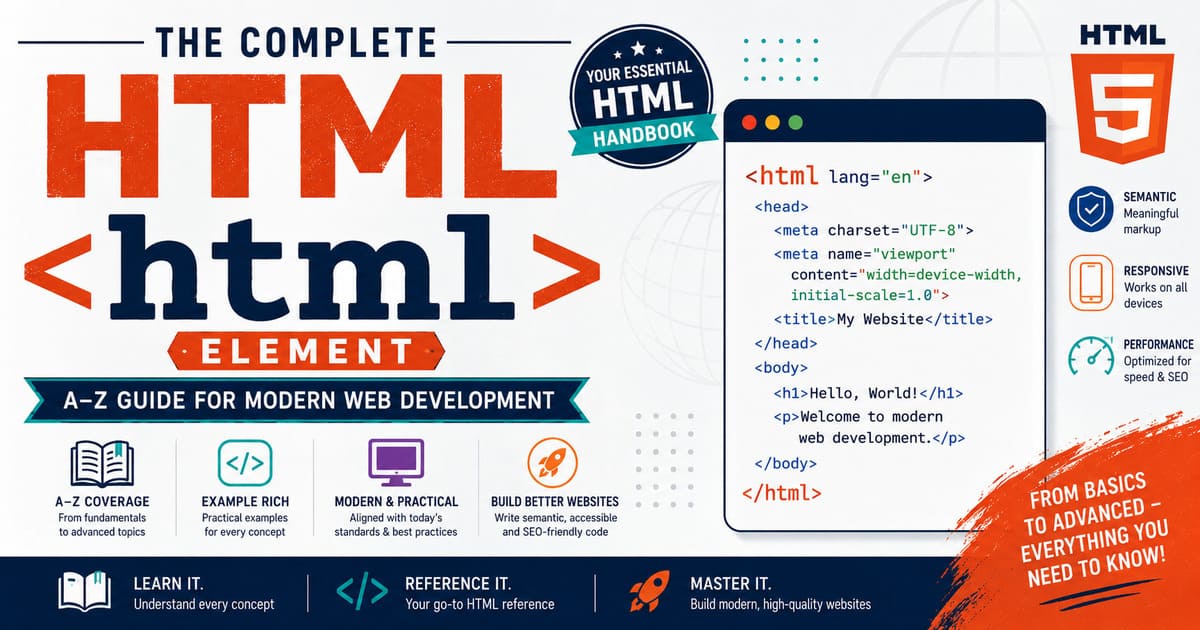
Chapter 3: The <html> Element
Series: The Complete HTML Reference: A–Z Guide for Modern Web Development
At a Glance
| Property | Value |
|---|---|
| Element Name | <html> |
| Category | Root Element |
| Closing Tag Required | ✅ Yes |
| Parent Element | Document (root) |
| Permitted Children | <head> followed by <body> |
| Visible on Webpage | ❌ No |
| Introduced | Early HTML |
| HTML5 Status | Standard |
What You’ll Learn
By the end of this chapter, you’ll understand:
- What the
<html>element is - Why it is called the root element
- Why every HTML document needs exactly one
<html>element - How browsers create the root of the DOM
- The purpose of the
langattribute - Global attributes supported by
<html> - Browser internals
- Accessibility implications
- SEO considerations
- Common mistakes
- Best practices
Introduction
Every HTML document contains many elements.
For example:
<h1><p><img><table><form>
However, all of these elements have one thing in common.
They exist inside a single parent element:
1
2
3
4
5
<html>

...

</html>
Without this root element, an HTML document is incomplete.
It is the container that encloses the entire webpage.
Think of it as the foundation of a building.
Without a foundation, the building cannot stand.
Similarly, without the <html> element, the browser cannot organize the document correctly.
Definition
The <html> element is the root element of every HTML document.
It contains every other HTML element except the DOCTYPE declaration.
Everything that belongs to the webpage—including metadata and visible content—must be placed inside this element.
A minimal HTML document looks like this:
1
2
3
4
5
6
7
8
9
10
11
12
13
14
15
16
17
<!DOCTYPE html>

<html lang="en">

<head>

<title>Example</title>

</head>

<body>

Hello World

</body>

</html>
Notice that:
- The DOCTYPE appears first.
- The
<html>element wraps the rest of the document. - Both
<head>and<body>are children of<html>.
Why Is It Called the Root Element?
In computer science, a root is the top-most node in a hierarchical structure.
The HTML document is organized as a tree.
The <html> element is the root of that tree.
Everything else branches from it.
1
2
3
4
5
6
7
Document
│
└── html
    │
    ├── head
    │
    └── body
No HTML element can exist outside the <html> element.
The Browser’s Perspective
When a browser parses an HTML document, it first processes the DOCTYPE declaration.
After determining the rendering mode, it encounters:
1
<html lang="en">
At this moment, the browser creates the root element node.
Every subsequent element is attached somewhere beneath this node.
Without it, the browser cannot build a complete Document Object Model (DOM).
Syntax
The syntax of the <html> element is simple.
1
2
3
4
5
<html lang="en">

...

</html>
Opening tag:
1
<html>
Closing tag:
1
</html>
Unlike some optional HTML tags, the <html> element should always be explicitly included for clarity and standards compliance.
Basic Example
Create a file named:
1
html-element-example.html
Add the following code:
1
2
3
4
5
6
7
8
9
10
11
12
13
14
15
16
17
18
19
20
21
<!DOCTYPE html>

<html lang="en">

<head>

<meta charset="UTF-8">

<title>HTML Element Example</title>

</head>

<body>

<h1>Hello HTML</h1>

<p>This page demonstrates the root element.</p>

</body>

</html>
Save the file and open it in your browser.
Although the <html> element itself is invisible, it surrounds every visible part of the document.
Why Every HTML Document Needs Exactly One <html> Element
An HTML document should contain one—and only one—<html> element.
Why?
Because the browser needs a single root node for the DOM.
Imagine a family tree with two different ancestors at the top.
The structure becomes ambiguous.
Similarly, multiple root elements would make the document hierarchy invalid.
For this reason:
- Exactly one
<html>element is expected. - It encloses the
<head>and<body>sections. - It defines the root of the document tree.
Relationship with <!DOCTYPE html>
Beginners sometimes confuse these two.
They serve different purposes.
| Declaration / Element | Purpose |
|---|---|
<!DOCTYPE html> | Selects Standards Mode |
<html> | Root element of the HTML document |
The DOCTYPE is not an HTML element.
The <html> element is.
Did You Know?
The browser automatically creates a document tree rooted at the
<html>element—even though users never see the element itself rendered on the page.
Summary
In this section, you learned:
- The
<html>element is the root of every HTML document. - It contains the entire webpage except the DOCTYPE declaration.
- The browser builds the DOM starting from the
<html>element. - Every valid HTML document should contain exactly one
<html>element. - The
<html>element and<!DOCTYPE html>serve completely different purposes.
Coming Up Next
In the next section of Chapter 3, we’ll explore:
- Content Categories
- Permitted Parents
- Permitted Children
- Tag Omission Rules
- DOM Representation
- Browser Internals
- HTML Living Standard Definition
This will take us from basic understanding into the official specification and browser implementation details.
Content Model and Document Structure
In the previous section, you learned that the <html> element is the root element of every HTML document.
Now let’s examine how it fits into the overall structure of an HTML document according to the HTML Living Standard.
Unlike many other HTML elements, the <html> element has a very specific role and a well-defined set of permitted children.
Position in an HTML Document
A typical HTML document has the following structure:
1
2
3
4
5
6
7
8
9
10
11
12
13
14
15
16
17
<!DOCTYPE html>

<html lang="en">

<head>

...

</head>

<body>

...

</body>

</html>
Notice the order:
<!DOCTYPE html><html><head><body>
This sequence is followed by virtually every modern website on the Internet.
The HTML Document Hierarchy
The browser represents an HTML document as a hierarchical tree.
1
2
3
4
5
6
7
8
9
10
11
12
13
14
15
16
17
18
19
20
Document
│
└── html
    │
    ├── head
    │   │
    │   ├── meta
    │   ├── title
    │   ├── link
    │   ├── style
    │   └── script
    │
    └── body
        │
        ├── header
        ├── main
        ├── section
        ├── article
        ├── footer
        └── ...
Everything inside the webpage ultimately belongs to the <html> element.
Parent of the <html> Element
Unlike most HTML elements, the <html> element does not have another HTML element as its parent.
Instead, its parent is the Document object created by the browser.
Conceptually:
1
2
3
Document
│
└── html
This makes the <html> element unique.
Child Elements of <html>
The <html> element normally contains exactly two direct children:
1
2
3
4
5
<html>

├── <head>

└── <body>
Each serves a different purpose.
<head>
Contains metadata about the document.
Examples:
- Title
- Character encoding
- CSS files
- JavaScript files
- Icons
- SEO metadata
<body>
Contains everything displayed to the user.
Examples:
- Headings
- Paragraphs
- Images
- Tables
- Forms
- Navigation
- Videos
Can Other Elements Be Direct Children?
In a standard HTML document, the direct children of <html> are:
<head><body>
Elements such as:
1
2
3
4
5
6
7
8
9
<h1>

<p>

<img>

<form>

<table>
should not appear directly inside <html>.
Incorrect:
1
2
3
4
5
<html>

<h1>Hello</h1>

</html>
Correct:
1
2
3
4
5
6
7
8
9
10
11
12
13
14
15
<html>

<head>

<title>Example</title>

</head>

<body>

<h1>Hello</h1>

</body>

</html>
Keeping this structure ensures predictable browser behavior and valid HTML.
Tag Omission Rules
According to the HTML specification, the opening and closing tags of the <html> element may be omitted under certain conditions.
For example, browsers can often infer the presence of the <html> element.
Example:
1
2
3
4
5
6
7
8
9
10
11
12
13
<!DOCTYPE html>

<head>

<title>Example</title>

</head>

<body>

<p>Hello World</p>

</body>
Even though the <html> tags are missing, browsers automatically create the <html> element internally.
However, this omission is intended for parser convenience, not for developers.
Recommendation
Always write:
1
2
3
4
5
<html lang="en">

...

</html>
Explicit markup is easier to read, easier to maintain, and aligns with professional coding standards.
How Browsers Repair Missing <html> Tags
Modern browsers are designed to handle incomplete documents gracefully.
Consider the following file:
1
2
3
4
5
<!DOCTYPE html>

<h1>Hello!</h1>

<p>Welcome to HTML.</p>
Although the document appears incomplete, browsers automatically construct a valid structure.
Internally, the browser interprets it approximately as:
1
2
3
4
5
6
7
8
9
10
11
12
13
14
15
16
17
<!DOCTYPE html>

<html>

<head>

</head>

<body>

<h1>Hello!</h1>

<p>Welcome to HTML.</p>

</body>

</html>
This automatic correction helps older or malformed pages remain viewable.
However, developers should never rely on browser error correction.
Browser Parsing Example
Suppose the browser receives this document:
1
2
3
4
5
6
7
8
9
10
11
12
13
14
15
16
17
<!DOCTYPE html>

<html lang="en">

<head>

<title>Example</title>

</head>

<body>

<h1>Hello</h1>

</body>

</html>
The parser performs these high-level steps:
- Reads the DOCTYPE declaration.
- Activates Standards Mode.
- Creates the
Documentobject. - Creates the
<html>element node. - Creates the
<head>node. - Processes metadata.
- Creates the
<body>node. - Processes visible content.
- Finishes constructing the DOM.
This process happens incredibly quickly—usually in just a few milliseconds for small documents.
DOM Representation
Once parsing is complete, the browser constructs the following DOM tree:
1
2
3
4
5
6
7
8
9
10
11
Document
│
└── html
    │
    ├── head
    │   │
    │   └── title
    │
    └── body
        │
        └── h1
Each item in this tree becomes an object that can be accessed and manipulated using JavaScript.
For example:
1
document.documentElement
returns the <html> element.
This property is commonly used by JavaScript libraries and frameworks when interacting with the root of the document.
Browser Internals
Internally, the <html> element serves as the anchor point for the entire document.
The browser associates important information with this element, including:
- Language settings
- Directionality
- Global attributes
- Namespace information (when applicable)
Because it is the root of the DOM, changes to the <html> element can affect the entire document.
For example, changing the language or text direction influences how browsers and assistive technologies interpret page content.
Specification Notes
According to the HTML Living Standard:
- Every HTML document has one root
<html>element. - The browser will create one automatically if it is omitted.
- Authors should explicitly include it.
- The
<head>element must precede the<body>element.
These rules ensure consistent document structure across browsers.
Common Mistakes
Multiple <html> Elements
Incorrect:
1
2
3
4
5
6
7
8
9
10
11
<html>

...

</html>

<html>

...

</html>
Only one <html> element is allowed.
Placing Visible Content Before <body>
Incorrect:
1
2
3
4
5
6
7
8
9
10
11
<html>

<h1>Hello</h1>

<body>

...

</body>

</html>
Visible content belongs inside the <body> element.
Omitting the lang Attribute
Incorrect:
1
<html>
Recommended:
1
<html lang="en">
The lang attribute improves accessibility, search engine understanding, and translation support.
We’ll explore it in depth in the next section.
Best Practices
Professional developers follow these guidelines:
- Include exactly one
<html>element. - Place it immediately after the DOCTYPE.
- Include both
<head>and<body>. - Specify the document language with the
langattribute. - Keep the document hierarchy clean and well-indented.
- Never rely on browsers to repair malformed HTML.
Following these practices produces documents that are easier to maintain and more compatible across browsers.
Did You Know?
Even if you omit the
<html>,<head>, or<body>tags, modern browsers automatically create them behind the scenes so they can build a valid Document Object Model.
This automatic correction is part of what makes HTML so forgiving—but professional developers should always write complete, explicit markup.
Summary
In this section, you learned:
- The position of the
<html>element within an HTML document. - Its parent and permitted child elements.
- How browsers automatically insert missing structural elements.
- How the
<html>element becomes the root of the DOM. - Why explicit document structure is considered best practice.
Coming Up Next
In the next section of Chapter 3, we’ll examine one of the most important aspects of the <html> element:
- The
langattribute - The
dirattribute - Global attributes
- Internationalization (i18n)
- Accessibility implications
- SEO benefits
- Real-world multilingual examples
You’ll learn why a simple attribute like lang="en" has a significant impact on browsers, search engines, screen readers, and translation tools.
Attributes of the <html> Element
Like most HTML elements, the <html> element can have attributes.
Some attributes are available to every HTML element (called Global Attributes), while others are especially important when used on the root <html> element.
The two most important attributes are:
langdir
These two attributes influence the entire document rather than a single element.
The lang Attribute
The lang attribute specifies the primary language of the HTML document.
Example:
1
<html lang="en">
In this example:
langis the attribute.enis the attribute value.
This tells browsers and other software that the document is written primarily in English.
Why Does the lang Attribute Matter?
At first glance, the language may seem obvious to a human reader.
However, browsers, search engines, translation services, and assistive technologies cannot reliably determine a document’s language without help.
The lang attribute provides that information.
It benefits:
- Web browsers
- Screen readers
- Search engines
- Translation tools
- Spell checkers
- Grammar checkers
- Voice assistants
- Accessibility software
Browser Behavior
Modern browsers use the lang attribute for several purposes.
Examples include:
- Selecting appropriate fonts.
- Applying language-specific typography.
- Choosing quotation mark styles.
- Improving spell checking.
- Supporting automatic translation.
Although users may not notice these behaviors immediately, they contribute to a more accurate browsing experience.
Screen Readers
One of the most important uses of the lang attribute is accessibility.
Screen readers read webpage content aloud.
If the document language is specified correctly:
1
<html lang="en">
the screen reader knows that English pronunciation rules should be used.
If the document is written in French:
1
<html lang="fr">
the pronunciation changes automatically.
Without the correct language information, words may be pronounced incorrectly, making the page difficult to understand.
Search Engine Benefits
Search engines analyze the lang attribute when indexing webpages.
Combined with other signals, it helps determine:
- The document’s primary language.
- Appropriate regional search results.
- Language-specific indexing.
For multilingual websites, specifying the correct language improves the relevance of search results.
Translation Services
Many browsers provide built-in translation features.
When the browser sees:
1
<html lang="ja">
it immediately recognizes that the document is primarily written in Japanese.
The browser can then offer to translate the page into the user’s preferred language.
Without the lang attribute, automatic language detection becomes less reliable.
Common Language Codes
The lang attribute uses standardized language codes.
Here are some common examples.
| Language | Code |
|---|---|
| English | en |
| Tamil | ta |
| Hindi | hi |
| French | fr |
| German | de |
| Spanish | es |
| Italian | it |
| Portuguese | pt |
| Japanese | ja |
| Korean | ko |
| Chinese | zh |
| Arabic | ar |
| Russian | ru |
These codes are based on internationally recognized language standards.
Regional Language Codes
Sometimes a language has regional variations.
For example:
1
<html lang="en-US">
English as used in the United States.
1
<html lang="en-GB">
English as used in the United Kingdom.
Similarly:
1
<html lang="pt-BR">
Portuguese used in Brazil.
1
<html lang="pt-PT">
Portuguese used in Portugal.
These regional codes help browsers and software choose the most appropriate spelling, pronunciation, and formatting.
Example: Tamil Website
Suppose you’re creating a website entirely in Tamil.
The root element should be written as:
1
<html lang="ta">
This tells browsers that the primary language of the document is Tamil.
Screen readers will use Tamil pronunciation rules.
Search engines will recognize the document as Tamil content.
Translation software will behave more accurately.
Example: Multilingual Website
Consider a webpage written mainly in English but containing a French quotation.
1
2
3
4
5
6
7
8
9
10
11
12
13
14
15
16
17
18
19
20
21
22
23
24
25
<!DOCTYPE html>

<html lang="en">

<head>

<title>Languages</title>

</head>

<body>

<p>
Welcome to our website.
</p>

<p lang="fr">

Bonjour tout le monde.

</p>

</body>

</html>
Notice that:
- The document language is English.
- The second paragraph overrides the language using
lang="fr".
This demonstrates that the lang attribute can be applied to individual elements as well as the root <html> element.
The dir Attribute
Another important attribute of the <html> element is dir.
It specifies the direction in which text should be displayed.
Possible values include:
| Value | Meaning |
|---|---|
ltr | Left to Right |
rtl | Right to Left |
auto | Browser determines direction automatically |
Left-to-Right Languages
Most languages are written from left to right.
Examples:
- English
- Tamil
- French
- German
- Spanish
- Japanese (horizontal writing)
- Korean
Example:
1
<html lang="en" dir="ltr">
Although ltr is often the default, specifying it explicitly can improve clarity.
Right-to-Left Languages
Languages such as Arabic and Hebrew are written from right to left.
Example:
1
<html lang="ar" dir="rtl">
The browser automatically adjusts:
- Text direction
- Cursor movement
- Paragraph alignment
- Default reading order
This demonstrates how a single attribute can affect the presentation of the entire document.
The auto Value
Sometimes the language is unknown in advance.
In such cases:
1
2
3
4
5
<div dir="auto">

مرحبا Hello வணக்கம்

</div>
The browser analyzes the text and determines the most appropriate direction automatically.
Global Attributes
Because <html> is an HTML element, it also supports Global Attributes.
Examples include:
| Attribute | Purpose |
|---|---|
id | Unique identifier |
class | CSS and JavaScript grouping |
style | Inline CSS |
hidden | Hides the element |
data-* | Custom application data |
translate | Controls translation behavior |
Most of these attributes are discussed in detail in later chapters.
Browser Internals
When the browser encounters:
1
<html lang="en">
it stores the language information internally.
Later, various browser components can retrieve this information when needed.
For example:
- Accessibility engine
- Spell checker
- Translation service
- Rendering engine
All of these systems may consult the language information stored on the root element.
Accessibility Tips
Professional developers should always:
- Specify the document language.
- Update the language when creating multilingual pages.
- Use the
langattribute on individual elements when necessary. - Use
dir="rtl"for right-to-left languages.
These practices improve accessibility for all users.
Common Mistakes
Missing lang
Avoid:
1
<html>
Recommended:
1
<html lang="en">
Incorrect Language
Avoid:
1
<html lang="en">
when the page is actually written in Tamil.
Instead:
1
<html lang="ta">
Always choose the language that matches the document’s primary content.
Incorrect Text Direction
Arabic website:
1
<html lang="ar">
Better:
1
<html lang="ar" dir="rtl">
This ensures the browser displays the document correctly.
Best Practices
Professional developers recommend:
- Always include the
langattribute. - Use valid language codes.
- Specify regional codes when appropriate.
- Use
dir="rtl"for right-to-left languages. - Override the language only for sections that differ from the main document.
Following these practices creates more accessible, international, and standards-compliant webpages.
Did You Know?
A single attribute like
lang="en"can influence pronunciation in screen readers, spell checking, translation prompts, search engine language detection, and browser typography—all without changing the visual appearance of the page.
Summary
In this section, you learned:
- Why the
langattribute is one of the most important attributes in HTML. - How browsers, screen readers, and search engines use language information.
- The purpose of the
dirattribute. - Common language and regional codes.
- How multilingual documents override the language for individual elements.
- Best practices for accessibility and internationalization.
Coming Up Next
In the next section of Chapter 3, we’ll dive into browser internals and the DOM, including:
document.documentElement- The JavaScript representation of the
<html>element - Browser parsing algorithms
- Rendering pipeline interactions
- CSS inheritance from the root element
- Real-world examples with JavaScript
You’ll discover why the <html> element is much more than just a container—it’s the central object that connects HTML, CSS, JavaScript, accessibility, and browser rendering.