Chapter 5.6 — The `<hr>` Element
A complete technical reference to the HTML `<hr>` element, including semantics, browser behavior, rendering, accessibility, CSS customization, and professional best practices.
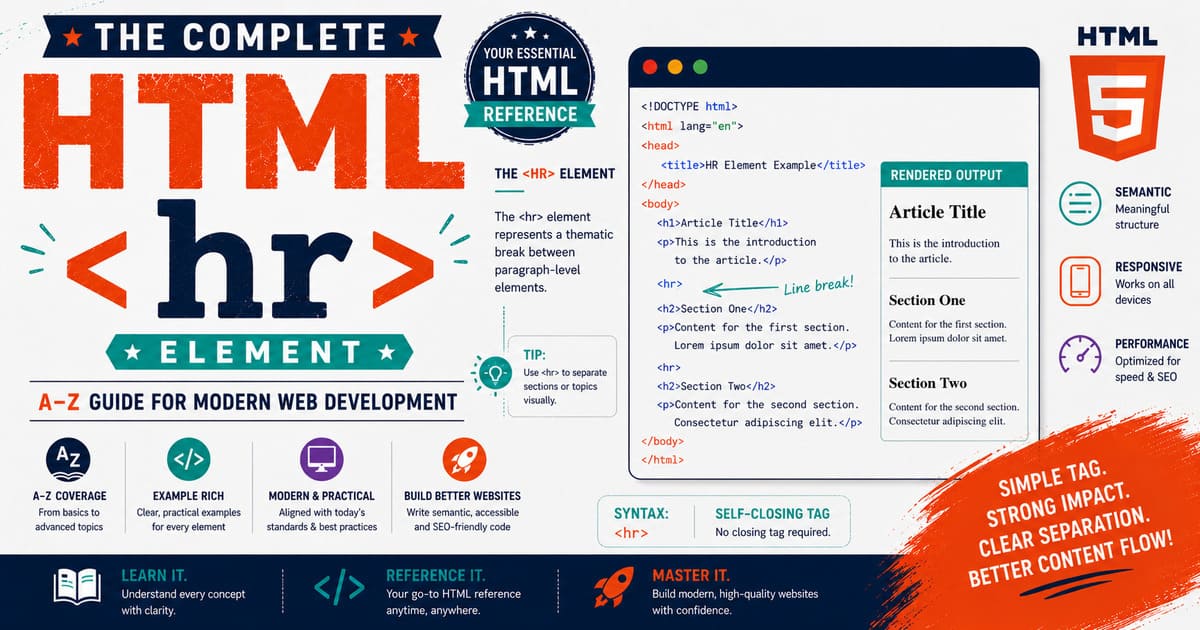
Chapter 5.6 — The <hr> Element
The <hr> element is one of the oldest elements in HTML.
For many years, developers believed that it simply created a horizontal line across the page.
Modern HTML, however, gives the <hr> element a much richer meaning.
Today, <hr> represents a thematic break between sections of content.
This change reflects one of HTML’s most important design principles:
HTML describes the meaning of content, while CSS controls how that content looks.
Understanding the modern purpose of <hr> will help you write cleaner, more semantic, and more accessible HTML documents.
5.6.1 Introduction to the <hr> Element
The <hr> element represents a thematic break between paragraphs or sections.
A thematic break indicates that the topic has changed or that the content has shifted to a different subject.
It does not simply mean “draw a horizontal line.”
The horizontal line is merely the browser’s default visual representation.
Basic Syntax
The <hr> element is a void element.
It has:
- No closing tag
- No child elements
- No text content
Example:
1
2
3
4
5
6
7
8
9
<p>
HTML provides the structure of web pages.
</p>

<hr>

<p>
CSS controls the presentation of web pages.
</p>
Browser output:
1
2
3
4
5
HTML provides the structure of web pages.

────────────────────────────

CSS controls the presentation of web pages.
The line visually indicates that the discussion has moved to another topic.
Why Does HTML Need <hr>?
Imagine reading a long article.
Without thematic separation:
1
2
3
4
5
6
7
8
9
Introduction

History

Architecture

Examples

Conclusion
Everything flows together.
Now imagine using thematic breaks:
1
2
3
4
5
6
7
8
9
10
11
12
13
14
15
16
17
Introduction

──────────────

History

──────────────

Architecture

──────────────

Examples

──────────────

Conclusion
The content becomes much easier to scan.
Readers immediately recognize that a new section has begun.
The Semantic Meaning of <hr>
Modern HTML defines <hr> as a thematic break.
Examples include:
- Beginning a new chapter.
- Changing from one topic to another.
- Separating unrelated discussions.
- Dividing article sections.
- Marking a transition in a story.
- Separating scenes in creative writing.
The emphasis is on meaning, not appearance.
Historical Evolution
Understanding the history of <hr> helps explain why many older websites still misuse it.
HTML 2.0
The <hr> element was introduced primarily as a horizontal rule.
Its purpose was largely visual.
Example:
1
<hr>
Most browsers simply displayed a horizontal line.
HTML 4.01
Developers began using <hr> as both a visual separator and a structural aid.
However, its semantic meaning was still not clearly emphasized.
HTML5 and the HTML Living Standard
Modern HTML redefined <hr> as:
A thematic break between paragraph-level elements.
This means the browser may display a horizontal line, but the line itself is not the meaning.
The meaning is the transition between topics.
Real-World Examples
Blog Articles
1
2
3
4
5
6
7
8
9
10
11
12
13
<h2>Introduction</h2>

<p>
HTML provides document structure.
</p>

<hr>

<h2>CSS</h2>

<p>
CSS controls presentation.
</p>
The <hr> clearly separates two major discussions.
Story Writing
1
2
3
4
5
6
7
8
9
<p>
The traveler reached the ancient city just before sunset.
</p>

<hr>

<p>
Several years later, the city had become a thriving capital.
</p>
The thematic break indicates a significant passage of time.
Recipe Pages
1
2
3
4
5
6
7
8
9
10
11
12
13
14
15
<h2>Ingredients</h2>

<ul>
<li>Flour</li>
<li>Milk</li>
<li>Eggs</li>
</ul>

<hr>

<h2>Instructions</h2>

<p>
Mix all ingredients thoroughly.
</p>
The <hr> separates preparation from execution.
Documentation
1
2
3
4
5
6
7
8
9
10
11
12
13
<h2>Requirements</h2>

<p>
Install a modern web browser.
</p>

<hr>

<h2>Installation</h2>

<p>
Download the latest package.
</p>
Thematic separation improves readability.
<hr> vs <br>
This is one of the most misunderstood topics.
<hr> | <br> |
|---|---|
| Represents a thematic break | Represents a line break |
| Separates topics | Continues the same topic |
| Void element | Void element |
| Usually displayed as a horizontal rule | Usually displayed as a new line |
| Semantic section divider | Semantic line separator |
Think of it this way:
<br>moves down one line.<hr>moves the reader to a new section.
Browser Interpretation
When the browser encounters:
1
<hr>
it performs a process similar to:
1
2
3
4
5
6
7
8
9
10
11
12
13
Encounter <hr>

↓

Create thematic-break node

↓

Apply default browser styles

↓

Continue parsing HTML
Notice that no content exists inside the <hr> element.
Experiment
Create a file named hr-introduction.html.
1
2
3
4
5
6
7
8
9
10
11
12
13
14
15
16
17
18
19
20
21
22
23
24
25
26
27
28
29
30
31
<!DOCTYPE html>

<html lang="en">

<head>
<title>The hr Element</title>
</head>

<body>

<h1>Learning HTML</h1>

<p>
HTML provides document structure.
</p>

<hr>

<p>
CSS controls visual presentation.
</p>

<hr>

<p>
JavaScript adds interactivity.
</p>

</body>

</html>
Open the page in your browser.
Observe that:
- Each
<hr>separates one topic from the next. - The browser displays a horizontal rule by default.
- The element contains no content.
Did You Know?
Although many people still call
<hr>a “horizontal rule,” the HTML Living Standard defines it as a thematic break. This change reflects HTML’s evolution from a presentation-focused language to a semantic markup language where elements describe the meaning of content rather than its appearance.
Summary
In this section, you learned:
- What the
<hr>element represents. - Why it is considered a thematic break.
- Its historical evolution.
- The difference between
<hr>and<br>. - Common real-world applications.
- How browsers interpret it.
Coming Up Next — Section 5.6.2
In the next section, we’ll explore Void Element Behavior, HTML Parsing, and the Internal Structure of <hr>, including:
- Why
<hr>is a void element. - Why it has no closing tag.
- HTML parser behavior.
- DOM representation.
- HTML specification details.
- XHTML compatibility.
- Common mistakes.
- Professional coding standards.
This next section will reveal what actually happens inside the browser when it encounters the <hr> element and why it behaves differently from ordinary HTML elements.
5.6.2 Void Element Behavior, HTML Parsing, and the Internal Structure of <hr>
In the previous section, you learned that the <hr> element represents a thematic break between sections of content.
Now let’s look beneath the surface and understand how browsers interpret this element internally.
Although <hr> appears simple, it follows several important rules defined by the HTML Living Standard.
Understanding these rules will help you write valid HTML and understand how browsers construct web pages.
What Is a Void Element?
Like the <br> element, <hr> belongs to a special category of HTML elements called void elements.
A void element:
- Cannot contain text.
- Cannot contain child elements.
- Has no closing tag.
- Represents a complete instruction by itself.
Example:
1
<hr>
The browser immediately understands:
“Insert a thematic break here.”
Unlike ordinary elements, there is nothing more to read inside the element.
Why Doesn’t <hr> Have a Closing Tag?
Most HTML elements have an opening and closing tag.
Example:
1
2
3
<p>
Learning HTML
</p>
The browser expects content between the tags.
However, <hr> never contains content.
Therefore, this is correct:
1
<hr>
This is incorrect:
1
<hr></hr>
Although some browsers ignore the closing tag for compatibility reasons, it is not valid HTML.
Professional developers never write </hr>.
HTML Parser Behavior
Suppose the browser reads the following document.
1
2
3
4
5
6
7
8
9
<h2>Introduction</h2>

<p>
HTML is the language of the Web.
</p>

<hr>

<h2>Next Topic</h2>
A simplified parser sequence looks like this:
1
2
3
4
5
6
7
8
9
10
11
12
13
14
15
16
17
Read HTML

↓

Encounter <hr>

↓

Create HR element

↓

Apply default browser stylesheet

↓

Continue parsing remaining HTML
Notice that the parser does not wait for a closing tag.
Because <hr> is a void element, parsing continues immediately.
DOM Representation
Consider this HTML.
1
2
3
4
5
<h2>Chapter One</h2>

<hr>

<h2>Chapter Two</h2>
The browser constructs a DOM similar to this:
1
2
3
4
5
6
7
body
│
├── h2
│
├── hr
│
└── h2
The <hr> element exists as its own node in the DOM tree.
It has:
- No children
- No text nodes
- No descendants
Even though it contains nothing, it still participates in the document structure.
HTML Source vs DOM
HTML Source:
1
2
3
4
5
<h1>HTML Guide</h1>

<hr>

<p>Learning HTML is enjoyable.</p>
DOM:
1
2
3
4
5
6
7
8
9
10
11
Document
│
└── html
     │
     └── body
          │
          ├── h1
          │
          ├── hr
          │
          └── p
This demonstrates that <hr> is not merely a visual line.
It is an actual HTML element represented within the DOM.
XHTML Compatibility
You may occasionally encounter this syntax:
1
<hr />
This comes from XHTML, where every element had to be explicitly closed.
Since <hr> cannot have a closing tag like </hr>, XHTML introduced the self-closing syntax.
Today, modern HTML accepts both forms.
Preferred HTML syntax:
1
<hr>
Also valid:
1
<hr />
For consistency, most modern HTML projects use the simpler form.
Can <hr> Have Attributes?
Yes.
Like other HTML elements, <hr> supports global attributes.
Example:
1
<hr id="chapter-divider">
Another example:
1
2
3
4
<hr
class="section-divider"
title="Section Divider"
data-level="2">
Although these attributes are valid, they are generally used only when CSS or JavaScript needs to reference the element.
Can <hr> Contain Other Elements?
No.
The following is invalid.
1
2
3
4
5
<hr>

<p>Content</p>

</hr>
The <hr> element cannot wrap or contain any HTML.
Its purpose is complete the moment it is encountered.
Default Browser Rendering
Without any CSS, browsers usually display <hr> as a horizontal line.
A simplified representation is:
1
──────────────────────────────────────
The exact appearance varies slightly between browsers.
Some browsers use:
- A gray line
- A thin border
- A recessed effect
- A flat modern rule
These differences come from each browser’s default stylesheet.
Browser Default Styles
Although implementations differ slightly, browsers generally apply styles similar to:
1
2
3
4
5
hr{
    display:block;
    border:1px inset;
    margin:0.5em auto;
}
These styles are not part of HTML itself.
They are part of the browser’s built-in CSS.
This distinction is extremely important.
HTML defines meaning.
CSS defines appearance.
Common Mistakes
Mistake 1 — Adding a Closing Tag
Incorrect:
1
<hr></hr>
Correct:
1
<hr>
Mistake 2 — Thinking <hr> Draws a Line
Many beginners believe the purpose of <hr> is:
“Draw a horizontal line.”
Modern HTML defines it differently.
It represents a thematic break.
The horizontal line is merely the browser’s default visualization.
Mistake 3 — Using <hr> Only for Decoration
Some developers place <hr> under headings simply because it “looks nice.”
Example:
1
2
3
<h1>Welcome</h1>

<hr>
Unless the <hr> indicates a meaningful transition in the content, it may not be semantically appropriate.
If your goal is purely decorative, CSS borders are often a better solution.
Best Practices
Professional developers generally:
- Write
<hr>without a closing tag. - Use
<hr>only when content changes topic. - Avoid decorative misuse.
- Style the element using CSS when necessary.
- Remember that
<hr>is part of the document’s semantic structure.
Experiment
Create a file named hr-void-element.html.
1
2
3
4
5
6
7
8
9
10
11
12
13
14
15
16
17
18
19
20
21
22
23
24
25
26
27
<!DOCTYPE html>

<html lang="en">

<head>
<title>Void Elements</title>
</head>

<body>

<h2>Section One</h2>

<p>
Learning HTML.
</p>

<hr>

<h2>Section Two</h2>

<p>
Learning CSS.
</p>

</body>

</html>
Now inspect the page using your browser’s Developer Tools.
Observe:
<hr>appears as its own DOM node.- It has no child elements.
- It has no closing tag.
- The browser renders it using default CSS.
Did You Know?
Every modern browser—including Chrome, Firefox, Safari, and Edge—treats
<hr>as a void element according to the HTML Living Standard. Although browsers may display it differently by default, they all interpret its semantic meaning in the same way: a thematic break between sections of content.
Summary
In this section, you learned:
- Why
<hr>is a void element. - Why it has no closing tag.
- How browsers parse it.
- How it appears in the DOM.
- The relationship between HTML and browser default CSS.
- XHTML compatibility.
- Common mistakes and professional best practices.
Coming Up Next — Section 5.6.3
In the next section, we’ll study Browser Rendering, CSS Styling, and Layout Behavior of the <hr> Element, including:
- The browser rendering pipeline.
- Default CSS styles in modern browsers.
- Customizing
<hr>with CSS. - Creating gradients, dashed lines, double rules, and decorative dividers.
- Responsive behavior.
- Flexbox and Grid interactions.
- Margin, border, and height properties.
- Real-world design examples.
By the end of the next section, you’ll understand not only how <hr> works semantically, but also how professional web designers transform it into elegant section dividers using modern CSS.
5.6.3 Browser Rendering, CSS Styling, and Layout Behavior of <hr>
In the previous section, you learned that the <hr> element is a void element that represents a thematic break in a document.
However, when you open a web page in a browser, you don’t see the words “thematic break.” Instead, you usually see a horizontal line.
Where does that line come from?
The answer is CSS, not HTML.
This chapter explains how browsers render the <hr> element, how CSS affects its appearance, and how professional developers create beautiful section dividers using modern CSS techniques.
HTML Defines Meaning, CSS Defines Appearance
One of the most important principles of web development is separating structure from presentation.
Consider this HTML.
1
<hr>
The HTML specification only says:
“This is a thematic break.”
It does not say:
- Draw a gray line.
- Make it 2 pixels thick.
- Stretch it across the page.
- Add spacing above and below.
Those visual characteristics come from the browser’s User Agent Stylesheet (the browser’s built-in CSS).
Browser Rendering Pipeline
When the browser loads a page containing an <hr> element, a simplified rendering process looks like this:
1
2
3
4
5
6
7
8
9
10
11
12
13
14
15
16
17
18
19
Read HTML Source
        │
        ▼
Parse HTML
        │
        ▼
Create DOM Tree
        │
        ▼
Load Browser CSS
        │
        ▼
Apply Author CSS
        │
        ▼
Compute Layout
        │
        ▼
Paint Screen
Notice that CSS is applied after the HTML has been parsed.
This allows developers to completely change the appearance of <hr> without changing its semantic meaning.
Default Browser Appearance
If you write:
1
<hr>
most browsers display something similar to:
1
──────────────────────────────────────────────
Although the appearance is similar across browsers, there are small differences.
For example:
| Browser | Typical Appearance |
|---|---|
| Chrome | Thin gray horizontal rule |
| Firefox | Thin line with slight shading |
| Safari | Simple flat line |
| Edge | Similar to Chrome (Blink engine) |
These differences come from each browser’s built-in stylesheet.
Inspecting <hr> Using Developer Tools
Create a simple HTML file.
1
2
3
4
5
<h1>HTML Tutorial</h1>

<hr>

<p>Welcome to HTML.</p>
Open the page.
Now:
- Press F12.
- Open Developer Tools.
- Select the Elements panel.
- Click the
<hr>element.
You’ll notice that the browser automatically applies CSS such as margins and borders.
This CSS was never written by you.
It comes from the browser itself.
Understanding the Default CSS
Although each browser differs slightly, the default stylesheet often resembles:
1
2
3
4
5
6
hr{
    display:block;
    margin-top:0.5em;
    margin-bottom:0.5em;
    border:1px inset;
}
This explains why <hr> automatically:
- Occupies an entire line.
- Has spacing above and below.
- Appears as a horizontal rule.
Removing the Default Style
Suppose you don’t want the browser’s default appearance.
You can reset it.
1
2
3
4
hr{
    border:none;
    margin:0;
}
The thematic break still exists in the HTML.
Only its appearance changes.
Creating a Modern Divider
A popular modern style is:
1
2
3
4
5
6
7
8
9
10
11
hr{

border:none;

height:2px;

background:#444;

margin:40px 0;

}
This produces a clean, flat divider suitable for blogs, documentation, and business websites.
Creating a Dashed Divider
Instead of a solid line:
1
2
3
4
5
6
7
hr{

border:none;

border-top:3px dashed #888;

}
Output:
1
- - - - - - - - - - - - - - -
Dashed rules are useful for printable documents and educational material.
Creating a Dotted Divider
1
2
3
4
5
6
7
hr{

border:none;

border-top:4px dotted gray;

}
Output:
1
· · · · · · · · · · · · ·
Creating a Double Line
1
2
3
4
5
6
7
hr{

border:none;

border-top:4px double black;

}
Output:
1
2
============================
============================
Double rules often appear in certificates and formal reports.
Gradient Dividers
Modern websites frequently use gradients.
Example:
1
2
3
4
5
6
7
8
9
10
11
12
13
14
hr{

border:none;

height:3px;

background:linear-gradient(
to right,
transparent,
black,
transparent
);

}
Result:
The line fades in from the left and fades out toward the right.
This style is common on premium landing pages.
Rounded Divider
1
2
3
4
5
6
7
8
9
10
11
hr{

border:none;

height:8px;

background:#444;

border-radius:100px;

}
The divider becomes a smooth rounded bar.
Decorative Divider
You can even create artistic section breaks.
Example:
1
2
3
4
5
6
7
8
9
10
11
12
13
14
15
hr{

border:none;

text-align:center;

}

hr::after{

content:"❖";

font-size:28px;

}
Instead of a plain line, the divider displays a decorative symbol.
This technique is popular in:
- Storytelling websites
- Digital books
- Wedding websites
- Poetry collections
Responsive Behavior
Unlike images, <hr> automatically adjusts to the available width.
Example:
1
2
3
4
5
hr{

width:100%;

}
If the browser window becomes narrower, the rule automatically shrinks.
This makes <hr> naturally responsive.
Controlling Width
Sometimes a full-width divider is unnecessary.
Example:
1
2
3
4
5
6
7
hr{

width:50%;

margin:auto;

}
Result:
The divider occupies only half the page width and remains centered.
Thickness
Thickness is controlled using either height or border.
Example:
1
2
3
4
5
6
7
8
9
hr{

height:5px;

border:none;

background:black;

}
Thicker dividers are useful for major chapter transitions.
Margin and Spacing
Most browsers automatically add spacing around <hr>.
You can customize it.
1
2
3
4
5
hr{

margin:60px 0;

}
This creates generous white space above and below the divider.
Using <hr> Inside Flexbox
Example:
1
2
3
4
5
.container{

display:flex;

}
If <hr> becomes a flex item, its width behaves according to Flexbox rules.
Professional developers often specify:
1
2
3
4
5
hr{

flex:1;

}
to allow the divider to expand naturally.
Using <hr> Inside Grid
Inside CSS Grid:
1
2
3
4
5
.container{

display:grid;

}
The <hr> element occupies its assigned grid cell like any other element.
Its appearance remains controlled by CSS.
Performance
The <hr> element is extremely lightweight.
Even very large documents containing many thematic breaks have negligible performance impact.
However, avoid using numerous decorative <hr> elements when a simple CSS border would achieve the same visual effect.
Choose the element based on meaning, not appearance.
Common Mistakes
Mistake 1
Using <hr> only because it “looks nice.”
Remember:
It should represent a thematic break.
Mistake 2
Using images instead of <hr>.
Poor practice:
1
<img src="line.png">
Better:
1
<hr>
styled with CSS.
Mistake 3
Ignoring browser default styles.
Always inspect the browser’s stylesheet before assuming your CSS is incorrect.
Experiment
Create a file named:
hr-css.html
1
2
3
4
5
6
7
8
9
10
11
12
13
14
15
16
17
18
19
20
21
22
23
24
25
26
27
28
29
30
31
32
33
34
35
36
37
38
39
40
41
42
43
44
45
<!DOCTYPE html>

<html lang="en">

<head>

<title>CSS HR Examples</title>

<style>

hr{

border:none;

height:4px;

background:linear-gradient(
to right,
red,
blue
);

margin:40px 0;

}

</style>

</head>

<body>

<h1>Chapter One</h1>

<p>Introduction</p>

<hr>

<h1>Chapter Two</h1>

<p>Main Content</p>

</body>

</html>
Open the page.
Then experiment by changing:
heightwidthbackgroundbordermarginborder-radius
Observe how dramatically CSS can transform the appearance of <hr> while its semantic meaning remains unchanged.
Did You Know?
The
<hr>element is one of the easiest HTML elements to customize with CSS. Because it is a void element with a simple structure, designers often use it as the foundation for elegant section dividers, decorative separators, and chapter breaks without adding unnecessary HTML elements.
Summary
In this section, you learned:
- How browsers render the
<hr>element. - The role of the browser’s User Agent Stylesheet.
- How to remove default styling.
- How to create modern, dashed, dotted, double, gradient, and decorative dividers.
- Responsive behavior.
- Flexbox and Grid interactions.
- Performance considerations.
- Professional CSS techniques.
Coming Up Next — Section 5.6.4
In the next section, we’ll explore DOM Interface, JavaScript Manipulation, Global Attributes, Accessibility APIs, and Browser Internals of the <hr> Element, including:
- The
HTMLHRElementinterface. - DOM properties and methods.
- Creating and removing
<hr>elements with JavaScript. - Using global attributes.
- Interaction with the Accessibility Tree.
- Event handling.
- Browser implementation details.
- Practical scripting examples.
- Debugging with Developer Tools.
This chapter will move beyond HTML and CSS, showing how browsers expose the <hr> element through the DOM and JavaScript APIs, completing another major piece of your HTML encyclopedia.
5.6.4 DOM Interface, JavaScript Manipulation, Global Attributes, Accessibility APIs, and Browser Internals of the <hr> Element
So far, we’ve studied the <hr> element from two perspectives:
- HTML semantics (what it means)
- CSS rendering (how it looks)
Now we’ll study a third perspective:
How browsers expose the
<hr>element to JavaScript through the Document Object Model (DOM).
Even though <hr> contains no text and no child elements, it is still a fully functional DOM node that can be created, modified, removed, styled, and manipulated just like any other HTML element.
Understanding this is essential for modern web development.
What DOM Interface Represents <hr>?
Every HTML element has a corresponding JavaScript interface.
For the <hr> element, the interface is:
1
HTMLHRElement
Its inheritance hierarchy looks like this:
1
2
3
4
5
6
7
8
9
10
11
12
13
EventTarget
      │
      ▼
Node
      │
      ▼
Element
      │
      ▼
HTMLElement
      │
      ▼
HTMLHRElement
Because HTMLHRElement inherits from HTMLElement, it automatically gains hundreds of useful properties and methods.
Does <hr> Have Special Properties?
Surprisingly, no.
Unlike elements such as <input> or <img>, the <hr> element does not define many unique JavaScript properties.
Instead, it inherits its behavior from HTMLElement.
This makes it one of the simplest DOM interfaces in HTML.
Common Properties
Since <hr> inherits from HTMLElement, it supports properties such as:
| Property | Description |
|---|---|
id | Unique identifier |
className | CSS class names |
title | Tooltip text |
hidden | Hides the element |
style | Inline CSS styles |
dataset | Access to data-* attributes |
parentElement | Parent HTML element |
children | Child elements (always empty for <hr>) |
nextElementSibling | Next sibling element |
previousElementSibling | Previous sibling element |
Selecting an <hr> Element
Suppose the page contains:
1
<hr id="divider">
JavaScript:
1
2
3
4
const divider =
document.getElementById("divider");

console.log(divider);
Output:
1
<hr id="divider">
Although the element is visually simple, JavaScript treats it exactly like any other HTML element.
Selecting Multiple <hr> Elements
HTML:
1
2
3
4
5
<hr>

<hr>

<hr>
JavaScript:
1
2
3
4
const dividers =
document.querySelectorAll("hr");

console.log(dividers.length);
Output:
1
3
The browser returns a NodeList containing all <hr> elements.
Creating an <hr> Dynamically
JavaScript can create a new thematic break while the page is running.
1
2
const hr =
document.createElement("hr");
At this point, the element exists only in memory.
To display it:
1
document.body.appendChild(hr);
The browser immediately inserts a new thematic break into the document.
Inserting <hr> Between Sections
Example:
1
2
3
4
5
6
7
const section =
document.querySelector("#chapter2");

const hr =
document.createElement("hr");

section.before(hr);
Result:
1
2
3
4
5
Section One

──────────────

Section Two
The new divider appears before the second section.
Removing an <hr> Element
HTML:
1
<hr id="oldDivider">
JavaScript:
1
2
3
4
const divider =
document.getElementById("oldDivider");

divider.remove();
The thematic break disappears immediately.
Replacing an <hr>
JavaScript allows one element to be replaced with another.
Example:
1
2
3
4
5
6
7
8
9
10
const divider =
document.querySelector("hr");

const paragraph =
document.createElement("p");

paragraph.textContent =
"New Chapter Begins";

divider.replaceWith(paragraph);
The browser replaces the divider with a paragraph.
Working with CSS Classes
HTML:
1
<hr class="chapter-divider">
JavaScript:
1
2
3
4
const hr =
document.querySelector("hr");

hr.classList.add("highlight");
Now CSS can apply different styles.
Example:
1
2
3
4
5
6
7
.highlight{

background:red;

height:6px;

}
Using Global Attributes
The <hr> element supports all global HTML attributes.
Example:
1
2
3
4
5
6
<hr
id="divider1"
class="major-break"
title="Section Divider"
lang="en"
data-level="chapter">
These attributes can be accessed from JavaScript.
Example:
1
2
3
4
const hr =
document.querySelector("hr");

console.log(hr.dataset.level);
Output:
1
chapter
Accessibility APIs
Modern browsers expose semantic HTML elements to assistive technologies through the Accessibility Tree.
When screen readers encounter an <hr> element, they typically announce a separator or indicate that a thematic break has occurred.
This helps users understand that the document has transitioned to a new section.
The exact announcement depends on:
- Browser
- Screen reader software
- Operating system
Event Handling
Technically, <hr> supports event listeners because it inherits from HTMLElement.
Example:
1
2
3
4
5
6
7
8
const hr =
document.querySelector("hr");

hr.addEventListener("click", function(){

alert("Divider clicked.");

});
Although valid, this is rarely useful because users generally do not interact with thematic breaks.
Interactive behavior should usually be attached to buttons, links, or other controls instead.
Browser Internals
When the browser parses:
1
<hr>
it creates an internal object similar to:
1
2
3
4
5
6
7
HTMLHRElement
      │
      ├── tagName = "HR"
      ├── nodeType = 1
      ├── childNodes = 0
      ├── attributes = {...}
      └── parentElement = body
Although simplified, this model illustrates how the browser represents the element internally.
Inspecting <hr> with Developer Tools
Open Developer Tools.
Select the <hr> element.
You will see:
- HTML markup
- Computed CSS
- Box model
- Accessibility information
- Event listeners (if any)
This is an excellent way to understand how browsers process HTML elements.
Practical Example
Create a file named:
hr-dom.html
1
2
3
4
5
6
7
8
9
10
11
12
13
14
15
16
17
18
19
20
21
22
23
24
25
26
27
28
29
30
31
32
33
34
35
36
<!DOCTYPE html>

<html lang="en">

<head>

<title>DOM Example</title>

</head>

<body>

<h2>Introduction</h2>

<button onclick="addDivider()">

Insert Divider

</button>

<script>

function addDivider(){

const hr =
document.createElement("hr");

document.body.appendChild(hr);

}

</script>

</body>

</html>
Each click creates a new <hr> element dynamically.
This demonstrates that HTML can be generated programmatically at runtime.
Common Mistakes
Mistake 1
Assuming <hr> is only visual.
Remember:
It is a semantic HTML element represented in both the DOM and Accessibility Tree.
Mistake 2
Adding unnecessary event handlers.
Avoid attaching interactive behavior to <hr> unless there is a very specific reason.
Mistake 3
Using JavaScript to repeatedly create decorative <hr> elements.
If the divider is purely decorative, CSS borders or pseudo-elements are often a better solution.
Best Practices
Professional developers:
- Use
<hr>to indicate meaningful transitions. - Manipulate it through JavaScript only when document structure changes dynamically.
- Prefer CSS for decorative effects.
- Use meaningful class names.
- Inspect the Accessibility Tree when building accessible applications.
Did You Know?
Although the
<hr>element is visually simple, browsers expose it through a dedicatedHTMLHRElementinterface. This allows developers to create, remove, replace, and style thematic breaks dynamically while preserving the semantic structure of the document.
Summary
In this section, you learned:
- The
HTMLHRElementinterface. - DOM inheritance.
- Creating, removing, and replacing
<hr>elements. - Global attributes.
- Accessibility Tree behavior.
- Event handling.
- Browser internals.
- Practical JavaScript examples.
- Professional best practices.
Coming Up Next — Section 5.6.5
In the next section, we’ll complete our study of the <hr> element by exploring:
- Accessibility guidelines in depth.
- SEO implications.
- Real-world production examples.
- Common misconceptions.
- Browser compatibility.
- Interview questions.
- HTML specification references.
- Professional coding checklist.
- Complete technical reference.
- Chapter summary.
After completing that section, the <hr> element will be fully covered, just as comprehensively as the <br> element, and we’ll move on to the next HTML element in Chapter 5.
5.6.5 Accessibility, SEO, Browser Compatibility, Interview Questions, and Complete Technical Reference
Congratulations! You have now reached the final section dedicated to the HTML <hr> element.
Throughout this chapter, you’ve learned that <hr> is much more than a simple horizontal line. It is a semantic element that communicates a thematic transition between sections of content.
In this final section, we’ll bring everything together by examining:
- Accessibility
- Search Engine Optimization (SEO)
- Browser compatibility
- Common misconceptions
- Interview questions
- Professional best practices
- A complete technical reference
By the end, you’ll have a complete understanding of the <hr> element from both an academic and professional perspective.
Accessibility (A11Y)
Accessibility is one of the most important aspects of modern web development.
When assistive technologies such as screen readers encounter an <hr> element, they recognize it as a separator between related sections.
Rather than simply announcing “horizontal line,” many modern screen readers interpret the semantic meaning and indicate that the content has transitioned.
Example:
1
2
3
4
5
6
7
8
9
10
11
12
13
<article>

<h2>History</h2>

<p>HTML was introduced in 1991.</p>

<hr>

<h2>Modern HTML</h2>

<p>The HTML Living Standard continues to evolve.</p>

</article>
A user who cannot see the page still understands that a new topic has begun.
This is one of the major reasons semantic HTML is preferred over purely visual solutions.
When Should You Use <hr>?
Professional developers typically use <hr> in situations such as:
- Separating chapters in documentation.
- Dividing sections in long-form articles.
- Marking scene changes in stories.
- Splitting recipes into ingredients and instructions.
- Separating comments or discussion sections.
- Dividing legal or policy documents into major parts.
In each case, the divider represents a meaningful change in the document’s content.
When Should You Avoid <hr>?
Avoid using <hr> when your only goal is visual decoration.
Examples of poor usage include:
1
2
3
4
5
<h1>Welcome</h1>

<hr>

<p>This line exists only because I wanted a border under the heading.</p>
If there is no thematic break, use CSS instead.
Example:
1
2
3
4
h1{
    border-bottom:2px solid #444;
    padding-bottom:10px;
}
This produces the same visual effect while preserving semantic correctness.
SEO Considerations
Many beginners ask:
“Does
<hr>improve SEO?”
The answer is:
Not directly.
Search engines focus on:
- Headings
- Paragraphs
- Lists
- Tables
- Links
- Structured data
- Overall content quality
The <hr> element itself does not increase rankings.
However, semantic HTML improves document organization, making content easier for both users and search engines to interpret.
Good structure contributes to better user experience, which can indirectly support SEO.
Browser Compatibility
The <hr> element has been supported since the earliest versions of HTML.
Modern browsers provide complete support.
| Browser | Supported |
|---|---|
| Google Chrome | ✅ |
| Mozilla Firefox | ✅ |
| Microsoft Edge | ✅ |
| Safari | ✅ |
| Opera | ✅ |
| Android Browser | ✅ |
| Samsung Internet | ✅ |
The semantic behavior of <hr> is consistent across all modern browsers.
Only the default visual styling may differ slightly because each browser uses its own User Agent Stylesheet.
HTML Specification Summary
According to the HTML Living Standard:
<hr>represents a thematic break.- It is a void element.
- It cannot contain child elements.
- It has no closing tag.
- It belongs to the Flow Content category.
- It is represented in the DOM by the
HTMLHRElementinterface.
These characteristics define how browsers parse and interpret the element.
Complete Technical Reference
| Feature | Value |
|---|---|
| Element | <hr> |
| Meaning | Thematic break |
| Category | Flow Content |
| Content Model | None (Void Element) |
| Closing Tag | Not permitted |
| DOM Interface | HTMLHRElement |
| Global Attributes | Supported |
| Event Attributes | Supported |
| Default Display | Block-level element |
| CSS Styling | Fully customizable |
| JavaScript Support | Complete |
Common Misconceptions
Misconception 1
”
<hr>draws a horizontal line.”
Reality:
The horizontal line is only the browser’s default presentation.
The element actually represents a thematic break.
Misconception 2
”
<hr>is only for decoration.”
Reality:
Decorative separators should usually be created with CSS.
The <hr> element should represent meaningful structure.
Misconception 3
”
<hr>cannot be styled.”
Reality:
Modern CSS allows <hr> to be styled in countless ways, including gradients, animations, dashed borders, and custom decorative dividers.
Misconception 4
”
<hr>is obsolete.”
Reality:
The element remains an important part of the HTML Living Standard and is actively supported by all modern browsers.
Interview Questions
Question 1
What is the semantic purpose of the <hr> element?
Answer:
It represents a thematic break between sections of content.
Question 2
Is <hr> a void element?
Answer:
Yes.
It cannot contain child elements and therefore has no closing tag.
Question 3
What JavaScript interface represents the <hr> element?
Answer:
HTMLHRElement
Question 4
Can <hr> be styled using CSS?
Answer:
Yes.
Its appearance is entirely customizable while its semantic meaning remains unchanged.
Question 5
Should <hr> be used to decorate headings?
Answer:
Only if it represents a genuine thematic transition.
If the goal is purely visual, CSS borders are usually a better solution.
Professional Coding Checklist
Before using <hr>, ask yourself:
- Does this divider represent a new topic?
- Is it meaningful rather than decorative?
- Could CSS solve the problem more appropriately?
- Does the page remain accessible?
- Is the HTML valid?
- Is the design responsive?
If the answer to these questions is yes, then <hr> is likely the correct choice.
Practical Exercise
Create a file named:
hr-practice.html
1
2
3
4
5
6
7
8
9
10
11
12
13
14
15
16
17
18
19
20
21
22
23
24
25
26
27
28
29
30
31
32
33
34
35
36
37
38
39
40
41
42
43
44
45
46
47
48
49
50
51
52
53
<!DOCTYPE html>

<html lang="en">

<head>

<title>HR Practice</title>

<style>

hr{

border:none;

height:2px;

background:#333;

margin:30px 0;

}

</style>

</head>

<body>

<h1>HTML Guide</h1>

<p>
Introduction to HTML.
</p>

<hr>

<h2>HTML Elements</h2>

<p>
Learning semantic markup.
</p>

<hr>

<h2>CSS Basics</h2>

<p>
Adding style to web pages.
</p>

</body>

</html>
Experiment by modifying:
heightwidthbackgroundmarginborder-radiusbackground-image
Observe how the visual presentation changes while the HTML structure remains semantically correct.
Chapter Summary
In this chapter, you learned:
- The semantic meaning of
<hr>. - The history of the element.
- Void element behavior.
- HTML parsing.
- DOM representation.
- Browser rendering.
- CSS customization.
- JavaScript manipulation.
- Accessibility.
- SEO implications.
- Browser compatibility.
- Professional best practices.
- Interview questions.
- Complete technical reference.
You now understand the <hr> element at a level that goes far beyond typical HTML tutorials.
Chapter 5 Progress
At this point, we have completed comprehensive coverage of:
- ✅
<br> - ✅
<hr>
These two seemingly simple elements have introduced several foundational concepts that will be reused throughout the rest of Chapter 5, including:
- Semantic HTML
- Void elements
- Browser parsing
- DOM representation
- CSS rendering
- Accessibility
- Best practices
Coming Up Next — Chapter 5.7 — The <wbr> Element
The next element is one that many web developers have never used:
<wbr> — The Word Break Opportunity Element
We’ll cover:
- What
<wbr>is. - Why it was introduced.
- The difference between
<br>and<wbr>. - Browser word-wrapping algorithms.
- Long URLs and technical documentation.
- Responsive typography.
- Soft wrap opportunities.
- Accessibility.
- CSS interaction.
- JavaScript support.
- Browser compatibility.
- Professional use cases.
By the end of the next chapter, you’ll understand one of the most overlooked—but extremely useful—HTML elements for creating responsive and readable web pages.
End of Section 5.6 — The <hr> Element
Status: ✅ Complete
The <hr> element has now been covered in exhaustive detail. From the next lesson onward, we’ll continue building this A–Z HTML encyclopedia with the fascinating and often underused <wbr> element.