Chapter 5.7 — The `<wbr>` Element
Complete guide to the HTML `<wbr>` element with browser algorithms, responsive typography, soft wrap opportunities, accessibility, SEO, JavaScript, and real-world examples.
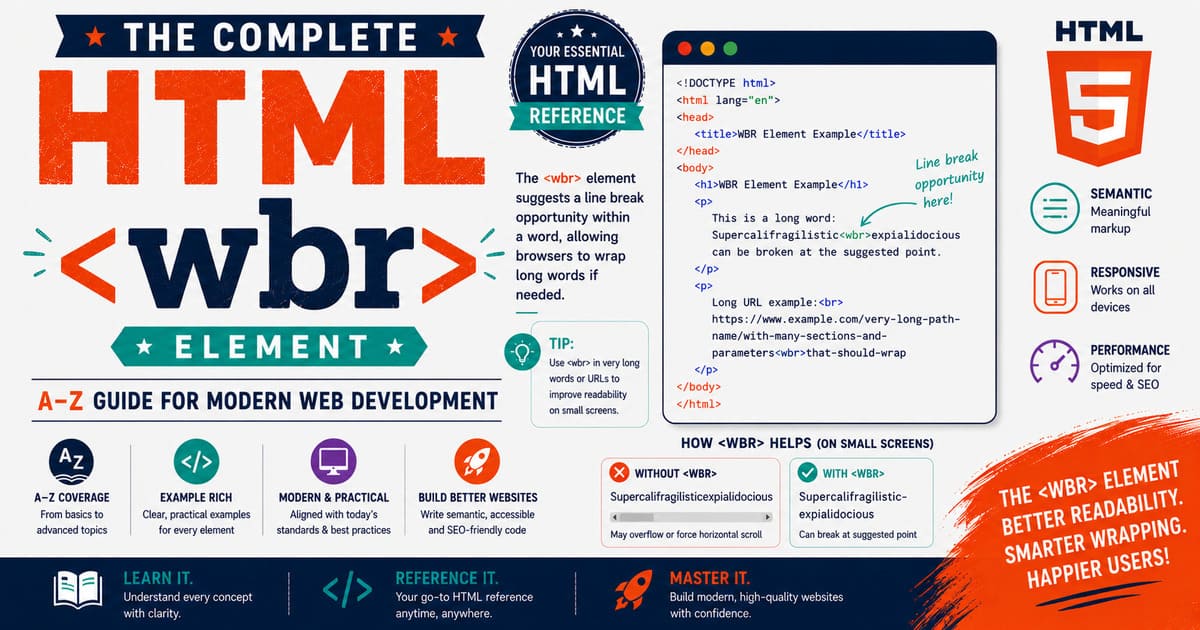
Chapter 5.7 — The <wbr> Element
Among all HTML elements, <wbr> is probably one of the least known.
Many web developers spend years writing HTML without ever using it.
Yet, it solves a very real problem on modern websites:
How can a browser wrap an extremely long word without inserting an actual space or line break?
This is exactly what the <wbr> element was designed to do.
Unlike <br>, which forces a new line, <wbr> merely tells the browser:
“If you ever need to wrap this word because there isn’t enough horizontal space, you may break the line here.”
The browser may use the opportunity—or it may completely ignore it if enough space exists.
5.7.1 Introduction to the <wbr> Element
The name <wbr> stands for:
Word Break Opportunity
The keyword here is opportunity.
It does not force a line break.
Instead, it marks a location where the browser is allowed to wrap text if necessary.
Why Was <wbr> Introduced?
Imagine writing this URL:
1
https://www.example.com/tutorials/html/reference/elements/complete-html-reference/index.html
On a desktop monitor, it may display perfectly.
However, on a mobile phone, the browser faces a problem.
The URL is longer than the available width.
Without a suitable break point, several things can happen:
- Horizontal scrolling appears.
- The page layout breaks.
- Text overflows outside its container.
- Users experience poor readability.
The <wbr> element solves this problem elegantly.
Basic Syntax
Example:
1
Super<wbr>califragilistic<wbr>expialidocious
Notice that there are no spaces.
The word remains one continuous word.
However, the browser now has two optional locations where it may wrap the line.
Browser Behavior
If sufficient space exists:
1
Supercalifragilisticexpialidocious
Nothing changes.
The browser ignores the <wbr> opportunities.
If space becomes limited:
1
2
Supercalifragilistic
expialidocious
or
1
2
Super
califragilisticexpialidocious
depending on where the browser chooses to wrap.
The browser only breaks the word when necessary.
<wbr> Is Not <br>
This is the most important concept to understand.
Consider this example:
1
Programming<br>Language
Output:
1
2
Programming
Language
The line break is mandatory.
Now compare it with:
1
Programming<wbr>Language
On a wide screen:
1
ProgrammingLanguage
On a narrow screen:
1
2
Programming
Language
The browser decides whether to wrap.
This is why <wbr> is called a soft wrap opportunity.
Real-World Example: Long URLs
Without <wbr>:
1
2
3
<p>
https://developer.example.com/documentation/reference/html/elements/tutorial/index.html
</p>
On small screens, the URL may overflow.
With <wbr>:
1
2
3
<p>
https://developer.<wbr>example.<wbr>com/<wbr>documentation/<wbr>reference/<wbr>html/<wbr>elements/<wbr>tutorial/<wbr>index.html
</p>
Now the browser has multiple safe locations where it can wrap the text.
The URL remains exactly the same.
Only its display becomes more responsive.
Long Technical Terms
Technical documentation often contains extremely long identifiers.
Example:
1
InternationalizationConfigurationManagementSystem
Using <wbr>:
1
2
3
4
Internationalization<wbr>
Configuration<wbr>
Management<wbr>
System
The browser may wrap after each logical section.
This greatly improves readability on mobile devices.
Scientific Terminology
Scientific writing often contains unusually long words.
Example:
1
2
3
Electro<wbr>
encephalo<wbr>
graphically
Readers on smaller screens can view the content comfortably without horizontal scrolling.
Product Names
Some software products have long names.
Example:
1
Microsoft<wbr>Visual<wbr>Studio<wbr>Code
If space becomes limited, the browser wraps naturally while preserving readability.
Browser Decision Process
When rendering text, browsers follow a simplified process:
1
2
3
4
5
6
7
8
9
10
11
12
13
14
15
16
Render text
      │
      ▼
Enough horizontal space?
      │
 ┌────┴────┐
 │         │
Yes        No
 │         │
 ▼         ▼
Keep     Search for
same     <wbr>
line     opportunities
            │
            ▼
Break line if needed
Notice that <wbr> never forces the decision.
It simply provides additional possibilities.
Why Not Insert Spaces?
You might ask:
“Why not just insert spaces?”
Because spaces change the actual text.
For example:
1
Visual Studio Code
is different from
1
VisualStudioCode
Similarly,
1
example.com
must never become
1
example . com
The <wbr> element preserves the original text while improving layout.
Practical Exercise
Create a file named:
wbr-introduction.html
1
2
3
4
5
6
7
8
9
10
11
12
13
14
15
16
17
18
19
20
21
22
23
24
25
26
27
28
29
30
31
32
33
34
35
<!DOCTYPE html>

<html lang="en">

<head>

<title>Learning WBR</title>

<style>

body{

font-family:Arial;

max-width:300px;

margin:auto;

}

</style>

</head>

<body>

<p>

Super<wbr>califragilistic<wbr>expialidocious

</p>

</body>

</html>
Open the page.
Now gradually resize the browser window.
Observe how the browser wraps the word only when necessary.
Did You Know?
The
<wbr>element doesn’t insert a visible character into the document. Instead, it creates an invisible “soft wrap opportunity” that the browser may use when the available line width becomes too small. If enough space exists, the browser completely ignores it.
Summary
In this section, you learned:
- What the
<wbr>element is. - Why it was introduced.
- The meaning of “Word Break Opportunity.”
- The difference between forced and optional line breaks.
- Common use cases.
- How browsers decide whether to wrap.
- Why
<wbr>is better than inserting spaces.
Coming Up Next — Section 5.7.2
In the next section, we’ll explore the HTML specification, browser parsing algorithm, DOM representation, and internal behavior of the <wbr> element, including:
- Whether
<wbr>is a void element. - Why it has no closing tag.
- Parser behavior.
- DOM structure.
- The
HTMLWBRElementinterface (or lack thereof). - Browser implementation details.
- XHTML compatibility.
- Common misconceptions.
You’ll discover that <wbr> is one of the most interesting elements in HTML because its behavior depends heavily on the browser’s text layout engine rather than simple HTML parsing.
5.7.2 HTML Specification, Void Element Behavior, Browser Parsing, and DOM Representation of <wbr>
In the previous section, you learned what the <wbr> element is and why it exists.
Now it’s time to go deeper.
As professional HTML developers, we shouldn’t stop at “what an element does.”
We should also understand:
- How browsers parse it.
- How it is represented internally.
- Why it has no closing tag.
- How it behaves inside the Document Object Model (DOM).
- What the HTML Living Standard says about it.
This knowledge helps you write cleaner HTML, debug browser issues, and understand how rendering engines work behind the scenes.
Is <wbr> a Void Element?
Yes.
The <wbr> element is a void element.
Like several other HTML elements, it cannot contain any content.
That means it:
- Cannot contain text.
- Cannot contain child elements.
- Does not require a closing tag.
- Represents a complete instruction by itself.
Correct:
1
<wbr>
Incorrect:
1
<wbr></wbr>
Although browsers may ignore the closing tag for compatibility reasons, it is not valid HTML.
Why Is <wbr> a Void Element?
Think about the purpose of <wbr>.
It doesn’t display text.
It doesn’t create a container.
It doesn’t hold other elements.
Instead, it simply marks one invisible position inside a text flow.
Example:
1
Hyper<wbr>Text<wbr>Markup<wbr>Language
Each <wbr> acts like an invisible marker.
Once the browser reaches it, the instruction has already been completed.
There is nothing more for the element to contain.
Parser Behavior
Consider the following HTML.
1
2
3
4
5
<p>

International<wbr>ization

</p>
A simplified HTML parser processes it like this:
1
2
3
4
5
6
7
8
9
10
11
12
13
14
15
16
17
18
19
20
21
22
23
24
25
26
27
28
29
Read <p>

↓

Create Paragraph Node

↓

Read Text

↓

Encounter <wbr>

↓

Insert Word Break Opportunity

↓

Continue Reading Text

↓

Encounter </p>

↓

Paragraph Complete
Notice something important:
The parser never waits for a closing </wbr> tag because no such tag exists.
DOM Representation
Although <wbr> produces no visible output, it still exists inside the DOM.
Example:
1
2
3
4
5
<p>

Hyper<wbr>Text

</p>
The browser creates a DOM similar to:
1
2
3
4
5
6
7
8
9
10
11
12
13
Document
│
└── html
     │
     └── body
          │
          └── p
               │
               ├── Text ("Hyper")
               │
               ├── wbr
               │
               └── Text ("Text")
Notice that the <wbr> element is a separate node between two text nodes.
This allows the browser’s text layout engine to recognize a possible wrap location.
Viewing the DOM
Open the previous example in your browser.
Press F12 to open Developer Tools.
Expand the <p> element.
You will see something similar to:
1
2
3
4
5
6
7
8
9
<p>

Hyper

<wbr>

Text

</p>
Even though nothing is visible on the page, the <wbr> node exists inside the document.
Browser Rendering
The browser performs two separate jobs.
Step 1 — Parse HTML
The parser constructs the DOM.
1
2
3
4
5
HTML

↓

DOM Tree
Step 2 — Layout Text
The text layout engine examines each line.
When it encounters <wbr>, it asks:
“Do I need to wrap the text here?”
If the answer is No, the browser continues on the same line.
If the answer is Yes, the browser breaks the line at that position.
This decision depends entirely on the available horizontal space.
Browser Algorithm (Simplified)
The rendering engine behaves roughly like this:
1
2
3
4
5
6
7
8
9
10
11
12
13
14
15
16
17
18
19
20
21
22
23
24
25
26
27
28
29
30
31
32
33
34
35
36
37
Read Text

↓

Enough Width?

│

├── Yes

│      │

│      ▼

│ Continue Same Line

│

└── No

       │

       ▼

Look Back

For

<wbr>

       │

       ▼

Break Line

If Found
Notice that <wbr> is only one of several possible wrapping opportunities.
Browsers also consider:
- Spaces
- Hyphens
- Language-specific word boundaries
- CSS word-breaking rules
XHTML Compatibility
Older XHTML documents often used:
1
<wbr />
This syntax is perfectly acceptable.
Modern HTML also accepts:
1
<wbr>
Most developers writing HTML5 prefer the shorter version.
Can <wbr> Have Attributes?
Yes.
Like all HTML elements, <wbr> supports global attributes.
Example:
1
<wbr id="break1">
You can also use:
1
2
3
4
<wbr
class="soft-break"
title="Optional wrap"
data-position="1">
These attributes are rarely required but are completely valid.
Does <wbr> Produce Any Visible Character?
No.
This is one of its defining characteristics.
Unlike:
1
<br>
which immediately creates a visible new line,
<wbr> inserts no visible output whatsoever.
If the browser never needs to wrap the line, users will never know the element exists.
Can CSS Style <wbr>?
Technically, yes.
Example:
1
2
3
4
5
wbr{

display:inline;

}
However, because <wbr> has no visible representation, styling it has almost no practical effect.
Most developers never apply CSS directly to <wbr>.
Can JavaScript Access <wbr>?
Absolutely.
Example:
1
2
3
4
5
<p>

Hyper<wbr id="softbreak">Text

</p>
JavaScript:
1
2
3
4
const element =
document.getElementById("softbreak");

console.log(element);
The browser returns:
1
<wbr id="softbreak">
Even invisible elements remain accessible through the DOM.
Common Misconceptions
Misconception 1
”
<wbr>creates a new line.”
Incorrect.
It merely provides an optional location where a line may wrap.
Misconception 2
”
<wbr>inserts a space.”
Incorrect.
The text remains exactly the same.
No space character is added.
Misconception 3
”
<wbr>is obsolete.”
Incorrect.
The element is part of the HTML Living Standard and is fully supported by modern browsers.
Experiment
Create a file named:
wbr-dom.html
1
2
3
4
5
6
7
8
9
10
11
12
13
14
15
16
17
18
19
20
21
22
23
24
25
26
27
28
29
30
<!DOCTYPE html>

<html lang="en">

<head>

<title>DOM Example</title>

</head>

<body>

<p>

Hyper<wbr id="breakpoint">Text

</p>

<script>

const node =
document.getElementById("breakpoint");

console.log(node);

</script>

</body>

</html>
Open Developer Tools.
Observe that:
- The
<wbr>node exists. - It has no child nodes.
- It has no visible appearance.
- It participates in the DOM like any other HTML element.
Did You Know?
Unlike
<br>, which immediately forces the browser to begin a new line,<wbr>does nothing during HTML parsing except insert an invisible node into the DOM. The browser’s text layout engine decides later—during rendering—whether that node should become an actual line break based on the available horizontal space.
Summary
In this section, you learned:
- Why
<wbr>is a void element. - Why it has no closing tag.
- How browsers parse it.
- How it appears in the DOM.
- XHTML compatibility.
- Global attributes.
- JavaScript access.
- Common misconceptions.
- The relationship between the HTML parser and the text layout engine.
Coming Up Next — Section 5.7.3
In the next section, we’ll explore Text Wrapping Algorithms, CSS Interaction, Responsive Typography, and Advanced Layout Techniques with <wbr>, including:
- How browsers calculate line breaks.
- Interaction with
white-space,overflow-wrap,word-break, andhyphens. - Responsive design strategies.
- Long URLs, file paths, and programming identifiers.
- Typography best practices.
- Real-world production examples.
- Performance considerations.
This will be one of the most technically advanced chapters in the entire HTML reference, showing exactly how modern browsers wrap text and where <wbr> fits into the rendering process.
5.7.3 Text Wrapping Algorithms, CSS Interaction, Responsive Typography, and Advanced Layout Techniques with <wbr>
In the previous sections, you learned that the <wbr> element creates an optional word break opportunity. Unlike <br>, it never forces a line break. Instead, it works together with the browser’s text layout engine to improve readability when horizontal space becomes limited.
In this section, we’ll explore one of the most fascinating aspects of modern HTML:
How browsers decide where text should wrap.
We’ll also study how <wbr> interacts with CSS properties that control text flow, making this one of the most technically detailed parts of this HTML reference.
Understanding Text Wrapping
Whenever a browser displays text, it must decide where each line should end.
Imagine the following sentence displayed inside a narrow container:
1
Learning HTML is both enjoyable and rewarding for beginners.
The browser measures:
- The available width of the container.
- The width of each character.
- Font metrics.
- Existing spaces.
- Word boundaries.
- Language-specific rules.
- CSS properties.
- Optional break opportunities such as
<wbr>.
Only after evaluating all these factors does it decide where to wrap the line.
Simplified Browser Line-Break Algorithm
A browser’s rendering engine performs a process similar to the following:
1
2
3
4
5
6
7
8
9
10
11
12
13
14
15
16
17
18
19
20
21
22
23
24
25
26
27
28
29
30
31
32
33
34
35
36
37
38
39
40
41
42
43
44
45
46
47
48
49
50
51
Read text

↓

Measure available width

↓

Does the next word fit?

│

├── Yes

│       │

│       ▼

│ Continue

│

└── No

        │

        ▼

Look for legal break points

        │

        ├── Space

        ├── Hyphen

        ├── <wbr>

        ├── Language rules

        └── CSS rules

        │

        ▼

Choose the most appropriate location

↓

Continue rendering
Notice that <wbr> is only one possible break opportunity.
Why <wbr> Is Better Than Splitting Words
Suppose you have the following product name:
1
VisualStudioCodeExtensionsMarketplace
One solution is to insert spaces.
1
Visual Studio Code Extensions Marketplace
However, this changes the original text.
Instead, use:
1
Visual<wbr>Studio<wbr>Code<wbr>Extensions<wbr>Marketplace
The displayed text remains exactly the same until the browser decides that wrapping is necessary.
Interaction with CSS
The <wbr> element works together with several CSS properties that influence text wrapping.
The most important ones are:
white-spaceoverflow-wrapword-breakhyphens
Let’s study each one in detail.
The white-space Property
The white-space property controls how spaces and line breaks are handled.
Example:
1
2
3
4
5
p{

white-space:normal;

}
This is the browser’s default behavior.
With this setting, <wbr> works normally.
white-space: nowrap
Example:
1
2
3
4
5
p{

white-space:nowrap;

}
Now the browser is instructed never to wrap lines automatically.
Even if <wbr> exists:
1
Hyper<wbr>Text<wbr>Markup<wbr>Language
the browser keeps everything on one line.
This demonstrates that CSS has higher authority over text layout than <wbr>.
white-space: pre
Example:
1
2
3
4
5
pre{

white-space:pre;

}
The browser preserves every space and line break exactly as written.
In this mode, <wbr> generally has no practical effect because automatic wrapping is disabled.
The overflow-wrap Property
One of the most useful CSS properties for responsive design is:
1
overflow-wrap:break-word;
This property tells the browser:
“If necessary, break long words to prevent overflow.”
Without <wbr>:
1
InternationalizationConfigurationManagementSystem
the browser may split the word at arbitrary positions.
With <wbr>:
1
2
3
4
Internationalization<wbr>
Configuration<wbr>
Management<wbr>
System
the browser has logical break opportunities and produces more readable output.
The word-break Property
Example:
1
word-break:break-all;
This property allows the browser to break words almost anywhere.
Example output:
1
2
3
4
5
Internatio
nalization
Configurat
ionManage
ment
Although useful in rare situations, this often produces poor readability.
Using <wbr> usually results in much cleaner text wrapping.
The hyphens Property
Modern browsers also support:
1
hyphens:auto;
When enabled, browsers may insert hyphens according to language-specific dictionaries.
Example:
1
2
International-
ization
The <wbr> element differs because it does not insert a hyphen.
It simply creates a possible wrapping location.
<wbr> vs CSS Word Wrapping
| Feature | <wbr> | CSS Word Breaking |
|---|---|---|
| Controlled in HTML | ✔ | ✘ |
| Controlled in CSS | ✘ | ✔ |
| Preserves original text | ✔ | ✔ |
| Gives precise wrap locations | ✔ | Limited |
| Useful for URLs | ✔ | Sometimes |
| Useful for long identifiers | ✔ | Sometimes |
The two approaches complement each other rather than compete.
Real-World Example — Long URLs
Consider the following URL.
1
https://developer.example.com/documentation/html/reference/elements/wbr/examples/tutorial/index.html
On mobile devices, this may overflow its container.
Using <wbr>:
1
2
3
4
5
6
7
8
9
10
11
https://developer.<wbr>
example.<wbr>
com/<wbr>
documentation/<wbr>
html/<wbr>
reference/<wbr>
elements/<wbr>
wbr/<wbr>
examples/<wbr>
tutorial/<wbr>
index.html
The browser now has multiple logical wrapping opportunities.
Real-World Example — File Paths
Developers often display long file paths.
1
C:\Users\Kannan\Documents\Projects\HTMLReference\Chapter5\Examples\Responsive\Tutorials
Improved version:
1
2
3
4
5
6
7
8
9
C:\Users\<wbr>
Kannan\<wbr>
Documents\<wbr>
Projects\<wbr>
HTMLReference\<wbr>
Chapter5\<wbr>
Examples\<wbr>
Responsive\<wbr>
Tutorials
The file path becomes much easier to read on narrow screens.
Real-World Example — Programming Identifiers
Large software projects often contain long class names.
1
CustomerAccountTransactionHistoryManager
Better:
1
2
3
4
5
Customer<wbr>
Account<wbr>
Transaction<wbr>
History<wbr>
Manager
Developers reading technical documentation greatly benefit from improved wrapping.
Responsive Typography
The <wbr> element is particularly valuable in responsive design.
As screen width decreases:
- Tablets
- Mobile phones
- Foldable devices
- Small embedded displays
the browser gains additional flexibility in placing line breaks.
Instead of overflowing, long words wrap gracefully at logical positions.
Performance
The <wbr> element has almost no performance cost.
It is:
- Lightweight.
- Parsed quickly.
- Ignored when unnecessary.
- Supported natively by rendering engines.
Even documents containing hundreds of <wbr> elements perform efficiently.
Common Mistakes
Mistake 1
Using <br> instead of <wbr>.
Incorrect:
1
Hyper<br>Text
This forces a line break.
Correct:
1
Hyper<wbr>Text
The browser decides whether wrapping is necessary.
Mistake 2
Inserting spaces instead of <wbr>.
Spaces change the actual content.
<wbr> preserves the original word.
Mistake 3
Assuming <wbr> always creates a visible line break.
It only creates a possible break point.
If sufficient space exists, nothing happens.
Experiment
Create a file named:
wbr-responsive.html
1
2
3
4
5
6
7
8
9
10
11
12
13
14
15
16
17
18
19
20
21
22
23
24
25
26
27
28
29
30
31
32
33
34
35
36
37
38
<!DOCTYPE html>

<html lang="en">

<head>

<title>Responsive WBR</title>

<style>

body{

font-family:Arial;

max-width:250px;

margin:auto;

}

</style>

</head>

<body>

<p>

Internationalization<wbr>
Configuration<wbr>
Management<wbr>
System

</p>

</body>

</html>
Open the page.
Resize your browser window.
Observe how the browser wraps the text only when necessary and only at the locations marked with <wbr>.
Did You Know?
The
<wbr>element is widely used in technical documentation, developer portals, programming manuals, and API references. It allows browsers to wrap extremely long identifiers, URLs, and file paths without modifying the original content, making documentation far more readable on mobile devices.
Summary
In this section, you learned:
- How browsers calculate line breaks.
- The browser’s text-wrapping algorithm.
- The relationship between
<wbr>and CSS. - How
white-space,overflow-wrap,word-break, andhyphensaffect wrapping. - Real-world examples involving URLs, file paths, and programming identifiers.
- Responsive typography techniques.
- Performance considerations.
- Common mistakes and best practices.
Coming Up Next — Section 5.7.4
In the next section, we’ll study JavaScript, DOM Manipulation, Accessibility, SEO, Browser Compatibility, and Professional Best Practices for <wbr>, including:
- DOM interfaces.
- Creating and removing
<wbr>elements with JavaScript. - Accessibility considerations.
- Search engine behavior.
- Browser compatibility.
- Interview questions.
- Professional coding standards.
- Complete technical reference.
By the end of the next section, your understanding of the <wbr> element will be complete, making it one of the most thoroughly documented HTML element references available.
5.7.4 JavaScript, DOM Manipulation, Accessibility, SEO, Browser Compatibility, and Professional Best Practices for <wbr>
In the previous sections, you learned how the <wbr> element helps browsers wrap long words gracefully without changing the actual content.
Now we’ll explore how the <wbr> element behaves inside the Document Object Model (DOM), how JavaScript can manipulate it, how assistive technologies interpret it, and what professional developers should know when using it in production websites.
Although <wbr> is visually invisible, it is still a genuine HTML element with a place in the DOM tree and can be manipulated just like any other HTML element.
Does <wbr> Exist in the DOM?
Yes.
Even though <wbr> has no visible appearance, browsers create a DOM node for it.
Consider this HTML:
1
2
3
4
5
<p>

Hyper<wbr id="breakpoint">Text

</p>
The browser creates a simplified DOM structure similar to this:
1
2
3
4
5
6
7
8
9
10
11
12
13
Document
│
└── html
     │
     └── body
          │
          └── p
               │
               ├── Text ("Hyper")
               │
               ├── wbr
               │
               └── Text ("Text")
The <wbr> node sits between two text nodes and provides the rendering engine with an optional wrapping location.
JavaScript and <wbr>
Like every HTML element, <wbr> can be accessed through JavaScript.
Example:
1
2
3
4
const breakPoint =
document.getElementById("breakpoint");

console.log(breakPoint);
Output:
1
<wbr id="breakpoint">
Although the element has no visible appearance, JavaScript treats it exactly like any other DOM element.
Selecting Multiple <wbr> Elements
HTML:
1
2
3
4
5
<wbr>

<wbr>

<wbr>
JavaScript:
1
2
3
4
const breaks =
document.querySelectorAll("wbr");

console.log(breaks.length);
Output:
1
3
The browser returns a NodeList containing all <wbr> elements.
Creating a <wbr> Dynamically
JavaScript allows developers to create word-break opportunities at runtime.
Example:
1
2
const softBreak =
document.createElement("wbr");
The element now exists in memory.
To insert it into the page:
1
document.body.appendChild(softBreak);
The browser immediately updates the DOM.
Inserting <wbr> Inside Existing Text
Suppose you have:
1
2
3
4
5
<p id="language">

HyperTextMarkupLanguage

</p>
JavaScript:
1
2
3
4
5
6
7
const paragraph =
document.getElementById("language");

const breakPoint =
document.createElement("wbr");

paragraph.appendChild(breakPoint);
In real-world applications, developers usually rebuild the text using multiple text nodes with <wbr> inserted between logical sections.
Removing <wbr>
Example:
1
2
3
4
5
<p>

Hyper<wbr id="softBreak">Text

</p>
JavaScript:
1
2
3
4
const element =
document.getElementById("softBreak");

element.remove();
The browser removes the optional wrap location from the document.
Global Attributes
The <wbr> element supports all global HTML attributes.
Example:
1
2
3
4
5
6
<wbr
id="wrap1"
class="optional-break"
title="Soft wrap location"
lang="en"
data-part="section1">
Although global attributes are supported, most developers only use id or class when JavaScript or CSS needs to reference the element.
Accessibility
One of the most common questions is:
“Can screen readers see
<wbr>?”
The answer is:
Yes—but not in the way beginners often expect.
The <wbr> element does not announce itself as “word break.”
Instead, assistive technologies generally read the surrounding text naturally.
If the browser wraps the text visually because of <wbr>, screen readers still interpret the content as one continuous word unless language rules dictate otherwise.
This makes <wbr> an accessibility-friendly solution for responsive typography.
SEO Considerations
Search engines do not treat <wbr> as a visible character.
For example:
1
Hyper<wbr>Text<wbr>Markup<wbr>Language
is indexed as:
1
HyperTextMarkupLanguage
The inserted <wbr> elements do not change the underlying text.
This is especially important for:
- Product names
- URLs
- Technical identifiers
- Programming terms
Search engines continue to understand the original content correctly.
Browser Compatibility
The <wbr> element is fully supported by all modern browsers.
| Browser | Supported |
|---|---|
| Google Chrome | ✅ |
| Mozilla Firefox | ✅ |
| Microsoft Edge | ✅ |
| Safari | ✅ |
| Opera | ✅ |
| Android Browser | ✅ |
| Samsung Internet | ✅ |
Support has been stable for many years, making <wbr> safe to use in production websites.
Common Misconceptions
Misconception 1
”
<wbr>inserts a hidden space.”
Incorrect.
No character is inserted into the document.
The text remains exactly the same.
Misconception 2
”
<wbr>changes the value copied to the clipboard.”
Incorrect.
If a user copies:
1
Hyper<wbr>Text
the copied text becomes:
1
HyperText
The <wbr> element is ignored.
Misconception 3
”
<wbr>is only useful for URLs.”
Incorrect.
Professional developers use it for:
- Scientific terms
- Product names
- File paths
- Programming identifiers
- Chemical formulas
- Mathematical notation
- API documentation
Best Practices
Professional developers generally follow these guidelines:
- Insert
<wbr>only at logical break points. - Never use
<wbr>to replace spaces. - Avoid excessive word-break opportunities.
- Combine
<wbr>with responsive CSS when necessary. - Test long content on mobile devices.
- Inspect wrapping behavior using Developer Tools.
Practical Exercise
Create a file named:
wbr-javascript.html
1
2
3
4
5
6
7
8
9
10
11
12
13
14
15
16
17
18
19
20
21
22
23
24
25
26
27
28
29
30
31
32
33
34
35
36
37
38
39
40
41
<!DOCTYPE html>

<html lang="en">

<head>

<title>WBR JavaScript</title>

</head>

<body>

<p id="demo">

HyperTextMarkupLanguage

</p>

<button onclick="insertBreak()">

Insert Word Break

</button>

<script>

function insertBreak(){

const paragraph =
document.getElementById("demo");

paragraph.innerHTML =
"Hyper<wbr>Text<wbr>Markup<wbr>Language";

}

</script>

</body>

</html>
Open the page.
Click the button.
Resize the browser window.
Notice how the word wraps naturally after JavaScript inserts the <wbr> elements.
Interview Questions
Question 1
What does <wbr> stand for?
Answer:
Word Break Opportunity.
Question 2
Does <wbr> force a line break?
Answer:
No.
It provides an optional location where the browser may wrap text if necessary.
Question 3
Is <wbr> a void element?
Answer:
Yes.
It has no closing tag and cannot contain child elements.
Question 4
Can JavaScript create a <wbr> element?
Answer:
Yes.
Use:
1
document.createElement("wbr");
Question 5
Does <wbr> affect SEO?
Answer:
No.
Search engines ignore the element and index the surrounding text as one continuous string.
Did You Know?
The
<wbr>element is frequently used in official documentation for programming languages, web APIs, and software libraries. It allows long identifiers to wrap gracefully on small screens while preserving the exact text for searching, copying, and indexing.
Summary
In this section, you learned:
- How
<wbr>exists inside the DOM. - JavaScript manipulation techniques.
- Global attribute support.
- Accessibility behavior.
- SEO implications.
- Browser compatibility.
- Common misconceptions.
- Professional best practices.
- Practical JavaScript examples.
- Interview questions.
Coming Up Next — Section 5.7.5
In the final section of the <wbr> chapter, we’ll complete our study with:
- HTML Living Standard specification notes.
- Internal browser rendering details.
- Comparison with Unicode soft hyphens (
­). <wbr>versus CSS-only solutions.- Advanced production use cases.
- Professional coding checklist.
- Complete technical reference table.
- Final chapter summary.
After completing that section, the <wbr> element will be fully documented, and we’ll move on to the next HTML element in Chapter 5, continuing our journey toward creating the most comprehensive HTML reference available.
5.7.5 HTML Specification, Unicode Soft Hyphens, Browser Internals, Best Practices, and Complete Technical Reference
Welcome to the final section of the <wbr> element.
By now, you’ve learned that <wbr> is far more than an obscure HTML tag. It is a powerful semantic tool that allows browsers to wrap text intelligently while preserving the original content.
In this final section, we’ll examine the HTML Living Standard, compare <wbr> with Unicode soft hyphens, understand browser internals, explore advanced production use cases, and conclude with a complete technical reference.
HTML Living Standard
According to the HTML Living Standard, the <wbr> element represents a word break opportunity.
This means:
- It suggests a possible line-break location.
- It does not force a line break.
- It has no visual representation.
- It does not insert whitespace into the document.
This semantic meaning is consistent across all modern browsers.
Unlike many older HTML elements whose meanings changed over time, the purpose of <wbr> has remained stable since HTML5.
Browser Rendering Internals
To understand <wbr>, let’s examine what happens inside the browser.
When the HTML parser encounters:
1
Hyper<wbr>Text
the browser performs these simplified steps:
1
2
3
4
5
6
7
8
9
10
11
12
13
14
15
16
17
18
19
20
21
22
23
Read HTML
      │
      ▼
Create DOM Tree
      │
      ▼
Insert WBR Node
      │
      ▼
Build Render Tree
      │
      ▼
Measure Available Width
      │
      ▼
Need Line Break?
      │
 ┌────┴────┐
 │         │
No         Yes
 │         │
 ▼         ▼
Ignore   Break at WBR
Notice that <wbr> is ignored unless the layout engine determines that wrapping is required.
<wbr> vs Unicode Soft Hyphen (­)
Many developers confuse <wbr> with the Unicode soft hyphen entity:
1
­
Although both influence line wrapping, they behave differently.
| Feature | <wbr> | ­ |
|---|---|---|
| Inserts visible hyphen when wrapped | ❌ | ✅ |
| Invisible if not wrapped | ✅ | ✅ |
| HTML element | ✅ | ❌ |
| Unicode character | ❌ | ✅ |
| Affects copied text | Usually No | Sometimes Yes |
| Semantic HTML | ✅ | No |
Example Comparison
Using <wbr>:
1
Super<wbr>Computer
If wrapping occurs:
1
2
Super
Computer
No hyphen appears.
Using ­:
1
Super­Computer
If wrapping occurs:
1
2
Super-
Computer
The browser inserts a visible hyphen.
This makes ­ more appropriate for natural-language words that may require hyphenation.
When Should You Use <wbr>?
Use <wbr> when breaking text must not change its appearance or meaning.
Excellent use cases include:
- Long URLs
- Email addresses
- File paths
- Programming identifiers
- Product names
- CSS class names
- JavaScript function names
- Database table names
- API endpoints
Example:
1
2
3
4
https://developer.<wbr>
example.<wbr>
com/<wbr>
documentation
When Should You Use ­?
Use soft hyphens for normal language.
Example:
1
electro­encephalography
If the browser wraps the word:
1
2
electro-
encephalography
This follows normal typographic conventions.
<wbr> vs CSS Solutions
Developers often ask whether they should use <wbr> or CSS.
The answer depends on the problem.
Use <wbr> when:
- You know the logical break positions.
- Specific words require controlled wrapping.
- URLs or identifiers are involved.
Use CSS when:
- Every long word should wrap automatically.
- The layout is entirely responsive.
- No manual control is necessary.
Professional websites frequently combine both techniques.
Production Examples
Documentation Websites
Developer documentation commonly inserts <wbr> into:
- API endpoints
- Package names
- Programming namespaces
- Class hierarchies
This improves readability on tablets and mobile phones.
E-commerce Websites
Long product names often include:
1
UltraHighPerformanceWirelessGamingMechanicalKeyboard
Better:
1
2
3
4
5
6
7
Ultra<wbr>
High<wbr>
Performance<wbr>
Wireless<wbr>
Gaming<wbr>
Mechanical<wbr>
Keyboard
Customers can read the product title without horizontal scrolling.
Scientific Publications
Research papers often contain extremely long terminology.
Strategically placing <wbr> elements prevents narrow mobile layouts from overflowing.
Educational Platforms
Programming tutorials commonly display:
1
getInternationalConfigurationSettings()
Improved:
1
2
3
4
get<wbr>
International<wbr>
Configuration<wbr>
Settings()
Students reading on phones benefit from much cleaner wrapping.
Performance Considerations
The <wbr> element is extremely lightweight.
Rendering engines treat it as a simple inline element with no visible box.
Even pages containing hundreds of <wbr> elements render efficiently.
There is virtually no measurable performance penalty.
Browser Compatibility
The <wbr> element enjoys excellent browser support.
| Browser | Support |
|---|---|
| Chrome | ✅ |
| Firefox | ✅ |
| Edge | ✅ |
| Safari | ✅ |
| Opera | ✅ |
| Android Browser | ✅ |
| Samsung Internet | ✅ |
Because support is universal across modern browsers, no polyfills or JavaScript fallbacks are required.
Professional Coding Checklist
Before inserting a <wbr> element, ask yourself:
- Does the word become difficult to read on small screens?
- Is there a logical place where wrapping can occur?
- Would inserting a normal space change the meaning?
- Would a forced
<br>reduce flexibility? - Would CSS alone solve the problem?
If the answer indicates that controlled optional wrapping is needed, <wbr> is usually the correct choice.
Common Mistakes
Mistake 1
Adding <wbr> after every few characters.
Poor example:
1
Pro<wbr>gra<wbr>mmi<wbr>ng
Only insert <wbr> at meaningful linguistic or technical boundaries.
Mistake 2
Using <wbr> instead of CSS for every responsive issue.
Remember:
<wbr> solves one specific problem—optional wrap locations—not every layout problem.
Mistake 3
Using <br> when <wbr> is intended.
A forced line break removes flexibility and may produce awkward layouts on larger screens.
Complete Technical Reference
| Feature | Description |
|---|---|
| Element | <wbr> |
| Full Name | Word Break Opportunity |
| Category | Phrasing Content |
| Content Model | None (Void Element) |
| Closing Tag | Not permitted |
| Display Type | Inline |
| DOM Interface | HTMLElement |
| Global Attributes | Supported |
| JavaScript | Fully supported |
| CSS Styling | Limited practical use |
| Accessibility | Screen-reader friendly |
| SEO Impact | Neutral |
| Browser Support | Excellent |
Chapter Summary
During this chapter, you learned:
- The purpose of
<wbr>. - Why it was introduced.
- The difference between
<wbr>and<br>. - Void element behavior.
- HTML parsing.
- DOM representation.
- Browser rendering.
- Text wrapping algorithms.
- Interaction with CSS.
- JavaScript manipulation.
- Accessibility.
- SEO implications.
- Browser compatibility.
- Unicode soft hyphens.
- Professional best practices.
- Complete technical reference.
You now understand the <wbr> element at a level rarely covered in standard HTML books or online tutorials.
Chapter 5 Progress
The following HTML elements have now been completed in comprehensive detail:
- ✅
<br> - ✅
<hr> - ✅
<wbr>
Each element has been explored from:
- Semantic HTML
- HTML specification
- Browser parsing
- DOM architecture
- CSS interaction
- JavaScript
- Accessibility
- SEO
- Browser compatibility
- Performance
- Professional development practices
This approach ensures that this reference is suitable for beginners, experienced developers, educators, and technical interview preparation alike.
Coming Up Next — Chapter 5.8 — The <pre> Element
Our next HTML element is one of the most important for displaying formatted text and source code:
<pre> — The Preformatted Text Element
We’ll explore:
- The purpose of
<pre>. - Whitespace preservation.
- Tabs, spaces, and newlines.
- Displaying code snippets.
- Combining
<pre>with<code>. - Browser rendering.
- CSS customization.
- Accessibility.
- Syntax highlighting.
- Real-world documentation examples.
- Professional best practices.
The <pre> element is essential for documentation websites, programming tutorials, technical blogs, and educational platforms—making it a perfect next step in your journey toward mastering HTML.
End of Section 5.7 — The <wbr> Element
Status: ✅ Complete
The <wbr> element has now been documented comprehensively. Next, we’ll continue Chapter 5 with the versatile and widely used <pre> element.