Chapter 5.10 - The `<ol>` Element
Complete guide to the HTML `<ol>` element including ordered lists, attributes, nesting, accessibility, DOM behavior, CSS styling, SEO, and professional best practices.
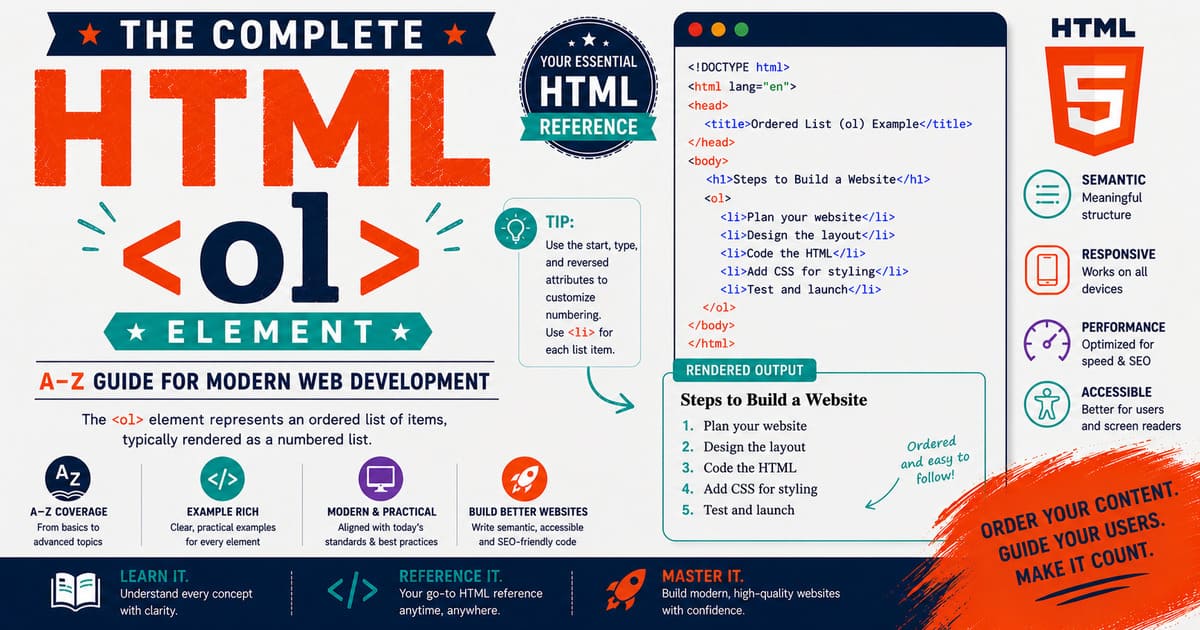
Chapter 5.10 — The <ol> Element
Lists are among the oldest and most frequently used structures in human communication.
Whether writing a recipe, documenting software installation steps, outlining research, presenting instructions, or creating legal documents, information is often organized in a sequence.
HTML provides several elements for representing lists.
When the order of items matters, HTML uses the:
1
<ol>
element.
The letters “ol” stand for Ordered List.
Unlike an unordered list (<ul>), an ordered list communicates that the sequence of items is meaningful.
For example:
- Installation instructions
- Cooking recipes
- Exam questions
- Ranking systems
- Algorithms
- Tutorials
- Checklists requiring a specific order
In all of these situations, changing the order could change the meaning of the content.
5.10.1 Introduction to the <ol> Element
The <ol> element represents an ordered list of items.
Each item is defined using the:
1
<li>
(List Item) element.
The browser automatically numbers each list item.
Example:
1
2
3
4
5
6
7
8
9
<ol>

<li>Wake up</li>

<li>Brush your teeth</li>

<li>Have breakfast</li>

</ol>
Browser output:
1
2
3
4
5
1. Wake up

2. Brush your teeth

3. Have breakfast
Notice that the numbers are generated automatically.
The author writes only the list items.
Why Use <ol> Instead of Writing Numbers Manually?
Consider this example:
1
2
3
4
5
6
7
8
9
<p>

1. Install Node.js

2. Install Git

3. Install Jekyll

</p>
Although it looks correct, it has several disadvantages:
- The numbers are plain text.
- Browsers cannot understand that it is a list.
- Screen readers lose semantic information.
- Adding or removing an item requires manually updating every number.
Now compare it with:
1
2
3
4
5
6
7
8
9
<ol>

<li>Install Node.js</li>

<li>Install Git</li>

<li>Install Jekyll</li>

</ol>
If another step is inserted, the browser automatically renumbers the remaining items.
This makes ordered lists easier to maintain and more accessible.
Basic Structure
Every ordered list consists of:
- One
<ol>element. - One or more
<li>elements.
Example:
1
2
3
4
5
6
7
8
9
<ol>

<li>HTML</li>

<li>CSS</li>

<li>JavaScript</li>

</ol>
The <li> elements must appear inside a list container such as <ol> or <ul>.
Real-World Example
Suppose you’re writing a Jekyll tutorial.
1
2
3
4
5
6
7
8
9
10
11
12
13
14
15
16
17
<h2>

Installing Jekyll

</h2>

<ol>

<li>Install Ruby</li>

<li>Install Bundler</li>

<li>Create a new project</li>

<li>Run the local server</li>

</ol>
Readers immediately understand that the steps should be followed in sequence.
Default Browser Rendering
Browsers generally display an ordered list with:
- Numbers before each item.
- Left indentation.
- Vertical spacing between items.
A simplified default stylesheet resembles:
1
2
3
4
5
6
7
ol{

display:block;

padding-left:40px;

}
The exact appearance varies slightly between browsers but remains consistent in principle.
Nested Ordered Lists
An ordered list may contain another ordered list.
Example:
1
2
3
4
5
6
7
8
9
10
11
12
13
14
15
16
17
18
19
20
21
22
23
24
25
<ol>

<li>

Frontend

<ol>

<li>HTML</li>

<li>CSS</li>

<li>JavaScript</li>

</ol>

</li>

<li>

Backend

</li>

</ol>
Rendered conceptually:
1
2
3
4
5
6
7
8
9
1. Frontend

   1. HTML

   2. CSS

   3. JavaScript

2. Backend
Nested lists are useful for hierarchical instructions and outlines.
Mixing Ordered and Unordered Lists
Lists can also be combined.
Example:
1
2
3
4
5
6
7
8
9
10
11
12
13
14
15
16
17
18
19
20
21
22
23
<ol>

<li>

Programming Languages

<ul>

<li>JavaScript</li>

<li>Python</li>

</ul>

</li>

<li>

Databases

</li>

</ol>
This allows complex document structures while maintaining semantic meaning.
Common Use Cases
The <ol> element is commonly used for:
- Installation guides.
- Recipes.
- Step-by-step tutorials.
- Laboratory procedures.
- Business workflows.
- Academic instructions.
- Rankings.
- Legal documents.
- Educational exercises.
- Troubleshooting guides.
Whenever sequence matters, <ol> is usually the correct choice.
Common Misconceptions
Misconception 1
”
<ol>is only for numbered lists.”
Not entirely.
The browser may display letters or Roman numerals depending on styling and attributes, but the semantic meaning remains an ordered sequence.
Misconception 2
“You must type the numbers yourself.”
Incorrect.
The browser automatically generates numbering.
Misconception 3
”
<li>can exist anywhere.”
Incorrect.
A <li> element should appear inside a list container such as <ol>, <ul>, or <menu>.
Practical Exercise
Create a file named:
ordered-list.html
1
2
3
4
5
6
7
8
9
10
11
12
13
14
15
16
17
18
19
20
21
22
23
24
25
26
27
28
29
30
31
32
33
<!DOCTYPE html>

<html lang="en">

<head>

<title>Ordered List Example</title>

</head>

<body>

<h2>

Morning Routine

</h2>

<ol>

<li>Wake up</li>

<li>Exercise</li>

<li>Take a shower</li>

<li>Eat breakfast</li>

</ol>

</body>

</html>
Open the page.
Notice that:
- The browser automatically numbers each step.
- You never typed the numbers manually.
- Adding another
<li>automatically updates the numbering.
Did You Know?
The
<ol>element has been part of HTML since the earliest versions of the language. While its appearance can be customized extensively with CSS, its semantic meaning—a sequence of ordered items—has remained unchanged for decades, making it one of the most stable and widely supported HTML elements.
Summary
In this section, you learned:
- The purpose of the
<ol>element. - Why ordered lists exist.
- The relationship between
<ol>and<li>. - Basic syntax.
- Browser rendering.
- Nested lists.
- Mixing ordered and unordered lists.
- Common use cases.
- Common misconceptions.
- Practical examples.
Coming Up Next — Section 5.10.2
In the next section, we’ll explore the HTML Living Standard definition, content model, browser parsing, DOM representation, and attributes of the <ol> element, including:
- Flow Content.
- The
HTMLOListElementinterface. - The
start,reversed, andtypeattributes. - Browser parsing.
- DOM representation.
- Nested list behavior.
- Accessibility semantics.
- Professional implementation techniques.
By the end of the next section, you’ll understand not only how ordered lists work visually, but also how browsers, screen readers, and JavaScript interpret them.
5.10.2 HTML Specification, Content Model, DOM Interface, Browser Parsing, and Attributes of <ol>
In the previous section, you learned that the <ol> element represents an ordered sequence of items and that browsers automatically generate numbering for each <li> element.
In this section, we’ll examine the <ol> element from the perspective of the HTML Living Standard, browser internals, DOM APIs, and semantic HTML. We’ll also explore the element’s built-in attributes that allow developers to customize numbering without manually editing the list.
HTML Living Standard Definition
According to the HTML Living Standard, the <ol> element represents an ordered list of items where the order is meaningful.
The key idea is not the numbers themselves, but the relationship between the items.
For example:
1
2
3
4
5
1. Install Node.js

2. Install Git

3. Install Jekyll
Changing the order changes the meaning of the instructions.
This distinguishes <ol> from <ul>, where item order is generally unimportant.
Content Categories
The <ol> element belongs to the following HTML content categories.
| Category | Included |
|---|---|
| Flow Content | ✅ |
| Palpable Content | ✅ |
Because it is Flow Content, an ordered list may appear almost anywhere normal block-level content is allowed.
Because it is Palpable Content, it contributes meaningful visible content to the document.
Content Model
The content model of <ol> is:
Zero or more
<li>elements
A valid ordered list contains list items.
Example:
1
2
3
4
5
6
7
8
9
<ol>

<li>HTML</li>

<li>CSS</li>

<li>JavaScript</li>

</ol>
Although browsers attempt to recover from invalid markup, placing unrelated elements directly inside <ol> is not recommended.
Incorrect example:
1
2
3
4
5
<ol>

<p>Paragraph</p>

</ol>
The paragraph should instead appear inside an appropriate <li> element if it belongs to the list.
Is <ol> a Void Element?
No.
The <ol> element requires:
- An opening tag.
- A closing tag.
Correct:
1
2
3
4
5
<ol>

<li>Example</li>

</ol>
Incorrect:
1
<ol>
The browser may repair the document automatically, but the markup is not valid HTML.
Browser Parsing
Suppose the browser encounters:
1
2
3
4
5
6
7
<ol>

<li>First</li>

<li>Second</li>

</ol>
A simplified parsing sequence is:
1
2
3
4
5
6
7
8
9
10
11
12
13
14
15
16
17
18
19
20
21
22
23
24
25
26
27
28
29
Read <ol>

↓

Create Ordered List

↓

Read <li>

↓

Create List Item

↓

Read Text

↓

Close List Item

↓

Repeat

↓

Close Ordered List
The parser creates a hierarchical structure representing the list and its items.
DOM Representation
Example:
1
2
3
4
5
6
7
<ol>

<li>Apple</li>

<li>Orange</li>

</ol>
Simplified DOM:
1
2
3
4
5
6
7
8
9
10
11
12
13
14
15
Document
│
└── html
     │
     └── body
          │
          └── ol
               │
               ├── li
               │    │
               │    └── Text Node
               │
               └── li
                    │
                    └── Text Node
Each list item becomes a child node of the ordered list.
The HTMLOListElement Interface
The DOM interface representing <ol> is:
1
HTMLOListElement
Inheritance hierarchy:
1
2
3
4
5
6
7
8
9
10
11
12
13
14
15
16
17
EventTarget

↓

Node

↓

Element

↓

HTMLElement

↓

HTMLOListElement
This interface provides properties and methods specific to ordered lists while inheriting all standard HTML element functionality.
Built-in Attributes
The <ol> element provides several useful attributes.
These include:
startreversedtype
Together they allow developers to customize numbering behavior without manually editing list items.
The start Attribute
The start attribute specifies the starting number.
Example:
1
2
3
4
5
6
7
8
9
<ol start="5">

<li>Chapter Five</li>

<li>Chapter Six</li>

<li>Chapter Seven</li>

</ol>
Rendered output:
1
2
3
4
5
5. Chapter Five

6. Chapter Six

7. Chapter Seven
This is useful when continuing numbering across multiple sections or pages.
The reversed Attribute
The reversed attribute displays items in descending order.
Example:
1
2
3
4
5
6
7
8
9
<ol reversed>

<li>Bronze</li>

<li>Silver</li>

<li>Gold</li>

</ol>
Rendered conceptually:
1
2
3
4
5
3. Bronze

2. Silver

1. Gold
The order of items in the HTML remains unchanged; only the numbering is reversed.
The type Attribute
The type attribute changes the numbering style.
Available values include:
| Value | Numbering Style |
|---|---|
1 | Decimal numbers |
A | Uppercase letters |
a | Lowercase letters |
I | Uppercase Roman numerals |
i | Lowercase Roman numerals |
Example:
1
2
3
4
5
6
7
8
9
<ol type="A">

<li>HTML</li>

<li>CSS</li>

<li>JavaScript</li>

</ol>
Output:
1
2
3
4
5
A. HTML

B. CSS

C. JavaScript
The underlying semantic meaning remains an ordered sequence regardless of the numbering style.
Combining Attributes
Attributes may be combined.
Example:
1
2
3
4
5
6
7
8
9
<ol start="10" reversed>

<li>Step One</li>

<li>Step Two</li>

<li>Step Three</li>

</ol>
The browser calculates numbering automatically based on the provided attributes.
Nested Ordered Lists
Nested ordered lists create independent numbering sequences.
Example:
1
2
3
4
5
6
7
8
9
10
11
12
13
14
15
16
17
18
19
20
21
22
23
<ol>

<li>

Frontend

<ol>

<li>HTML</li>

<li>CSS</li>

</ol>

</li>

<li>

Backend

</li>

</ol>
Each <ol> manages its own numbering independently.
Accessibility
Screen readers recognize <ol> as an ordered list.
They typically announce:
- The presence of a list.
- The total number of items.
- The position of each item.
For example:
1
2
3
4
5
6
7
List with three items.

Item one of three.

Item two of three.

Item three of three.
This provides important context for users relying on assistive technologies.
Search Engine Understanding
Search engines recognize ordered lists as structured information.
Although <ol> itself does not directly improve rankings, it contributes to:
- Better semantic structure.
- Clear instructional content.
- Improved readability.
Well-organized ordered lists are particularly valuable in tutorials and how-to articles.
Common Misconceptions
Misconception 1
“
startchanges the order of items.”
Incorrect.
It changes only the displayed starting number.
Misconception 2
“
reversedreverses the HTML.”
Incorrect.
The browser reverses the numbering, not the document order.
Misconception 3
“
typechanges semantics.”
Incorrect.
It changes only the visual numbering style.
The semantic meaning remains an ordered list.
Practical Exercise
Create a file named:
ordered-list-attributes.html
1
2
3
4
5
6
7
8
9
10
11
12
13
14
15
16
17
18
19
20
21
22
23
24
25
26
27
28
29
30
31
32
33
34
35
36
37
<!DOCTYPE html>

<html lang="en">

<head>

<title>Ordered List Attributes</title>

</head>

<body>

<h2>Alphabetical List</h2>

<ol type="A">

<li>HTML</li>

<li>CSS</li>

<li>JavaScript</li>

</ol>

<h2>Starting from Five</h2>

<ol start="5">

<li>Chapter</li>

<li>Appendix</li>

</ol>

</body>

</html>
Open the page and observe how the browser automatically applies the requested numbering styles.
Did You Know?
The
start,reversed, andtypeattributes have been supported by major browsers for many years, allowing authors to create sophisticated ordered lists without writing JavaScript. Although CSS can also customize list markers, these HTML attributes remain the most semantic way to express numbering behavior.
Summary
In this section, you learned:
- The HTML Living Standard definition of
<ol>. - Content categories and content model.
- Why
<ol>is not a void element. - Browser parsing behavior.
- DOM representation.
- The
HTMLOListElementinterface. - The
start,reversed, andtypeattributes. - Nested list behavior.
- Accessibility semantics.
- Search engine understanding.
- Common misconceptions.
Coming Up Next — Section 5.10.3
In the next section, we’ll explore CSS Styling, List Marker Customization, Nested Lists, Counters, Responsive Design, JavaScript Interaction, and Professional Documentation Techniques for the <ol> element, including:
- Styling ordered lists with CSS.
- Customizing markers.
- Using CSS counters.
- Multi-level numbering.
- Responsive layouts.
- JavaScript manipulation.
- Real-world publishing examples.
- Professional best practices.
By the end of the next section, you’ll know how professional websites transform ordinary ordered lists into elegant, accessible, and responsive content structures.
5.10.3 CSS Styling, List Marker Customization, CSS Counters, Responsive Lists, JavaScript Interaction, and Professional Documentation Techniques
In the previous section, you learned how browsers interpret the <ol> element, how numbering is generated automatically, and how attributes such as start, reversed, and type modify numbering behavior.
While the default appearance of an ordered list is suitable for many situations, professional websites often customize lists to improve readability, branding, and user experience. Modern CSS provides extensive control over numbering styles, spacing, alignment, and even completely custom numbering systems.
In this section, we’ll explore how developers style ordered lists, create advanced numbering systems, and integrate ordered lists into responsive web applications.
5.10.3.1 Default Browser Appearance
Most browsers display an ordered list with:
- Decimal numbers
- Left indentation
- Vertical spacing
- Numbers positioned outside the list content
Example:
1
2
3
4
5
6
7
8
9
<ol>

<li>Install Git</li>

<li>Install Ruby</li>

<li>Install Jekyll</li>

</ol>
A simplified browser stylesheet resembles:
1
2
3
4
5
6
7
8
9
ol{

display:block;

padding-left:40px;

margin:1em 0;

}
Although functional, many websites customize this appearance to match their design language.
Adjusting List Indentation
The indentation of an ordered list can be modified using CSS.
Example:
1
2
3
4
5
ol{

padding-left:20px;

}
Increasing or decreasing the left padding changes the distance between the list marker and the page margin.
For deeply nested documentation, carefully chosen spacing improves readability.
Changing the Marker Position
The list-style-position property controls where list markers appear.
Example:
1
2
3
4
5
ol{

list-style-position:inside;

}
Output conceptually:
1
2
3
1. Install Git

2. Install Ruby
With the default value (outside), markers remain outside the text block.
Using inside aligns the numbers with the content, which may be useful for narrow layouts.
Customizing Numbering Style with CSS
Instead of the HTML type attribute, CSS provides the list-style-type property.
Example:
1
2
3
4
5
ol{

list-style-type:upper-roman;

}
Possible values include:
- decimal
- decimal-leading-zero
- lower-alpha
- upper-alpha
- lower-roman
- upper-roman
- lower-greek
- lower-latin
- upper-latin
Example:
1
2
3
4
5
ol{

list-style-type:lower-alpha;

}
Output:
1
2
3
4
5
a.

b.

c.
CSS provides greater flexibility than the HTML type attribute.
Removing List Markers
Sometimes developers remove default numbering entirely.
Example:
1
2
3
4
5
6
7
ol{

list-style:none;

padding-left:0;

}
This removes browser-generated markers.
Custom numbering can then be added using CSS counters.
Creating Custom Numbering with CSS Counters
CSS counters allow complete control over numbering.
Example HTML:
1
2
3
4
5
6
7
8
9
<ol class="custom-list">

<li>HTML</li>

<li>CSS</li>

<li>JavaScript</li>

</ol>
Example CSS:
1
2
3
4
5
6
7
8
9
10
11
12
13
14
15
16
17
18
19
20
21
.custom-list{

counter-reset:item;

list-style:none;

}

.custom-list li{

counter-increment:item;

}

.custom-list li::before{

content:counter(item) ". ";

font-weight:bold;

}
The browser generates numbers using CSS instead of default list markers.
Multi-Level Numbering
CSS counters can also generate hierarchical numbering.
Example concept:
1
2
3
4
5
6
7
8
9
10
11
12
13
1

1.1

1.2

1.3

2

2.1

2.2
This style is commonly used in:
- Technical documentation
- Standards
- Government publications
- Academic papers
- Legal documents
It produces professional outlines without manually typing numbers.
Styling Individual List Items
Each <li> element may be styled independently.
Example:
1
2
3
4
5
6
7
li{

margin-bottom:12px;

line-height:1.7;

}
This increases spacing between items, improving readability.
Highlighting Important Steps
Instructional websites often emphasize key steps.
Example:
1
2
3
4
5
6
7
8
9
li.important{

font-weight:bold;

background:#fff8dc;

padding:10px;

}
HTML:
1
2
3
4
5
<li class="important">

Install Node.js first.

</li>
Important instructions become easier to identify.
Responsive Ordered Lists
Long instructional lists should adapt gracefully to different screen sizes.
Example:
1
2
3
4
5
6
7
8
9
ol{

max-width:700px;

margin:auto;

padding-left:24px;

}
Benefits include:
- Improved readability on phones
- Comfortable spacing on tablets
- Better line length on desktops
JavaScript Interaction
JavaScript can dynamically manipulate ordered lists.
Example HTML:
1
2
3
4
5
6
7
<ol id="languages">

<li>HTML</li>

<li>CSS</li>

</ol>
Adding a new item:
1
2
3
4
5
6
7
8
9
10
const list =
document.getElementById("languages");

const item =
document.createElement("li");

item.textContent =
"JavaScript";

list.appendChild(item);
The browser automatically numbers the new item.
No manual renumbering is required.
Removing Items
JavaScript can also remove list items.
Example:
1
2
3
4
5
6
const list =
document.getElementById("languages");

list.removeChild(
list.lastElementChild
);
The browser automatically updates the numbering.
Counting List Items
JavaScript can determine the number of items in a list.
Example:
1
2
3
4
5
6
const total =
document.querySelectorAll(
"ol li"
).length;

console.log(total);
Output:
1
3
This is useful for quizzes, checklists, and educational platforms.
Accessibility Considerations
Ordered lists provide valuable semantic information.
Screen readers often announce:
1
2
3
4
5
Ordered list.

Five items.

Item one of five.
Avoid replacing semantic lists with manually numbered paragraphs, as this removes important accessibility information.
Professional Use Cases
Ordered lists appear frequently in:
- Installation manuals
- Programming tutorials
- API documentation
- User guides
- Recipes
- Laboratory procedures
- Medical instructions
- Online courses
- Product documentation
- Technical books
Whenever order matters, <ol> should be preferred over manually typed numbers.
Common Mistakes
Mistake 1
Typing numbers manually.
Incorrect:
1
2
3
4
5
6
7
8
9
<p>

1. HTML

2. CSS

3. JavaScript

</p>
Use <ol> instead.
Mistake 2
Removing markers without providing alternatives.
If list-style:none is used, ensure that meaningful numbering is restored using CSS counters or another accessible method.
Mistake 3
Using <ol> when order is unimportant.
If sequence does not matter, use <ul> instead.
Practical Exercise
Create a file named:
custom-ordered-list.html
1
2
3
4
5
6
7
8
9
10
11
12
13
14
15
16
17
18
19
20
21
22
23
24
25
26
27
28
29
30
31
32
33
34
35
36
37
38
39
40
41
42
43
44
45
46
47
48
49
50
51
<!DOCTYPE html>

<html lang="en">

<head>

<title>Custom Ordered List</title>

<style>

ol{

list-style-type:upper-roman;

padding-left:30px;

}

li{

margin-bottom:8px;

}

</style>

</head>

<body>

<h2>

Web Development Roadmap

</h2>

<ol>

<li>Learn HTML</li>

<li>Learn CSS</li>

<li>Learn JavaScript</li>

<li>Build Projects</li>

</ol>

</body>

</html>
Open the page and observe how CSS changes the numbering style while preserving the semantic meaning of the ordered list.
Did You Know?
The browser automatically recalculates list numbering whenever list items are inserted, removed, or reordered in the DOM. This means developers rarely need to manage numbering manually, even in highly interactive web applications.
Summary
In this section, you learned:
- How browsers style ordered lists by default.
- Adjusting indentation and marker positions.
- Using
list-style-type. - Removing default markers.
- Creating custom numbering with CSS counters.
- Styling list items.
- Responsive design techniques.
- JavaScript interaction.
- Accessibility recommendations.
- Professional documentation practices.
Coming Up Next — Section 5.10.4
In the next section, we’ll explore DOM APIs, HTMLOListElement, Browser Compatibility, Accessibility APIs, SEO, Performance, Advanced JavaScript, and Professional Best Practices for ordered lists.
You’ll also learn how modern browsers expose <ol> through the DOM, how assistive technologies interpret ordered lists, and how professional developers build dynamic instructional content using the <ol> element.
5.10.4 DOM APIs, HTMLOListElement, Browser Compatibility, Accessibility APIs, SEO, Performance, Advanced JavaScript, and Professional Best Practices
In the previous sections, we explored the structure of ordered lists, HTML attributes, CSS customization, CSS counters, and JavaScript-based list manipulation.
In this section, we move deeper into browser internals and professional development practices.
We will examine:
- How browsers represent
<ol>in the DOM. - The
HTMLOListElementinterface. - JavaScript properties and methods.
- Dynamic list generation.
- Accessibility behavior.
- Search engine interpretation.
- Performance considerations.
- Professional implementation guidelines.
5.10.4.1 The DOM Representation of <ol>
When the browser loads an HTML document, it converts the source code into a Document Object Model (DOM).
Example HTML:
1
2
3
4
5
6
7
8
9
<ol id="steps">

<li>Install Ruby</li>

<li>Install Jekyll</li>

<li>Run Server</li>

</ol>
The browser creates a tree structure:
1
2
3
4
5
6
7
8
9
10
11
12
13
14
15
16
17
18
19
20
21
22
23
Document

└── html

    └── body

        └── ol (#steps)

             ├── li

             │    └── Text Node

             │

             ├── li

             │    └── Text Node

             │

             └── li

                  └── Text Node
The <ol> element becomes an object that JavaScript can access and modify.
The HTMLOListElement Interface
The DOM interface for ordered lists is:
1
HTMLOListElement
It represents an HTML ordered list element.
Inheritance chain:
1
2
3
4
5
6
7
8
9
10
11
12
13
14
15
16
17
EventTarget

↓

Node

↓

Element

↓

HTMLElement

↓

HTMLOListElement
Because it inherits from HTMLElement, it supports all standard DOM operations.
Accessing an Ordered List
HTML:
1
2
3
4
5
6
7
<ol id="tutorial">

<li>HTML</li>

<li>CSS</li>

</ol>
JavaScript:
1
2
3
4
const list =
document.getElementById("tutorial");

console.log(list);
The browser returns the ordered list object.
Reading List Properties
The HTMLOListElement interface provides access to important properties.
Example:
1
2
3
4
const list =
document.querySelector("ol");

console.log(list.start);
This returns the starting number.
Default:
1
1
Working with the start Property
HTML:
1
2
3
4
5
<ol start="10">

<li>Chapter</li>

</ol>
JavaScript:
1
2
3
4
const list =
document.querySelector("ol");

console.log(list.start);
Output:
1
10
Changing it:
1
list.start = 5;
The browser immediately updates the numbering.
Working with the reversed Property
HTML:
1
2
3
4
5
6
7
8
9
<ol reversed>

<li>Third</li>

<li>Second</li>

<li>First</li>

</ol>
JavaScript:
1
2
3
4
const list =
document.querySelector("ol");

console.log(list.reversed);
Output:
1
true
Changing it:
1
list.reversed = false;
The list returns to normal numbering.
Working with the type Property
HTML:
1
2
3
4
5
<ol type="A">

<li>HTML</li>

</ol>
JavaScript:
1
console.log(list.type);
Output:
1
A
Changing it:
1
list.type = "i";
The browser changes the numbering style.
Creating Ordered Lists Dynamically
Modern websites often generate lists from data.
Example:
1
2
3
4
5
6
7
8
9
10
11
12
13
14
15
16
17
18
19
20
21
22
23
24
25
26
const topics = [

"HTML",

"CSS",

"JavaScript"

];

const list =
document.createElement("ol");

topics.forEach(function(topic){

const item =
document.createElement("li");

item.textContent =
topic;

list.appendChild(item);

});

document.body.appendChild(list);
The browser creates:
1
2
3
4
5
6
7
8
9
<ol>

<li>HTML</li>

<li>CSS</li>

<li>JavaScript</li>

</ol>
automatically.
Reordering List Items
JavaScript applications often allow users to reorder content.
Examples:
- Project task lists.
- Drag-and-drop tutorials.
- Course lessons.
- Shopping steps.
Because numbering is generated by the browser, moving items automatically updates the displayed order.
Browser Compatibility
The <ol> element is one of the oldest HTML elements.
Supported by:
| Browser | Support |
|---|---|
| Chrome | ✅ |
| Firefox | ✅ |
| Safari | ✅ |
| Edge | ✅ |
| Opera | ✅ |
| Mobile Browsers | ✅ |
The element has no meaningful compatibility concerns.
Accessibility APIs
Ordered lists provide important structural information to assistive technologies.
A screen reader can communicate:
1
2
3
4
5
6
7
Ordered list.

Four items.

Item one of four.

Item two of four.
This helps users understand:
- The number of steps.
- The current position.
- The relationship between items.
Why Manual Numbers Are Bad for Accessibility
Example:
1
2
3
4
5
6
7
8
9
<p>

1. Download file

2. Install software

3. Restart computer

</p>
A screen reader sees only text.
It does not know that this is a structured sequence.
Using:
1
2
3
4
5
6
7
8
9
<ol>

<li>Download file</li>

<li>Install software</li>

<li>Restart computer</li>

</ol>
provides meaningful semantic information.
SEO Considerations
Ordered lists help search engines understand structured content.
They are especially useful for:
- Step-by-step guides.
- Tutorials.
- Recipes.
- How-to articles.
- Technical documentation.
Search engines may use structured list content when understanding page organization.
However:
<ol>does not guarantee higher rankings.- Quality content remains the primary factor.
Performance Considerations
Ordered lists are lightweight HTML elements.
A normal page containing:
- 10 lists.
- 100 list items.
- Nested structures.
will have negligible performance impact.
Performance issues usually come from:
- Excessive JavaScript manipulation.
- Large dynamically generated lists.
- Poor DOM update strategies.
Optimizing Dynamic Lists
Instead of repeatedly modifying the DOM:
1
list.appendChild(item);
hundreds of times, use:
1
DocumentFragment
Example:
1
2
3
4
5
6
7
8
9
10
11
12
13
14
15
const fragment =
document.createDocumentFragment();

items.forEach(function(item){

const li =
document.createElement("li");

li.textContent=item;

fragment.appendChild(li);

});

list.appendChild(fragment);
This reduces unnecessary browser rendering operations.
Professional Best Practices
Use <ol> When Sequence Matters
Good examples:
- Installation steps.
- Instructions.
- Procedures.
Use <ul> When Order Does Not Matter
Example:
1
2
3
4
5
6
7
8
9
<ul>

<li>HTML</li>

<li>CSS</li>

<li>JavaScript</li>

</ul>
The order is not important.
Keep Items Meaningful
Avoid:
1
<li>Click here</li>
Prefer:
1
<li>Select the installation folder.</li>
Clear list items improve usability.
Avoid Excessive Nesting
Although nested lists are valid, too many levels reduce readability.
A good documentation structure is usually:
- Main steps.
- Substeps.
- Additional details.
Interview Questions
Question 1
What DOM interface represents <ol>?
Answer:
HTMLOListElement.
Question 2
Which property controls the starting number?
Answer:
start.
Question 3
Does changing start modify the HTML order?
Answer:
No.
It changes only the displayed numbering.
Question 4
Can JavaScript dynamically create ordered lists?
Answer:
Yes, using DOM methods such as:
createElement()appendChild()DocumentFragment
Question 5
Why should developers avoid manually typed numbers?
Answer:
Because semantic lists provide better accessibility, maintenance, and browser understanding.
Did You Know?
Modern web applications often generate thousands of ordered list items dynamically—for example, course lessons, search results, project tasks, and documentation pages. Because the browser handles numbering automatically, developers can focus on data and structure rather than manually managing sequence numbers.
Summary
In this section, you learned:
- DOM representation of
<ol>. - The
HTMLOListElementinterface. - Accessing list properties with JavaScript.
- Modifying
start,reversed, andtype. - Creating dynamic ordered lists.
- Browser compatibility.
- Accessibility APIs.
- SEO considerations.
- Performance optimization.
- Professional development practices.
Coming Up Next — Section 5.10.5 (Final Section)
The final section of the <ol> chapter will cover:
- Advanced real-world examples.
- Markdown and Jekyll integration.
- Security considerations.
- Complete technical reference.
- Common mistakes checklist.
- Final chapter summary.
- Professional ordered-list workflow.
After Section 5.10.5, the <ol> element chapter will be complete and we will proceed to the next HTML element in The Complete HTML Reference: A–Z Guide for Modern Web Development.
5.10.5 Advanced Examples, Markdown & Jekyll Integration, Security, Complete Technical Reference, and Chapter Summary
Welcome to the final section of the <ol> element chapter.
Throughout this chapter, we have explored ordered lists from beginner concepts to advanced browser behavior.
You learned:
- Why ordered lists exist.
- How browsers generate numbering.
- HTML attributes.
- CSS customization.
- JavaScript manipulation.
- DOM APIs.
- Accessibility.
- SEO.
- Professional implementation techniques.
In this final section, we will examine practical publishing workflows, advanced examples, security considerations, and a complete technical reference.
5.10.5.1 Advanced Real-World Examples of <ol>
The <ol> element appears everywhere in modern websites because many types of information naturally follow a sequence.
Example 1 — Software Installation Instructions
```html id=”c8m5qx”
Installing Jekyll
- Install Ruby
- Install Bundler
- Create a Jekyll project
- Run the development server
1
2
3
4
5
6
7
8
9
10
11
12
13
14
15
16
17
18
19
20
21
22
23
24
25
26
27
28
29
30
31
32
33
34
35
36
37
38
39
40
41

This is a perfect use case because changing the order would affect the result.

---

# Example 2 — Recipe Instructions

```html id="f9r2kw"
<h2>

Making Coffee

</h2>

<ol>

<li>

Boil water

</li>

<li>

Add coffee powder

</li>

<li>

Pour hot water

</li>

<li>

Serve

</li>

</ol>
A recipe is naturally an ordered process.
Example 3 — Tutorial Chapters
```html id=”m6x8vp”
- Introduction
- Installation
- Configuration
- Deployment
1
2
3
4
5
6
7
8
9
10
11
12
13
14
15
16
17
18
19
20
21
22
23
24
25
26
27
28
29
30
31
32
33
34
35
36
37

Documentation websites frequently use ordered lists for learning paths.

---

# Example 4 — Ranking Systems

Example:

```html id="t4n7ys"
<h2>

Top Programming Languages

</h2>

<ol>

<li>

JavaScript

</li>

<li>

Python

</li>

<li>

Java

</li>

</ol>
The order communicates ranking or priority.
5.10.5.2 Markdown Integration
Markdown provides a simple way to create ordered lists.
Example:
```markdown id=”w8p3fz”
Learn HTML
Learn CSS
Learn JavaScript ```
The generated HTML:
```html id=”q5r9mc”
- Learn HTML
- Learn CSS
- Learn JavaScript
1
2
3
4
5
6
7
8
9
10
11
12
13
14
15

Static site generators such as Jekyll automatically convert Markdown lists into semantic HTML.

---

# Automatic Numbering in Markdown

Markdown authors can write:

```markdown id="v3m7kp"
1. First item

1. Second item

1. Third item
The renderer still produces:
```text id=”n8x2qd”
First item
Second item
Third item ```
This prevents manual numbering mistakes.
Nested Markdown Lists
Markdown:
```markdown id=”p6k4wr”
Frontend
HTML
CSS
JavaScript
Backend ```
Generated HTML:
```html id=”h9q5mt”
- Frontend
- HTML
- CSS
- JavaScript
- Backend
1
2
3
4
5
6
7
8
9
10
11
12
13
14
15
16
17

---

# 5.10.5.3 Jekyll Integration

Jekyll uses Markdown processors such as Kramdown to convert lists into HTML.

Example Jekyll post:

```markdown id="r7c2nx"
## Deployment Steps

1. Build the site

2. Test locally

3. Push to GitHub Pages
Generated output:
```html id=”b4m8vy”
Deployment Steps
- Build the site
- Test locally
- Push to GitHub Pages
1
2
3
4
5
6
7
8
9
10
11
12
13
14
15
16
17
18
19
20
21
22
23
24
25
26
27
28
29
30

The result is:

* Semantic.
* Accessible.
* SEO-friendly.
* Browser-compatible.

---

# Styling Jekyll Ordered Lists

You can customize all ordered lists through your CSS file.

Example:

```css id="x6p9qm"
.post-content ol{

padding-left:30px;

}

.post-content li{

margin-bottom:12px;

line-height:1.8;

}
This applies styling consistently across all blog posts.
Custom Jekyll Numbered Steps
For tutorial websites, you may create special step designs.
HTML:
1
2
3
4
5
6
7
8
9
10
11
12
13
14
15
16
17
18
19
20
21
<ol class="tutorial-steps">

<li>

Install dependencies

</li>

<li>

Configure settings

</li>

<li>

Deploy website

</li>

</ol>
CSS:
```css id=”d5m7px” .tutorial-steps{
counter-reset:steps;
list-style:none;
}
.tutorial-steps li{
counter-increment:steps;
}
.tutorial-steps li::before{
content:counter(steps);
}
1
2
3
4
5
6
7
8
9
10
11
12
13
14
15
16

This creates custom numbered tutorial steps.

---

# 5.10.5.4 Security Considerations

The `<ol>` element itself does not create security vulnerabilities.

However, problems may occur when list content comes from users.

Example:

```javascript id="j8q4mv"
list.innerHTML =
userInput;
This can allow malicious HTML injection.
Safer Method
Use:
javascript id="s4n6ty" list.textContent = userInput;
This treats the content as plain text.
Sanitizing User-Generated Lists
If a website allows users to create:
- Task lists.
- Reviews.
- Comments.
- Documentation.
always sanitize HTML before inserting it into the page.
Security practices include:
- Escaping HTML.
- Validating input.
- Avoiding unsafe
innerHTML. - Using trusted sanitization libraries.
5.10.5.5 Complete Technical Reference
| Feature | Description |
|---|---|
| Element | <ol> |
| Full Name | Ordered List |
| Purpose | Represents ordered items |
| Parent Categories | Flow Content, Palpable Content |
| Required Children | <li> elements |
| Closing Tag | Required |
| Void Element | No |
| DOM Interface | HTMLOListElement |
| Common Attributes | start, reversed, type |
| JavaScript Support | Full |
| Accessibility | Excellent |
| Browser Support | Universal |
| CSS Control | Extensive |
Comparison: <ol> vs <ul>
| Feature | <ol> | <ul> |
|---|---|---|
| Meaning | Ordered sequence | Unordered collection |
| Numbering | Automatic | Bullets |
| Order important | Yes | Usually no |
| Common use | Instructions | Categories |
| DOM Interface | HTMLOListElement | HTMLUListElement |
Professional Checklist
Before using <ol>, ask:
✅ Does the sequence matter?
✅ Would changing the order change the meaning?
✅ Are list items written clearly?
✅ Is the structure accessible?
✅ Am I avoiding manually typed numbers?
✅ Does the design work on mobile devices?
If the answer is yes, <ol> is likely the correct element.
Chapter 5.10 Final Summary — The <ol> Element
You have completed a complete professional study of the HTML ordered list element.
You learned:
Fundamentals
- What
<ol>represents. - Difference between ordered and unordered lists.
- Basic syntax.
HTML Structure
- Content model.
<li>relationship.- Valid markup.
Browser Internals
- Parsing.
- DOM structure.
HTMLOListElement.
Attributes
startreversedtype
Styling
- Marker customization.
- CSS counters.
- Responsive design.
- Professional layouts.
JavaScript
- DOM access.
- Dynamic list creation.
- Property manipulation.
Publishing
- Markdown conversion.
- Jekyll workflow.
- Documentation practices.
Professional Development
- Accessibility.
- SEO.
- Security.
- Performance.
Chapter 5 Progress Update
Completed:
✅ <br> Element ✅ <hr> Element ✅ <wbr> Element ✅ <pre> Element ✅ <blockquote> Element ✅ <ol> Element
Coming Up Next — Chapter 5.11: The <ul> Element
The next chapter will explore the HTML Unordered List (<ul>) element.
Topics include:
- Bullet lists.
<ul>vs<ol>.- Nested unordered lists.
- CSS bullet customization.
- Custom icons.
- Accessibility.
- DOM APIs.
- JavaScript manipulation.
- Markdown and Jekyll integration.
- Professional use cases.
The <ul> element is one of the most frequently used HTML structures in navigation menus, feature lists, categories, and modern web layouts.
End of Chapter 5.10 — The <ol> Element
Status: ✅ Complete
The HTML <ol> element is now fully documented as part of:
“The Complete HTML Reference: A–Z Guide for Modern Web Development”