Chapter 6.3 — The `<track>` Element
Complete HTML reference for the HTML track element, including subtitles, captions, descriptions, chapters, metadata tracks, WebVTT, accessibility, SEO, browser support, JavaScript integration, and professional implementation.
Chapter 6 — Multimedia Elements
6.3 The <track> Element
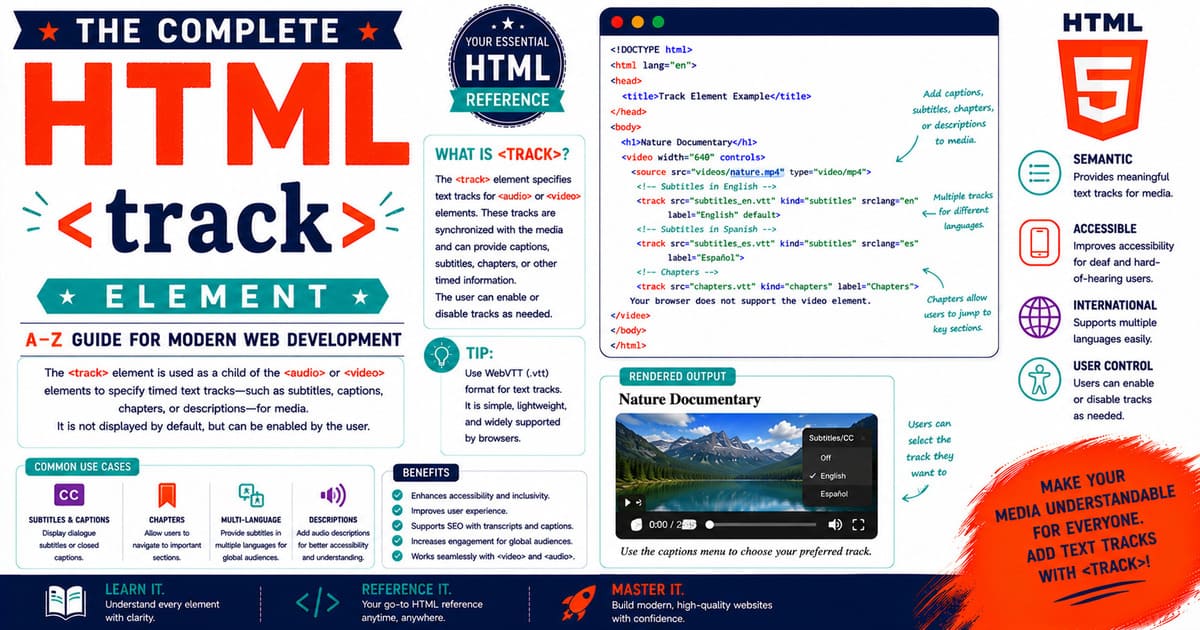
The <track> element allows developers to associate timed text with multimedia content. It is used together with the <video> and <audio> elements to provide subtitles, captions, descriptions, chapter navigation, and metadata.
Although many beginners overlook the <track> element, it is one of the most important accessibility features introduced with HTML5. It enables multimedia to be understood by a wider audience, including people who are deaf, hard of hearing, learning a new language, or watching videos without sound.
Modern educational websites, streaming platforms, online courses, and corporate training systems all rely heavily on text tracks to improve accessibility and user experience.
Why the <track> Element Was Introduced
Before HTML5, subtitles and captions were often “burned” directly into videos or handled by proprietary media players.
This created several problems:
- Captions could not be turned off.
- Multiple languages required separate video files.
- Search engines could not easily understand subtitle content.
- Accessibility support varied across platforms.
The <track> element solved these issues by separating timed text from the video itself.
HTML Living Standard Definition
According to the HTML Living Standard, the <track> element specifies timed text tracks for media elements.
A track can provide:
- Subtitles
- Captions
- Audio descriptions
- Chapter navigation
- Metadata
The browser synchronizes the text with the media playback automatically.
Which Elements Support <track>?
The <track> element is valid only inside:
<video><audio>
It cannot be used independently.
Basic Syntax
Example:
1
2
3
4
5
6
7
8
9
10
11
<video controls>

    <source src="lesson.mp4" type="video/mp4">

    <track
        src="captions.vtt"
        kind="captions"
        srclang="en"
        label="English">

</video>
The browser reads the WebVTT file and displays captions during playback.
Anatomy of a <track> Element
1
2
3
4
5
6
<track
    src="captions.vtt"
    kind="captions"
    srclang="en"
    label="English"
    default>
Each attribute has a specific purpose:
| Attribute | Purpose |
|---|---|
src | Specifies the WebVTT file |
kind | Defines the type of track |
srclang | Language code |
label | Human-readable name shown to users |
default | Makes the track active by default |
How the Browser Uses a Track
When the browser encounters a <track> element, it:
- Reads the HTML document.
- Loads the associated media.
- Downloads the WebVTT file.
- Parses the timed text.
- Synchronizes cues with playback.
- Displays the appropriate text at the correct time.
All timing is handled automatically.
Understanding Timed Text
Timed text appears only during specific intervals.
Example timeline:
1
2
3
4
5
6
7
8
9
00:00 ───────────────► Video Starts

00:03 ───────────────► "Welcome to the HTML course."

00:08 ───────────────► "Today we will study the track element."

00:14 ───────────────► Caption disappears.

00:18 ───────────────► Next caption appears.
Each cue has:
- Start time
- End time
- Display text
What Is WebVTT?
The <track> element uses the Web Video Text Tracks (WebVTT) format.
A WebVTT file is a plain text file containing timed cues.
Example structure:
1
2
3
4
5
6
7
WEBVTT

00:00:00.000 --> 00:00:04.000
Welcome to the HTML tutorial.

00:00:05.000 --> 00:00:09.000
Today we will learn about the track element.
The browser reads this file and displays the text at the specified times.
Advantages of WebVTT
WebVTT offers several benefits:
- Human-readable format
- Easy to edit
- Lightweight
- Supports multiple languages
- Works in modern browsers
- Compatible with HTML5 media
Practical Example
Suppose an educational website contains a programming lesson.
The page includes:
- Video lecture
- English captions
- Tamil subtitles
- French subtitles
Instead of uploading three different videos, a single video file can reference three separate track files.
This approach saves storage space and simplifies maintenance.
Real-World Applications
The <track> element is widely used for:
- Online learning platforms
- University lectures
- Language learning websites
- Documentary videos
- Corporate training
- Streaming services
- Product demonstrations
- Conference recordings
Accessibility Note
The <track> element plays a significant role in web accessibility.
Captions benefit:
- Deaf users
- Hard-of-hearing users
- Users in noisy environments
- Users watching without audio
- Language learners
Providing captions is considered a best practice for educational and informational videos.
SEO Note
Although search engines primarily index page text, transcripts and captions can improve content discoverability when included as visible or downloadable text.
Captions also make video content easier to understand and reuse.
Pro Tip
Always create caption files separately rather than embedding text directly into the video. Separate track files are easier to maintain, translate, and update.
Common Mistakes
Mistake 1
Embedding subtitles directly into the video.
Mistake 2
Using incorrect language codes.
Mistake 3
Providing captions only in one language for an international audience.
Mistake 4
Forgetting to test caption synchronization.
Summary
In this section, you learned:
- The purpose of the
<track>element. - HTML Living Standard definition.
- Browser processing.
- Timed text concepts.
- WebVTT overview.
- Accessibility benefits.
- SEO considerations.
- Real-world applications.
Coming Up Next — Section 6.3.2
The next section will explore:
- Every
<track>attribute in detail - The different
kindvalues srcsrclanglabeldefault- Browser behavior
- Professional implementation practices
6.3.2 The <track> Element Attributes
The <track> element provides several attributes that define how timed text is loaded, interpreted, and presented alongside multimedia content.
Although the number of attributes is relatively small compared to elements such as <video> or <audio>, each attribute plays an important role in accessibility, localization, and browser behavior.
Understanding these attributes allows developers to build multilingual, standards-compliant multimedia applications.
Complete Attribute Overview
| Attribute | Purpose |
|---|---|
src | Specifies the location of the WebVTT file |
kind | Defines the type of text track |
srclang | Specifies the language of the track |
label | Human-readable name displayed in the media player’s track menu |
default | Indicates that the track should be enabled by default |
The src Attribute
The src attribute specifies the location of the WebVTT file.
Example:
1
2
3
4
5
<track
    src="captions-en.vtt"
    kind="captions"
    srclang="en"
    label="English">
The browser downloads this file and synchronizes its contents with media playback.
The src value may be:
- A relative URL
- An absolute URL
- A CDN-hosted file
Example:
1
2
3
4
5
<track
    src="/assets/subtitles/html-course-en.vtt"
    kind="captions"
    srclang="en"
    label="English">
Best Practices for src
Store subtitle files in a dedicated directory.
Example:
1
2
3
4
5
6
7
8
9
10
11
assets/

└── subtitles/

    ├── html-course-en.vtt

    ├── html-course-fr.vtt

    ├── html-course-ta.vtt

    └── html-course-es.vtt
Organizing subtitle files improves maintainability as projects grow.
The kind Attribute
The kind attribute defines the purpose of the text track.
Possible values include:
| Value | Purpose |
|---|---|
subtitles | Translation of spoken dialogue |
captions | Dialogue plus sound effects and speaker identification |
descriptions | Text descriptions of visual information |
chapters | Navigation points within media |
metadata | Machine-readable timed data |
Each value serves a different audience and use case.
kind="subtitles"
Subtitles translate spoken dialogue into another language.
Example:
1
2
3
4
5
<track
    src="spanish.vtt"
    kind="subtitles"
    srclang="es"
    label="Español">
Subtitles generally do not include:
- Background sounds
- Music descriptions
- Speaker identification
They are intended for viewers who can hear the audio but do not understand the spoken language.
kind="captions"
Captions include spoken dialogue together with important audio information.
Example:
1
2
3
4
5
<track
    src="captions-en.vtt"
    kind="captions"
    srclang="en"
    label="English">
Captions may include:
- Speaker names
- Music cues
- Background sounds
- Environmental noises
- Emotional cues
Example caption:
1
2
3
4
5
6
[Door closes]

Teacher:
Welcome to today's lesson.

[Applause]
Captions are primarily designed for users who are deaf or hard of hearing.
kind="descriptions"
Description tracks provide information about important visual events.
Example:
1
2
3
4
5
<track
    src="descriptions.vtt"
    kind="descriptions"
    srclang="en"
    label="Audio Description">
Typical descriptions include:
- Scene changes
- Character actions
- Facial expressions
- Important visual events
These tracks improve accessibility for users with visual impairments.
kind="chapters"
Chapter tracks divide long media into logical sections.
Example:
1
2
3
4
5
<track
    src="chapters.vtt"
    kind="chapters"
    srclang="en"
    label="Chapters">
Educational videos often use chapter tracks for:
- Course modules
- Lesson navigation
- Topic organization
kind="metadata"
Metadata tracks are not intended for display.
Instead, they provide timed information for JavaScript applications.
Possible uses include:
- Interactive quizzes
- Synchronizing animations
- Displaying diagrams
- Triggering advertisements
- Collecting analytics
Example:
1
2
3
<track
    src="metadata.vtt"
    kind="metadata">
Choosing the Correct kind
| Situation | Recommended Value |
|---|---|
| Language translation | subtitles |
| Accessibility | captions |
| Visual descriptions | descriptions |
| Video navigation | chapters |
| JavaScript data | metadata |
Selecting the correct value improves browser behavior and accessibility support.
The srclang Attribute
The srclang attribute specifies the language of the text track.
It uses language codes defined by BCP 47.
Examples:
| Language | Code |
|---|---|
| English | en |
| Tamil | ta |
| French | fr |
| German | de |
| Spanish | es |
| Japanese | ja |
| Hindi | hi |
| Chinese | zh |
Example:
1
2
3
4
5
<track
    src="tamil.vtt"
    kind="subtitles"
    srclang="ta"
    label="தமிழ்">
Correct language codes help browsers and assistive technologies identify the track accurately.
The label Attribute
The label attribute specifies the name displayed in the browser’s track selection menu.
Example:
1
2
3
4
5
<track
    src="english.vtt"
    kind="captions"
    srclang="en"
    label="English">
When multiple tracks are available, users can select them using these labels.
Example menu:
1
2
3
4
5
6
7
8
9
Subtitles

• English

• Tamil

• French

• Spanish
Choose labels that are clear and meaningful.
The default Attribute
The default attribute indicates that a track should be enabled automatically when the media loads.
Example:
1
2
3
4
5
6
<track
    src="captions-en.vtt"
    kind="captions"
    srclang="en"
    label="English"
    default>
Only one track of the same type should normally be marked as the default.
Combining Multiple Tracks
Professional websites often provide several language options.
Example:
1
2
3
4
5
6
7
8
9
10
11
12
13
14
15
16
17
18
19
20
21
22
23
24
<video controls>

    <source src="lesson.mp4" type="video/mp4">

    <track
        src="captions-en.vtt"
        kind="captions"
        srclang="en"
        label="English"
        default>

    <track
        src="captions-ta.vtt"
        kind="captions"
        srclang="ta"
        label="தமிழ்">

    <track
        src="captions-fr.vtt"
        kind="captions"
        srclang="fr"
        label="Français">

</video>
Users can switch between available tracks without changing the video.
Browser Behavior
When processing a <track> element, the browser generally:
- Reads the HTML.
- Downloads the WebVTT file.
- Validates the file.
- Parses cues.
- Synchronizes cues with media playback.
- Displays or exposes track information based on the
kindvalue.
Pro Tip
For multilingual educational websites, provide captions in the primary language and subtitles in additional languages. This combination serves both accessibility and international audiences.
Common Mistakes
Mistake 1
Using an incorrect srclang code.
Mistake 2
Assigning the wrong kind value.
Mistake 3
Using vague labels such as “Track 1” or “Language 2.”
Mistake 4
Marking multiple tracks of the same type as default.
Mistake 5
Storing subtitle files in inconsistent locations.
Accessibility Note
Use:
captionsfor accessibility.subtitlesfor language translation.descriptionswhen visual information is essential.
Selecting the correct track type ensures assistive technologies can present the content appropriately.
SEO Note
Although browsers use WebVTT files during playback, search engines primarily index visible page content.
For better search visibility:
- Provide downloadable transcripts.
- Include descriptive summaries.
- Use meaningful headings.
- Offer multilingual text where appropriate.
Summary
In this section, you learned:
- Every
<track>attribute. - The five
kindvalues. - Language identification with
srclang. - User-friendly labels.
- Default track behavior.
- Professional multilingual implementations.
Coming Up Next — Section 6.3.3
The next section explores:
- WebVTT file syntax
- Cue timing
- Cue settings
- Styling subtitles
- Chapters
- Metadata cues
- Browser parsing
- Professional WebVTT authoring
6.3.3 Understanding WebVTT (Web Video Text Tracks)
The <track> element depends on the Web Video Text Tracks (WebVTT) format to display subtitles, captions, descriptions, chapters, and metadata during media playback.
WebVTT is a plain text format standardized by the W3C and WHATWG. It is designed to be simple for humans to read while allowing browsers to synchronize text accurately with audio and video.
Unlike proprietary subtitle formats, WebVTT integrates directly with HTML5 media elements and is supported by all modern browsers.
What Is a WebVTT File?
A WebVTT file is a UTF-8 encoded text file that contains timed cues.
Each cue includes:
- A start time
- An end time
- One or more lines of text
The browser displays the text only during the specified time interval.
Typical file extension:
1
.vtt
Example filename:
1
html-course-en.vtt
Basic File Structure
Every WebVTT file begins with the following header:
1
WEBVTT
This header tells the browser that the file follows the WebVTT specification.
A simple file looks like this:
1
2
3
4
5
6
7
WEBVTT

00:00:01.000 --> 00:00:05.000
Welcome to the HTML course.

00:00:06.000 --> 00:00:10.000
Today we will study the track element.
Understanding Cue Timing
Each cue contains a beginning and ending timestamp.
Example:
1
2
00:00:15.500 --> 00:00:20.250
HTML5 introduced native multimedia support.
The format is:
1
Hours:Minutes:Seconds.Milliseconds
Example:
| Timestamp | Meaning |
|---|---|
| 00:00:05.000 | 5 seconds |
| 00:01:20.000 | 1 minute 20 seconds |
| 01:15:30.500 | 1 hour 15 minutes 30.5 seconds |
The browser automatically displays and removes the cue at the appropriate times.
Multiple Cues
A WebVTT file usually contains many cues.
Example:
1
2
3
4
5
6
7
8
9
10
WEBVTT

00:00:00.000 --> 00:00:03.000
Welcome.

00:00:04.000 --> 00:00:07.000
This lesson explains HTML multimedia.

00:00:08.000 --> 00:00:12.000
Let's begin.
The browser plays them in chronological order.
Cue Identifiers
Each cue may optionally include an identifier.
Example:
1
2
3
4
5
6
WEBVTT

chapter-1

00:00:00.000 --> 00:00:08.000
Introduction
Identifiers make it easier to reference or manage cues programmatically.
They are optional.
Multi-Line Captions
A cue may contain more than one line.
Example:
1
2
3
4
5
6
WEBVTT

00:00:10.000 --> 00:00:15.000
Welcome to Beyond Borders View.

Today's topic is HTML5 multimedia.
The browser displays both lines simultaneously.
Speaker Identification
Captions often identify the current speaker.
Example:
1
2
3
4
5
WEBVTT

00:00:05.000 --> 00:00:10.000
Professor:
Today's lesson covers HTML track elements.
This is particularly useful during interviews, documentaries, and educational videos.
Sound Effects
Captions may also describe important sounds.
Example:
1
2
3
4
5
6
7
8
9
10
WEBVTT

00:00:18.000 --> 00:00:22.000
[Applause]

00:00:25.000 --> 00:00:28.000
[Door closes]

00:00:31.000 --> 00:00:35.000
[Soft background music]
These descriptions help users who cannot hear the audio.
Cue Settings
Cue settings control how captions appear.
Example:
1
2
3
4
WEBVTT

00:00:10.000 --> 00:00:15.000 align:center
Centered caption
Common cue settings include:
| Setting | Purpose |
|---|---|
align | Horizontal alignment |
line | Vertical position |
position | Horizontal placement |
size | Caption width |
vertical | Vertical writing direction |
Not every browser supports every setting identically.
Chapter Tracks
WebVTT can define chapter navigation.
Example:
1
2
3
4
5
6
7
8
9
10
WEBVTT

00:00:00.000 --> 00:05:00.000
Introduction

00:05:00.000 --> 00:12:30.000
HTML Basics

00:12:30.000 --> 00:20:00.000
HTML Multimedia
Media players may display these chapters to help users navigate long videos.
Metadata Tracks
WebVTT also supports metadata.
Example:
1
2
3
4
5
6
7
WEBVTT

00:00:30.000 --> 00:00:31.000
quiz:start

00:02:15.000 --> 00:02:16.000
diagram:show
These cues are typically processed by JavaScript instead of being shown to users.
Typical uses include:
- Interactive quizzes
- Timed diagrams
- Product highlights
- Analytics events
- Synchronizing animations
Browser Parsing Process
When a browser loads a WebVTT file, it generally performs the following steps:
- Download the file.
- Verify the
WEBVTTheader. - Parse cue timings.
- Validate timestamps.
- Read cue text.
- Store cues in memory.
- Synchronize cues with media playback.
If parsing fails, the browser may ignore invalid cues while continuing to process valid ones.
File Organization
For large projects, organize subtitle files consistently.
Example:
1
2
3
4
5
6
7
8
9
10
11
12
13
assets/

└── subtitles/

    ├── html-course-en.vtt

    ├── html-course-ta.vtt

    ├── html-course-fr.vtt

    ├── html-course-es.vtt

    └── html-course-de.vtt
A consistent naming convention simplifies maintenance and translation.
Practical Example
A language-learning website may provide:
- English captions
- Tamil subtitles
- French subtitles
- German subtitles
All of these can reference the same video file.
This approach:
- Saves storage space
- Simplifies updates
- Improves accessibility
- Supports international audiences
Browser Compatibility
WebVTT is supported by all major modern browsers.
| Browser | Support |
|---|---|
| Google Chrome | Yes |
| Mozilla Firefox | Yes |
| Microsoft Edge | Yes |
| Apple Safari | Yes |
| Opera | Yes |
Some advanced cue styling features may vary slightly between browsers.
Pro Tip
Keep captions concise.
Most viewers can comfortably read two short lines at a time.
Long paragraphs reduce readability and may distract from the video.
Common Mistakes
Mistake 1
Forgetting the WEBVTT header.
Mistake 2
Using incorrect timestamp formatting.
Mistake 3
Allowing captions to overlap excessively.
Mistake 4
Writing very long captions that remain on screen for too little time.
Mistake 5
Saving the file using an incorrect text encoding instead of UTF-8.
Accessibility Note
High-quality captions should:
- Accurately represent spoken dialogue.
- Identify important speakers.
- Describe meaningful sounds.
- Be synchronized correctly.
- Remain readable.
Well-authored captions significantly improve accessibility for many users.
SEO Note
Although WebVTT files assist media playback, search engines primarily analyze visible page content.
For maximum search visibility:
- Publish complete transcripts.
- Include descriptive summaries.
- Organize content with clear headings.
- Link related educational resources.
Summary
In this section, you learned:
- The purpose of WebVTT.
- File structure.
- Cue timing.
- Cue identifiers.
- Multi-line captions.
- Speaker identification.
- Sound descriptions.
- Cue settings.
- Chapter tracks.
- Metadata tracks.
- Browser parsing.
- Professional authoring practices.
Coming Up Next — Section 6.3.4
The next section explores:
- JavaScript
TextTrackAPI - Dynamic subtitle control
- Track events
- Browser rendering pipeline
- Loading and parsing tracks
- Performance optimization
- Security considerations
- Jekyll integration
- Professional implementation examples
6.3.4 The TextTrack API, JavaScript Integration, Browser Processing, Performance, Security, and Professional Implementation
The <track> element works automatically in most situations. However, modern web applications often require greater control over subtitles, captions, chapter tracks, and metadata. JavaScript provides this control through the TextTrack API.
The TextTrack API enables developers to:
- Read available text tracks
- Enable or disable tracks
- Switch languages dynamically
- Access subtitle cues
- Respond to subtitle events
- Synchronize interactive content with media playback
This API is widely used by streaming platforms, learning management systems (LMS), and custom video players.
The TextTrack Interface
Every <track> element loaded by the browser becomes a TextTrack object.
Relationship:
1
2
3
4
5
6
7
8
9
10
HTMLVideoElement
        │
        ▼
textTracks
        │
        ▼
TextTrack
        │
        ▼
TextTrackCue
A single video may contain multiple TextTrack objects.
Example:
- English captions
- Tamil subtitles
- French subtitles
- Chapter navigation
- Metadata track
Accessing Available Tracks
Suppose the HTML contains:
1
2
3
4
5
6
7
8
9
10
11
12
13
14
15
16
17
<video id="courseVideo" controls>

    <source src="html-course.mp4" type="video/mp4">

    <track
        src="captions-en.vtt"
        kind="captions"
        srclang="en"
        label="English">

    <track
        src="captions-ta.vtt"
        kind="captions"
        srclang="ta"
        label="தமிழ்">

</video>
JavaScript:
1
2
3
const video = document.getElementById("courseVideo");

const tracks = video.textTracks;
The textTracks property returns a collection of all available tracks.
Reading the Number of Tracks
Example:
1
console.log(video.textTracks.length);
Possible output:
1
2
This indicates that two tracks are available.
Accessing an Individual Track
Tracks are accessed by index.
Example:
1
const englishTrack = video.textTracks[0];
Another example:
1
const tamilTrack = video.textTracks[1];
Each object contains information about one subtitle or caption track.
Important TextTrack Properties
| Property | Description |
|---|---|
kind | Track type |
label | User-visible label |
language | Language code |
mode | Current display mode |
cues | All cues |
activeCues | Currently active cues |
These properties allow JavaScript to inspect and manage tracks.
Understanding mode
The mode property controls whether a track is displayed.
Possible values:
| Value | Meaning |
|---|---|
"disabled" | Track is ignored |
"hidden" | Track is loaded but not displayed |
"showing" | Track is visible |
Example:
1
englishTrack.mode = "showing";
Disable the track:
1
englishTrack.mode = "disabled";
Hidden mode:
1
englishTrack.mode = "hidden";
Hidden tracks are useful for metadata processing.
Switching Languages Dynamically
Applications often allow users to change subtitle languages.
Example:
1
2
3
4
5
6
7
for (const track of video.textTracks) {

    track.mode = "disabled";

}

video.textTracks[1].mode = "showing";
Only the selected language is displayed.
Reading Track Information
Example:
1
2
3
4
5
console.log(englishTrack.label);

console.log(englishTrack.language);

console.log(englishTrack.kind);
Possible output:
1
2
3
4
5
English

en

captions
Accessing Cues
Every subtitle entry is represented by a cue.
Example:
1
const cues = englishTrack.cues;
Read the total number of cues:
1
console.log(cues.length);
Reading Cue Information
Example:
1
2
3
4
5
6
7
const cue = cues[0];

console.log(cue.startTime);

console.log(cue.endTime);

console.log(cue.text);
Possible output:
1
2
3
4
5
0

5

Welcome to the HTML course.
Active Cues
Only cues currently being displayed are considered active.
Example:
1
const active = englishTrack.activeCues;
This collection changes automatically during playback.
Listening for Cue Changes
Applications can respond whenever active cues change.
Example:
1
2
3
4
5
englishTrack.addEventListener("cuechange", () => {

    console.log("Subtitle changed.");

});
This event is useful for:
- Interactive lessons
- Displaying diagrams
- Synchronizing animations
- Timed quizzes
Metadata Tracks
Metadata tracks are processed by JavaScript instead of being displayed.
Example WebVTT:
1
2
3
4
5
6
7
WEBVTT

00:00:20.000 --> 00:00:21.000
quiz:start

00:00:45.000 --> 00:00:46.000
animation:show
JavaScript can detect these cues and trigger application logic.
Browser Processing
When a media file loads, the browser generally:
- Parses the HTML.
- Loads the video.
- Downloads all referenced WebVTT files.
- Creates TextTrack objects.
- Parses every cue.
- Synchronizes cues with playback.
- Displays or processes active cues.
Developers interact only with the resulting API objects.
Performance Considerations
Subtitle files are typically very small.
However, large projects may include:
- Hundreds of languages
- Thousands of cues
- Many videos
To improve performance:
- Load only necessary tracks.
- Compress WebVTT files where appropriate.
- Organize subtitle assets logically.
- Avoid unnecessary metadata tracks.
Security Considerations
Subtitle files should be treated as application resources.
Recommendations:
- Serve tracks over HTTPS.
- Restrict modification of caption files.
- Validate user-uploaded subtitle files.
- Store trusted subtitle resources separately from uploaded media.
These practices help protect multimedia applications.
Jekyll Integration
Recommended project structure:
1
2
3
4
5
6
7
8
9
10
11
12
13
14
15
assets/

├── videos/

├── subtitles/

│   ├── html-en.vtt

│   ├── html-ta.vtt

│   ├── html-fr.vtt

│   └── html-es.vtt

└── images/
Example:
1
2
3
4
5
6
7
8
9
10
11
12
13
14
<video controls>

    <source
        src="/assets/videos/html-course.mp4"
        type="video/mp4">

    <track
        src="/assets/subtitles/html-en.vtt"
        kind="captions"
        srclang="en"
        label="English"
        default>

</video>
This organization works well for both small and large Jekyll websites.
Practical Example
An online learning platform offers:
- One video lecture
- Four subtitle languages
- Chapter navigation
- Interactive quizzes
The browser loads:
- Video
- English captions
- Tamil subtitles
- French subtitles
- Metadata cues
JavaScript activates only the resources selected by the learner, improving usability without duplicating media files.
Pro Tip
Keep video, subtitle, poster, transcript, and downloadable lesson files in a consistent directory structure. A predictable layout simplifies maintenance, deployment, and future localization.
Common Mistakes
Mistake 1
Assuming every track is automatically visible.
Mistake 2
Ignoring the mode property.
Mistake 3
Using metadata tracks when ordinary JavaScript timers would be simpler.
Mistake 4
Creating extremely large WebVTT files for short videos.
Mistake 5
Failing to test subtitle synchronization after editing a video.
Accessibility Note
Users should always be able to:
- Enable captions.
- Change subtitle languages.
- Disable subtitles.
- Navigate chapters when available.
Accessible controls are as important as accessible caption content.
SEO Note
Search engines primarily analyze visible HTML content rather than subtitle files.
For educational websites, combine videos with:
- Complete transcripts
- Lesson summaries
- Downloadable notes
- Code examples
- Internal links
This approach benefits both readers and search engines.
Summary
In this section, you learned:
- The TextTrack API.
- Accessing subtitle tracks.
- Track properties.
- Display modes.
- Reading cues.
- Cue change events.
- Metadata tracks.
- Browser processing.
- Performance optimization.
- Security recommendations.
- Jekyll integration.
Coming Up Next — Section 6.3.5
The final section of the <track> chapter will cover:
- Production-ready examples
- Multilingual implementations
- Browser compatibility
- Publishing checklist
- Accessibility checklist
- SEO checklist
- Interview questions
- Professional workflows
- Final chapter summary
6.3.5 Production Examples, Best Practices, Browser Compatibility, Publishing Checklist, and Chapter Summary
The <track> element is an essential component of modern multimedia development. While it may appear simple, it significantly improves accessibility, multilingual support, navigation, and user engagement.
Whether you are developing an educational platform, a corporate training portal, a video streaming service, or a personal blog, properly implemented text tracks create a better experience for every visitor.
This final section brings together the concepts covered throughout the chapter and demonstrates how to apply them in production environments.
Production Example 1 — Educational Website
Educational websites often provide captions in the primary language together with subtitles in several additional languages.
Example:
1
2
3
4
5
6
7
8
9
10
11
12
13
14
15
16
17
18
19
20
21
22
23
24
25
26
27
28
29
30
31
<video
    controls
    poster="/assets/images/html-course.jpg"
    preload="metadata"
    width="1280"
    height="720">

    <source
        src="/assets/videos/html-course.mp4"
        type="video/mp4">

    <track
        src="/assets/subtitles/html-en.vtt"
        kind="captions"
        srclang="en"
        label="English"
        default>

    <track
        src="/assets/subtitles/html-ta.vtt"
        kind="subtitles"
        srclang="ta"
        label="தமிழ்">

    <track
        src="/assets/subtitles/html-fr.vtt"
        kind="subtitles"
        srclang="fr"
        label="Français">

</video>
Advantages:
- One video supports multiple languages.
- Easy maintenance.
- Improved accessibility.
- Reduced storage requirements.
Production Example 2 — Corporate Training
A corporate learning system may organize media as follows:
1
2
3
4
5
6
7
8
9
10
11
12
13
14
15
16
17
18
19
assets/

├── videos/

│   └── safety-training.mp4

├── subtitles/

│   ├── safety-en.vtt

│   ├── safety-es.vtt

│   ├── safety-fr.vtt

│   └── safety-de.vtt

└── documents/

    └── safety-guide.pdf
Employees can choose subtitles in their preferred language without requiring separate video files.
Production Example 3 — Language Learning
Language learning websites frequently use multiple track types.
Example:
- English captions
- Spanish subtitles
- French subtitles
- Chapter navigation
- Metadata for interactive quizzes
This approach allows learners to switch between languages while watching the same lesson.
Recommended Project Structure
For large multimedia projects, maintain a consistent directory structure.
1
2
3
4
5
6
7
8
9
10
11
assets/

├── images/

├── videos/

├── subtitles/

├── transcripts/

└── downloads/
A logical organization simplifies maintenance and collaboration.
Browser Compatibility
The <track> element is supported by all modern desktop and mobile browsers.
| Browser | Support |
|---|---|
| Google Chrome | Yes |
| Mozilla Firefox | Yes |
| Microsoft Edge | Yes |
| Apple Safari | Yes |
| Opera | Yes |
Support for advanced cue rendering and styling may vary slightly between browsers.
Always test multimedia content on multiple platforms before publishing.
Accessibility Checklist
Before publishing multimedia content, verify the following:
- Captions are available.
- Subtitle timing is accurate.
- Speaker identification is provided when appropriate.
- Important sound effects are described.
- Tracks are keyboard accessible.
- Default tracks are configured correctly.
- Video controls remain accessible.
- Transcripts are available for users who prefer reading.
Accessibility should be considered from the beginning of the project rather than added later.
SEO Checklist
Search engines understand surrounding page content better than subtitle files alone.
For better visibility:
- Write descriptive page titles.
- Include meaningful headings.
- Publish complete transcripts.
- Add lesson summaries.
- Use descriptive filenames.
- Link related articles.
- Organize content with clear heading levels.
High-quality written content complements multimedia and improves search performance.
Performance Checklist
To improve multimedia performance:
- Compress video files.
- Use modern codecs.
- Keep WebVTT files concise.
- Enable browser caching.
- Use
preload="metadata"when appropriate. - Optimize poster images.
- Avoid loading unnecessary subtitle tracks.
These practices reduce bandwidth usage and improve the user experience.
Security Checklist
Protect multimedia resources by following these recommendations:
- Deliver media over HTTPS.
- Validate uploaded subtitle files.
- Restrict unauthorized modification of WebVTT files.
- Store trusted media separately from user uploads.
- Configure CORS correctly when serving media from another domain.
Security is especially important for educational and commercial websites.
Professional Workflow
A recommended publishing workflow is:
- Record the video.
- Edit and export the final version.
- Create captions.
- Translate subtitles into additional languages.
- Generate a transcript.
- Test subtitle synchronization.
- Validate HTML markup.
- Test in multiple browsers.
- Publish.
- Monitor user feedback and update subtitles when necessary.
Following a structured workflow helps maintain quality and consistency.
Practical Example for Jekyll
Recommended directory structure:
1
2
3
4
5
6
7
8
9
10
11
12
13
14
15
16
17
assets/

├── videos/

│   └── html/

├── subtitles/

│   ├── html-en.vtt

│   ├── html-ta.vtt

│   └── html-fr.vtt

├── transcripts/

└── images/
Example HTML inside a Markdown post:
1
2
3
4
5
6
7
8
9
10
11
12
13
14
15
16
17
<video
    controls
    preload="metadata"
    poster="/assets/images/html-course.jpg">

    <source
        src="/assets/videos/html/html-course.mp4"
        type="video/mp4">

    <track
        src="/assets/subtitles/html-en.vtt"
        kind="captions"
        srclang="en"
        label="English"
        default>

</video>
This structure is scalable and easy to maintain for growing Jekyll websites.
Pro Tip
Treat subtitles and captions as educational content rather than optional extras.
Well-written captions improve accessibility, assist language learners, increase viewer retention, and make multimedia more useful in environments where audio cannot be played.
Common Mistakes
Mistake 1
Publishing videos without captions.
Mistake 2
Using subtitles when captions are required.
Mistake 3
Failing to review subtitle timing after editing the video.
Mistake 4
Using inconsistent language codes.
Mistake 5
Ignoring transcripts.
Mistake 6
Keeping subtitle files in random project folders.
Interview Questions
Question 1
What is the purpose of the
<track>element?Answer: It associates timed text such as subtitles, captions, descriptions, chapters, or metadata with audio or video.
Question 2
Which file format is used by the
<track>element?Answer: WebVTT (
.vtt).Question 3
What is the difference between captions and subtitles?
Answer: Captions include spoken dialogue together with important audio information such as sound effects and speaker identification. Subtitles generally translate spoken dialogue for viewers who can hear the audio but do not understand the language.
Question 4
Which attribute specifies the language of a track?
Answer:
srclang.Question 5
Which attribute makes a track active by default?
Answer:
default.Question 6
Which JavaScript collection contains all text tracks associated with a media element?
Answer:
textTracks.Question 7
Name the five valid values of the
kindattribute.Answer:
subtitlescaptionsdescriptionschaptersmetadataQuestion 8
Why are transcripts recommended in addition to captions?
Answer: Transcripts improve accessibility, support search engine indexing, and provide an alternative way to consume multimedia content.
Chapter Summary
Throughout this chapter, you learned:
- The purpose of the
<track>element. - HTML Living Standard concepts.
- Complete attribute reference.
- The WebVTT file format.
- Cue timing and structure.
- JavaScript
TextTrackAPI. - Metadata tracks.
- Browser processing.
- Performance optimization.
- Security recommendations.
- Accessibility best practices.
- SEO considerations.
- Jekyll integration.
- Production-ready implementations.
The <track> element transforms multimedia from a simple playback experience into an accessible, multilingual, and interactive learning resource. Properly authored text tracks make content more inclusive, easier to navigate, and more useful across different devices, languages, and learning environments.
Chapter 6.3 Complete
You have now completed a comprehensive study of the <track> element, including:
- Fundamentals
- Attributes
- WebVTT
- JavaScript integration
- Production workflows
- Accessibility
- SEO
- Performance
- Professional deployment
This knowledge provides a strong foundation for building standards-compliant multimedia applications.
Coming Up Next — Chapter 6.4: The <map> Element
The next chapter will explore image maps in detail, including:
- History and purpose of image maps
- The relationship between
<map>and<area> - Coordinate systems
- Shapes (
rect,circle,poly,default) - Responsive image maps
- Accessibility
- SEO considerations
- JavaScript integration
- Browser compatibility
- Production examples