Chapter 5.13 — The `<dl>` Element
Complete guide to the HTML `<dl>` element including description lists, `<dt>`, `<dd>`, browser behavior, DOM, CSS, JavaScript, accessibility, SEO, and professional best practices.
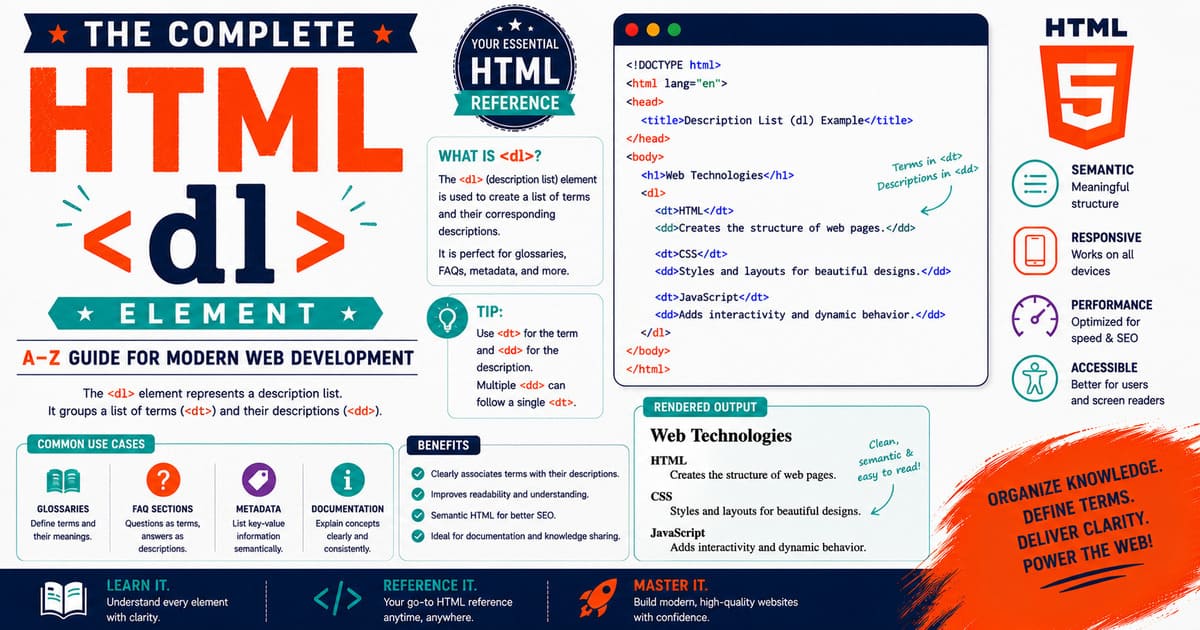
Chapter 5.13 — The <dl> Element
After learning ordered lists (<ol>), unordered lists (<ul>), and list items (<li>), it’s time to explore another important type of list in HTML:
1
<dl>
The letters “dl” stand for:
Description List
Unlike ordered and unordered lists, a description list is not intended for sequences or collections of similar items.
Instead, it represents groups of terms and their corresponding descriptions.
Description lists are commonly used for:
- Dictionaries
- Glossaries
- Frequently Asked Questions (FAQs)
- Product specifications
- Technical documentation
- Metadata
- Name-value pairs
- Configuration settings
- Definitions
Although developers often overlook <dl>, it provides meaningful semantic structure that generic <div> elements cannot.
5.13.1 Introduction to the <dl> Element
A description list groups related terms and descriptions.
A complete description list typically consists of three elements:
| Element | Purpose |
|---|---|
<dl> | Description list container |
<dt> | Description term |
<dd> | Description details |
Together, these elements create a semantic relationship between a term and its explanation.
Basic Example
1
2
3
4
5
6
7
8
9
10
11
12
13
14
15
16
17
18
19
20
21
<dl>

<dt>HTML</dt>

<dd>
HyperText Markup Language
</dd>

<dt>CSS</dt>

<dd>
Cascading Style Sheets
</dd>

<dt>JavaScript</dt>

<dd>
Programming language for the web
</dd>

</dl>
Browser output:
1
2
3
4
5
6
7
8
9
10
11
HTML

    HyperText Markup Language

CSS

    Cascading Style Sheets

JavaScript

    Programming language for the web
Notice that browsers typically indent descriptions beneath each term.
Understanding the Structure
The relationship looks like this:
1
2
3
4
5
6
7
8
9
10
11
12
13
Description List

├── Term

│     └── Description

├── Term

│     └── Description

└── Term

      └── Description
Unlike <ul> and <ol>, there are no bullets or numbers.
Instead, each term is associated with one or more descriptions.
Why Not Use a Table?
Some beginners attempt to represent definitions using tables.
Example:
1
2
3
4
5
6
7
8
9
10
11
<table>

<tr>

<td>HTML</td>

<td>HyperText Markup Language</td>

</tr>

</table>
Although this works visually, it is semantically incorrect.
A table represents tabular data.
A description list represents term-description relationships.
Choosing the correct element improves accessibility and document meaning.
Real-World Uses of <dl>
Description lists appear in many professional websites.
Examples include:
- Technical glossaries
- API documentation
- Product specifications
- Medical terminology
- Legal definitions
- Frequently Asked Questions
- Resume information
- Configuration panels
- Metadata sections
- Software documentation
Example — Product Specifications
1
2
3
4
5
6
7
8
9
10
11
12
13
14
15
<dl>

<dt>Processor</dt>

<dd>Intel Core i7</dd>

<dt>Memory</dt>

<dd>16 GB DDR5</dd>

<dt>Storage</dt>

<dd>1 TB SSD</dd>

</dl>
This structure clearly associates each specification with its corresponding value.
Example — Frequently Asked Questions
1
2
3
4
5
6
7
8
9
10
11
12
13
14
15
16
17
18
19
20
21
22
23
24
25
26
27
<dl>

<dt>

What is HTML?

</dt>

<dd>

HTML is the standard markup language for creating web pages.

</dd>

<dt>

Is HTML a programming language?

</dt>

<dd>

No. HTML is a markup language.

</dd>

</dl>
Each question becomes a term, and each answer becomes its description.
Example — Dictionary
1
2
3
4
5
6
7
8
9
10
11
12
13
14
15
16
17
18
19
20
21
22
23
24
25
26
27
<dl>

<dt>

Algorithm

</dt>

<dd>

A step-by-step procedure used to solve a problem.

</dd>

<dt>

Compiler

</dt>

<dd>

Software that converts source code into machine code.

</dd>

</dl>
This is one of the original purposes of the description list.
Multiple Descriptions for One Term
A term may have more than one description.
Example:
1
2
3
4
5
6
7
8
9
10
11
12
13
14
15
16
17
18
19
20
21
22
23
24
25
26
27
<dl>

<dt>

HTML

</dt>

<dd>

Markup language.

</dd>

<dd>

Maintained by the WHATWG.

</dd>

<dd>

Supported by all major browsers.

</dd>

</dl>
One term can therefore have multiple related explanations.
Multiple Terms Sharing One Description
Several terms may refer to the same description.
Example:
1
2
3
4
5
6
7
8
9
10
11
12
13
14
15
16
17
18
19
20
21
<dl>

<dt>

Color

</dt>

<dt>

Colour

</dt>

<dd>

Different spellings of the same word.

</dd>

</dl>
This flexibility is unique to description lists.
Can <dl> Contain Rich Content?
Yes.
Description details (<dd>) may contain rich HTML.
Example:
1
2
3
4
5
6
7
8
9
10
11
12
13
14
15
16
17
18
19
20
21
22
23
24
25
26
27
28
29
<dl>

<dt>

HTML

</dt>

<dd>

<p>

HTML defines the structure of web pages.

</p>

<ul>

<li>Semantic elements</li>

<li>Forms</li>

<li>Media</li>

</ul>

</dd>

</dl>
A description may include:
- Paragraphs
- Lists
- Images
- Links
- Tables
- Code blocks
- Forms
- Videos
This makes <dl> highly suitable for technical documentation.
Common Misconceptions
Misconception 1
”
<dl>is just another list.”
Incorrect.
It represents relationships between terms and descriptions, not a collection of similar items.
Misconception 2
”
<dl>is obsolete.”
Incorrect.
It is fully supported in HTML Living Standard and widely used in documentation.
Misconception 3
“Only dictionaries should use
<dl>.”
Incorrect.
Many professional websites use description lists for metadata, FAQs, settings, and product information.
Practical Exercise
Create a file named:
1
description-list.html
Example:
1
2
3
4
5
6
7
8
9
10
11
12
13
14
15
16
17
18
19
20
21
22
23
24
25
26
27
28
29
30
31
32
33
34
35
36
37
<!DOCTYPE html>

<html lang="en">

<head>

<title>Description List Example</title>

</head>

<body>

<h2>

Programming Languages

</h2>

<dl>

<dt>HTML</dt>

<dd>Creates the structure of web pages.</dd>

<dt>CSS</dt>

<dd>Controls the presentation of web pages.</dd>

<dt>JavaScript</dt>

<dd>Adds interactivity to web applications.</dd>

</dl>

</body>

</html>
Open the page in your browser and observe how the terms and descriptions are displayed.
Try adding multiple <dd> elements for a single <dt> to see how the browser handles multiple descriptions.
Did You Know?
The
<dl>element is widely used in developer documentation, API references, and technical manuals because it communicates semantic relationships between terms and explanations more accurately than tables or generic<div>containers.
Summary
In this section, you learned:
- What the
<dl>element represents. - The relationship between
<dl>,<dt>, and<dd>. - Basic syntax.
- Real-world applications.
- Multiple terms and descriptions.
- Rich content support.
- Common misconceptions.
- Practical examples.
Coming Up Next — Section 5.13.2
In the next section, we’ll explore:
- HTML Living Standard definition.
- Content categories.
- Content model.
- Browser parsing.
- DOM representation.
- The
HTMLDListElementinterface. - Accessibility semantics.
- Professional implementation techniques.
By the end of the next section, you’ll understand exactly how browsers interpret description lists internally and why they are preferred over generic containers for definition-style content.
5.13.2 HTML Living Standard, Content Categories, Content Model, Browser Parsing, DOM Interface, and Accessibility of <dl>
In the previous section, you learned that the <dl> element represents a description list, which associates one or more terms (<dt>) with one or more descriptions (<dd>).
Unlike <ul> and <ol>, a description list does not represent a sequence or a collection of similar items. Instead, it expresses semantic relationships between concepts and their explanations.
In this section, we’ll examine the <dl> element from the perspective of the HTML Living Standard, browser parsing, DOM representation, accessibility, and modern web development.
HTML Living Standard Definition
According to the HTML Living Standard, the <dl> element represents an association list consisting of zero or more groups, where each group contains one or more names (<dt>) followed by one or more values (<dd>).
This definition makes <dl> far more flexible than a simple dictionary.
It can represent:
- Terms and definitions
- Questions and answers
- Metadata
- Property-value pairs
- Product specifications
- Configuration settings
- API documentation
Understanding Association Groups
A description list consists of one or more groups.
Example:
1
2
3
4
5
6
7
8
9
10
11
<dl>

<dt>HTML</dt>

<dd>Markup language.</dd>

<dt>CSS</dt>

<dd>Style sheet language.</dd>

</dl>
Internally, the browser interprets this as:
1
2
3
4
5
6
7
8
9
10
11
12
13
14
15
16
17
Group 1

Term:
HTML

Description:
Markup language

---------------------

Group 2

Term:
CSS

Description:
Style sheet language
Each group is treated independently.
Multiple Terms in One Group
HTML allows multiple terms to share the same description.
Example:
1
2
3
4
5
6
7
8
9
10
11
12
13
<dl>

<dt>Color</dt>

<dt>Colour</dt>

<dd>

Alternative spellings of the same word.

</dd>

</dl>
This creates one logical association group containing two names and one shared description.
Multiple Descriptions in One Group
Likewise, a single term may have several descriptions.
Example:
1
2
3
4
5
6
7
8
9
10
11
<dl>

<dt>HTML</dt>

<dd>Markup language.</dd>

<dd>Maintained by the WHATWG.</dd>

<dd>Supported by all major browsers.</dd>

</dl>
All three descriptions belong to the same term.
Content Categories
The <dl> element belongs to the following HTML content categories.
| Category | Included |
|---|---|
| Flow Content | ✅ |
| Palpable Content* | ✅ |
Note: A
<dl>is considered palpable content when it contains at least one name-description group.
Permitted Parent Elements
The <dl> element may appear anywhere Flow Content is permitted.
Example:
1
2
3
4
5
6
7
8
9
10
11
12
13
14
15
16
17
<article>

<h2>

HTML Glossary

</h2>

<dl>

<dt>HTML</dt>

<dd>Markup language.</dd>

</dl>

</article>
It can also appear inside:
<section><main><aside><div><details><dialog>- and many other flow-content containers.
Permitted Children
The direct children of <dl> should normally be:
<dt><dd>
Modern HTML also allows certain scripting and template-related elements where appropriate, but in standard authoring you should primarily use <dt> and <dd>.
Correct example:
1
2
3
4
5
6
7
<dl>

<dt>CPU</dt>

<dd>Central Processing Unit</dd>

</dl>
Incorrect example:
1
2
3
4
5
<dl>

<p>Processor</p>

</dl>
A paragraph cannot replace a description term.
Content Model
The content model of <dl> consists of one or more groups of:
- one or more
<dt>elements - followed by one or more
<dd>elements
The sequence can repeat indefinitely.
Visual representation:
1
2
3
4
5
6
7
8
9
10
11
12
13
14
15
dl

├── dt

├── dd

├── dt

├── dd

├── dd

├── dt

└── dd
This flexibility allows complex documentation structures.
Browser Parsing
Consider this HTML:
1
2
3
4
5
6
7
<dl>

<dt>RAM</dt>

<dd>Random Access Memory</dd>

</dl>
Simplified browser parsing process:
1
2
3
4
5
6
7
8
9
10
11
12
13
14
15
16
17
18
19
20
21
22
23
24
25
26
27
28
29
30
31
32
33
Read <dl>

↓

Create Description List Node

↓

Read <dt>

↓

Create Term Node

↓

Insert Text Node

↓

Read <dd>

↓

Create Description Node

↓

Insert Text Node

↓

Close <dl>
The browser constructs a semantic association between the term and its description.
DOM Representation
HTML:
1
2
3
4
5
6
7
<dl>

<dt>HTML</dt>

<dd>Markup language.</dd>

</dl>
Simplified DOM tree:
1
2
3
4
5
6
7
8
9
10
11
12
13
14
15
Document

└── html

    └── body

        └── dl

             ├── dt

             │    └── Text Node

             └── dd

                  └── Text Node
The <dl> element becomes the parent node of all <dt> and <dd> elements.
The HTMLDListElement Interface
In the DOM, the browser represents a description list using:
1
HTMLDListElement
Inheritance hierarchy:
1
2
3
4
5
6
7
8
9
10
11
12
13
14
15
16
17
EventTarget

↓

Node

↓

Element

↓

HTMLElement

↓

HTMLDListElement
Unlike some HTML elements, HTMLDListElement has no special element-specific methods or properties. It inherits its functionality from HTMLElement.
Default Browser Rendering
Most browsers display description lists with:
- Terms aligned to the left.
- Descriptions indented beneath the corresponding terms.
- No bullets.
- No numbering.
Example rendering:
1
2
3
4
5
6
7
HTML

    Markup language

CSS

    Style sheet language
The exact spacing depends on the browser’s default stylesheet.
Accessibility
Screen readers recognize <dl> as a semantic description list.
Typical announcement:
1
2
3
4
5
6
7
8
9
10
11
12
13
14
15
16
17
Description list.

Term:

HTML.

Description:

Markup language.

Term:

CSS.

Description:

Style sheet language.
This semantic relationship helps users understand that each description belongs to a specific term.
SEO Considerations
Search engines interpret <dl> as structured semantic content.
It is particularly useful for:
- Glossaries
- Technical references
- Product specifications
- Metadata
- Frequently Asked Questions
- API documentation
While using <dl> does not directly improve search rankings, it helps search engines understand relationships between concepts and their descriptions.
Common Misconceptions
Misconception 1
”
<dl>must contain exactly one<dt>followed by one<dd>.”
Incorrect.
A group may contain multiple terms and multiple descriptions.
Misconception 2
”
<dl>is only for dictionaries.”
Incorrect.
It is appropriate for any term-description or name-value relationship.
Misconception 3
”
<dl>displays bullets.”
Incorrect.
Description lists have neither bullets nor numbering by default.
Practical Exercise
Create a file named:
1
product-specification.html
Example:
1
2
3
4
5
6
7
8
9
10
11
12
13
14
15
16
17
18
19
20
21
22
23
24
25
26
27
28
29
30
31
32
33
34
35
36
37
<!DOCTYPE html>

<html lang="en">

<head>

<title>Product Specifications</title>

</head>

<body>

<h2>

Laptop Specifications

</h2>

<dl>

<dt>Processor</dt>

<dd>Intel Core Ultra 7</dd>

<dt>Memory</dt>

<dd>32 GB DDR5</dd>

<dt>Storage</dt>

<dd>1 TB NVMe SSD</dd>

</dl>

</body>

</html>
Observe how the browser groups each specification with its corresponding value.
Did You Know?
The HTML Living Standard deliberately defines
<dl>as an association list rather than a “definition list.” This broader definition allows developers to use it for many kinds of semantic relationships beyond traditional dictionary entries.
Summary
In this section, you learned:
- The HTML Living Standard definition of
<dl>. - Association groups.
- Multiple terms and descriptions.
- Content categories.
- Permitted parents and children.
- Content model.
- Browser parsing.
- DOM representation.
- The
HTMLDListElementinterface. - Accessibility semantics.
- SEO considerations.
Coming Up Next — Section 5.13.3
In the next section, we’ll explore CSS Styling, Advanced Layout Techniques, JavaScript Manipulation, Responsive Design, Accessibility Enhancements, and Professional UI Patterns for the <dl> element.
You’ll learn how modern documentation sites, API references, knowledge bases, and technical manuals style and enhance description lists for professional-quality presentation.
5.13.3 CSS Styling, Advanced Layout Techniques, JavaScript Manipulation, Responsive Design, Accessibility Enhancements, and Professional UI Patterns
In the previous section, you learned how browsers interpret the <dl> element according to the HTML Living Standard. You also explored its content model, DOM representation, and accessibility semantics.
Although browsers provide a simple default appearance for description lists, professional websites often transform them into elegant layouts for glossaries, product specifications, API documentation, configuration panels, FAQs, and metadata sections.
In this section, you’ll learn how to style and manipulate <dl> elements using CSS and JavaScript while maintaining semantic HTML.
5.13.3.1 Default Browser Appearance
Most browsers render description lists with:
- Terms aligned to the left.
- Descriptions indented beneath their terms.
- No bullets.
- No numbering.
- Vertical spacing between groups.
Example:
1
2
3
4
5
6
7
8
9
10
11
<dl>

<dt>HTML</dt>

<dd>Markup language.</dd>

<dt>CSS</dt>

<dd>Style sheet language.</dd>

</dl>
Typical browser rendering:
1
2
3
4
5
6
7
HTML

    Markup language.

CSS

    Style sheet language.
The exact spacing varies slightly between browsers because of their default user-agent stylesheets.
Styling the Description List
You can style the <dl> container just like any other HTML element.
Example:
1
2
3
4
5
6
7
8
9
10
11
dl{

padding:20px;

border:1px solid #cccccc;

border-radius:8px;

background:#fafafa;

}
This creates a visually distinct section around the description list.
Styling Terms
Terms are usually emphasized.
Example:
1
2
3
4
5
6
7
8
9
10
11
dt{

font-weight:bold;

font-size:1.1rem;

margin-top:20px;

color:#222222;

}
This helps users quickly identify the beginning of each definition group.
Styling Descriptions
Descriptions typically have indentation and comfortable spacing.
Example:
1
2
3
4
5
6
7
8
9
10
11
dd{

margin-left:24px;

margin-bottom:16px;

line-height:1.7;

color:#555555;

}
These styles improve readability, especially in long documentation.
Card-Style Description Lists
Modern documentation websites often display each term-description group as a card.
Example:
1
2
3
4
5
6
7
8
9
10
11
12
13
14
15
16
17
18
19
20
21
22
23
24
25
26
27
28
29
dl{

display:block;

}

dt{

background:#f0f4ff;

padding:12px;

border-radius:6px 6px 0 0;

}

dd{

margin:0;

padding:12px;

border:1px solid #d9e2f2;

border-top:none;

margin-bottom:18px;

}
This approach clearly separates individual entries.
Using CSS Grid
CSS Grid creates clean two-column layouts for specifications.
Example HTML:
1
2
3
4
5
6
7
8
9
10
11
12
13
14
15
<dl class="specifications">

<dt>Processor</dt>

<dd>Intel Core Ultra 7</dd>

<dt>Memory</dt>

<dd>32 GB DDR5</dd>

<dt>Storage</dt>

<dd>1 TB SSD</dd>

</dl>
CSS:
1
2
3
4
5
6
7
8
9
10
11
12
13
14
15
16
17
18
19
20
21
22
23
.specifications{

display:grid;

grid-template-columns:200px 1fr;

gap:12px 24px;

}

.specifications dt{

font-weight:bold;

margin:0;

}

.specifications dd{

margin:0;

}
This produces a clean specification table while preserving semantic HTML.
Responsive Layout
On smaller screens, multiple columns may reduce readability.
Example:
1
2
3
4
5
6
7
8
9
@media (max-width:768px){

.specifications{

grid-template-columns:1fr;

}

}
Terms and descriptions automatically stack vertically on mobile devices.
Highlighting Important Terms
Example:
1
2
3
4
5
dt.important{

color:#b22222;

}
HTML:
1
2
3
4
5
<dt class="important">

Security

</dt>
Important concepts become more noticeable without changing the document structure.
Styling Links Within Descriptions
Descriptions often contain hyperlinks.
Example:
1
2
3
4
5
6
7
8
9
10
11
12
13
dd a{

text-decoration:none;

font-weight:600;

}

dd a:hover{

text-decoration:underline;

}
This improves navigation within documentation.
JavaScript Manipulation
Description lists can be modified dynamically.
Example HTML:
1
2
3
4
5
6
7
<dl id="glossary">

<dt>HTML</dt>

<dd>Markup language.</dd>

</dl>
Adding another entry:
1
2
3
4
5
6
7
8
9
10
11
12
13
14
15
16
17
18
const glossary =
document.getElementById("glossary");

const term =
document.createElement("dt");

term.textContent =
"CSS";

const description =
document.createElement("dd");

description.textContent =
"Style sheet language.";

glossary.appendChild(term);

glossary.appendChild(description);
The new term-description pair appears immediately.
Updating Existing Descriptions
Example:
1
2
3
4
5
const description =
document.querySelector("dd");

description.textContent =
"HyperText Markup Language";
The browser updates the content without refreshing the page.
Removing Entries
Example:
1
2
3
4
5
6
7
8
9
const term =
document.querySelector("dt");

const description =
document.querySelector("dd");

term.remove();

description.remove();
Removing both elements preserves the integrity of the description list.
Interactive FAQ Example
Description lists are commonly used for expandable FAQ sections.
Example:
1
2
3
4
5
6
7
8
9
10
11
12
13
14
15
<dl>

<dt>

What is HTML?

</dt>

<dd hidden>

HTML is the standard markup language for web pages.

</dd>

</dl>
JavaScript:
1
2
3
4
5
6
7
8
9
10
11
const question =
document.querySelector("dt");

const answer =
document.querySelector("dd");

question.addEventListener("click",function(){

answer.hidden=!answer.hidden;

});
Users can expand or collapse answers by selecting the question.
Accessibility Enhancements
When styling description lists:
- Preserve the semantic relationship between
<dt>and<dd>. - Ensure sufficient color contrast.
- Avoid relying solely on color to distinguish terms.
- Maintain logical reading order.
- Ensure interactive components remain keyboard accessible.
These practices improve usability for all users.
Professional UI Patterns
Modern websites use <dl> for:
- API references
- Configuration settings
- Software documentation
- Technical glossaries
- Product specifications
- Resume metadata
- FAQ pages
- System information
- Medical terminology
- Legal definitions
These patterns preserve semantic meaning while allowing highly customized designs.
Common Mistakes
Mistake 1
Using <dl> for ordinary navigation menus.
Navigation represents a collection of links, so <ul> is usually more appropriate.
Mistake 2
Using tables for term-description relationships.
Unless the information is genuinely tabular, prefer semantic description lists.
Mistake 3
Separating <dt> and <dd> into unrelated containers.
Each term should remain logically associated with its corresponding description.
Mistake 4
Removing visual distinction between terms and descriptions.
Users should immediately recognize which text is the term and which text is its explanation.
Practical Exercise
Create a file named:
1
styled-description-list.html
Experiment with:
- Borders.
- Background colors.
- Grid layouts.
- Typography.
- Responsive behavior.
- Expandable FAQ interactions.
Observe how the appearance changes while the semantic HTML structure remains unchanged.
Did You Know?
Many documentation generators and design systems—including developer portals, software documentation platforms, and enterprise knowledge bases—use
<dl>for displaying configuration options, API parameters, metadata, and glossary entries because it accurately represents name-value relationships.
Summary
In this section, you learned:
- Default rendering of
<dl>. - Styling description lists.
- Formatting
<dt>and<dd>. - Card layouts.
- CSS Grid layouts.
- Responsive design.
- JavaScript manipulation.
- Interactive FAQ examples.
- Accessibility enhancements.
- Professional UI patterns.
- Common development mistakes.
Coming Up Next — Section 5.13.4
In the next section, we’ll explore DOM APIs, HTMLDListElement, Browser Compatibility, Accessibility APIs, SEO, Performance, Advanced JavaScript, Professional Best Practices, and Interview Questions for the <dl> element.
You’ll also learn how browsers expose description lists through the DOM and how professional developers optimize complex documentation and metadata interfaces.
5.13.4 DOM APIs, HTMLDListElement, Browser Compatibility, Accessibility APIs, SEO, Performance, Advanced JavaScript, and Professional Best Practices
In the previous section, you learned how CSS and JavaScript can transform description lists into professional documentation layouts, FAQ systems, metadata panels, and specification sheets.
In this section, we’ll examine how browsers expose the <dl> element through the DOM, how assistive technologies interpret description lists, and how professional developers optimize them for performance, accessibility, and maintainability.
5.13.4.1 DOM Representation of <dl>
When a browser parses a description list, it creates DOM nodes representing the <dl>, <dt>, and <dd> elements.
Example HTML:
1
2
3
4
5
6
7
8
9
10
11
<dl id="glossary">

<dt>HTML</dt>

<dd>Markup language.</dd>

<dt>CSS</dt>

<dd>Style sheet language.</dd>

</dl>
Simplified DOM tree:
1
2
3
4
5
6
7
8
9
10
11
12
13
14
15
16
17
18
19
20
21
22
23
Document

└── html

    └── body

        └── dl

             ├── dt

             │    └── Text Node

             ├── dd

             │    └── Text Node

             ├── dt

             │    └── Text Node

             └── dd

                  └── Text Node
Each term and description becomes its own DOM element.
The HTMLDListElement Interface
The browser represents every <dl> element using:
1
HTMLDListElement
Inheritance hierarchy:
1
2
3
4
5
6
7
8
9
10
11
12
13
14
15
16
17
EventTarget

↓

Node

↓

Element

↓

HTMLElement

↓

HTMLDListElement
The HTMLDListElement interface does not define many special methods of its own, but it inherits all standard DOM capabilities from HTMLElement.
Selecting a Description List
HTML:
1
2
3
4
5
6
7
<dl id="settings">

<dt>Theme</dt>

<dd>Dark</dd>

</dl>
JavaScript:
1
2
3
4
5
6
const list =
document.getElementById(
"settings"
);

console.log(list);
The browser returns an HTMLDListElement object.
Reading Child Elements
Example:
1
2
3
4
5
6
const children =
document.querySelectorAll(
"#settings dt, #settings dd"
);

console.log(children.length);
Output:
1
2
The result includes both the term and its description.
Selecting Terms
Example:
1
2
3
4
5
6
7
8
9
10
const terms =
document.querySelectorAll("dt");

terms.forEach(function(term){

console.log(
term.textContent
);

});
Output:
1
Theme
If additional terms exist, each one is returned.
Selecting Descriptions
Example:
1
2
3
4
5
6
7
8
9
10
const descriptions =
document.querySelectorAll("dd");

descriptions.forEach(function(dd){

console.log(
dd.textContent
);

});
Output:
1
Dark
Creating Description Lists Dynamically
JavaScript can generate complete description lists.
Example:
1
2
3
4
5
6
7
8
9
10
11
12
13
14
15
16
17
18
19
20
const dl =
document.createElement("dl");

const dt =
document.createElement("dt");

dt.textContent =
"HTML";

const dd =
document.createElement("dd");

dd.textContent =
"Markup language";

dl.appendChild(dt);

dl.appendChild(dd);

document.body.appendChild(dl);
The browser creates a fully functional semantic description list.
Adding Additional Entries
Example:
1
2
3
4
5
6
7
8
9
10
11
12
13
14
15
16
const dl =
document.querySelector("dl");

const dt =
document.createElement("dt");

dt.textContent =
"CSS";

const dd =
document.createElement("dd");

dd.textContent =
"Style sheet language";

dl.append(dt, dd);
The new association group is appended to the existing list.
Updating Existing Content
Example:
1
2
3
4
5
const description =
document.querySelector("dd");

description.textContent =
"HyperText Markup Language";
The updated text appears immediately.
Removing Groups
Example:
1
2
3
4
5
6
7
8
9
const term =
document.querySelector("dt");

const description =
document.querySelector("dd");

term.remove();

description.remove();
Removing both elements preserves the logical structure of the description list.
Browser Compatibility
The <dl> element is universally supported.
| Browser | Support |
|---|---|
| Chrome | ✅ |
| Firefox | ✅ |
| Safari | ✅ |
| Edge | ✅ |
| Opera | ✅ |
| Android Browsers | ✅ |
| iOS Browsers | ✅ |
The element has existed since the earliest versions of HTML and remains fully supported today.
Accessibility APIs
Assistive technologies recognize <dl> as a description list.
Typical screen reader interpretation:
1
2
3
4
5
6
7
8
9
10
11
12
13
14
15
16
17
Description list.

Term:

HTML.

Description:

Markup language.

Term:

CSS.

Description:

Style sheet language.
This semantic relationship provides context that generic <div> elements cannot communicate.
Accessibility Benefits
Description lists improve accessibility by:
- Clearly associating terms with explanations.
- Providing meaningful navigation structures.
- Improving comprehension for screen reader users.
- Preserving semantic relationships.
For technical documentation, this semantic clarity is especially valuable.
SEO Considerations
Search engines can better understand structured relationships when semantic description lists are used.
Typical examples include:
- Product specifications.
- Metadata sections.
- Technical glossaries.
- API parameter documentation.
- Frequently Asked Questions.
- Configuration settings.
While <dl> does not directly increase rankings, it improves document structure and machine readability.
Performance Considerations
Description lists are lightweight.
Potential performance concerns arise only when:
- Thousands of entries are rendered.
- Frequent DOM updates occur.
- Large datasets are inserted inefficiently.
For very large documentation systems, consider:
- Pagination.
- Virtual scrolling.
- Lazy rendering.
- Search filtering.
These approaches improve responsiveness.
Professional Best Practices
Use <dl> Only for Associations
Good examples:
- Terms and definitions.
- Questions and answers.
- Properties and values.
- Product specifications.
Avoid using <dl> for ordinary navigation menus or unrelated collections.
Keep Terms Concise
Prefer:
1
2
3
4
5
<dt>

CPU

</dt>
Instead of:
1
2
3
4
5
<dt>

Central Processing Unit Information Section

</dt>
Short terms improve readability.
Keep Descriptions Meaningful
Descriptions should explain, define, or clarify the term.
Example:
1
2
3
4
5
<dd>

Central Processing Unit

</dd>
This clearly describes the term.
Preserve Semantic Relationships
Never separate associated terms and descriptions into unrelated containers.
Correct structure:
1
2
3
4
5
6
7
<dl>

<dt>RAM</dt>

<dd>Random Access Memory</dd>

</dl>
Interview Questions
Question 1
Which DOM interface represents the <dl> element?
Answer:
HTMLDListElement
Question 2
What elements typically appear inside a description list?
Answer:
<dt> and <dd> elements.
Question 3
Can one term have multiple descriptions?
Answer:
Yes. A single <dt> may be followed by multiple <dd> elements.
Question 4
Can multiple terms share one description?
Answer:
Yes. Multiple <dt> elements may be associated with a single <dd>.
Question 5
Should <dl> be used for navigation menus?
Answer:
Generally no. Navigation menus are usually better represented by <ul> and <li> elements.
Did You Know?
Many API documentation platforms use
<dl>structures internally to display parameter names, return values, configuration options, and metadata because description lists naturally represent name-value relationships.
Summary
In this section, you learned:
- DOM representation of
<dl>. - The
HTMLDListElementinterface. - Selecting terms and descriptions.
- Dynamic creation and manipulation.
- Browser compatibility.
- Accessibility APIs.
- SEO considerations.
- Performance optimization.
- Professional best practices.
- Common interview questions.
Coming Up Next — Section 5.13.5 (Final Section)
In the final section of the <dl> chapter, we’ll cover:
- Advanced real-world examples.
- Markdown integration.
- Jekyll integration.
- Security considerations.
- Complete technical reference.
- Common authoring mistakes.
- Professional publishing checklist.
- Comprehensive chapter summary.
After Section 5.13.5, the <dl> element will be fully documented, and we’ll continue to the next HTML element in The Complete HTML Reference: A–Z Guide for Modern Web Development.
5.13.5 Advanced Examples, Markdown Integration, Jekyll Implementation, Security, Complete Technical Reference, and Chapter Summary
Welcome to the final section of the <dl> chapter.
Throughout this chapter, you’ve explored the HTML <dl> element from its basic syntax to its role in professional documentation, API references, product specifications, and metadata presentation.
Unlike unordered and ordered lists, description lists express semantic relationships between terms and their associated descriptions. This makes them invaluable for technical documentation and knowledge-based websites.
In this final section, we’ll examine advanced real-world examples, Markdown and Jekyll integration, security considerations, professional authoring practices, and conclude with a complete technical reference.
5.13.5.1 Advanced Real-World Examples
Description lists are widely used beyond traditional dictionaries.
Common applications include:
- Technical glossaries
- Software documentation
- API references
- Product specifications
- Resume metadata
- Medical terminology
- Frequently Asked Questions
- Configuration panels
- System information
- Legal definitions
Each use case benefits from the semantic relationship between a term and its explanation.
Example 1 — API Documentation
1
2
3
4
5
6
7
8
9
10
11
12
13
14
15
<dl>

<dt>endpoint</dt>

<dd>The URL where the API request is sent.</dd>

<dt>method</dt>

<dd>The HTTP method such as GET or POST.</dd>

<dt>response</dt>

<dd>The data returned by the server.</dd>

</dl>
This structure clearly associates each API concept with its definition.
Example 2 — Resume Information
1
2
3
4
5
6
7
8
9
10
11
12
13
14
15
<dl>

<dt>Name</dt>

<dd>John Doe</dd>

<dt>Experience</dt>

<dd>8 Years</dd>

<dt>Specialization</dt>

<dd>Frontend Development</dd>

</dl>
A description list is more semantic than using multiple <div> elements.
Example 3 — System Configuration
1
2
3
4
5
6
7
8
9
10
11
12
13
14
15
<dl>

<dt>Operating System</dt>

<dd>Ubuntu 24.04 LTS</dd>

<dt>Processor</dt>

<dd>Intel Core Ultra 7</dd>

<dt>Memory</dt>

<dd>32 GB DDR5</dd>

</dl>
This is a common pattern in administration dashboards and system reports.
Example 4 — FAQ Section
1
2
3
4
5
6
7
8
9
10
11
<dl>

<dt>What is HTML?</dt>

<dd>HTML is the standard markup language for web pages.</dd>

<dt>Who maintains HTML?</dt>

<dd>The HTML Living Standard is maintained by the WHATWG.</dd>

</dl>
Each question naturally becomes a term, while the answer becomes its description.
Example 5 — Product Specifications
1
2
3
4
5
6
7
8
9
10
11
12
13
14
15
<dl>

<dt>Display</dt>

<dd>15.6-inch IPS LCD</dd>

<dt>Battery</dt>

<dd>72 Wh Lithium-ion</dd>

<dt>Weight</dt>

<dd>1.7 kg</dd>

</dl>
This format is ideal for e-commerce product pages.
5.13.5.2 Markdown Integration
Standard Markdown does not include dedicated syntax for HTML description lists.
For unordered lists, Markdown provides:
1
2
3
- HTML
- CSS
- JavaScript
However, there is no equivalent syntax for <dl>.
Instead, raw HTML must be embedded.
Example:
1
2
3
4
5
6
7
8
9
10
11
<dl>

<dt>HTML</dt>

<dd>Markup language.</dd>

<dt>CSS</dt>

<dd>Style sheet language.</dd>

</dl>
Most Markdown processors preserve this HTML.
Using <dl> in Jekyll
Jekyll uses the Kramdown Markdown processor by default.
Kramdown allows raw HTML.
Example:
1
2
3
4
5
6
7
8
9
10
11
12
13
## HTML Glossary

<dl>

<dt>HTML</dt>

<dd>HyperText Markup Language.</dd>

<dt>CSS</dt>

<dd>Cascading Style Sheets.</dd>

</dl>
During site generation, Jekyll includes the HTML exactly as written.
Styling Description Lists in Jekyll
Example CSS:
1
2
3
4
5
6
7
8
9
10
11
12
13
14
15
16
17
18
19
20
21
.post-content dl{

margin:2rem 0;

}

.post-content dt{

font-weight:700;

margin-top:1rem;

}

.post-content dd{

margin-left:1.5rem;

margin-bottom:1rem;

}
These rules improve the readability of glossary-style articles.
Responsive Documentation
On mobile devices, long descriptions should wrap naturally.
Example:
1
2
3
4
5
6
7
.post-content dd{

overflow-wrap:anywhere;

word-break:break-word;

}
This prevents horizontal scrolling caused by long URLs or technical identifiers.
Security Considerations
The <dl> element itself introduces no security risks.
However, dynamically inserting untrusted HTML into <dt> or <dd> elements can lead to Cross-Site Scripting (XSS).
Unsafe example:
1
2
description.innerHTML =
userInput;
If userInput contains malicious HTML or JavaScript, it may execute in the user’s browser.
Safer Alternative
Use textContent whenever displaying user-supplied text.
1
2
description.textContent =
userInput;
This ensures the input is treated as plain text rather than executable markup.
Common Authoring Mistakes
Mistake 1
Using <dl> for navigation menus.
Navigation links represent collections and should normally use <ul> with <li>.
Mistake 2
Replacing <dt> and <dd> with generic <div> elements.
This removes semantic meaning and reduces accessibility.
Mistake 3
Placing unrelated content between associated terms and descriptions.
Each <dt> should remain logically connected to its corresponding <dd>.
Mistake 4
Using description lists to mimic tables.
If the content is genuinely tabular with rows and columns, use <table> instead.
Professional Publishing Checklist
Before publishing a description list, ask yourself:
- Are all terms followed by appropriate descriptions?
- Is
<dl>the correct semantic choice? - Are related terms and descriptions grouped logically?
- Is the layout readable on desktop and mobile?
- Are accessibility requirements satisfied?
- Have I avoided using
<div>elements where semantic markup is available?
A well-structured description list improves both readability and maintainability.
Complete Technical Reference
| Feature | Description |
|---|---|
| Element | <dl> |
| Full Name | Description List |
| Purpose | Represents groups of terms and descriptions |
| Primary Children | <dt>, <dd> |
| Content Category | Flow Content |
| Closing Tag | Required |
| Void Element | No |
| DOM Interface | HTMLDListElement |
| JavaScript Support | Full |
| Accessibility | Excellent |
| Browser Support | Universal |
Comparison of HTML List Elements
| Element | Primary Purpose |
|---|---|
<ul> | Unordered collection of related items |
<ol> | Ordered sequence of items |
<dl> | Term-description or name-value associations |
Selecting the correct list element improves semantics, accessibility, and document structure.
Chapter 5.13 Final Summary — The <dl> Element
Congratulations!
You have completed a comprehensive study of the HTML <dl> element.
Throughout this chapter, you learned:
Fundamentals
- Purpose of description lists.
- Relationship between
<dl>,<dt>, and<dd>. - Basic syntax.
Browser Internals
- HTML Living Standard definition.
- Content model.
- Browser parsing.
- DOM representation.
HTMLDListElement.
Practical Development
- CSS styling.
- Responsive layouts.
- JavaScript manipulation.
- Accessibility.
- SEO.
- Performance optimization.
Publishing
- Markdown integration.
- Jekyll integration.
- Security considerations.
- Professional documentation practices.
Chapter 5 Progress Update
Completed elements:
- ✅
<br> - ✅
<hr> - ✅
<wbr> - ✅
<pre> - ✅
<blockquote> - ✅
<ol> - ✅
<ul> - ✅
<li> - ✅
<dl>
The remaining elements in the Description List family are:
- ⏳
<dt>— Description Term - ⏳
<dd>— Description Details
These will be covered next before moving on to the next major group of HTML elements.
Coming Up Next — Chapter 5.14: The <dt> Element
The next chapter explores the Description Term (<dt>) element, including:
- Purpose and semantics.
- HTML Living Standard definition.
- Content model.
- Browser parsing.
- DOM interface.
- CSS styling.
- JavaScript manipulation.
- Accessibility.
- SEO.
- Markdown and Jekyll integration.
- Professional best practices.
Together with <dd>, the <dt> element completes the semantic structure of HTML description lists.
End of Chapter 5.13 — The <dl> Element
Status: ✅ Complete
The HTML <dl> element is now fully documented as part of The Complete HTML Reference: A–Z Guide for Modern Web Development.