Chapter 5.12 - The `<li>` Element
Complete guide to the HTML `<li>` element including list items, ordered and unordered lists, DOM behavior, CSS styling, accessibility, JavaScript, SEO, and professional best practices.
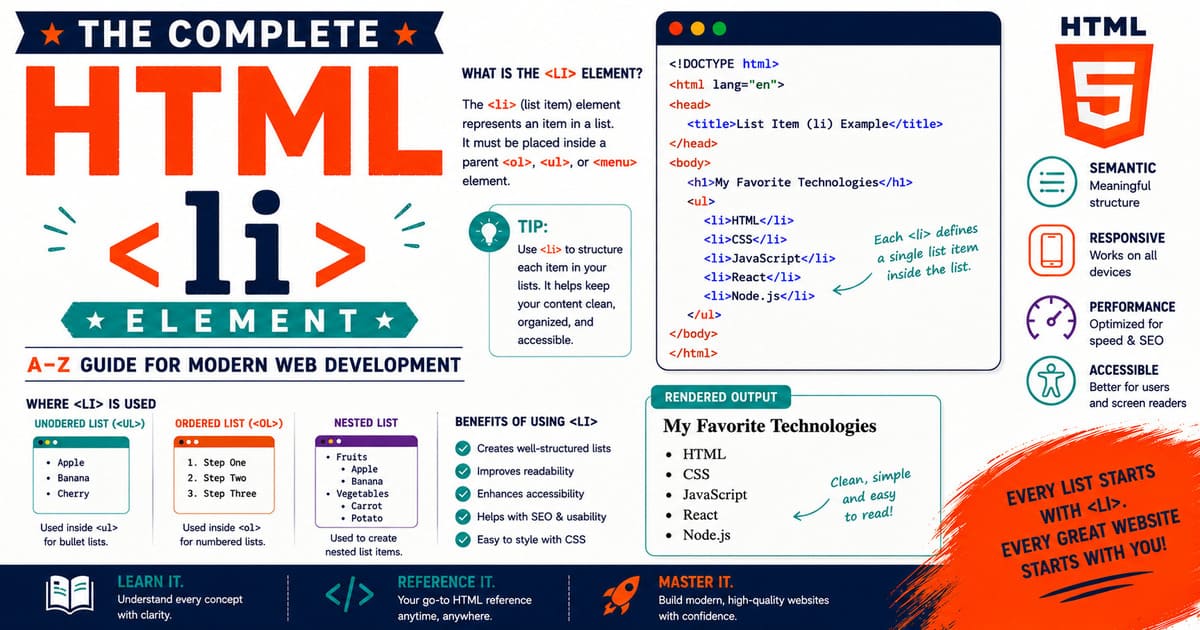
Chapter 5.12 — The <li> Element
Every ordered list (<ol>) and unordered list (<ul>) is made up of individual items. These items are represented by one of the oldest and most fundamental HTML elements:
1
<li>
The letters “li” stand for:
List Item
Although <li> appears simple, it is one of the most frequently used HTML elements on the modern web.
Without <li>, elements such as <ol>, <ul>, and <menu> cannot represent meaningful collections of information.
From navigation menus and documentation to e-commerce websites, dashboards, settings panels, FAQs, and tutorials, millions of <li> elements are rendered every second across the Internet.
5.12.1 Introduction to the <li> Element
The <li> element represents one item within a list.
It must belong to one of these parent elements:
<ol>(Ordered List)<ul>(Unordered List)<menu>(Menu List)
Every list consists of one or more list items.
Example:
1
2
3
4
5
6
7
8
9
<ul>

<li>HTML</li>

<li>CSS</li>

<li>JavaScript</li>

</ul>
Browser output:
1
2
3
4
5
• HTML

• CSS

• JavaScript
Here, each <li> represents one member of the collection.
<li> Inside an Ordered List
Example:
1
2
3
4
5
6
7
8
9
<ol>

<li>Download the installer</li>

<li>Run the setup program</li>

<li>Restart the computer</li>

</ol>
Rendered output:
1
2
3
4
5
1. Download the installer

2. Run the setup program

3. Restart the computer
Notice that the <li> element itself does not create numbers.
Instead:
<ol>manages numbering.<li>defines each individual item.
<li> Inside an Unordered List
Example:
1
2
3
4
5
6
7
8
9
<ul>

<li>Keyboard</li>

<li>Mouse</li>

<li>Monitor</li>

</ul>
Rendered output:
1
2
3
4
5
• Keyboard

• Mouse

• Monitor
Again:
<ul>creates bullet markers.<li>provides the content.
Why Does HTML Separate Lists and Items?
HTML separates responsibilities.
| Element | Responsibility |
|---|---|
<ol> | Defines an ordered collection |
<ul> | Defines an unordered collection |
<li> | Defines one item inside that collection |
This separation makes HTML flexible and semantically meaningful.
Real-World Examples
The <li> element appears in many common user interface components.
Examples include:
- Website navigation
- Sidebar menus
- Product categories
- Shopping carts
- Feature lists
- FAQ sections
- Table of contents
- Search suggestions
- Notification panels
- Documentation menus
Example — Navigation Menu
1
2
3
4
5
6
7
8
9
10
11
12
13
14
15
16
17
18
19
20
21
22
23
24
25
<nav>

<ul>

<li>

<a href="/">Home</a>

</li>

<li>

<a href="/blog/">Blog</a>

</li>

<li>

<a href="/contact/">Contact</a>

</li>

</ul>

</nav>
Each navigation link is represented as an individual list item.
Example — Product Features
1
2
3
4
5
6
7
8
9
<ul>

<li>Free Updates</li>

<li>24/7 Customer Support</li>

<li>Lifetime License</li>

</ul>
Each feature is represented by its own <li> element.
Example — Checklist
1
2
3
4
5
6
7
8
9
<ul>

<li>Complete HTML tutorial</li>

<li>Practice exercises</li>

<li>Build portfolio website</li>

</ul>
Although visually similar to a checklist, these remain semantic list items.
Can <li> Contain More Than Text?
Yes.
A list item can contain almost any flow content.
Example:
1
2
3
4
5
6
7
8
9
10
11
12
13
14
15
16
17
18
19
<ul>

<li>

<h3>

Frontend

</h3>

<p>

Learn HTML, CSS, and JavaScript.

</p>

</li>

</ul>
Each list item may include:
- Headings
- Paragraphs
- Images
- Links
- Forms
- Tables
- Videos
- Nested lists
- Code blocks
- Interactive components
This flexibility makes <li> extremely powerful.
Nested Lists
List items can contain another list.
Example:
1
2
3
4
5
6
7
8
9
10
11
12
13
14
15
16
17
18
19
20
21
22
23
24
25
<ul>

<li>

Programming Languages

<ul>

<li>HTML</li>

<li>CSS</li>

<li>JavaScript</li>

</ul>

</li>

<li>

Databases

</li>

</ul>
The nested list belongs to the parent <li>.
This structure is commonly used for categories and subcategories.
Common Misconceptions
Misconception 1
”
<li>can appear anywhere.”
Incorrect.
A <li> element should only appear inside:
<ol><ul><menu>
Misconception 2
”
<li>creates bullet points.”
Incorrect.
Bullet markers are created by the parent <ul>.
Misconception 3
”
<li>creates numbers.”
Incorrect.
Numbering is controlled by <ol>.
The <li> element simply represents one item.
Practical Exercise
Create a file named:
1
list-item.html
Example:
1
2
3
4
5
6
7
8
9
10
11
12
13
14
15
16
17
18
19
20
21
22
23
24
25
26
27
28
29
30
31
32
33
<!DOCTYPE html>

<html lang="en">

<head>

<title>List Item Example</title>

</head>

<body>

<h2>

Frontend Technologies

</h2>

<ul>

<li>HTML</li>

<li>CSS</li>

<li>JavaScript</li>

<li>Accessibility</li>

</ul>

</body>

</html>
Open the page and observe that each technology appears as a separate list item.
Try replacing the <ul> with <ol> and notice that the <li> elements remain the same while only the list markers change.
Did You Know?
The
<li>element is one of the most reused HTML elements on the web. Navigation systems, dropdown menus, documentation sidebars, shopping carts, mobile menus, comment threads, and countless other interfaces all rely on list items as their underlying structural building blocks.
Summary
In this section, you learned:
- The purpose of the
<li>element. - Relationship between
<li>,<ol>, and<ul>. - Why list items exist.
- Basic syntax.
- Real-world applications.
- Nested lists.
- Common misconceptions.
- Practical examples.
Coming Up Next — Section 5.12.2
In the next section, we’ll explore:
- HTML Living Standard definition.
- Content categories.
- Content model.
- Browser parsing.
- DOM representation.
- The
HTMLLIElementinterface. - The
valueattribute. - Accessibility semantics.
- Professional implementation techniques.
By the end of the next section, you’ll understand how browsers internally represent individual list items and how developers use them in complex web applications.
5.12.2 HTML Living Standard, Content Model, Browser Parsing, DOM Interface, and Attributes of <li>
In the previous section, you learned that the <li> element represents a single item within a list. Although it usually appears as a bullet point or numbered item, its real purpose is to define one logical member of a collection.
In this section, we’ll examine the <li> element from the perspective of the HTML Living Standard, browser parsing, the Document Object Model (DOM), and accessibility. Understanding these concepts will help you create semantic, standards-compliant, and maintainable HTML documents.
HTML Living Standard Definition
According to the HTML Living Standard, the <li> element represents a list item.
A list item must belong to one of the following parent elements:
<ul>(Unordered List)<ol>(Ordered List)<menu>(Menu List)
Each <li> contributes one item to its parent list.
Example:
1
2
3
4
5
6
7
8
9
<ul>

<li>Apple</li>

<li>Banana</li>

<li>Orange</li>

</ul>
The browser interprets these as three distinct items within a single unordered collection.
Content Categories
The <li> element belongs to the following HTML content categories.
| Category | Included |
|---|---|
| None | ❌ |
Unlike many HTML elements, <li> does not belong to the general Flow Content or Phrasing Content categories by itself. Its use is defined by its relationship with list container elements.
Permitted Parent Elements
The <li> element is valid only when it is a child of:
<ul><ol><menu>
Correct:
1
2
3
4
5
6
7
<ol>

<li>Install Node.js</li>

<li>Install Jekyll</li>

</ol>
Incorrect:
1
2
3
4
5
<body>

<li>Invalid Item</li>

</body>
A standalone <li> is invalid HTML because it has no list container.
Content Model
The content model of <li> is Flow Content.
This means a list item can contain much more than plain text.
Example:
1
2
3
4
5
6
7
8
9
10
11
12
13
14
15
<li>

<h3>

HTML

</h3>

<p>

The standard markup language for creating web pages.

</p>

</li>
Inside a list item, you may include:
- Headings
- Paragraphs
- Images
- Links
- Tables
- Forms
- Audio
- Video
- Code blocks
- Nested lists
- Interactive elements
This flexibility allows developers to create rich, structured content within each item.
Browser Parsing
Consider this HTML:
1
2
3
4
5
6
7
8
9
<ul>

<li>HTML</li>

<li>CSS</li>

<li>JavaScript</li>

</ul>
A simplified browser parsing process is:
1
2
3
4
5
6
7
8
9
10
11
12
13
14
15
16
17
18
19
20
21
22
23
24
25
Read <ul>

↓

Create Unordered List Node

↓

Read <li>

↓

Create List Item Node

↓

Insert Text Node

↓

Repeat for remaining items

↓

Close <ul>
Each <li> becomes a child node of the parent list.
DOM Representation
HTML:
1
2
3
4
5
6
7
<ul>

<li>HTML</li>

<li>CSS</li>

</ul>
Simplified DOM tree:
1
2
3
4
5
6
7
8
9
10
11
12
13
14
15
Document

└── html

    └── body

        └── ul

             ├── li

             │    └── Text Node

             └── li

                  └── Text Node
The browser creates one DOM node for each <li> element.
The HTMLLIElement Interface
The DOM interface representing a list item is:
1
HTMLLIElement
Inheritance hierarchy:
1
2
3
4
5
6
7
8
9
10
11
12
13
14
15
16
17
EventTarget

↓

Node

↓

Element

↓

HTMLElement

↓

HTMLLIElement
HTMLLIElement inherits all standard element functionality while providing list item–specific behavior.
The value Attribute
Unlike <ul>, the <li> element has one important element-specific attribute:
1
value
The value attribute is used only when the parent is an ordered list (<ol>).
Example:
1
2
3
4
5
6
7
8
9
<ol>

<li>One</li>

<li value="10">Ten</li>

<li>Eleven</li>

</ol>
Rendered output:
1
2
3
4
5
1. One

10. Ten

11. Eleven
The numbering continues from the specified value.
When Is the value Attribute Ignored?
If a <li> belongs to an unordered list, the value attribute has no effect.
Example:
1
2
3
4
5
6
7
<ul>

<li value="100">HTML</li>

<li>CSS</li>

</ul>
The browser still displays bullet markers because unordered lists do not use numeric values.
Accessibility
Screen readers recognize each <li> as an individual item within a list.
For example:
1
2
3
4
5
6
7
8
9
10
11
12
13
List with three items.

Item 1.

HTML.

Item 2.

CSS.

Item 3.

JavaScript.
This structured announcement helps users navigate efficiently through lists.
Search Engine Understanding
Search engines recognize list items as part of semantic collections.
Examples include:
- Product features.
- Navigation links.
- Categories.
- Frequently asked questions.
- Table of contents.
Using proper <li> elements helps search engines better understand the relationships between grouped information.
Common Misconceptions
Misconception 1
”
<li>can only contain text.”
Incorrect.
A list item may contain almost any flow content.
Misconception 2
”
<li>automatically creates bullets.”
Incorrect.
Bullet markers are generated by the parent <ul>.
Misconception 3
”
<li>automatically creates numbers.”
Incorrect.
Numbering is managed by the parent <ol>.
Misconception 4
“The
valueattribute works everywhere.”
Incorrect.
It only affects numbering within ordered lists.
Practical Exercise
Create a file named:
1
list-item-value.html
Example:
1
2
3
4
5
6
7
8
9
10
11
12
13
14
15
16
17
18
19
20
21
22
23
24
25
<!DOCTYPE html>

<html lang="en">

<head>

<title>LI Value Attribute</title>

</head>

<body>

<ol>

<li>Chapter One</li>

<li value="5">Chapter Five</li>

<li>Chapter Six</li>

</ol>

</body>

</html>
Open the page and observe how the second item changes the numbering sequence.
Did You Know?
Although the
valueattribute on<li>is rarely used in everyday web development, it is valuable for legal documents, technical manuals, examination papers, and other publications where numbering needs to continue or restart at a specific value without changing the entire list.
Summary
In this section, you learned:
- The HTML Living Standard definition of
<li>. - Permitted parent elements.
- Content model.
- Browser parsing behavior.
- DOM representation.
- The
HTMLLIElementinterface. - The
valueattribute. - Accessibility semantics.
- Search engine understanding.
- Common misconceptions.
Coming Up Next — Section 5.12.3
In the next section, we’ll explore CSS Styling, Advanced Layout Techniques, Custom List Markers, JavaScript Manipulation, Responsive Design, and Professional UI Patterns for the <li> element.
You’ll learn how modern websites style and manipulate individual list items to build navigation menus, cards, dashboards, mobile interfaces, and interactive web applications while maintaining semantic HTML.
5.12.3 CSS Styling, Layout Techniques, Custom List Markers, JavaScript Manipulation, Responsive Design, and Professional UI Patterns
In the previous section, you learned how the browser interprets the <li> element according to the HTML Living Standard. You also explored its DOM representation, the HTMLLIElement interface, and the value attribute.
Although a list item appears simple, modern websites frequently transform <li> elements into navigation links, cards, menus, product listings, timelines, dashboards, and interactive components using CSS and JavaScript.
In this section, you’ll learn how professional developers style and manipulate list items for real-world applications.
5.12.3.1 Default Browser Appearance
By default, browsers display <li> elements according to their parent list.
Example:
1
2
3
4
5
6
7
8
9
<ul>

<li>HTML</li>

<li>CSS</li>

<li>JavaScript</li>

</ul>
The browser automatically provides:
- A list marker (bullet or number).
- Vertical stacking.
- Standard spacing.
- Indentation determined by the parent list.
The <li> element itself does not define these visual characteristics.
Styling Individual List Items
Each list item can be styled independently.
Example:
1
2
3
4
5
6
7
8
9
10
11
li{

padding:10px;

margin-bottom:8px;

border:1px solid #cccccc;

border-radius:6px;

}
This creates card-like list items with spacing and borders.
Changing Text Appearance
Example:
1
2
3
4
5
6
7
8
9
li{

font-size:18px;

font-weight:600;

color:#333333;

}
This improves readability and visual hierarchy.
Hover Effects
Interactive interfaces often respond to pointer movement.
Example:
1
2
3
4
5
6
7
8
9
li:hover{

background:#f5f5f5;

cursor:pointer;

transition:background 0.3s;

}
Hover effects are commonly used in:
- Navigation menus.
- Dropdown lists.
- Settings pages.
- Dashboards.
Highlighting the Active Item
Navigation systems often indicate the current page.
Example HTML:
1
2
3
4
5
6
7
8
9
<ul>

<li class="active">Home</li>

<li>Blog</li>

<li>About</li>

</ul>
CSS:
1
2
3
4
5
6
7
8
9
.active{

background:#0066cc;

color:white;

font-weight:bold;

}
Users can quickly identify the active page.
Using Flexbox with <li>
List items frequently contain multiple elements.
Example:
1
2
3
4
5
6
7
<li>

<span>Profile</span>

<button>Edit</button>

</li>
CSS:
1
2
3
4
5
6
7
8
9
li{

display:flex;

justify-content:space-between;

align-items:center;

}
This creates a clean horizontal layout.
Building Card Layouts
Each <li> can behave like a content card.
Example:
1
2
3
4
5
6
7
8
9
10
11
12
13
li{

padding:20px;

box-shadow:0 2px 8px rgba(0,0,0,.1);

margin-bottom:15px;

border-radius:10px;

background:white;

}
Common use cases:
- Product cards.
- News articles.
- Blog summaries.
- User profiles.
Custom Markers Using CSS
Developers can replace browser-generated markers.
HTML:
1
2
3
4
5
6
7
8
9
<ul class="check-list">

<li>Responsive Design</li>

<li>Accessibility</li>

<li>SEO Friendly</li>

</ul>
CSS:
1
2
3
4
5
6
7
8
9
10
11
12
13
14
15
16
17
.check-list{

list-style:none;

padding-left:0;

}

.check-list li::before{

content:"✔ ";

color:green;

font-weight:bold;

}
The semantic <li> elements remain unchanged while the visual presentation improves.
Using Images as Markers
Example:
1
2
3
4
5
6
7
8
9
10
11
12
13
14
15
16
17
li::before{

content:"";

display:inline-block;

width:16px;

height:16px;

margin-right:8px;

background:url("check.png") no-repeat center;

background-size:contain;

}
This technique is often used for branded feature lists.
Responsive List Items
Responsive layouts improve readability on all devices.
Example:
1
2
3
4
5
6
7
8
9
10
11
12
13
14
15
16
17
18
19
li{

padding:12px;

font-size:1rem;

}

@media (max-width:768px){

li{

padding:10px;

font-size:0.95rem;

}

}
Responsive spacing ensures a comfortable reading experience on smartphones and tablets.
JavaScript Interaction
JavaScript can modify list items dynamically.
HTML:
1
2
3
4
5
6
7
<ul id="skills">

<li>HTML</li>

<li>CSS</li>

</ul>
Adding a new item:
1
2
3
4
5
6
7
8
9
10
const list =
document.getElementById("skills");

const item =
document.createElement("li");

item.textContent =
"JavaScript";

list.appendChild(item);
The browser immediately displays the new list item.
Removing a List Item
Example:
1
2
3
4
5
6
const list =
document.getElementById("skills");

list.removeChild(
list.lastElementChild
);
The final list item is removed from the DOM.
Updating a List Item
Example:
1
2
3
4
5
6
7
const first =
document.querySelector(
"#skills li"
);

first.textContent =
"HTML5";
The browser updates the displayed content without reloading the page.
Handling Click Events
List items often respond to user interaction.
Example:
1
2
3
4
5
6
7
8
9
10
11
12
const items =
document.querySelectorAll("li");

items.forEach(function(item){

item.addEventListener("click",function(){

alert(item.textContent);

});

});
Possible uses include:
- Selecting menu items.
- Opening product pages.
- Expanding FAQ entries.
- Marking completed tasks.
Accessibility Considerations
List items inherit accessibility semantics from their parent list.
Best practices include:
- Using meaningful text.
- Avoiding empty list items.
- Ensuring sufficient color contrast.
- Providing clear focus styles for keyboard users.
Example:
1
2
3
4
5
li:focus{

outline:2px solid #0066cc;

}
Keyboard users can clearly identify the focused element.
Professional UI Patterns
Modern websites use <li> elements for:
- Navigation menus.
- Mobile drawers.
- Timeline components.
- Notification feeds.
- Shopping carts.
- Search suggestions.
- Documentation sidebars.
- Breadcrumb-like collections.
- Product catalogs.
- User dashboards.
The appearance may change dramatically, but the semantic list structure remains.
Common Mistakes
Mistake 1
Styling every <li> globally.
Instead of:
1
2
3
4
5
li{

color:red;

}
Prefer scoped selectors:
1
2
3
4
5
.navigation li{

color:red;

}
This prevents unintended styling elsewhere.
Mistake 2
Removing bullets without improving readability.
If bullets are removed, use spacing, icons, borders, or layout to preserve visual separation.
Mistake 3
Using <div> elements where semantic list items are appropriate.
Whenever presenting related collections, prefer <ul> or <ol> with <li> elements.
Practical Exercise
Create a file named:
1
styled-list-items.html
Experiment with:
- Borders.
- Padding.
- Hover effects.
- Flexbox.
- Custom icons.
- Responsive spacing.
Observe how each change affects the appearance while the underlying HTML structure remains semantic.
Did You Know?
Many CSS frameworks, including Bootstrap, Tailwind CSS, and Bulma, rely heavily on
<li>elements for navigation bars, dropdown menus, pagination controls, breadcrumbs, and list groups. Although the styling differs, the semantic HTML structure remains based on standard list items.
Summary
In this section, you learned:
- Default rendering of
<li>. - Styling individual list items.
- Hover effects.
- Active states.
- Flexbox layouts.
- Card-style designs.
- Custom markers.
- JavaScript manipulation.
- Responsive design.
- Accessibility.
- Professional UI patterns.
- Common development mistakes.
Coming Up Next — Section 5.12.4
In the next section, we’ll explore DOM APIs, Browser Compatibility, Accessibility APIs, SEO, Performance, Advanced JavaScript, Professional Best Practices, and Interview Questions for the <li> element.
You’ll also learn how browsers expose list items through the HTMLLIElement interface and how professional developers optimize dynamic list-based interfaces for performance and maintainability.
5.12.4 DOM APIs, HTMLLIElement, Browser Compatibility, Accessibility APIs, SEO, Performance, Advanced JavaScript, and Professional Best Practices
In the previous section, you learned how CSS and JavaScript can transform ordinary list items into interactive components such as navigation menus, cards, dashboards, and feature lists.
In this section, we’ll explore how browsers expose the <li> element through the Document Object Model (DOM), how assistive technologies interpret list items, and how professional developers optimize list-based interfaces for scalability and performance.
5.12.4.1 DOM Representation of <li>
When a browser parses an HTML document, every <li> element becomes a node in the Document Object Model (DOM).
Example HTML:
1
2
3
4
5
6
7
8
9
<ul id="languages">

<li>HTML</li>

<li>CSS</li>

<li>JavaScript</li>

</ul>
Simplified DOM tree:
1
2
3
4
5
6
7
8
9
10
11
12
13
14
15
16
17
18
19
Document

└── html

    └── body

        └── ul

             ├── li

             │    └── Text Node ("HTML")

             ├── li

             │    └── Text Node ("CSS")

             └── li

                  └── Text Node ("JavaScript")
Each <li> exists as an independent DOM node that can be inspected, modified, or removed using JavaScript.
The HTMLLIElement Interface
The browser represents every <li> element using the following DOM interface:
1
HTMLLIElement
Inheritance hierarchy:
1
2
3
4
5
6
7
8
9
10
11
12
13
14
15
16
17
EventTarget

↓

Node

↓

Element

↓

HTMLElement

↓

HTMLLIElement
The HTMLLIElement interface inherits all standard DOM functionality from HTMLElement.
Selecting List Items
HTML:
1
2
3
4
5
6
7
8
9
<ul>

<li>Home</li>

<li>Blog</li>

<li>Contact</li>

</ul>
JavaScript:
1
2
3
4
const items =
document.querySelectorAll("li");

console.log(items);
The browser returns a NodeList containing all matching <li> elements.
Selecting a Specific Item
Example:
1
2
3
4
5
6
const firstItem =
document.querySelector("li");

console.log(
firstItem.textContent
);
Output:
1
Home
Reading the Parent List
Every list item knows its parent element.
Example:
1
2
3
4
5
6
const item =
document.querySelector("li");

console.log(
item.parentElement.tagName
);
Output:
1
UL
If the list were ordered, the result would be:
1
OL
Accessing Sibling List Items
JavaScript allows navigation between adjacent list items.
Example:
1
2
3
4
5
6
const first =
document.querySelector("li");

console.log(
first.nextElementSibling.textContent
);
Output:
1
Blog
Similarly:
1
2
3
console.log(
first.previousElementSibling
);
returns null because the first item has no previous sibling.
Creating List Items Dynamically
JavaScript can generate list items without modifying the original HTML.
Example:
1
2
3
4
5
6
7
8
9
const item =
document.createElement("li");

item.textContent =
"Accessibility";

document
.querySelector("ul")
.appendChild(item);
The browser inserts the new item into the list immediately.
Replacing a List Item
Example:
1
2
3
4
5
6
7
8
const item =
document.querySelector("li");

item.replaceWith(

document.createElement("li")

);
A more practical example:
1
2
3
4
5
6
7
8
9
const newItem =
document.createElement("li");

newItem.textContent =
"HTML5";

document
.querySelector("li")
.replaceWith(newItem);
Removing Empty List Items
Example:
1
2
3
4
5
6
7
8
9
10
11
12
13
document
.querySelectorAll("li")
.forEach(function(item){

if(
item.textContent.trim()===""
){

item.remove();

}

});
This helps clean dynamically generated content.
Browser Compatibility
The <li> element is supported by every major browser.
| Browser | Support |
|---|---|
| Chrome | ✅ |
| Firefox | ✅ |
| Safari | ✅ |
| Edge | ✅ |
| Opera | ✅ |
| Android Browsers | ✅ |
| iOS Browsers | ✅ |
The element has been supported since the earliest versions of HTML.
Accessibility APIs
Screen readers announce each <li> as part of its parent list.
Example announcement:
1
2
3
4
5
6
7
8
9
10
11
12
13
List with three items.

Item 1.

HTML.

Item 2.

CSS.

Item 3.

JavaScript.
This provides users with context that cannot be achieved using manually typed bullet characters.
SEO Considerations
Search engines interpret <li> elements as structured collections of related content.
Common examples include:
- Navigation links.
- Product features.
- Categories.
- Frequently Asked Questions.
- Tables of contents.
- Related articles.
Semantic list markup contributes to a clearer document structure, making content easier for search engines to understand.
Performance Considerations
Individual <li> elements are lightweight.
Performance concerns arise when:
- Thousands of list items are rendered simultaneously.
- The DOM is updated repeatedly inside loops.
- Unnecessary reflows occur.
For very large datasets, consider:
- Pagination.
- Infinite scrolling.
- Virtualized lists.
- Lazy rendering.
These techniques improve responsiveness and reduce memory usage.
Professional Best Practices
Keep Items Concise
Each list item should communicate one clear idea.
Prefer:
1
2
3
4
5
<li>

Install Node.js

</li>
Instead of:
1
2
3
4
5
<li>

This is the first thing you should probably install before continuing with the tutorial.

</li>
Long paragraphs are often better placed inside the list item using a <p> element.
Avoid Empty List Items
Incorrect:
1
2
3
4
5
6
7
<ul>

<li></li>

<li>HTML</li>

</ul>
Every list item should contain meaningful content.
Use Semantic Parents
Never place <li> elements directly inside unrelated elements.
Incorrect:
1
2
3
4
5
<div>

<li>HTML</li>

</div>
Correct:
1
2
3
4
5
<ul>

<li>HTML</li>

</ul>
Maintain Consistent Structure
Lists should follow a predictable structure.
For example:
1
2
3
4
5
6
7
8
9
10
11
12
13
14
15
16
17
18
19
<ul>

<li>

<h3>HTML</h3>

<p>Markup language.</p>

</li>

<li>

<h3>CSS</h3>

<p>Style sheet language.</p>

</li>

</ul>
Consistency improves readability and maintainability.
Interview Questions
Question 1
Which DOM interface represents the <li> element?
Answer:
HTMLLIElement
Question 2
Can a <li> contain another <ul>?
Answer:
Yes. Nested lists are valid and commonly used for hierarchical information.
Question 3
Which attribute is unique to <li>?
Answer:
The value attribute, used within ordered lists to specify numbering.
Question 4
Can JavaScript dynamically create list items?
Answer:
Yes. Methods such as createElement(), appendChild(), and replaceWith() are commonly used.
Question 5
Does <li> create bullets or numbers?
Answer:
No. The parent <ul> or <ol> determines how markers are displayed.
Did You Know?
Most modern JavaScript libraries and frameworks—including React, Vue, Angular, and Svelte—frequently render arrays of data as collections of
<li>elements. Even though the UI may look highly customized, the underlying semantic HTML often remains a standard list structure.
Summary
In this section, you learned:
- DOM representation of
<li>. - The
HTMLLIElementinterface. - Selecting and manipulating list items.
- Navigating parent and sibling elements.
- Creating, replacing, and removing list items.
- Browser compatibility.
- Accessibility APIs.
- SEO considerations.
- Performance optimization.
- Professional best practices.
- Common interview questions.
Coming Up Next — Section 5.12.5 (Final Section)
In the final section of the <li> chapter, we’ll cover:
- Advanced real-world examples.
- Markdown integration.
- Jekyll integration.
- Security considerations.
- Complete technical reference.
- Common authoring mistakes.
- Professional publishing checklist.
- Comprehensive chapter summary.
After Section 5.12.5, the <li> element will be fully documented, and we’ll continue to the next HTML element in The Complete HTML Reference: A–Z Guide for Modern Web Development.
5.12.5 Advanced Examples, Markdown Integration, Jekyll Implementation, Security, Complete Technical Reference, and Chapter Summary
Welcome to the final section of the <li> chapter.
Throughout this chapter, you’ve explored the HTML <li> element from beginner concepts to professional implementation. You’ve learned how browsers interpret list items, how CSS and JavaScript interact with them, and why semantic lists are essential for accessibility, SEO, and maintainable web development.
In this final section, we’ll examine real-world publishing workflows, Markdown and Jekyll integration, security considerations, professional authoring practices, and conclude with a comprehensive technical reference.
5.12.5.1 Advanced Real-World Examples
Although <li> is often introduced with simple bullet lists, modern websites use list items in far more sophisticated ways.
Common examples include:
- Website navigation
- Mobile application menus
- Product catalogs
- Shopping carts
- Notification panels
- Search suggestions
- Timelines
- Documentation sidebars
- FAQ collections
- Settings menus
The <li> element is one of the primary building blocks of modern user interfaces.
Example 1 — Navigation Menu
1
2
3
4
5
6
7
8
9
10
11
12
13
14
15
<nav>

<ul>

<li><a href="/">Home</a></li>

<li><a href="/articles/">Articles</a></li>

<li><a href="/about/">About</a></li>

<li><a href="/contact/">Contact</a></li>

</ul>

</nav>
Each navigation option is represented as a semantic list item.
Example 2 — Product Card List
1
2
3
4
5
6
7
8
9
10
11
12
13
14
15
16
17
18
19
<ul class="products">

<li>

<h3>Wireless Mouse</h3>

<p>Ergonomic design with Bluetooth support.</p>

</li>

<li>

<h3>Mechanical Keyboard</h3>

<p>RGB backlighting with tactile switches.</p>

</li>

</ul>
Each <li> functions as a content card containing headings and paragraphs.
Example 3 — Nested Categories
1
2
3
4
5
6
7
8
9
10
11
12
13
14
15
16
17
18
19
20
21
22
23
24
25
<ul>

<li>

Programming

<ul>

<li>HTML</li>

<li>CSS</li>

<li>JavaScript</li>

</ul>

</li>

<li>

Databases

</li>

</ul>
Nested lists represent hierarchical information while maintaining semantic structure.
Example 4 — Task List
1
2
3
4
5
6
7
8
9
<ul>

<li>Complete HTML tutorial</li>

<li>Practice CSS exercises</li>

<li>Build a portfolio project</li>

</ul>
Although visually similar to a checklist, this remains an unordered semantic list.
5.12.5.2 Markdown Integration
Markdown converts list syntax directly into HTML list items.
Example:
1
2
3
- HTML
- CSS
- JavaScript
Generated HTML:
1
2
3
4
5
6
7
8
9
<ul>

<li>HTML</li>

<li>CSS</li>

<li>JavaScript</li>

</ul>
Markdown processors automatically generate the necessary <ul> and <li> elements.
Ordered Lists in Markdown
Example:
1
2
3
1. Install software
2. Configure settings
3. Launch application
Generated HTML:
1
2
3
4
5
6
7
8
9
<ol>

<li>Install software</li>

<li>Configure settings</li>

<li>Launch application</li>

</ol>
Notice that the <li> elements remain the same. Only the parent list changes.
Nested Markdown Lists
Markdown:
1
2
3
4
- Frontend
  - HTML
  - CSS
  - JavaScript
Generated HTML:
1
2
3
4
5
6
7
8
9
10
11
12
13
14
15
16
17
18
19
<ul>

<li>

Frontend

<ul>

<li>HTML</li>

<li>CSS</li>

<li>JavaScript</li>

</ul>

</li>

</ul>
Nested indentation creates nested list structures automatically.
5.12.5.3 Using <li> in Jekyll
Jekyll converts Markdown lists into semantic HTML during the build process.
Example Markdown:
1
2
3
4
5
6
## Core Skills

- HTML
- CSS
- JavaScript
- Accessibility
Generated HTML:
1
2
3
4
5
6
7
8
9
10
11
12
13
14
15
16
17
<h2>

Core Skills

</h2>

<ul>

<li>HTML</li>

<li>CSS</li>

<li>JavaScript</li>

<li>Accessibility</li>

</ul>
No manual HTML coding is required for simple lists.
Styling List Items in Jekyll
Example CSS:
1
2
3
4
5
6
7
.post-content li{

margin-bottom:12px;

line-height:1.8;

}
This style automatically affects every list item in blog posts.
5.12.5.4 Security Considerations
The <li> element itself introduces no security risks.
However, problems arise when inserting untrusted user input into list items.
Unsafe example:
1
2
item.innerHTML =
userInput;
If userInput contains malicious HTML or JavaScript, the page may become vulnerable to Cross-Site Scripting (XSS).
Safer Approach
Create the element and assign plain text.
1
2
3
4
5
6
7
const item =
document.createElement("li");

item.textContent =
userInput;

list.appendChild(item);
Using textContent ensures the input is treated as text instead of executable markup.
Common Authoring Mistakes
Mistake 1 — Using <li> Outside a List
Incorrect:
1
2
3
4
5
<body>

<li>HTML</li>

</body>
Correct:
1
2
3
4
5
<ul>

<li>HTML</li>

</ul>
Mistake 2 — Empty List Items
Avoid creating empty items.
Incorrect:
1
2
3
4
5
6
7
<ul>

<li></li>

<li>CSS</li>

</ul>
Each list item should provide meaningful content.
Mistake 3 — Using <div> Instead of <li>
When presenting related items, prefer semantic list markup rather than generic container elements.
Mistake 4 — Excessive Nesting
Deeply nested lists become difficult to maintain and understand.
Use nesting only when representing genuine hierarchical relationships.
Professional Publishing Checklist
Before publishing list-based content, ask yourself:
- Is every
<li>inside a valid parent list? - Does each item communicate one clear idea?
- Is the list easy to scan?
- Is the content accessible?
- Are nested lists used only when appropriate?
- Have I avoided manually typed bullets or numbers?
If the answer is “Yes” to each question, your list structure is likely well designed.
Complete Technical Reference
| Feature | Description |
|---|---|
| Element | <li> |
| Full Name | List Item |
| Purpose | Represents one item in a list |
| Permitted Parents | <ul>, <ol>, <menu> |
| Content Model | Flow Content |
| Closing Tag | Required |
| Void Element | No |
| DOM Interface | HTMLLIElement |
| Special Attribute | value (for ordered lists) |
| JavaScript Support | Full |
| Accessibility | Excellent |
| Browser Support | Universal |
Comparison: <li> in Different Parent Elements
| Parent Element | Marker Type | Typical Use |
|---|---|---|
<ul> | Bullet | Related collections |
<ol> | Number | Sequential steps |
<menu> | Browser-defined | Commands or toolbar items |
Chapter 5.12 Final Summary — The <li> Element
Congratulations!
You have completed a comprehensive study of the HTML <li> element.
Throughout this chapter, you learned:
Fundamentals
- Purpose of list items.
- Relationship with
<ul>,<ol>, and<menu>. - Basic syntax.
Browser Internals
- HTML Living Standard definition.
- Browser parsing.
- DOM representation.
HTMLLIElement.
Practical Development
- CSS styling.
- Responsive layouts.
- JavaScript manipulation.
- Accessibility.
- SEO.
- Performance.
Publishing
- Markdown syntax.
- Jekyll integration.
- Security considerations.
- Professional documentation practices.
Chapter 5 Progress Update
Completed elements:
- ✅
<br> - ✅
<hr> - ✅
<wbr> - ✅
<pre> - ✅
<blockquote> - ✅
<ol> - ✅
<ul> - ✅
<li>
Each element has been explored from the perspectives of:
- HTML Living Standard
- Browser parsing
- DOM behavior
- CSS interaction
- JavaScript APIs
- Accessibility
- SEO
- Security
- Performance
- Professional best practices
Coming Up Next — Chapter 5.13: The <dl> Element
The next chapter explores the Description List (<dl>) element, including:
- Purpose and semantics
- Relationship with
<dt>and<dd> - HTML Living Standard definition
- Browser parsing
- DOM interfaces
- CSS styling
- JavaScript manipulation
- Accessibility
- Markdown and Jekyll integration
- Professional use cases
Description lists are ideal for glossaries, technical documentation, metadata, specifications, question-and-answer pairs, and definition-style content.
End of Chapter 5.12 — The <li> Element
Status: ✅ Complete
The HTML <li> element is now fully documented as part of The Complete HTML Reference: A–Z Guide for Modern Web Development.