Chapter 7.2 - The `<embed>` Element
Complete HTML reference for the embed element, including syntax, browser behavior, accessibility, security, SEO, and real-world applications.
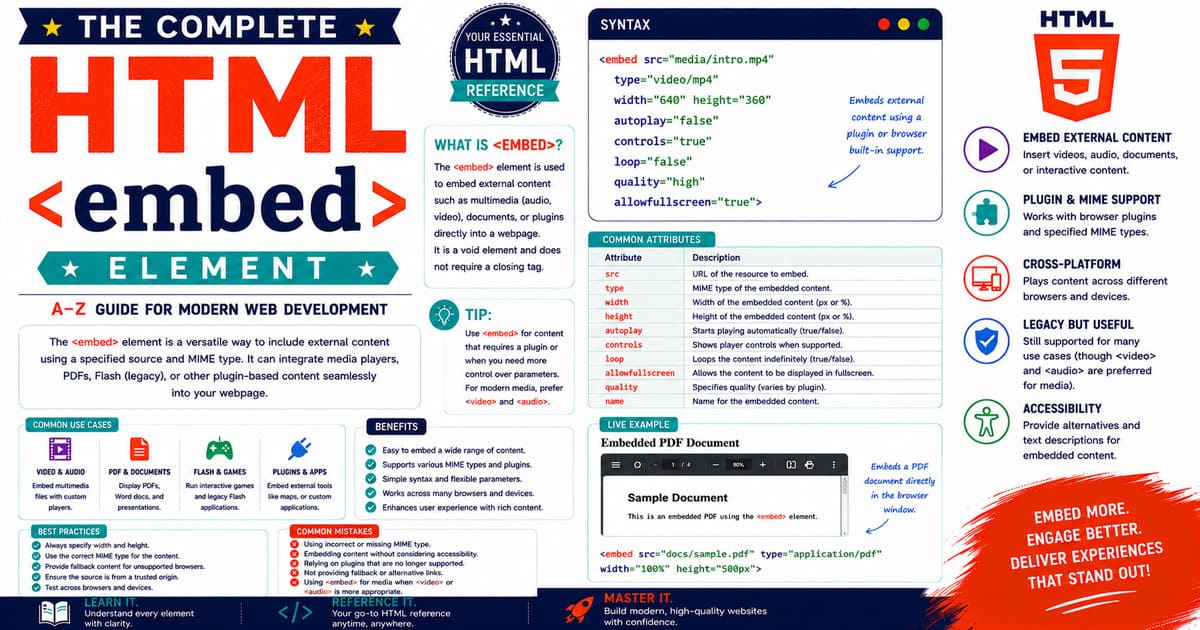
Chapter 7 — Embedded Content
7.2 The <embed> Element
The <embed> element is used to embed external resources directly into an HTML document. Unlike the <iframe> element, which creates a completely independent browsing context, the <embed> element allows browsers to display supported external content as part of the current page.
Historically, the <embed> element was widely associated with browser plug-ins such as Adobe Flash Player, Java Applets, Microsoft Silverlight, and Adobe Shockwave. As browser technology evolved and plug-ins became obsolete, the purpose of <embed> shifted toward displaying browser-supported resources such as PDF documents and certain multimedia formats.
Today, although the <embed> element is used less frequently than <iframe>, it remains part of the HTML Living Standard and is still useful for specific scenarios.
Why the <embed> Element Exists
Web pages often need to display content that is not written directly in HTML.
Examples include:
- PDF documents
- SVG graphics
- Certain audio resources
- Certain video resources
- Browser-supported document formats
Instead of forcing users to download these resources, browsers can display them directly within the page.
The <embed> element provides a simple way to accomplish this.
HTML Living Standard Definition
According to the HTML Living Standard, the <embed> element represents an integration point for external content or applications.
The browser determines how the embedded resource should be displayed based on:
- Resource type
- MIME type
- Browser capabilities
- Operating system support
Unlike <iframe>, the <embed> element does not create a nested HTML browsing context. Instead, it embeds an external resource directly into the document.
Basic Syntax
The simplest <embed> element is:
1
<embed src="manual.pdf">
The browser attempts to display the specified resource using its built-in capabilities.
Is <embed> a Void Element?
Yes.
Unlike <iframe>, the <embed> element is a void element.
It does not have a closing tag.
Correct:
1
<embed src="manual.pdf">
Incorrect:
1
<embed src="manual.pdf"></embed>
Void elements never contain child content.
Visual Representation
1
2
3
4
5
6
7
8
9
10
11
12
+------------------------------------------------+
| Parent HTML Document                           |
|                                                |
|  Heading                                       |
|                                                |
|  +----------------------------------------+    |
|  | Embedded PDF / SVG / Resource          |    |
|  |                                        |    |
|  | Displayed by the Browser               |    |
|  +----------------------------------------+    |
|                                                |
+------------------------------------------------+
The browser renders the external resource directly inside the page.
Browser Processing
When the browser encounters:
1
<embed src="manual.pdf">
it performs the following steps:
- Reads the
srcattribute. - Downloads the resource.
- Determines its MIME type.
- Checks whether it can display the resource.
- Renders the content inside the page.
If the browser cannot display the resource, it may:
- Prompt the user to download the file.
- Display an error.
- Show an empty area.
Common File Types
The <embed> element is commonly used with:
| File Type | Example |
|---|---|
| User manuals | |
| SVG | Interactive graphics |
| Audio | Browser-supported files |
| Video | Browser-supported files |
| Specialized resources | Depending on browser support |
Modern browsers provide excellent built-in support for PDF documents.
Basic PDF Example
1
2
3
4
<embed
    src="user-guide.pdf"
    width="100%"
    height="700">
The PDF appears directly within the webpage.
SVG Example
1
2
3
4
<embed
    src="company-logo.svg"
    width="300"
    height="300">
The browser renders the SVG image inside the document.
How <embed> Differs from <iframe>
Although both elements display external content, they serve different purposes.
<embed> | <iframe> |
|---|---|
| Displays external resources | Displays another HTML document |
| Void element | Normal element |
| No closing tag | Closing tag required |
| Does not create a nested HTML page | Creates a new browsing context |
| Commonly used for PDFs | Commonly used for websites and applications |
Choosing the correct element improves maintainability and browser compatibility.
Default Browser Appearance
Browsers display embedded content according to the resource type.
Examples:
- PDF viewer
- SVG renderer
- Built-in media player
Developers can customize the surrounding layout using CSS.
Typical Use Cases
The <embed> element is appropriate for:
- Product manuals
- Annual reports
- Research papers
- Technical documentation
- SVG illustrations
- Engineering drawings
These resources are generally intended to be viewed rather than interacted with as independent web applications.
Advantages
The <embed> element offers several benefits:
- Simple syntax.
- Built-in browser support for common file types.
- No JavaScript required for basic embedding.
- Easy integration into existing layouts.
- Suitable for static resources.
Limitations
Developers should also understand its limitations:
- Limited support for unsupported MIME types.
- Less flexible than
<iframe>. - No nested HTML browsing context.
- Browser behavior may vary depending on resource type.
Pro Tip
Use the <embed> element primarily for browser-supported documents such as PDF and SVG files. For complete web applications or external websites, prefer the <iframe> element.
Common Mistakes
Mistake 1
Using <embed> to display another website.
Mistake 2
Adding a closing </embed> tag.
Mistake 3
Embedding unsupported file formats without testing browser compatibility.
Mistake 4
Assuming every browser supports every MIME type.
Mistake 5
Using <embed> where a normal hyperlink would provide a better user experience.
Accessibility Note
When embedding important documents:
- Clearly identify the document.
- Provide a downloadable version if appropriate.
- Ensure keyboard navigation remains functional.
- Consider users relying on assistive technologies.
SEO Note
Search engines primarily index the HTML page rather than relying on embedded documents. Important explanations should remain within the page itself instead of existing only inside the embedded resource.
Summary
In this introductory section, you learned:
- What the
<embed>element is. - Why it exists.
- How browsers process embedded resources.
- Common file types.
- Advantages and limitations.
- Differences between
<embed>and<iframe>.
Coming Up Next — Section 7.2.2
The next section explores:
- Complete attribute reference
- MIME types
- Browser behavior
- Width and height
- Global attributes
- DOM interface
- Practical examples
7.2.2 Complete Attribute Reference of the <embed> Element
Although the <embed> element has a simple syntax, it supports several important attributes that determine how an external resource is displayed within a webpage.
Understanding these attributes helps developers create consistent, responsive, and accessible embedded content.
Attribute Overview
| Attribute | Purpose | Required |
|---|---|---|
src | Specifies the resource URL | Yes |
type | Specifies the MIME type | Recommended |
width | Specifies the display width | No |
height | Specifies the display height | No |
| Global attributes | Standard HTML attributes | Optional |
Unlike many other HTML elements, <embed> has only a few dedicated attributes.
The src Attribute
The src attribute specifies the location of the resource to embed.
Example:
1
2
<embed
    src="manual.pdf">
The browser retrieves the specified file and attempts to display it.
The src attribute can reference:
- Local files
- Relative URLs
- Absolute URLs
- Remote resources
Example:
1
2
<embed
    src="documents/user-guide.pdf">
Using Absolute URLs
Resources can also be loaded from another website.
Example:
1
2
<embed
    src="https://example.com/reports/report.pdf">
Before using external resources, verify that:
- The website permits embedding.
- The resource is publicly accessible.
- The connection uses HTTPS.
The type Attribute
The type attribute specifies the MIME type of the embedded resource.
Example:
1
2
3
<embed
    src="manual.pdf"
    type="application/pdf">
Although browsers often detect the type automatically, specifying it explicitly improves reliability.
What is a MIME Type?
A MIME (Multipurpose Internet Mail Extensions) type identifies the format of a file.
Examples:
| File | MIME Type |
|---|---|
application/pdf | |
| SVG | image/svg+xml |
| MP3 | audio/mpeg |
| MP4 | video/mp4 |
| WAV | audio/wav |
| OGG Audio | audio/ogg |
| OGG Video | video/ogg |
Browsers use the MIME type to determine how the resource should be handled.
PDF Example
1
2
3
<embed
    src="guide.pdf"
    type="application/pdf">
The browser opens its built-in PDF viewer.
SVG Example
1
2
3
<embed
    src="diagram.svg"
    type="image/svg+xml">
The SVG graphic is rendered directly within the page.
Audio Example
1
2
3
<embed
    src="music.mp3"
    type="audio/mpeg">
Depending on the browser, an audio player may be displayed.
For modern web applications, the <audio> element is generally preferred.
Video Example
1
2
3
<embed
    src="movie.mp4"
    type="video/mp4">
Modern browsers usually provide better functionality through the <video> element.
The width Attribute
The width attribute defines the horizontal display size.
Example:
1
2
3
<embed
    src="guide.pdf"
    width="800">
The value is measured in CSS pixels.
The height Attribute
The height attribute specifies the vertical display size.
Example:
1
2
3
<embed
    src="guide.pdf"
    height="600">
Together with width, it determines the visible area.
Combining Width and Height
Example:
1
2
3
4
<embed
    src="manual.pdf"
    width="1000"
    height="700">
The embedded document occupies the specified area.
Responsive Alternative
Instead of fixed HTML dimensions:
1
2
3
4
<embed
    src="manual.pdf"
    width="900"
    height="600">
use CSS:
1
2
3
4
5
6
7
embed {

    width: 100%;

    height: 700px;

}
This approach adapts more effectively to different screen sizes.
Global Attributes
The <embed> element supports all HTML global attributes.
Example:
1
2
3
4
<embed
    id="pdfViewer"
    class="document-viewer"
    src="manual.pdf">
Common global attributes include:
idclassstylelangdirhiddentabindexdata-*
Using the class Attribute
Example:
1
2
3
<embed
    class="pdf-file"
    src="manual.pdf">
CSS:
1
2
3
4
5
6
7
8
9
.pdf-file {

    border: 1px solid #cccccc;

    border-radius: 8px;

    width: 100%;

}
CSS styling helps integrate embedded resources into the overall page design.
Using Inline Styles
Example:
1
2
3
<embed
    src="manual.pdf"
    style="width:100%; height:700px;">
Although valid, external CSS is usually easier to maintain.
Using Data Attributes
Custom data attributes store additional information.
Example:
1
2
3
4
<embed
    src="guide.pdf"
    data-version="2026"
    data-language="en">
JavaScript can later retrieve these values.
JavaScript Example
1
2
3
4
const file =
document.querySelector("embed");

console.log(file.dataset.version);
Output:
1
2026
Browser Behavior
When an <embed> element is encountered, the browser:
- Reads the
src. - Determines the MIME type.
- Checks whether the resource is supported.
- Creates an appropriate viewer.
- Displays the embedded resource.
If support is unavailable, the browser may:
- Download the file.
- Display an error.
- Leave the area blank.
Attribute Best Practices
For production websites:
- Always specify
src. - Specify
typewhenever possible. - Use responsive CSS.
- Test supported MIME types.
- Provide download links for unsupported browsers.
Pro Tip
The type attribute can help browsers identify resources more efficiently, especially when server configuration does not correctly return the MIME type.
Common Mistakes
Mistake 1
Omitting the src attribute.
Mistake 2
Using incorrect MIME types.
Example:
1
type="text/pdf"
Correct:
1
type="application/pdf"
Mistake 3
Using fixed dimensions on responsive websites.
Mistake 4
Expecting unsupported files to display correctly.
Mistake 5
Confusing <embed> with <iframe>.
Accessibility Note
Embedded documents should be accompanied by descriptive text.
Example:
1
2
3
4
5
6
7
8
9
10
11
<h2>Employee Handbook</h2>

<p>
View the handbook below or download the PDF if your browser cannot display it.
</p>

<embed
    src="employee-handbook.pdf"
    type="application/pdf"
    width="100%"
    height="700">
This provides context for all users.
SEO Note
Important explanations should remain in HTML outside the embedded document. Search engines primarily analyze the page content rather than the content inside embedded resources.
Summary
In this section, you learned:
- Every attribute of the
<embed>element. - The purpose of the
srcattribute. - MIME types and the
typeattribute. - Width and height configuration.
- Global attributes.
- CSS styling.
- Browser processing.
- Professional development practices.
Coming Up Next — Section 7.2.3
The next section will cover:
- MIME types in detail
- Browser rendering process
- Supported resource formats
- Browser compatibility
- Fallback behavior
- Plugin history
- Modern browser architecture
7.2.3 MIME Types, Browser Rendering Process, Supported Resource Formats, and Resource Handling
To use the <embed> element effectively, developers must understand how browsers determine what an embedded resource is and how it should be displayed.
The browser does not simply look at the file extension. Instead, it uses several sources of information to identify the resource and decide whether it can render it.
These include:
- The MIME type
- HTTP response headers
- File signatures (in some cases)
- Browser capabilities
- Operating system support
Understanding this process helps developers troubleshoot problems when embedded resources fail to display correctly.
What is a MIME Type?
A MIME (Multipurpose Internet Mail Extensions) type is a standardized identifier that describes the format of a file.
When a web server sends a file to a browser, it includes a Content-Type HTTP header.
Example:
1
Content-Type: application/pdf
The browser reads this header and decides how to process the file.
How Browsers Use MIME Types
When the browser encounters:
1
2
3
<embed
    src="manual.pdf"
    type="application/pdf">
it performs the following sequence:
1
2
3
4
5
6
7
8
9
10
11
12
13
14
15
16
17
18
19
20
21
22
23
24
25
26
Read the HTML

        │
        ▼

Locate the resource

        │
        ▼

Download the resource

        │
        ▼

Determine MIME type

        │
        ▼

Check browser support

        │
        ▼

Display the resource or show an alternative
This process happens automatically.
The Importance of Correct MIME Types
Suppose a PDF file is served with an incorrect MIME type.
Incorrect server response:
1
Content-Type: text/plain
The browser may:
- Display raw text.
- Download the file.
- Fail to render it correctly.
Correct response:
1
Content-Type: application/pdf
The browser opens its built-in PDF viewer.
Common MIME Types
The following table lists frequently encountered MIME types.
| Resource | MIME Type |
|---|---|
application/pdf | |
| SVG | image/svg+xml |
| PNG | image/png |
| JPEG | image/jpeg |
| GIF | image/gif |
| WebP | image/webp |
| MP3 | audio/mpeg |
| WAV | audio/wav |
| OGG Audio | audio/ogg |
| MP4 | video/mp4 |
| OGG Video | video/ogg |
| WebM | video/webm |
These MIME types are recognized by modern browsers.
PDF Rendering
Most modern browsers include a built-in PDF viewer.
Example:
1
2
3
4
5
<embed
    src="financial-report.pdf"
    type="application/pdf"
    width="100%"
    height="700">
Instead of downloading the file immediately, the browser displays:
- Navigation controls
- Zoom controls
- Page thumbnails
- Search functionality
- Print options
The exact interface depends on the browser.
SVG Rendering
SVG files are XML-based vector graphics.
Example:
1
2
3
<embed
    src="architecture-diagram.svg"
    type="image/svg+xml">
Advantages include:
- Infinite scalability
- Small file size
- High-quality graphics
- Resolution independence
SVG is ideal for:
- Logos
- Technical diagrams
- Flowcharts
- Engineering drawings
Audio Resources
Although <embed> can display supported audio files, the dedicated <audio> element is recommended.
Example:
1
2
3
<embed
    src="music.mp3"
    type="audio/mpeg">
Reasons to prefer <audio>:
- Better accessibility
- Built-in controls
- JavaScript APIs
- Caption support
- Improved browser consistency
Video Resources
Similarly, video files can be embedded.
Example:
1
2
3
<embed
    src="training.mp4"
    type="video/mp4">
However, the <video> element offers:
- Better controls
- Subtitle support
- Multiple source files
- Poster images
- Rich JavaScript integration
For modern websites, <video> is generally the preferred solution.
Browser Rendering Decisions
The browser chooses one of several actions depending on the resource.
1
2
3
4
5
6
7
8
9
10
11
12
13
14
15
Supported Resource

        │
        ▼

Render Directly

────────────────────────

Unsupported Resource

        │
        ▼

Download or Display Error
This decision depends on built-in browser capabilities.
Browser Support Examples
| Resource | Typical Browser Behavior |
|---|---|
| Render with built-in viewer | |
| SVG | Display directly |
| PNG | Display image |
| JPEG | Display image |
| Unsupported binary file | Download prompt |
| Unknown format | Error or download |
Historical Browser Plug-ins
In earlier versions of the web, browsers depended heavily on external plug-ins.
Common examples included:
- Adobe Flash Player
- Adobe Shockwave
- Java Applets
- Microsoft Silverlight
- QuickTime
- RealPlayer
The <embed> element was often used to load these technologies.
Example:
1
2
<embed
    src="animation.swf">
Today, these plug-ins are obsolete and no longer supported by modern browsers.
Why Plug-ins Disappeared
Several factors contributed to their decline:
- Security vulnerabilities
- Frequent software updates
- Performance issues
- Mobile incompatibility
- Native HTML5 alternatives
Modern HTML provides dedicated elements such as:
<audio><video><canvas><svg>
These eliminate the need for many external plug-ins.
Browser Fallback Behavior
If a browser cannot render an embedded resource, several outcomes are possible:
- Download the file automatically.
- Display an error message.
- Leave an empty display area.
- Offer the file to another installed application.
Because behavior varies, developers should always test embedded resources across browsers.
Providing a Download Link
A good user experience includes an alternative way to access the file.
Example:
1
2
3
4
5
6
7
8
9
10
<p>
If the document does not appear below,
<a href="manual.pdf">download the PDF</a>.
</p>

<embed
    src="manual.pdf"
    type="application/pdf"
    width="100%"
    height="700">
This ensures users can still access the content.
Testing Embedded Resources
Before publishing, verify:
- Correct MIME type.
- Correct file path.
- HTTPS availability.
- Browser compatibility.
- Mobile behavior.
- Keyboard accessibility.
Testing across multiple browsers helps identify compatibility issues early.
Pro Tip
Never assume that a file extension alone guarantees correct rendering. The server’s Content-Type header is equally important. Configure your web server correctly to avoid unexpected behavior.
Common Mistakes
Mistake 1
Serving PDF files with an incorrect MIME type.
Mistake 2
Using obsolete plug-in formats such as Flash.
Mistake 3
Expecting every browser to support every file format.
Mistake 4
Not providing an alternative download option.
Mistake 5
Failing to test embedded resources on mobile devices.
Accessibility Note
Embedded documents should always be introduced with descriptive headings or explanatory text. Users should understand what the document contains before interacting with it.
SEO Note
Search engines primarily analyze the surrounding HTML page. Include summaries, explanations, and important information in the page itself rather than relying solely on the embedded resource.
Internal Linking Suggestions
Summary
In this section, you learned:
- What MIME types are.
- How browsers identify embedded resources.
- The browser rendering process.
- Common MIME types.
- PDF and SVG rendering.
- Historical browser plug-ins.
- Modern browser behavior.
- Fallback strategies.
- Testing recommendations.
Understanding MIME types and browser resource handling is essential for building reliable embedded content that behaves consistently across different browsers and operating systems.
Coming Up Next — Section 7.2.4
The next section will cover:
- CSS styling for
<embed> - Responsive embedded documents
- Layout techniques
- Flexbox and Grid integration
- Mobile optimization
- Printing considerations
- Practical production examples
7.2.4 CSS Styling, Responsive Design, Layout Techniques, and Mobile Optimization for the <embed> Element
An embedded document should integrate naturally with the surrounding webpage rather than appearing as an isolated object. Proper CSS styling improves readability, responsiveness, accessibility, and overall user experience.
Whether displaying a PDF manual, an SVG engineering drawing, or another supported resource, developers should ensure that the embedded content adapts gracefully to different screen sizes and layouts.
Why CSS is Important for <embed>
Without CSS, embedded resources often:
- Overflow the viewport.
- Appear too small on high-resolution displays.
- Leave unnecessary whitespace.
- Break responsive layouts.
- Create poor mobile experiences.
CSS provides precise control over presentation.
Default Browser Appearance
By default, an <embed> element has little visual styling.
Example:
1
2
3
<embed
    src="manual.pdf"
    type="application/pdf">
The browser determines the default appearance based on the resource type.
Developers should customize the surrounding layout to achieve a consistent design.
Setting Width
The most common styling requirement is width.
Example:
1
2
3
4
5
embed {

    width: 100%;

}
Advantages:
- Adapts to container width.
- Supports responsive layouts.
- Eliminates horizontal scrolling in many cases.
Setting Height
Example:
1
2
3
4
5
6
7
embed {

    width: 100%;

    height: 700px;

}
The height should provide enough space for comfortable viewing.
Complete Responsive Example
HTML:
1
2
3
4
5
6
7
<div class="document-container">

<embed
    src="employee-handbook.pdf"
    type="application/pdf">

</div>
CSS:
1
2
3
4
5
6
7
8
9
10
11
12
13
14
15
.document-container {

    max-width: 1000px;

    margin: auto;

}

.document-container embed {

    width: 100%;

    height: 750px;

}
The embedded document automatically adjusts to the container width.
Centering an Embedded Document
Example:
1
2
3
4
5
6
7
.viewer {

    width: 90%;

    margin: 0 auto;

}
The embedded content remains centered regardless of screen size.
Adding Borders
Borders visually separate embedded content from surrounding text.
Example:
1
2
3
4
5
embed {

    border: 1px solid #cccccc;

}
A subtle border improves readability.
Rounded Corners
Rounded corners provide a modern appearance.
Example:
1
2
3
4
5
embed {

    border-radius: 10px;

}
This works well when the browser viewer respects clipping.
Adding Shadows
A light shadow creates visual depth.
Example:
1
2
3
4
5
embed {

    box-shadow: 0 4px 10px rgba(0,0,0,0.15);

}
Use shadows sparingly to avoid distracting users.
Background Color
A wrapper container may include a background.
Example:
1
2
3
4
5
6
7
.document-wrapper {

    background: #f7f7f7;

    padding: 20px;

}
This separates the embedded document from the rest of the page.
Responsive Width
Avoid fixed-width layouts such as:
1
2
3
4
5
embed {

    width: 900px;

}
Instead:
1
2
3
4
5
embed {

    width: 100%;

}
Responsive sizing works better across desktops, tablets, and phones.
Maximum Width
To prevent excessive stretching on very large monitors:
1
2
3
4
5
6
7
.document-wrapper {

    max-width: 1200px;

    margin: auto;

}
This improves readability.
Minimum Height
Some PDF viewers become difficult to use when too little height is available.
Example:
1
2
3
4
5
embed {

    min-height: 600px;

}
Choose values appropriate for your audience.
Mobile Optimization
Mobile devices present additional challenges:
- Small screens.
- Touch interaction.
- Limited memory.
- Variable network speeds.
Recommended practices:
- Use responsive widths.
- Provide sufficient height.
- Test portrait and landscape orientations.
- Offer a download option.
Mobile Example
1
2
3
4
5
6
7
embed {

    width: 100%;

    height: 500px;

}
For smaller screens:
1
2
3
4
5
6
7
8
9
@media (max-width: 768px) {

embed {

    height: 450px;

}

}
Responsive media queries improve usability.
Using CSS Flexbox
Flexbox makes it easy to align embedded resources.
HTML:
1
2
3
4
5
6
7
<div class="viewer">

<embed
    src="guide.pdf"
    type="application/pdf">

</div>
CSS:
1
2
3
4
5
6
7
.viewer {

    display: flex;

    justify-content: center;

}
The embedded document remains centered within its container.
Using CSS Grid
Grid layouts are useful for dashboards containing multiple embedded resources.
Example:
1
2
3
4
5
6
7
8
9
.resources {

    display: grid;

    grid-template-columns: repeat(auto-fit, minmax(350px, 1fr));

    gap: 20px;

}
HTML:
1
2
3
4
5
6
7
<div class="resources">

<embed src="manual.pdf">

<embed src="diagram.svg">

</div>
Each resource automatically occupies an appropriate position.
Printing Considerations
Before relying on embedded documents for printed output, test browser behavior carefully.
Different browsers may:
- Print the embedded resource.
- Print only the surrounding page.
- Omit the embedded document.
When printable content is important, provide a direct download link.
Dark Mode Considerations
If your website supports dark mode, remember that embedded documents may retain their own appearance.
For example:
- PDF viewers often use browser-controlled interfaces.
- SVG graphics may inherit styles depending on how they are created.
Test both light and dark themes.
Full-Width Document Viewer
Example:
1
2
3
4
5
6
7
8
9
embed {

    display: block;

    width: 100%;

    height: 800px;

}
This is a common layout for online manuals and reports.
Common Layout Patterns
Documentation Page
1
2
3
4
5
6
7
8
9
10
11
12
13
-------------------------------------

Article Title

Introduction

Embedded PDF

Additional Notes

Related Articles

-------------------------------------
Technical Manual
1
2
3
4
5
6
7
8
9
-------------------------------------

Sidebar Navigation

Embedded Manual

Download Button

-------------------------------------
Engineering Drawing
1
2
3
4
5
6
7
8
9
-------------------------------------

Project Details

SVG Drawing

Revision History

-------------------------------------
Performance Considerations
Large embedded documents may increase:
- Download time.
- Memory usage.
- Rendering time.
Recommendations:
- Compress PDF files.
- Optimize SVG graphics.
- Remove unnecessary embedded resources.
- Test loading performance on slower connections.
Pro Tip
Wrap the <embed> element inside a dedicated container instead of styling it directly. This provides greater flexibility for spacing, backgrounds, borders, responsive behavior, and future design changes.
Common Mistakes
Mistake 1
Using fixed widths that break responsive layouts.
Mistake 2
Choosing insufficient height for large documents.
Mistake 3
Ignoring mobile testing.
Mistake 4
Embedding oversized PDF files without optimization.
Mistake 5
Forgetting to provide a download option.
Accessibility Note
Large embedded documents should be introduced with descriptive headings and explanatory text. Users should understand what they are about to view before interacting with the embedded resource.
SEO Note
An embedded document should complement your written content, not replace it. Search engines primarily evaluate the HTML content surrounding the embedded resource.
Summary
In this section, you learned:
- How to style the
<embed>element using CSS. - Responsive layout techniques.
- Flexbox and Grid integration.
- Mobile optimization strategies.
- Printing considerations.
- Dark mode considerations.
- Performance recommendations.
- Professional design practices.
Proper CSS styling transforms a simple embedded resource into a polished, responsive component that integrates seamlessly with the rest of the webpage.
Coming Up Next — Section 7.2.5
The next section will cover:
- JavaScript interaction with
<embed> - DOM APIs
- Dynamic resource loading
- Event handling
- Updating embedded resources
- Error handling
- Production examples
7.2.5 JavaScript, DOM API, Dynamic Loading, Event Handling, and Dynamic Resource Management for the <embed> Element
While the <embed> element is primarily used to display external resources, JavaScript allows developers to manipulate it dynamically. Applications can create, modify, replace, or remove embedded resources without reloading the webpage.
Modern JavaScript APIs make it possible to build interactive document viewers, technical manuals, engineering dashboards, and enterprise applications that load resources on demand.
Accessing an <embed> Element
Like other HTML elements, an <embed> element can be selected using JavaScript.
Example:
1
2
3
4
<embed
    id="pdfViewer"
    src="manual.pdf"
    type="application/pdf">
JavaScript:
1
2
3
const viewer = document.getElementById("pdfViewer");

console.log(viewer);
The browser returns a reference to the embedded element.
Using querySelector()
Example:
1
const viewer = document.querySelector("embed");
This selects the first <embed> element in the document.
Selecting by class:
1
2
const viewer =
document.querySelector(".document-viewer");
Reading the src Attribute
The currently loaded resource can be read.
Example:
1
2
3
4
const viewer =
document.getElementById("pdfViewer");

console.log(viewer.src);
Output:
1
https://example.com/manual.pdf
The browser returns the resolved URL.
Changing the Embedded Resource
The displayed resource can be replaced dynamically.
Example:
1
2
3
4
const viewer =
document.getElementById("pdfViewer");

viewer.src = "employee-handbook.pdf";
The browser loads the new document automatically.
Switching Between Documents
HTML:
1
2
3
4
5
6
7
8
9
10
11
12
<button id="manual">
User Manual
</button>

<button id="guide">
Installation Guide
</button>

<embed
id="viewer"
src="manual.pdf"
type="application/pdf">
JavaScript:
1
2
3
4
5
6
7
8
9
10
11
12
13
14
15
16
17
18
const viewer =
document.getElementById("viewer");

document
.getElementById("manual")
.onclick = function () {

    viewer.src = "manual.pdf";

};

document
.getElementById("guide")
.onclick = function () {

    viewer.src = "installation-guide.pdf";

};
Users can switch between documents without reloading the page.
Updating Width Dynamically
Example:
1
2
3
4
const viewer =
document.getElementById("viewer");

viewer.width = "900";
The displayed width changes immediately.
Updating Height Dynamically
Example:
1
viewer.height = "700";
This is useful when providing different viewing modes.
Applying CSS with JavaScript
Example:
1
2
3
4
5
viewer.style.border =
"2px solid #0066cc";

viewer.style.borderRadius =
"8px";
The appearance updates instantly.
Creating an <embed> Element Dynamically
Applications sometimes generate embedded resources only when needed.
Example:
1
2
3
4
5
6
7
8
9
10
11
12
13
const documentViewer =
document.createElement("embed");

documentViewer.src = "guide.pdf";

documentViewer.type =
"application/pdf";

documentViewer.width = "100%";

documentViewer.height = "700";

document.body.appendChild(documentViewer);
The browser inserts the new embedded document into the page.
Removing an <embed> Element
Example:
1
2
3
4
const viewer =
document.getElementById("viewer");

viewer.remove();
The embedded document disappears from the page.
Replacing an Existing Resource
Instead of creating multiple embedded documents, update the existing one.
Example:
1
viewer.src = "chapter-2.pdf";
This approach:
- Uses less memory.
- Simplifies the layout.
- Improves maintainability.
Using Data Attributes
HTML:
1
2
3
4
5
<embed
id="viewer"
src="manual.pdf"
data-language="en"
data-version="2026">
JavaScript:
1
2
3
4
5
6
const viewer =
document.getElementById("viewer");

console.log(viewer.dataset.language);

console.log(viewer.dataset.version);
Output:
1
2
3
en

2026
Custom data attributes help store application-specific information.
Lazy Loading with JavaScript
Instead of loading immediately, an embedded resource can be added after user interaction.
HTML:
1
2
3
4
5
<button id="openManual">
Open Manual
</button>

<div id="container"></div>
JavaScript:
1
2
3
4
5
6
7
8
9
10
11
12
13
14
15
16
17
18
19
20
21
22
document
.getElementById("openManual")
.addEventListener(
"click",
function () {

const viewer =
document.createElement("embed");

viewer.src = "manual.pdf";

viewer.type = "application/pdf";

viewer.width = "100%";

viewer.height = "700";

document
.getElementById("container")
.appendChild(viewer);

});
The document loads only when requested.
Handling Loading Errors
JavaScript can respond if a resource fails to load.
Example:
1
2
3
4
5
6
7
8
const viewer =
document.getElementById("viewer");

viewer.addEventListener("error", function () {

    console.log("Unable to load document.");

});
Note that support for error events on <embed> elements varies between browsers. For critical applications, also verify resource availability on the server and provide a fallback download link.
Reloading the Resource
A simple reload can be achieved by assigning the same URL again.
Example:
1
2
3
const current = viewer.src;

viewer.src = current;
This causes the browser to request the document again.
Building a Simple Document Viewer
Structure:
1
2
3
4
5
6
7
8
9
---------------------------------

Navigation Buttons

Embedded Document

Download Button

---------------------------------
JavaScript changes the displayed document whenever the user selects another file.
Integrating with Enterprise Applications
Business systems often use embedded PDF reports.
Example workflow:
1
2
3
4
5
6
7
8
9
10
11
12
13
14
15
16
17
18
19
User Selects Report

        │

        ▼

JavaScript Requests File

        │

        ▼

Update src Attribute

        │

        ▼

Embedded Report Appears
The page remains loaded while only the document changes.
Performance Considerations
When using JavaScript:
- Reuse the same
<embed>element whenever possible. - Remove unused embedded resources.
- Avoid loading multiple large documents simultaneously.
- Compress large PDF files before deployment.
- Test performance on low-memory mobile devices.
Security Considerations
JavaScript should never load untrusted resources supplied directly by users without validation.
Recommended practices:
- Validate URLs on the server.
- Use HTTPS.
- Restrict access to confidential documents.
- Avoid exposing sensitive file locations.
Practical Example
A university portal contains:
- Student handbook
- Academic calendar
- Examination rules
- Library guide
Instead of creating four embedded viewers, JavaScript updates a single <embed> element based on the selected document.
Benefits:
- Lower memory usage.
- Faster navigation.
- Cleaner interface.
- Easier maintenance.
Pro Tip
Use one reusable <embed> element and update its src dynamically rather than creating multiple embedded viewers. This approach simplifies code and improves performance.
Common Mistakes
Mistake 1
Creating many embedded viewers instead of reusing one.
Mistake 2
Not validating dynamically generated resource URLs.
Mistake 3
Ignoring browser compatibility when handling events.
Mistake 4
Loading large documents before users request them.
Mistake 5
Removing an embedded element without updating the surrounding user interface.
Accessibility Note
When JavaScript changes the displayed document, inform users through visible labels or status messages so they understand which resource is currently displayed.
SEO Note
JavaScript-loaded embedded documents should support, not replace, the primary HTML content of the page. Important explanations should remain accessible even if JavaScript is unavailable.
Summary
In this section, you learned:
- How to access an
<embed>element using JavaScript. - Reading and updating attributes.
- Dynamic document switching.
- Creating and removing embedded resources.
- Lazy loading techniques.
- Event handling considerations.
- Performance and security best practices.
JavaScript transforms the <embed> element from a static document viewer into a flexible component capable of supporting modern web applications.
Coming Up Next — Section 7.2.6
The next section will cover:
- Accessibility best practices
- Security considerations
- Privacy implications
- SEO recommendations
- Browser compatibility
- Real-world compliance guidelines
7.2.6 Accessibility, Security, Privacy, SEO, Browser Compatibility, and Compliance for the <embed> Element
Embedding external resources is more than simply displaying a document. Professional developers must ensure that embedded content is accessible to all users, secure against attacks, respectful of user privacy, optimized for search engines, and compatible across browsers and devices.
This section explores the best practices that should be followed whenever the <embed> element is used in production websites.
Accessibility Overview
Accessibility ensures that users with different abilities can successfully interact with your website.
When embedding documents, remember that users may rely on:
- Screen readers
- Keyboard navigation
- Screen magnifiers
- Voice control software
- High-contrast themes
- Mobile accessibility features
An embedded document should never become a barrier to accessing important information.
Providing Context
Never place an embedded document on a page without explaining what it contains.
Poor example:
1
2
3
<embed
    src="report.pdf"
    type="application/pdf">
Better example:
1
2
3
4
5
6
7
8
9
10
11
<h2>Annual Financial Report</h2>

<p>
The following PDF contains the complete financial report for the 2026 fiscal year.
</p>

<embed
    src="report.pdf"
    type="application/pdf"
    width="100%"
    height="700">
Users immediately understand the purpose of the embedded document.
Provide an Alternative Download
Not every browser can display every embedded resource.
Always provide an alternative.
Example:
1
2
3
4
5
6
7
8
9
10
11
12
13
14
<p>

If the document does not appear correctly,
<a href="report.pdf">
download the PDF here.
</a>

</p>

<embed
    src="report.pdf"
    type="application/pdf"
    width="100%"
    height="700">
This improves accessibility and compatibility.
Keyboard Accessibility
Users should be able to:
- Reach the embedded resource using the keyboard.
- Continue navigating through the page.
- Access download links.
- Return to surrounding content.
Always test using only the keyboard.
Screen Reader Considerations
Some embedded document viewers expose document content to assistive technologies, while others provide only limited accessibility.
To improve usability:
- Introduce the document with headings.
- Explain its purpose.
- Provide a downloadable version.
- Offer important information in HTML when practical.
Color Contrast
If the embedded resource contains custom graphics or SVG files, ensure sufficient contrast.
Avoid:
- Light gray text on white backgrounds.
- Small decorative fonts.
- Color-only indicators.
Follow recognized accessibility guidelines for readable visual design.
Responsive Accessibility
Users on mobile devices may zoom into embedded documents.
Recommendations:
- Use responsive layouts.
- Avoid fixed-width containers.
- Ensure controls remain accessible.
- Test portrait and landscape orientations.
Security Overview
Although the <embed> element is simpler than <iframe>, security remains important.
Potential risks include:
- Untrusted external resources.
- Sensitive document exposure.
- Downloading malicious files.
- Information leakage.
Always validate the resources you embed.
Use HTTPS
Always embed resources using secure connections.
Correct:
1
2
<embed
    src="https://example.com/report.pdf">
Avoid:
1
2
<embed
    src="http://example.com/report.pdf">
HTTPS protects data integrity and user privacy.
Protect Sensitive Documents
Never expose confidential documents through publicly accessible URLs unless intended.
Examples include:
- Employee records.
- Internal reports.
- Customer information.
- Medical records.
- Financial statements.
Protect sensitive resources with proper authentication and authorization.
Validate User Input
Avoid constructing embedded URLs directly from untrusted user input.
Poor practice:
1
2
viewer.src =
userInput;
Instead:
- Validate the input.
- Allow only approved document locations.
- Reject unexpected URLs.
Avoid Obsolete File Formats
Do not rely on outdated technologies such as:
- Flash (
.swf) - Java Applets
- Silverlight
- Shockwave
Modern browsers no longer support these plug-ins.
Prefer standard formats such as:
- SVG
- HTML
- PNG
- JPEG
Privacy Considerations
External resources may reveal information about visitors.
Examples include:
- IP addresses.
- Browser details.
- Approximate location.
- Referrer information.
Only embed resources from trusted providers.
If your website has a privacy policy, explain how third-party embedded content may process visitor data.
Search Engine Optimization (SEO)
Search engines primarily evaluate the HTML page rather than relying on embedded resources.
For this reason:
- Explain the document in HTML.
- Include descriptive headings.
- Write summaries.
- Provide captions where appropriate.
Example:
1
2
3
4
5
6
7
8
9
10
<h2>Employee Safety Manual</h2>

<p>
This manual explains workplace safety procedures,
emergency evacuation plans, and reporting requirements.
</p>

<embed
    src="safety-manual.pdf"
    type="application/pdf">
The written explanation improves both usability and search engine understanding.
When Not to Use <embed> for SEO Content
Avoid placing important textual information only inside embedded documents.
Poor approach:
1
Entire article exists only inside a PDF.
Better approach:
1
2
3
4
5
Complete HTML article

        +

Embedded PDF version
This ensures that users and search engines can access the information.
Browser Compatibility
Modern browsers provide strong support for the <embed> element.
| Browser | Support |
|---|---|
| Google Chrome | Yes |
| Mozilla Firefox | Yes |
| Microsoft Edge | Yes |
| Apple Safari | Yes |
| Opera | Yes |
| Android Browser | Yes |
| Safari on iOS | Yes |
Support for the element itself is excellent, but support for individual file formats depends on browser capabilities.
Browser Differences
Although the HTML syntax is standardized, embedded resource behavior can vary.
Differences may include:
- PDF viewer interface.
- Zoom controls.
- Download options.
- Printing behavior.
- Keyboard shortcuts.
Always test your application in multiple browsers.
Mobile Compatibility
Before deployment, verify:
- Touch interaction.
- Scrolling.
- Zoom functionality.
- Screen orientation.
- Responsive layout.
Mobile testing is essential for document-heavy websites.
Enterprise Compliance
Many organizations follow accessibility and security standards.
Examples include:
- Government portals.
- Educational institutions.
- Healthcare providers.
- Financial organizations.
Before publishing embedded resources, confirm that they satisfy your organization’s compliance requirements.
Testing Checklist
Before deployment, verify:
✓ Document loads successfully.
✓ MIME type is correct.
✓ HTTPS is used.
✓ Download link works.
✓ Keyboard navigation functions correctly.
✓ Mobile layout is responsive.
✓ Browser compatibility has been tested.
✓ Important content exists in HTML.
✓ Sensitive documents are protected.
✓ Performance is acceptable.
Practical Example
A university website publishes:
- Academic regulations.
- Admission handbook.
- Examination schedule.
- Library rules.
Recommended implementation:
- Explain each document.
- Embed the PDF.
- Provide a download link.
- Ensure responsive layout.
- Test accessibility.
Students can read the documents online while still having the option to download them.
Pro Tip
Think of an embedded document as supporting content rather than the primary content of a webpage. Your HTML should always provide enough context for users to understand what the document contains before opening or downloading it.
Common Mistakes
Mistake 1
Embedding confidential documents without access control.
Mistake 2
Providing no explanation for the embedded document.
Mistake 3
Ignoring mobile testing.
Mistake 4
Relying entirely on embedded PDFs for important website content.
Mistake 5
Using insecure HTTP resources.
Accessibility Note
For long or complex documents, provide a concise summary before the embedded resource. This helps users decide whether they need to read the full document.
SEO Note
Search engines derive most ranking signals from your HTML page. A well-written introduction, descriptive headings, and relevant surrounding content significantly improve discoverability compared to relying solely on an embedded document.
Summary
In this section, you learned:
- Accessibility best practices.
- Security recommendations.
- Privacy considerations.
- SEO guidance.
- Browser compatibility.
- Enterprise compliance.
- Professional testing procedures.
These practices help ensure that embedded resources are usable, secure, discoverable, and maintainable across a wide range of environments.
Coming Up Next — Section 7.2.7
The next section will cover:
- Real-world applications of
<embed> - PDF viewers
- Technical documentation
- Engineering drawings
- Product catalogs
- Medical records
- Educational resources
- Business reports
- Production architecture
- Professional implementation patterns
7.2.7 Real-World Applications and Production Implementation of the <embed> Element
Although the <embed> element is less commonly used than <iframe> in modern web development, it continues to play an important role in applications that need to display browser-supported documents and media directly within a webpage.
Organizations frequently use <embed> to present information without requiring visitors to download files or open separate applications.
This section explores practical, production-ready use cases.
Common Production Use Cases
The <embed> element is commonly used for:
- PDF documents
- Product manuals
- Technical documentation
- Engineering drawings
- Academic papers
- Annual reports
- Financial statements
- Company policies
- Medical documentation
- SVG illustrations
Unlike <iframe>, which is commonly used for embedding complete web applications, <embed> focuses on displaying standalone resources.
Example 1 — Product Manuals
Manufacturers often provide user manuals in PDF format.
Example:
1
2
3
4
5
6
7
8
9
10
11
12
13
14
15
16
17
<h2>User Manual</h2>

<p>
Read the product manual below or download the PDF for offline use.
</p>

<embed
    src="product-manual.pdf"
    type="application/pdf"
    width="100%"
    height="750">

<p>
<a href="product-manual.pdf">
Download the User Manual (PDF)
</a>
</p>
Benefits:
- No additional software required.
- Immediate access to documentation.
- Printable version available.
Example 2 — Annual Reports
Companies frequently publish annual reports as PDF documents.
Typical layout:
1
2
3
4
5
6
7
8
9
10
11
12
13
---------------------------------------

Company Overview

Financial Highlights

Embedded Annual Report

Download Report

Related Investor Information

---------------------------------------
Visitors can review financial information directly within the browser.
Example 3 — Technical Documentation
Software companies often publish installation guides and API documentation.
Example:
1
2
3
4
5
6
7
<h2>Installation Guide</h2>

<embed
    src="installation-guide.pdf"
    type="application/pdf"
    width="100%"
    height="800">
Developers can read instructions without leaving the documentation website.
Example 4 — Engineering Drawings
Engineering firms frequently distribute SVG diagrams and technical drawings.
Example:
1
2
3
4
5
<embed
    src="bridge-design.svg"
    type="image/svg+xml"
    width="100%"
    height="700">
Advantages:
- Infinite zoom quality.
- Small file size.
- Clear technical illustrations.
- High printing quality.
Example 5 — Educational Resources
Universities often provide:
- Student handbooks.
- Course syllabi.
- Examination regulations.
- Laboratory manuals.
Example:
1
2
3
4
5
6
7
<h2>Student Handbook</h2>

<embed
    src="student-handbook.pdf"
    type="application/pdf"
    width="100%"
    height="800">
Students can quickly review important academic information.
Example 6 — Research Publications
Research organizations publish:
- Scientific papers.
- White papers.
- Clinical studies.
- Conference proceedings.
Embedding these documents allows researchers to preview material before downloading it.
Example 7 — Medical Documentation
Hospitals and healthcare organizations may provide:
- Patient instructions.
- Appointment preparation guides.
- Health education materials.
- Discharge instructions.
These documents are often distributed as PDFs for consistent formatting.
Example 8 — Government Documents
Government websites commonly publish:
- Application forms.
- Tax guides.
- Public notices.
- Regulations.
- Legal documents.
Embedding official documents allows citizens to view information without downloading files immediately.
Example 9 — Business Reports
Internal business portals frequently display:
- Sales reports.
- Performance summaries.
- Audit reports.
- Budget documents.
Example structure:
1
2
3
4
5
6
7
8
9
10
11
---------------------------------------

Dashboard

Monthly Report

Embedded PDF

Download Button

---------------------------------------
Employees can review reports directly within the portal.
Example 10 — Product Catalogs
Retail businesses often publish digital catalogs.
Example:
1
2
3
4
5
<embed
    src="product-catalog.pdf"
    type="application/pdf"
    width="100%"
    height="900">
Customers can browse products before downloading the catalog.
Production Architecture
A typical implementation follows this structure:
1
2
3
4
5
6
7
8
9
10
11
12
13
14
15
16
17
18
19
20
21
22
23
24
25
Browser

      │

      ▼

HTML Page

      │

      ▼

<embed> Element

      │

      ▼

PDF or SVG Resource

      │

      ▼

Web Server
The browser requests the resource and renders it using its built-in capabilities.
Content Management Systems
Many content management systems automatically generate pages that include embedded documents.
Typical workflow:
1
2
3
4
5
6
7
8
9
10
11
12
13
14
15
16
17
18
19
Administrator Uploads PDF

        │

        ▼

CMS Stores File

        │

        ▼

HTML Page Generated

        │

        ▼

Document Displayed Using <embed>
This approach simplifies document management.
Corporate Knowledge Bases
Large organizations maintain knowledge repositories containing:
- Employee handbooks.
- Standard operating procedures.
- Compliance manuals.
- Safety documentation.
- Training guides.
Using <embed> allows employees to read documents without downloading every file.
Digital Libraries
Libraries often provide online previews of:
- Historical documents.
- Journals.
- Reference books.
- Research collections.
Embedded previews help users determine whether they wish to download the complete document.
Educational Learning Platforms
Learning management systems (LMS) frequently use embedded documents for:
- Lecture notes.
- Assignments.
- Reading materials.
- Laboratory instructions.
Students remain within the course interface while accessing supporting documents.
Responsive Production Layout
A practical layout may look like this:
1
2
3
4
5
6
7
8
9
10
11
12
13
---------------------------------------

Page Title

Document Description

Embedded Resource

Download Button

Related Articles

---------------------------------------
This structure keeps navigation simple while providing multiple ways to access the content.
Performance Considerations
When deploying embedded documents:
- Compress PDF files.
- Optimize SVG graphics.
- Avoid unnecessary embedded resources.
- Cache static files.
- Test loading performance on slow connections.
Large documents can affect page performance if not optimized.
Choosing <embed> vs <iframe>
Use <embed> when displaying:
- PDF documents.
- SVG graphics.
- Browser-supported standalone resources.
Use <iframe> when embedding:
- Another HTML page.
- Web applications.
- Interactive dashboards.
- Online forms.
- External websites.
Choosing the appropriate element improves maintainability and user experience.
Practical Project Example
Consider a documentation website for an industrial machine.
Page layout:
1
2
3
4
5
6
7
8
9
10
11
12
13
14
15
---------------------------------------

Machine Overview

Safety Instructions

Embedded User Manual

Maintenance Guide

Spare Parts List

Download Manual

---------------------------------------
The embedded manual allows technicians to read instructions without leaving the documentation portal.
Pro Tip
Whenever you embed an important document, also provide a clearly visible download link. Some users prefer offline access, while others may use browsers or devices that cannot fully display embedded resources.
Common Mistakes
Mistake 1
Embedding documents without descriptive headings.
Mistake 2
Using oversized PDF files that increase loading times.
Mistake 3
Failing to provide downloadable versions.
Mistake 4
Using <embed> to display complete websites instead of using <iframe>.
Mistake 5
Publishing documents without testing browser compatibility.
Accessibility Note
Always accompany embedded documents with a brief explanation describing their purpose. Users should know what the document contains before opening or downloading it.
SEO Note
Embedded documents should support your HTML content rather than replace it. Provide summaries, headings, and descriptive text so that search engines and users can understand the page without relying solely on the embedded resource.
Summary
In this section, you learned:
- Real-world uses of the
<embed>element. - Professional implementation patterns.
- Corporate and educational use cases.
- Government and healthcare examples.
- Performance recommendations.
- Production-ready layouts.
- Choosing between
<embed>and<iframe>.
Although modern HTML provides many specialized elements, <embed> remains an effective solution for displaying browser-supported documents and graphics directly within a webpage.
Coming Up Next — Section 7.2.8
The final section of the <embed> chapter will cover:
- Advanced best practices
- Professional development checklist
- Browser compatibility summary
- Interview questions
- Frequently asked questions
- Complete chapter summary
- Revision notes
- Developer recommendations
7.2.8 Advanced Best Practices, Professional Checklists, Interview Questions, FAQs, and Complete Chapter Summary
The <embed> element is one of HTML’s simplest embedded content elements, but using it effectively requires careful attention to usability, accessibility, browser compatibility, performance, and security.
This concluding section summarizes the professional practices that every web developer should follow when using <embed> in production websites.
Advanced Best Practices
1. Use <embed> Only for Supported Resource Types
The <embed> element works best for browser-supported resources such as:
- PDF documents
- SVG graphics
- Browser-supported media formats
Avoid using it for unsupported or obsolete technologies.
2. Specify the MIME Type
Although browsers often detect resource types automatically, explicitly providing the type attribute improves compatibility.
Example:
1
2
3
<embed
    src="user-guide.pdf"
    type="application/pdf">
This helps browsers identify the resource more reliably.
3. Use Responsive Dimensions
Avoid fixed-width layouts whenever possible.
Instead of:
1
2
3
4
<embed
    src="manual.pdf"
    width="900"
    height="700">
prefer:
1
2
3
4
5
6
7
embed {

    width: 100%;

    height: 700px;

}
This provides a better experience across different screen sizes.
4. Provide a Download Link
Even if the browser successfully renders the document, some users prefer downloading it.
Example:
1
2
3
4
5
6
7
8
9
10
11
12
13
<p>

<a href="manual.pdf">
Download the User Manual
</a>

</p>

<embed
    src="manual.pdf"
    type="application/pdf"
    width="100%"
    height="700">
Offering both options improves usability.
5. Optimize Large Documents
Large PDF files can increase loading times.
Recommendations:
- Compress PDFs.
- Optimize embedded images.
- Remove unnecessary pages.
- Use efficient compression settings.
Smaller files improve both performance and user satisfaction.
6. Explain the Embedded Content
Always introduce an embedded document.
Example:
1
2
3
4
5
6
7
8
9
<h2>Installation Manual</h2>

<p>
This manual explains installation, maintenance, and troubleshooting procedures.
</p>

<embed
    src="installation-guide.pdf"
    type="application/pdf">
Users immediately understand what they are viewing.
7. Test Across Browsers
Verify:
- PDF rendering.
- SVG rendering.
- Printing.
- Mobile compatibility.
- Keyboard navigation.
Browser support is generally excellent, but user interfaces may differ.
8. Secure Sensitive Resources
Do not expose confidential files publicly.
Protect sensitive documents using:
- Authentication.
- Authorization.
- HTTPS.
- Secure server configuration.
Professional Development Checklist
Before publishing an embedded document, verify the following.
HTML Checklist
✓ Correct <embed> syntax
✓ Valid src
✓ Correct type
✓ Appropriate width and height
✓ Semantic surrounding content
CSS Checklist
✓ Responsive width
✓ Appropriate height
✓ Consistent spacing
✓ Mobile compatibility
✓ Print testing
Accessibility Checklist
✓ Descriptive heading
✓ Introductory explanation
✓ Download alternative
✓ Keyboard testing
✓ Screen reader testing
Security Checklist
✓ HTTPS
✓ Trusted resource
✓ Protected confidential files
✓ Validated URLs
✓ Secure server configuration
Performance Checklist
✓ Optimized PDFs
✓ Optimized SVG graphics
✓ Minimal file size
✓ Tested loading speed
✓ Efficient caching
SEO Checklist
✓ HTML summary provided
✓ Descriptive headings
✓ Internal links
✓ Download link
✓ Relevant surrounding content
Browser Compatibility Summary
Modern browser support is excellent.
| Browser | Support |
|---|---|
| Google Chrome | Yes |
| Mozilla Firefox | Yes |
| Microsoft Edge | Yes |
| Apple Safari | Yes |
| Opera | Yes |
| Android Browser | Yes |
| Safari on iOS | Yes |
Support for the <embed> element is standardized, though the appearance of embedded viewers may vary between browsers.
Frequently Asked Questions (FAQ)
1. What is the
<embed>element?It embeds an external resource such as a PDF or SVG directly into an HTML page.
2. Is
<embed>a void element?Yes.
It has no closing tag and cannot contain child elements.
3. What types of files can be embedded?
Common examples include:
- SVG
- Browser-supported audio
- Browser-supported video
Support depends on the browser and MIME type.
4. What is the purpose of the
typeattribute?It specifies the MIME type of the embedded resource, helping the browser determine how the file should be processed.
5. Should I use
<embed>for videos?Generally, no.
The
<video>element provides:
- Better controls
- Accessibility features
- Subtitle support
- Multiple source handling
6. Should I use
<embed>for audio?Generally, no.
The
<audio>element is the preferred solution for audio playback.7. Can
<embed>display another website?Technically, it is not intended for that purpose.
Use
<iframe>when embedding another HTML page or web application.8. Is JavaScript able to modify an
<embed>element?Yes.
JavaScript can:
- Read attributes.
- Update the
src.- Create elements dynamically.
- Remove elements.
- Apply styles.
9. Is
<embed>responsive?It can be made responsive using CSS.
Example:
10. Is
<embed>good for SEO?It supports SEO when accompanied by meaningful HTML content.
Important information should remain in HTML rather than existing only inside embedded documents.
11. Why doesn’t my PDF appear?
Possible causes include:
- Incorrect file path.
- Incorrect MIME type.
- Unsupported browser.
- Server configuration errors.
- Corrupted document.
12. Is
<embed>still relevant?Yes.
Although used less frequently than in the past, it remains useful for displaying browser-supported documents such as PDFs and SVG graphics.
Interview Questions
Beginner Level
What does the
<embed>element do?It embeds an external resource into an HTML document.
Is
<embed>a void element?Yes.
Which attribute specifies the resource?
The
srcattribute.What does the
typeattribute represent?The MIME type of the embedded resource.
Intermediate Level
When should you use
<embed>instead of<iframe>?Use
<embed>for standalone resources such as PDF and SVG files.Use
<iframe>for complete HTML pages, web applications, maps, and external websites.How do you make an embedded document responsive?
Use CSS:
Why is a download link recommended?
Because some browsers or devices may not fully support the embedded resource, and many users prefer offline access.
Advanced Interview Scenario
Question
A company publishes thousands of PDF manuals online. What recommendations would you make?
Professional Answer
- Optimize PDF sizes.
- Use HTTPS.
- Specify MIME types.
- Implement responsive layouts.
- Provide download links.
- Include HTML summaries for SEO.
- Test across browsers and mobile devices.
- Protect confidential documents with authentication when necessary.
- Cache static files to improve performance.
Revision Notes
Remember these key points:
<embed>is a void element.- It is primarily used for browser-supported resources.
- Always specify the
srcattribute. - The
typeattribute is strongly recommended. - Responsive CSS improves usability.
- Provide download alternatives.
- Explain embedded documents with surrounding HTML.
- Optimize large files.
- Test on multiple browsers and devices.
Complete Chapter Summary
Throughout this chapter, you learned:
Fundamentals
- Purpose of the
<embed>element. - HTML Living Standard definition.
- Basic syntax.
- Void element behavior.
Attributes
srctypewidthheight- Global attributes
Browser Processing
- MIME types
- Rendering process
- Resource handling
- Browser support
- Fallback behavior
CSS
- Responsive layouts
- Flexbox
- Grid
- Mobile optimization
- Print considerations
JavaScript
- DOM access
- Dynamic resource loading
- Updating embedded documents
- Lazy loading
- Event handling
- Resource management
Accessibility
- Context
- Download alternatives
- Keyboard navigation
- Screen reader support
Security
- HTTPS
- Trusted resources
- Protected documents
- Safe URL handling
SEO
- HTML summaries
- Headings
- Internal linking
- Search engine visibility
Real-World Applications
- Product manuals
- Government forms
- Annual reports
- Engineering drawings
- Academic resources
- Business documentation
- Medical information
Final Professional Advice
The <embed> element is a specialized tool.
It excels at presenting browser-supported documents and graphics directly within a webpage while keeping users in the same browsing context.
Choose it when displaying standalone resources such as PDFs or SVG files, but prefer more specialized HTML elements like <audio>, <video>, or <iframe> when they better match the type of content you are embedding.
A professional developer selects the element that best fits the purpose, prioritizing accessibility, maintainability, performance, and user experience.
Chapter 7.2 Complete
You have now completed the complete professional reference for:
1
<embed>
Covered topics:
✓ Introduction
✓ Complete Attribute Reference
✓ MIME Types and Browser Rendering
✓ CSS Styling and Responsive Design
✓ JavaScript and DOM API
✓ Accessibility and Security
✓ Real-World Applications
✓ Advanced Best Practices
✓ Interview Questions
✓ Frequently Asked Questions
✓ Complete Chapter Summary
Coming Up Next — Chapter 7.3
The next element in the Embedded Content category is:
1
<object>
Topics include:
- Introduction to
<object> - HTML Living Standard definition
- Complete attribute reference
- MIME types
- Fallback content
- Browser behavior
- JavaScript integration
- Accessibility
- Security
- SEO
- Real-world applications
- Best practices
- Interview questions
- Complete chapter summary