Chapter 5.17 — The `<figcaption>` Element
Complete guide to the HTML `<figcaption>` element including semantics, accessibility, SEO, browser behavior, DOM, styling, JavaScript, and professional implementation.
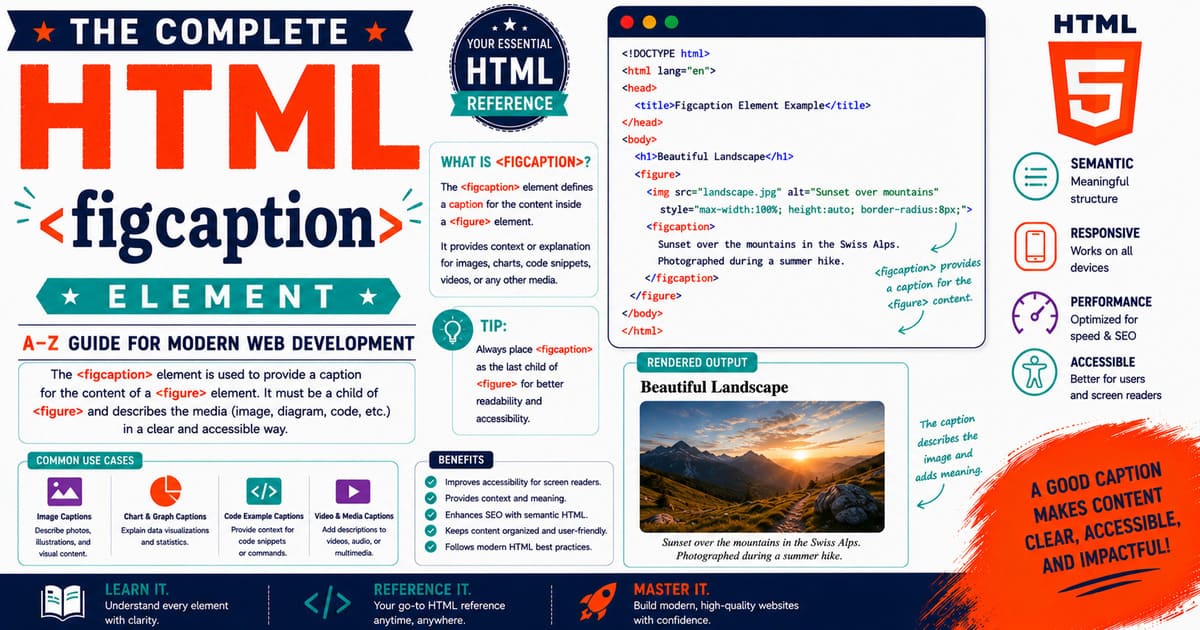
Chapter 5.17 — The <figcaption> Element
The <figcaption> element provides a caption or legend for the content contained within a <figure> element. While the <figure> element groups together self-contained content, the <figcaption> element explains, identifies, or describes that content.
Together, these two elements form one of the most important semantic pairs in modern HTML.
Without a caption, an image, chart, diagram, or code listing may require readers to infer its purpose from the surrounding text. A well-written caption provides immediate context and improves readability, accessibility, and search engine understanding.
For example, compare the following situations:
Without a caption:
1
[ Photograph ]
With a caption:
1
2
3
[ Photograph ]

Figure 1. Sunrise over the Himalayas.
The second example immediately communicates the purpose of the image.
Today, <figcaption> is used extensively in:
- Technical documentation
- Educational websites
- News portals
- Scientific publications
- Product documentation
- Programming tutorials
- Travel blogs
- Photography portfolios
- Research papers
- Digital books
Quick Facts
| Property | Value |
|---|---|
| Element | <figcaption> |
| Introduced | HTML5 |
| Category | Flow Content |
| Closing Tag | Required |
| Parent Element | <figure> |
| DOM Interface | HTMLElement |
| Typical Uses | Image captions, diagram captions, code listings, charts, videos |
| Browser Support | All Modern Browsers |
Why This Element Matters in Real Projects
Captions are not limited to photographs.
Professional websites use <figcaption> for:
- Software screenshots
- Network diagrams
- Architecture illustrations
- Scientific graphs
- Product photographs
- Source code examples
- Mathematical formulas
- Embedded videos
- Interactive demonstrations
- Maps
Imagine reading a programming tutorial containing ten screenshots. Without captions, readers would constantly need to refer back to the surrounding paragraphs. Clear captions reduce confusion and improve navigation.
Historical Note
Before HTML5, developers commonly used code similar to the following:
1
2
3
4
5
6
7
8
9
10
11
12
13
<div class="image">

<img
src="example.jpg"
alt="Example">

<p class="caption">

Example Caption

</p>

</div>
Although visually acceptable, this structure lacked semantic meaning.
HTML5 introduced <figure> and <figcaption> to standardize this common pattern.
5.17.1 Introduction to the <figcaption> Element
The <figcaption> element represents a caption or legend describing the contents of its parent <figure>.
Basic syntax:
1
2
3
4
5
6
7
8
9
10
11
12
13
<figure>

<img
src="forest.jpg"
alt="Forest">

<figcaption>

Forest landscape during autumn.

</figcaption>

</figure>
The caption belongs specifically to the surrounding figure.
Caption Placement
The HTML specification allows the <figcaption> element to appear in two locations only:
First Child
1
2
3
4
5
6
7
8
9
10
11
12
13
<figure>

<figcaption>

Forest Landscape

</figcaption>

<img
src="forest.jpg"
alt="Forest">

</figure>
Last Child
1
2
3
4
5
6
7
8
9
10
11
12
13
<figure>

<img
src="forest.jpg"
alt="Forest">

<figcaption>

Forest Landscape

</figcaption>

</figure>
Both structures are valid.
One Caption Per Figure
A figure may contain only one <figcaption> element.
Correct:
1
2
3
4
5
6
7
8
9
10
11
12
13
<figure>

<img
src="earth.jpg"
alt="Earth">

<figcaption>

Planet Earth

</figcaption>

</figure>
Incorrect:
1
2
3
4
5
6
7
8
9
10
11
12
13
14
15
16
17
18
19
<figure>

<figcaption>

Caption One

</figcaption>

<img
src="earth.jpg"
alt="Earth">

<figcaption>

Caption Two

</figcaption>

</figure>
Only one caption is permitted.
Relationship with <figure>
Visual representation:
1
2
3
4
5
Figure

├── Content

└── Caption
The caption explains the content contained inside the figure.
Relationship with alt Text
Many beginners confuse captions with alternative text.
These serve different purposes.
| Feature | Purpose |
|---|---|
alt attribute | Describes an image when it cannot be seen. |
<figcaption> | Provides additional visible context for the figure. |
Example:
1
2
3
4
5
<img

src="bird.jpg"

alt="Golden eagle in flight">
Caption:
1
2
3
4
5
<figcaption>

Golden eagle soaring above a mountain valley.

</figcaption>
The caption expands on the image rather than replacing the alternative text.
Real-World Example — Programming Book
1
2
3
4
5
6
7
8
9
10
11
12
13
14
15
16
<figure>

<pre><code>

let count = 0;

</code></pre>

<figcaption>

Listing 1.
Variable initialization.

</figcaption>

</figure>
Programming books frequently caption code listings.
Real-World Example — Scientific Diagram
1
2
3
4
5
6
7
8
9
10
11
12
13
14
<figure>

<img
src="cell.svg"
alt="Cell structure">

<figcaption>

Figure 5.
Structure of a biological cell.

</figcaption>

</figure>
Pro Tip
Write captions that answer the reader’s most likely question:
“Why am I looking at this figure?”
An effective caption provides context, not merely identification.
Instead of:
Computer
Write:
Figure 3. Internal components of a desktop computer.
The second caption is significantly more informative.
Accessibility Note
A caption is visible to everyone, including users of assistive technologies.
Good captions should:
- Explain the purpose of the figure.
- Avoid unnecessary repetition.
- Complement the
altattribute. - Remain concise.
- Use clear language.
For complex diagrams, provide additional explanation in the surrounding article.
SEO Note
Search engines evaluate the relationship between:
- Image filename
- Alternative text
- Caption
- Nearby headings
- Nearby paragraphs
Meaningful captions improve semantic understanding of media-rich pages.
Common Mistakes
Mistake 1
Using captions as decorative text.
Captions should provide useful context.
Mistake 2
Repeating the exact alternative text.
Captions should complement—not duplicate—the alt attribute.
Mistake 3
Writing captions that are too long.
Long explanations belong in the article body.
Mistake 4
Adding multiple <figcaption> elements.
Only one caption is permitted within each <figure>.
Practical Exercise
Create a file named:
1
figcaption-introduction.html
Build a page containing:
- A photograph with a caption.
- A chart with a caption.
- A code listing with a caption.
Compare how the page reads with and without captions.
Did You Know?
Many academic publishing systems automatically extract <figcaption> content to generate a List of Figures, allowing readers to locate important illustrations quickly.
Summary
In this section, you learned:
- The purpose of the
<figcaption>element. - Its relationship with
<figure>. - Caption placement rules.
- The difference between captions and
alttext. - Real-world applications.
- Accessibility considerations.
- SEO benefits.
- Common implementation mistakes.
Coming Up Next — Section 5.17.2
In the next section, you’ll explore:
- HTML Living Standard definition.
- Content categories.
- Content model.
- Browser parsing.
- DOM representation.
HTMLElementinterface.- Browser rendering.
- Accessibility semantics.
- Professional implementation techniques.
You’ll also learn how browsers internally associate captions with figures and why this semantic relationship improves both accessibility and document structure.
5.17.2 HTML Living Standard, Content Categories, Content Model, Browser Parsing, DOM Representation, and Accessibility of <figcaption>
In the previous section, you learned that the <figcaption> element provides a caption or legend for the content contained within a <figure> element. You also explored its relationship with images, diagrams, code listings, videos, and other self-contained content.
In this section, we’ll examine how the HTML Living Standard defines the <figcaption> element, how browsers parse it, how it appears in the Document Object Model (DOM), and how assistive technologies interpret its relationship with the parent <figure>.
Understanding these concepts helps you write semantic HTML that is accessible, maintainable, and easier for browsers and search engines to understand.
Why This Matters in Real Projects
Captions are not simply labels placed beneath images.
Professional websites use captions to:
- Explain complex diagrams.
- Identify software screenshots.
- Describe scientific illustrations.
- Label programming code examples.
- Provide context for embedded videos.
- Reference figures within articles (for example, “See Figure 4”).
A properly structured <figcaption> allows readers to understand the purpose of a figure immediately without searching through surrounding paragraphs.
5.17.2.1 HTML Living Standard Definition
According to the HTML Living Standard, the <figcaption> element represents a caption or legend for the rest of the contents of its parent <figure> element.
A <figcaption> must always belong to a <figure> element.
It cannot exist independently.
Content Categories
The <figcaption> element belongs to the following content categories:
| Content Category | Included |
|---|---|
| None | Yes |
Although <figcaption> itself does not belong to a broader content category such as sectioning content, it is permitted because it appears only within a <figure>.
Permitted Parent Element
The only permitted parent is:
1
<figure>
Correct:
1
2
3
4
5
6
7
8
9
10
11
12
13
<figure>

<img
src="city.jpg"
alt="City skyline">

<figcaption>

City skyline at sunset.

</figcaption>

</figure>
Incorrect:
1
2
3
4
5
6
7
8
9
<section>

<figcaption>

City skyline

</figcaption>

</section>
The second example is invalid because <figcaption> is not a child of <figure>.
Placement Rules
The HTML specification permits the caption in only two positions.
As the First Child
1
2
3
4
5
6
7
8
9
10
11
12
13
<figure>

<figcaption>

Figure Caption

</figcaption>

<img
src="bridge.jpg"
alt="Bridge">

</figure>
As the Last Child
1
2
3
4
5
6
7
8
9
10
11
12
13
<figure>

<img
src="bridge.jpg"
alt="Bridge">

<figcaption>

Figure Caption

</figcaption>

</figure>
No other placement is valid.
Content Model
The content model for <figcaption> is:
1
Flow Content
This means a caption may contain:
- Text
- Inline elements
- Links
- Emphasis
- Strong importance
- Code
- Abbreviations
- Small images (where appropriate)
Example:
1
2
3
4
5
6
7
<figcaption>

Created using
<code>Canvas API</code>
during testing.

</figcaption>
Browser Parsing
Example HTML:
1
2
3
4
5
6
7
8
9
10
11
12
13
<figure>

<img
src="planet.jpg"
alt="Planet">

<figcaption>

Planet Earth

</figcaption>

</figure>
Simplified browser parsing process:
1
2
3
4
5
6
7
8
9
10
11
12
13
14
15
16
17
18
19
20
21
22
23
24
25
Read <figure>

↓

Create Figure Element

↓

Read Image

↓

Associate Image

↓

Read <figcaption>

↓

Associate Caption

↓

Close Figure
The browser automatically associates the caption with its parent figure.
DOM Representation
HTML:
1
2
3
4
5
6
7
8
9
10
11
12
13
<figure>

<img
src="forest.jpg"
alt="Forest">

<figcaption>

Autumn Forest

</figcaption>

</figure>
DOM Tree:
1
2
3
4
5
6
7
8
9
10
11
12
13
Document

└── html

    └── body

        └── figure

            ├── img

            └── figcaption

                └── "Autumn Forest"
The caption becomes an independent node beneath the <figure> element.
DOM Interface
The <figcaption> element is represented by the generic DOM interface:
1
HTMLElement
Inheritance hierarchy:
1
2
3
4
5
6
7
8
9
10
11
12
13
EventTarget

↓

Node

↓

Element

↓

HTMLElement
There is no dedicated HTMLFigCaptionElement interface.
Default Browser Rendering
Browsers generally display <figcaption> as a block-level element.
Typical appearance:
1
2
3
[ Image ]

Caption Text
The exact typography depends on the browser’s default stylesheet.
Most production websites customize caption appearance using CSS.
Relationship Between <figure> and <figcaption>
Visual representation:
1
2
3
4
5
Figure

├── Self-contained Content

└── Caption
The caption describes or explains the figure rather than existing as a separate piece of content.
Real-World Example — Educational Website
1
2
3
4
5
6
7
8
9
10
11
12
13
<figure>

<img
src="water-cycle.svg"
alt="Water Cycle">

<figcaption>

Figure 7. The continuous movement of water through Earth's atmosphere and surface.

</figcaption>

</figure>
Students immediately understand what the illustration represents.
Historical Note
The concept of captions has existed in printed books for centuries.
HTML5 standardized this long-established publishing practice by introducing <figure> and <figcaption>, giving web developers semantic elements specifically designed for figures and their captions.
Pro Tip
A caption should answer one of these questions:
- What does this figure show?
- Why is this figure important?
- What should the reader notice?
If the caption cannot answer at least one of these questions, consider revising it.
Accessibility Note
Screen readers recognize the relationship between <figure> and <figcaption>.
To maximize accessibility:
- Use concise captions.
- Avoid duplicating alternative text exactly.
- Keep captions close to the figure.
- Ensure linked content inside captions is keyboard accessible.
Complex diagrams should always have additional explanatory text within the article itself.
SEO Note
Captions provide valuable contextual information.
For best results:
- Write natural language.
- Include relevant terminology.
- Avoid keyword stuffing.
- Keep captions descriptive.
- Position figures near related content.
Meaningful captions help search engines better understand media-rich pages.
Common Mistakes
Mistake 1
Placing <figcaption> outside <figure>.
This creates invalid HTML.
Mistake 2
Adding two captions to one figure.
Only one <figcaption> is permitted.
Mistake 3
Writing captions that repeat the file name.
A caption should describe the figure—not the image filename.
Mistake 4
Using captions as the only source of image accessibility.
Alternative text remains essential for images.
Practical Exercise
Create a file named:
1
figcaption-dom-practice.html
Tasks:
- Create three
<figure>elements. - Add captions in different valid positions.
- Inspect the DOM using browser Developer Tools.
- Verify that each caption is associated with the correct figure.
This exercise reinforces the semantic relationship defined by the HTML specification.
Did You Know?
Many document-generation systems use <figcaption> text when automatically numbering figures, generating cross-references, or creating a “List of Figures” in technical documentation and digital books.
Summary
In this section, you learned:
- The HTML Living Standard definition.
- Content categories.
- Parent element restrictions.
- Caption placement rules.
- Content model.
- Browser parsing.
- DOM representation.
- DOM interface.
- Accessibility semantics.
- SEO considerations.
- Professional implementation practices.
Coming Up Next — Section 5.17.3
In the next section, you’ll learn how to style <figcaption> using modern CSS, build responsive figure layouts, customize typography, use JavaScript to update captions dynamically, create interactive image galleries, and implement production-ready UI patterns used in blogs, documentation websites, online learning platforms, and digital publishing systems.
5.17.3 CSS Styling, Responsive Design, JavaScript Manipulation, UI Patterns, and Professional Development with <figcaption>
In the previous section, you learned how browsers interpret the <figcaption> element according to the HTML Living Standard, how it is represented in the Document Object Model (DOM), and how it establishes a semantic relationship with its parent <figure> element.
Although browsers provide a basic default presentation for captions, modern websites almost always customize their appearance using CSS. Professional captions improve readability, reinforce visual hierarchy, and provide valuable context for images, diagrams, videos, code listings, charts, and other forms of self-contained content.
In this section, you’ll learn how professional developers style captions, build responsive layouts, manipulate captions with JavaScript, and implement production-ready user interfaces.
Why This Matters in Real Projects
Captions appear throughout modern websites, including:
- Technology blogs explaining screenshots.
- News websites describing photographs.
- Educational platforms illustrating concepts.
- Scientific journals documenting research figures.
- Product pages explaining technical illustrations.
- Online courses presenting diagrams and code examples.
Well-designed captions improve comprehension and help readers understand the purpose of visual content without interrupting the reading flow.
5.17.3.1 Default Browser Appearance
Most browsers display <figcaption> as a block-level element immediately before or after the associated figure content.
Typical appearance:
1
2
3
[ Image ]

Figure Caption
Since browser styles differ slightly, production websites usually define their own caption styles.
Example:
1
2
3
4
5
figcaption{

display:block;

}
Although simple, this provides a consistent foundation for additional styling.
Typography
Captions generally use smaller text than the main article.
Example:
1
2
3
4
5
6
7
8
9
10
11
figcaption{

font-size:0.95rem;

line-height:1.6;

font-style:italic;

color:#4b5563;

}
This creates a clear visual distinction between article content and figure descriptions.
Center-Aligned Captions
Many photography and portfolio websites center captions beneath images.
1
2
3
4
5
6
7
figcaption{

text-align:center;

margin-top:0.75rem;

}
This layout is particularly effective for standalone images.
Left-Aligned Captions
Technical documentation often prefers left-aligned captions.
1
2
3
4
5
6
7
figcaption{

text-align:left;

margin-top:0.5rem;

}
Left alignment improves readability for longer captions and technical explanations.
Styling Figure Numbers
Many publications include figure numbers.
Example:
1
2
3
4
5
6
7
<figcaption>

<strong>Figure 3.</strong>

Browser Rendering Process

</figcaption>
CSS:
1
2
3
4
5
figcaption strong{

font-weight:700;

}
This approach is widely used in academic papers and engineering documentation.
Background Styling
Captions may be visually separated from the media.
1
2
3
4
5
6
7
8
9
figcaption{

background:#f3f4f6;

padding:12px;

border-top:1px solid #d1d5db;

}
This technique improves readability when figures contain complex diagrams or screenshots.
Responsive Captions
Captions should remain readable on small screens.
1
2
3
4
5
6
7
8
9
10
11
@media (max-width:768px){

figcaption{

font-size:0.9rem;

padding:10px;

}

}
Responsive typography improves the reading experience on smartphones and tablets.
Captions with Links
Captions may contain hyperlinks.
1
2
3
4
5
6
7
8
9
10
<figcaption>

Image adapted from
<a href="https://example.com">

Example Research

</a>

</figcaption>
Links should clearly indicate their destination and remain accessible using keyboard navigation.
JavaScript Manipulation
Selecting a caption:
1
2
const caption =
document.querySelector("figcaption");
Updating caption text:
1
2
caption.textContent =
"Updated Caption";
The browser immediately reflects the change without reloading the page.
Updating Multiple Captions
1
2
3
4
5
6
7
8
9
const captions =
document.querySelectorAll("figcaption");

captions.forEach(function(item){

item.textContent +=
" (Reviewed)";

});
This technique is useful when dynamically labeling media in documentation systems.
Adding a Caption Dynamically
1
2
3
4
5
6
7
8
9
const caption =
document.createElement("figcaption");

caption.textContent =
"Automatically generated caption.";

document
.querySelector("figure")
.appendChild(caption);
Always ensure that a figure contains no more than one caption.
Caption Visibility
JavaScript can temporarily hide captions.
1
2
3
4
const caption =
document.querySelector("figcaption");

caption.hidden = true;
Captions can later be restored by setting:
1
caption.hidden = false;
Use this technique carefully so important information is not permanently hidden from users.
Styling Long Captions
Some technical figures require detailed explanations.
1
2
3
4
5
6
7
figcaption{

max-width:70ch;

margin:1rem auto 0;

}
Limiting the line length improves readability for longer captions.
Historical Note
Printed books have traditionally placed captions below figures, while some magazines and newspapers position captions above images. HTML supports both approaches by allowing <figcaption> to appear as either the first or last child of a <figure>.
Pro Tip
Write captions that provide additional information rather than repeating the obvious.
Instead of:
Laptop
Consider:
Figure 6. Laptop displaying a responsive web application during testing.
The second caption provides meaningful context.
Accessibility Note
When writing captions:
- Use clear language.
- Keep sentences concise.
- Avoid unnecessary abbreviations.
- Ensure sufficient color contrast.
- Make hyperlinks descriptive.
- Do not rely on captions alone to convey essential information contained within complex images.
Remember that the alt attribute and the caption serve complementary purposes.
SEO Note
Captions contribute to topical relevance.
To maximize effectiveness:
- Use descriptive language.
- Include relevant terminology naturally.
- Keep captions close to related content.
- Avoid duplicate captions throughout the website.
Search engines use captions as one signal when interpreting visual content.
Common Mistakes
Mistake 1
Using captions as decorative slogans.
Captions should explain or identify the figure.
Mistake 2
Applying very small font sizes.
Captions should remain comfortable to read on all devices.
Mistake 3
Center-aligning lengthy technical captions.
Long explanations are generally easier to read when left-aligned.
Mistake 4
Using JavaScript to remove captions permanently.
Important explanatory information should remain available to all users.
Best Practice
For large documentation projects:
- Use a consistent caption style.
- Number figures consistently where appropriate.
- Keep terminology uniform.
- Review captions during content editing.
- Test readability on desktop and mobile devices.
Consistency improves both usability and maintainability.
Practical Exercise
Create a file named:
1
figcaption-styling-demo.html
Create a page containing:
- A photograph with a centered caption.
- A diagram with a left-aligned caption.
- A code listing with a numbered caption.
- Responsive typography.
- JavaScript that updates one caption after the page loads.
Compare the appearance on desktop and mobile devices.
Did You Know?
Many digital asset management systems store captions separately from media files. During page generation, the caption is automatically inserted into the <figcaption> element, allowing the same image to be reused with different contextual descriptions across multiple articles.
Summary
In this section, you learned:
- Default browser styling.
- Typography techniques.
- Responsive caption design.
- JavaScript manipulation.
- Dynamic caption creation.
- Caption visibility.
- Accessibility considerations.
- SEO recommendations.
- Professional styling practices.
- Common implementation mistakes.
Coming Up Next — Section 5.17.4
In the next section, you’ll explore DOM APIs, browser compatibility, accessibility APIs, performance optimization, security considerations, browser support history, professional publishing workflows, and interview questions for the <figcaption> element. This knowledge will prepare you to build robust, accessible, and maintainable media-rich web applications.
5.17.4 DOM APIs, Browser Compatibility, Accessibility APIs, Performance Optimization, Security Considerations, Professional Publishing Workflows, Browser Support History, and Interview Questions
In the previous section, you learned how to style the <figcaption> element using modern CSS, customize typography, create responsive layouts, and manipulate captions with JavaScript.
This section focuses on the browser implementation of <figcaption>, including its DOM representation, compatibility across browsers, accessibility support, performance considerations, security recommendations, and professional publishing workflows.
Understanding these topics will help you build media-rich websites that are robust, accessible, and maintainable.
5.17.4.1 DOM Representation
Every <figcaption> element becomes an independent node within the Document Object Model (DOM).
Example:
1
2
3
4
5
6
7
8
9
10
11
12
13
<figure>

<img
src="river.jpg"
alt="River">

<figcaption>

River flowing through a mountain valley.

</figcaption>

</figure>
DOM Tree:
1
2
3
4
5
6
7
8
9
10
11
12
13
Document

└── html

    └── body

        └── figure

            ├── img

            └── figcaption

                └── "River flowing through a mountain valley."
The caption remains directly associated with its parent <figure>.
DOM Interface
The <figcaption> element uses the generic DOM interface:
1
HTMLElement
Inheritance hierarchy:
1
2
3
4
5
6
7
8
9
10
11
12
13
EventTarget

↓

Node

↓

Element

↓

HTMLElement
There is no dedicated HTMLFigCaptionElement interface in the HTML specification.
Selecting Captions
Select the first caption:
1
2
const caption =
document.querySelector("figcaption");
Select all captions:
1
2
const captions =
document.querySelectorAll("figcaption");
Loop through every caption:
1
2
3
4
5
captions.forEach(function(item){

console.log(item.textContent);

});
Accessing the Parent Figure
JavaScript can access the parent <figure> directly.
1
2
3
4
5
const caption =
document.querySelector("figcaption");

const figure =
caption.parentElement;
This is useful when updating an image and its caption together.
Modifying Caption Content
Example:
1
2
3
4
5
const caption =
document.querySelector("figcaption");

caption.textContent =
"Updated automatically.";
The browser updates the displayed caption immediately.
Creating a Caption
1
2
3
4
5
const caption =
document.createElement("figcaption");

caption.textContent =
"New Caption";
Append it to a figure:
1
2
3
4
const figure =
document.querySelector("figure");

figure.appendChild(caption);
Before appending, verify that the figure does not already contain a caption.
Removing a Caption
1
2
3
4
const caption =
document.querySelector("figcaption");

caption.remove();
Removing captions should be done carefully, as they often provide important explanatory information.
Browser Compatibility
The <figcaption> element is fully supported by modern browsers.
| Browser | Support |
|---|---|
| Chrome | Yes |
| Firefox | Yes |
| Safari | Yes |
| Microsoft Edge | Yes |
| Opera | Yes |
| Android Browser | Yes |
| iOS Safari | Yes |
Because support is widespread, <figcaption> can be safely used in production websites.
Browser Support History
The <figcaption> element was introduced with HTML5.
Its adoption standardized the way captions are associated with figures, replacing countless custom <div> and <p> implementations.
Today it is considered an essential part of semantic HTML.
Accessibility APIs
Screen readers recognize the relationship between:
<figure><figcaption>
This enables assistive technologies to present captions as descriptive information associated with the figure.
The semantic relationship is established automatically by the browser.
Accessibility Note
To maximize accessibility:
- Write concise captions.
- Keep captions relevant.
- Ensure good color contrast.
- Use descriptive links.
- Do not duplicate alternative text unnecessarily.
- Provide additional explanations for complex diagrams when required.
Accessibility is improved when figures and captions work together rather than independently.
SEO Note
Captions help search engines understand media.
For best results:
- Use descriptive language.
- Avoid keyword stuffing.
- Keep captions close to the associated figure.
- Use meaningful alternative text for images.
- Ensure surrounding paragraphs reinforce the same topic.
Search engines analyze captions together with nearby content.
Performance Optimization
The <figcaption> element itself has virtually no performance impact.
Performance considerations usually relate to the associated media.
Recommended practices include:
- Compress images.
- Use responsive image formats.
- Enable lazy loading.
- Minimize unnecessary JavaScript.
- Optimize CSS.
The caption adds semantic value without increasing resource usage significantly.
Security Considerations
Captions are often generated dynamically in content management systems.
Unsafe:
1
2
caption.innerHTML =
userInput;
Safer:
1
2
caption.textContent =
userInput;
When HTML formatting is required, sanitize all user-generated content before insertion.
Professional Publishing Workflow
Professional editorial teams commonly follow this workflow:
- Prepare the media asset.
- Optimize file size.
- Write descriptive alternative text.
- Draft a concise caption.
- Review terminology.
- Validate accessibility.
- Test responsive layouts.
- Publish.
Following a standardized workflow ensures consistency across documentation projects.
Best Practice
When writing captions:
- Be specific.
- Keep them concise.
- Explain why the figure matters.
- Avoid unnecessary repetition.
- Maintain consistent formatting.
- Review captions during editorial proofreading.
A well-written caption improves both usability and content quality.
Common Mistakes
Mistake 1
Removing captions because they appear visually unnecessary.
Captions often provide valuable context for readers and assistive technologies.
Mistake 2
Using captions as image filenames.
Captions should explain the figure rather than identify the file.
Mistake 3
Creating extremely long captions.
Detailed explanations belong in the surrounding article.
Mistake 4
Using HTML formatting copied from untrusted sources.
Always sanitize external HTML before inserting it into a caption.
Interview Questions
Question 1
Which DOM interface represents the <figcaption> element?
Answer:
HTMLElement
Question 2
Can a <figcaption> exist outside a <figure> element?
Answer:
No. It must always be a child of a <figure> element.
Question 3
Can JavaScript modify caption text?
Answer:
Yes. The textContent property can update the caption dynamically.
Question 4
Which method selects every caption on a page?
Answer:
1
document.querySelectorAll("figcaption")
Question 5
Does <figcaption> affect page performance?
Answer:
The element itself has negligible impact. Performance considerations are primarily related to the associated media resources.
Practical Exercise
Create a file named:
1
figcaption-dom-demo.html
Build a page containing:
- Three figures.
- Three captions.
- JavaScript that updates one caption dynamically.
- A button that removes another caption.
- Developer Tools inspection of the DOM tree.
Observe how browser behavior changes as captions are modified.
Did You Know?
Several static site generators and documentation frameworks can automatically generate figure numbers such as Figure 1, Figure 2, and Figure 3 by processing <figure> and <figcaption> elements during the build process, eliminating the need to number captions manually.
Summary
In this section, you learned:
- DOM representation.
- DOM APIs.
- Browser compatibility.
- Accessibility APIs.
- Performance optimization.
- Security considerations.
- Professional publishing workflows.
- Browser support history.
- Best practices.
- Interview questions.
Coming Up Next — Section 5.17.5
The final section of the <figcaption> chapter will cover advanced real-world implementations, Markdown integration, Jekyll best practices, complete technical reference tables, comparison with related elements, publishing checklists, chapter summary, and preparation for the next chapter: The <picture> Element.
5.17.5 Advanced Examples, Markdown Integration, Jekyll Implementation, Complete Technical Reference, Publishing Checklist, Comparison with Related Elements, and Chapter Summary
This section concludes the complete reference for the <figcaption> element.
Although <figcaption> is a relatively small HTML element, it plays a significant role in semantic HTML. A well-written caption improves document structure, helps readers understand figures more quickly, enhances accessibility, and provides additional context for search engines.
Professional documentation teams, technical authors, publishers, educators, and content creators use captions extensively because they improve both usability and maintainability.
When Should You Use This Element?
Use the <figcaption> element whenever your figure benefits from a visible explanation or description.
Typical use cases include:
- Photographs
- Technical diagrams
- Architecture illustrations
- Charts and graphs
- Scientific images
- Programming code listings
- Screenshots
- Maps
- Videos
- Audio players
- Mathematical formulas
If readers may ask “What am I looking at?”, a <figcaption> is usually appropriate.
When Should You Avoid This Element?
Do not use <figcaption>:
- Outside a
<figure>element. - As a replacement for image alternative text.
- For decorative images that add no informational value.
- To display unrelated notes or advertisements.
- As a generic paragraph beneath every image.
Only include a caption when it provides meaningful information.
Real-World Example — News Website
1
2
3
4
5
6
7
8
9
10
11
12
13
<figure>

<img
src="election-results.jpg"
alt="Election Results">

<figcaption>

Election officials announcing the final vote count.

</figcaption>

</figure>
The caption provides context that may not be obvious from the image alone.
Real-World Example — Educational Website
1
2
3
4
5
6
7
8
9
10
11
12
13
<figure>

<img
src="solar-system.svg"
alt="Solar System">

<figcaption>

Figure 8. Relative positions of the planets in the Solar System.

</figcaption>

</figure>
Students immediately understand the purpose of the illustration.
Real-World Example — Programming Documentation
1
2
3
4
5
6
7
8
9
10
11
12
13
14
15
16
17
18
19
<figure>

<pre><code>

function greet(){

console.log("Hello");

}

</code></pre>

<figcaption>

Listing 5. A simple JavaScript function.

</figcaption>

</figure>
Programming books frequently use captions to identify source code listings.
Markdown Integration
Markdown itself does not include syntax for <figcaption>.
Fortunately, Jekyll supports embedded HTML.
Example:
1
2
3
4
5
6
7
8
9
10
11
12
13
<figure>

<img
src="/assets/img/html/example.webp"
alt="Example">

<figcaption>

Example figure used in the HTML Reference.

</figcaption>

</figure>
The HTML is preserved during site generation.
Jekyll Implementation
For consistency across your HTML Reference, a reusable stylesheet is recommended.
Example:
1
2
3
4
5
6
7
8
9
10
11
12
13
14
15
16
17
18
19
.post-content figure{

margin:2rem auto;

}

.post-content figcaption{

margin-top:.75rem;

font-size:.9rem;

font-style:italic;

text-align:center;

color:#6b7280;

}
Using a shared stylesheet ensures that every figure and caption follows the same design language throughout the website.
Using Captions with Responsive Images
Example:
1
2
3
4
5
6
7
8
9
10
11
12
13
14
15
16
17
18
19
20
21
<figure>

<picture>

<source
srcset="architecture.webp"
type="image/webp">

<img
src="architecture.jpg"
alt="System Architecture">

</picture>

<figcaption>

Figure 9. High-level system architecture.

</figcaption>

</figure>
The <picture> element provides responsive image support, while <figcaption> supplies semantic context.
Best Practice
Professional documentation teams generally follow these guidelines:
- Keep captions concise.
- Use complete sentences where appropriate.
- Maintain consistent terminology.
- Number figures consistently if numbering is used.
- Place figures near the related discussion.
- Review captions during editorial proofreading.
- Test readability on mobile devices.
- Ensure captions remain meaningful if the figure is referenced elsewhere.
Accessibility Note
A caption should support—not replace—the surrounding article.
For complex figures:
- Write descriptive alternative text.
- Provide a concise caption.
- Include a more detailed explanation within the article body.
- Avoid relying solely on images to communicate important information.
This approach improves accessibility for all readers.
SEO Note
Meaningful captions improve semantic relevance.
Good captions:
- Describe the figure naturally.
- Reinforce nearby headings.
- Complement surrounding paragraphs.
- Avoid excessive repetition.
- Use relevant terminology without keyword stuffing.
Search engines evaluate captions together with the associated media and article content.
Comparison with Related Elements
| Element | Purpose |
|---|---|
<figcaption> | Provides a caption for a figure. |
<figure> | Groups self-contained content. |
<img> | Displays an image. |
<picture> | Supplies responsive image sources. |
<div> | Generic container without semantic meaning. |
<p> | Represents a paragraph of text. |
Choosing the correct element improves semantics and maintainability.
Common Mistakes
Mistake 1
Using <figcaption> outside a <figure> element.
Mistake 2
Repeating the exact alternative text inside the caption.
Mistake 3
Writing captions that are too vague.
Example:
Nice Picture
A more informative caption would explain what the image represents.
Mistake 4
Using captions for decorative slogans instead of descriptive information.
Professional Publishing Checklist
Before publishing:
- Verify every important figure has a caption.
- Check spelling and grammar.
- Confirm captions match the correct figures.
- Review accessibility.
- Test responsiveness.
- Compress images.
- Validate HTML.
- Verify internal links.
Complete Technical Reference
| Property | Value |
|---|---|
| Element | <figcaption> |
| Purpose | Provides a caption or legend for a figure |
| HTML Version | HTML5 |
| Closing Tag | Required |
| Parent Element | <figure> |
| Permitted Content | Flow Content |
| DOM Interface | HTMLElement |
| Browser Support | All Modern Browsers |
Interview Questions
Question 1
What is the primary purpose of the <figcaption> element?
Answer:
To provide a caption or legend describing the contents of a <figure>.
Question 2
Can a <figcaption> exist without a <figure>?
Answer:
No.
Question 3
Where may <figcaption> appear inside a <figure>?
Answer:
As either the first or last child.
Question 4
Does <figcaption> replace the alt attribute?
Answer:
No. The alt attribute describes the image for users who cannot see it, while the caption provides additional visible context.
Question 5
Which DOM interface represents <figcaption>?
Answer:
HTMLElement
Practical Exercise
Create a file named:
1
complete-figcaption-demo.html
Build a page containing:
- A photograph with a caption.
- A chart with a caption.
- A code listing with a caption.
- A responsive image using
<picture>. - A consistent CSS style for captions.
- JavaScript that updates one caption dynamically.
Validate the page using browser Developer Tools and an HTML validator.
Chapter Summary
During this chapter, you learned:
Fundamentals
- Purpose of
<figcaption> - Relationship with
<figure> - Caption placement rules
Browser Internals
- HTML Living Standard definition
- Content model
- DOM representation
- Browser parsing
HTMLElementinterface
Practical Development
- CSS styling
- Responsive typography
- JavaScript manipulation
- Accessibility
- SEO
- Performance considerations
Professional Publishing
- Markdown integration
- Jekyll implementation
- Best practices
- Publishing workflow
- Technical reference
- Interview preparation
Chapter 5 Progress Update
Completed elements:
<br><hr><wbr><pre><blockquote><ol><ul><li><dl><dt><dd><figure><figcaption>
Coming Up Next — Chapter 5.18 — The <picture> Element
The next chapter explores one of the most important modern HTML elements for responsive web design:
1
<picture>
You’ll learn:
- Why
<picture>was introduced. - Responsive image techniques.
- Art direction.
- Browser source selection.
- Performance optimization.
- Modern image formats such as WebP and AVIF.
- SEO and accessibility.
- Jekyll integration.
- Professional production workflows.
- Real-world responsive image strategies.
The <picture> element is an essential tool for building fast, responsive, and visually optimized websites.
End of Chapter 5.17 — The <figcaption> Element
Status: Complete
The HTML <figcaption> element has now been fully documented as part of The Complete HTML Reference: A–Z Guide for Modern Web Development.