Chapter 5.14 — The `<dt>` Element
Complete guide to the HTML `<dt>` element including description terms, semantics, browser behavior, DOM, CSS, JavaScript, accessibility, SEO, and professional best practices.
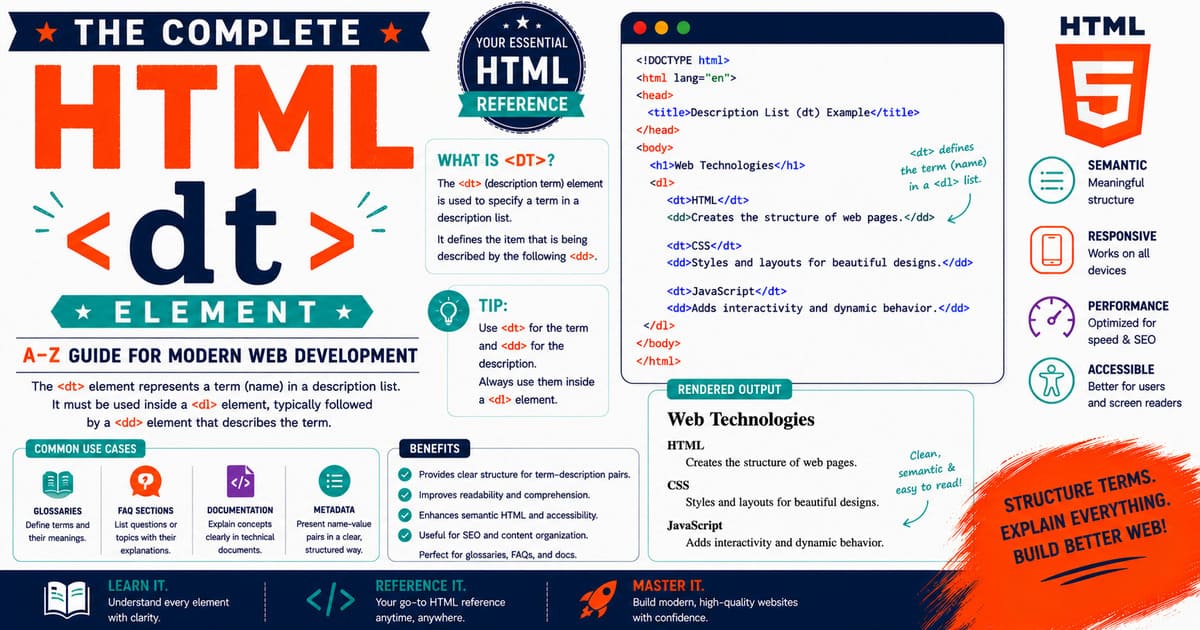
Chapter 5.14 — The <dt> Element
After exploring the <dl> element, it’s time to examine one of its two essential child elements:
1
<dt>
The letters “dt” stand for:
Description Term
The <dt> element represents the term, name, or subject within a description list (<dl>). It introduces the item that will be explained by one or more corresponding <dd> (Description Details) elements.
Without <dt>, a description list would have descriptions but no identifiable subjects. The <dt> element provides the semantic label that gives meaning to each associated description.
Description terms are commonly used in:
- Dictionaries
- Glossaries
- Product specifications
- Technical documentation
- API references
- Configuration settings
- Frequently Asked Questions (FAQs)
- Metadata panels
- Scientific terminology
- Legal definitions
Although <dt> is less common than elements like <div> or <p>, it plays an important role in semantic HTML and improves accessibility for users and assistive technologies.
5.14.1 Introduction to the <dt> Element
A <dt> element defines the term within a description list.
It must appear inside a <dl> element and is typically followed by one or more <dd> elements.
Basic structure:
1
2
3
4
5
6
7
<dl>

<dt>HTML</dt>

<dd>HyperText Markup Language.</dd>

</dl>
In this example:
<dl>creates the description list.<dt>defines the term HTML.<dd>provides its explanation.
Together, they create a semantic relationship.
Understanding the Relationship
Think of the relationship like this:
1
2
3
4
5
6
7
8
9
Description List

↓

Description Term

↓

Description Details
Or visually:
1
2
3
4
5
6
7
8
HTML
 └── HyperText Markup Language

CSS
 └── Cascading Style Sheets

JavaScript
 └── Programming language for the web
Each <dt> introduces a concept that is explained by one or more <dd> elements.
Basic Example
1
2
3
4
5
6
7
8
9
10
11
12
13
14
15
<dl>

<dt>CPU</dt>

<dd>Central Processing Unit.</dd>

<dt>RAM</dt>

<dd>Random Access Memory.</dd>

<dt>SSD</dt>

<dd>Solid State Drive.</dd>

</dl>
Each abbreviation is represented by a <dt> element.
Product Specification Example
1
2
3
4
5
6
7
8
9
10
11
12
13
14
15
<dl>

<dt>Display</dt>

<dd>15.6-inch IPS LCD</dd>

<dt>Processor</dt>

<dd>Intel Core Ultra 7</dd>

<dt>Memory</dt>

<dd>32 GB DDR5</dd>

</dl>
Each product attribute is represented by a description term.
API Documentation Example
1
2
3
4
5
6
7
8
9
10
11
12
13
14
15
<dl>

<dt>endpoint</dt>

<dd>The destination URL of the API.</dd>

<dt>method</dt>

<dd>The HTTP request method.</dd>

<dt>response</dt>

<dd>The data returned by the server.</dd>

</dl>
Developer documentation frequently uses <dt> elements to identify important concepts.
FAQ Example
1
2
3
4
5
6
7
8
9
10
11
12
13
14
15
16
17
18
19
20
21
22
23
24
25
26
27
<dl>

<dt>

What is HTML?

</dt>

<dd>

HTML is the standard markup language for creating web pages.

</dd>

<dt>

Is HTML case-sensitive?

</dt>

<dd>

No. HTML element names are case-insensitive.

</dd>

</dl>
Each question acts as a description term.
Multiple Terms Sharing One Description
The HTML specification allows multiple <dt> elements to share the same description.
Example:
1
2
3
4
5
6
7
8
9
10
11
12
13
<dl>

<dt>Color</dt>

<dt>Colour</dt>

<dd>

Alternative spellings of the same word.

</dd>

</dl>
Both terms refer to a single explanation.
Can a <dt> Contain Rich Content?
Yes.
A <dt> is not limited to plain text.
Example:
1
2
3
4
5
6
7
8
9
10
11
12
13
14
15
16
17
18
19
<dl>

<dt>

<strong>

HTML

</strong>

</dt>

<dd>

Markup language.

</dd>

</dl>
A <dt> may contain phrasing content such as:
- Text
- Links
- Abbreviations
<strong><em><code><span><small><kbd><mark>
However, block-level structures like paragraphs or lists generally belong inside <dd> rather than <dt>.
Real-World Uses
The <dt> element appears in:
- Online dictionaries
- Programming language documentation
- Technical glossaries
- Linux manual pages
- Browser API references
- Medical dictionaries
- Product comparison pages
- Software configuration guides
- Educational websites
- Enterprise knowledge bases
Common Misconceptions
Misconception 1
”
<dt>means Definition Term.”
Historically many developers called it “Definition Term.”
Today, according to the HTML Living Standard, it represents a Description Term, making the element suitable for many kinds of semantic relationships—not only dictionary definitions.
Misconception 2
”
<dt>must always have exactly one<dd>.”
Incorrect.
One term may have several descriptions.
Misconception 3
”
<dt>can appear anywhere.”
Incorrect.
A <dt> must be used within a <dl> element.
Practical Exercise
Create a file named:
1
description-term.html
Example:
1
2
3
4
5
6
7
8
9
10
11
12
13
14
15
16
17
18
19
20
21
22
23
24
25
26
27
28
29
30
31
32
33
<!DOCTYPE html>

<html lang="en">

<head>

<title>Description Term Example</title>

</head>

<body>

<h2>Programming Glossary</h2>

<dl>

<dt>HTML</dt>

<dd>Creates the structure of web pages.</dd>

<dt>CSS</dt>

<dd>Styles the appearance of web pages.</dd>

<dt>JavaScript</dt>

<dd>Adds interactivity to websites.</dd>

</dl>

</body>

</html>
Open the page in your browser and observe how each term is associated with its corresponding description.
Try adding multiple <dd> elements beneath one <dt> to see how browsers group related descriptions.
Did You Know?
Unlike ordinary headings, a
<dt>does not simply introduce a section. Instead, it identifies a semantic term that is directly associated with one or more descriptions, allowing browsers and assistive technologies to understand the relationship between concepts and their explanations.
Summary
In this section, you learned:
- The purpose of the
<dt>element. - Its relationship with
<dl>and<dd>. - Basic syntax.
- Real-world applications.
- Multiple-term associations.
- Rich content support.
- Common misconceptions.
- Practical examples.
Coming Up Next — Section 5.14.2
In the next section, we’ll explore:
- HTML Living Standard definition.
- Content categories.
- Content model.
- Browser parsing.
- DOM representation.
- The
HTMLElementinterface. - Accessibility semantics.
- Professional implementation techniques.
By the end of the next section, you’ll understand exactly how browsers interpret the <dt> element internally and how professional developers use it to build semantic, accessible documentation.
5.14.2 HTML Living Standard, Content Categories, Content Model, Browser Parsing, DOM Interface, and Accessibility of <dt>
In the previous section, you learned that the <dt> element represents a description term within a description list (<dl>). It introduces the subject, name, or concept that is explained by one or more corresponding <dd> elements.
Although <dt> appears simple, it has a well-defined role in the HTML Living Standard and contributes significantly to semantic structure and accessibility.
In this section, we’ll examine the <dt> element from the perspective of the HTML Living Standard, browser parsing, DOM representation, accessibility, and professional web development.
HTML Living Standard Definition
According to the HTML Living Standard, the <dt> element represents a name or term in a description list.
Each <dt> belongs to an association group within a <dl> element and is followed by one or more <dd> elements that provide values or descriptions.
Unlike a heading, a <dt> does not introduce a new section of content. Instead, it labels information that immediately follows within the same description list.
Association Groups
Every <dt> participates in an association group.
Example:
1
2
3
4
5
6
7
8
9
10
11
<dl>

<dt>HTTP</dt>

<dd>Hypertext Transfer Protocol.</dd>

<dt>HTTPS</dt>

<dd>Secure version of HTTP.</dd>

</dl>
Internally, the browser understands the structure as:
1
2
3
4
5
6
7
8
9
10
11
12
13
14
15
16
17
Association Group 1

Name:
HTTP

Value:
Hypertext Transfer Protocol

--------------------------

Association Group 2

Name:
HTTPS

Value:
Secure version of HTTP
Each <dt> defines the name of its group.
Multiple Terms Sharing One Description
The HTML specification allows multiple <dt> elements before a single <dd>.
Example:
1
2
3
4
5
6
7
8
9
10
11
12
13
<dl>

<dt>Center</dt>

<dt>Centre</dt>

<dd>

Different spellings of the same word.

</dd>

</dl>
Both terms belong to the same association group.
Content Categories
The <dt> element belongs to the following HTML content category.
| Category | Included |
|---|---|
| None | ❌ |
The <dt> element itself is not classified as Flow Content or Phrasing Content. Its meaning is determined entirely by its relationship with the surrounding <dl>.
Permitted Parent Element
A <dt> element must appear inside a <dl> element.
Correct example:
1
2
3
4
5
6
7
<dl>

<dt>CPU</dt>

<dd>Central Processing Unit.</dd>

</dl>
Incorrect example:
1
2
3
4
5
<section>

<dt>CPU</dt>

</section>
Using <dt> outside a <dl> produces invalid HTML.
Permitted Content
A <dt> may contain phrasing content.
Common examples include:
- Plain text
<strong><em><abbr><code><span><small><kbd><mark><a>
Example:
1
2
3
4
5
6
7
8
9
<dt>

<abbr title="HyperText Markup Language">

HTML

</abbr>

</dt>
This provides additional semantic information while preserving accessibility.
Content Model
The content model of <dt> is phrasing content.
Correct example:
1
2
3
4
5
6
7
8
9
<dt>

<code>

margin

</code>

</dt>
Avoid placing block-level elements such as <div> or <p> directly inside a <dt>.
Browser Parsing
Consider this HTML:
1
2
3
4
5
6
7
<dl>

<dt>RAM</dt>

<dd>Random Access Memory.</dd>

</dl>
Simplified parsing process:
1
2
3
4
5
6
7
8
9
10
11
12
13
14
15
16
17
18
19
20
21
22
23
24
25
26
27
28
29
Read <dl>

↓

Create Description List Node

↓

Read <dt>

↓

Create Description Term Node

↓

Insert Text Node

↓

Read <dd>

↓

Create Description Details Node

↓

Close <dl>
The browser associates the term with its description during parsing.
DOM Representation
HTML:
1
2
3
4
5
6
7
<dl>

<dt>HTML</dt>

<dd>Markup language.</dd>

</dl>
Simplified DOM tree:
1
2
3
4
5
6
7
8
9
10
11
12
13
14
15
Document

└── html

    └── body

        └── dl

             ├── dt

             │    └── Text Node

             └── dd

                  └── Text Node
Each <dt> becomes an independent DOM node.
DOM Interface
Unlike <dl>, which has the specialized HTMLDListElement interface, the <dt> element uses the generic:
1
HTMLElement
Inheritance hierarchy:
1
2
3
4
5
6
7
8
9
10
11
12
13
EventTarget

↓

Node

↓

Element

↓

HTMLElement
There is no dedicated HTMLDTElement interface in the DOM.
Instead, <dt> inherits all standard behavior from HTMLElement.
Browser Rendering
By default, browsers usually display <dt> elements:
- Left aligned.
- Bold (in many browser default stylesheets).
- Without bullets.
- Without numbering.
- Immediately followed by their associated descriptions.
The exact appearance varies slightly between browsers.
Accessibility
Screen readers recognize <dt> as the term within a description list.
Example announcement:
1
2
3
4
5
6
7
8
9
Description list.

Term:

HTML.

Description:

Markup language.
This semantic relationship provides context that generic containers cannot communicate.
SEO Considerations
Search engines use semantic HTML to understand relationships within a document.
A <dt> helps identify:
- Technical terms.
- Product attributes.
- Metadata names.
- Glossary entries.
- Configuration labels.
- Frequently asked questions.
Proper use of <dt> contributes to a clearer document structure.
Common Misconceptions
Misconception 1
”
<dt>is just a heading.”
Incorrect.
Headings divide sections, while <dt> labels a description within a semantic association group.
Misconception 2
”
<dt>creates indentation.”
Incorrect.
Indentation is typically applied by browser styles to the <dd> element.
Misconception 3
”
<dt>requires exactly one description.”
Incorrect.
One term may be followed by multiple <dd> elements.
Practical Exercise
Create a file named:
1
glossary-example.html
Example:
1
2
3
4
5
6
7
8
9
10
11
12
13
14
15
16
17
18
19
20
21
22
23
24
25
26
27
<!DOCTYPE html>

<html lang="en">

<head>

<title>Glossary</title>

</head>

<body>

<dl>

<dt>API</dt>

<dd>Application Programming Interface.</dd>

<dt>JSON</dt>

<dd>JavaScript Object Notation.</dd>

</dl>

</body>

</html>
Inspect the page using your browser’s developer tools and observe the DOM structure created for the <dt> elements.
Did You Know?
Unlike
<h1>–<h6>, the<dt>element does not contribute to the document outline. Its role is to define semantic relationships inside description lists rather than document sections.
Summary
In this section, you learned:
- The HTML Living Standard definition of
<dt>. - Association groups.
- Content categories.
- Permitted parent element.
- Content model.
- Browser parsing.
- DOM representation.
- The
HTMLElementinterface. - Accessibility semantics.
- SEO considerations.
Coming Up Next — Section 5.14.3
In the next section, we’ll explore CSS Styling, Advanced Layout Techniques, JavaScript Manipulation, Responsive Design, Accessibility Enhancements, and Professional UI Patterns for the <dt> element.
You’ll learn how modern documentation systems, API references, glossary pages, and enterprise applications style description terms while preserving semantic HTML.
5.14.3 CSS Styling, Advanced Layout Techniques, JavaScript Manipulation, Responsive Design, Accessibility Enhancements, and Professional UI Patterns
In the previous section, you learned how the HTML Living Standard defines the <dt> element, how browsers parse it, and how it participates in semantic association groups within a description list.
Although the browser provides a simple default appearance for <dt>, modern websites frequently style description terms to improve readability and visual hierarchy. API documentation, product specification pages, glossaries, FAQs, and administration dashboards often rely on carefully designed <dt> elements.
In this section, you’ll learn professional techniques for styling and manipulating <dt> elements while preserving their semantic meaning.
5.14.3.1 Default Browser Appearance
Most browsers display <dt> elements with:
- Bold text.
- Left alignment.
- No bullets.
- No numbering.
- Minimal spacing.
Example:
1
2
3
4
5
6
7
<dl>

<dt>HTML</dt>

<dd>Markup language.</dd>

</dl>
Typical browser rendering:
1
2
3
HTML

    Markup language.
The exact appearance varies slightly because each browser has its own default stylesheet.
Styling Description Terms
You can customize <dt> using standard CSS.
Example:
1
2
3
4
5
6
7
8
9
10
11
dt{

font-weight:700;

font-size:1.2rem;

color:#1f2937;

margin-top:1.5rem;

}
This makes each term more visually prominent.
Styling Multiple Term Levels
Large glossaries often distinguish primary and secondary terms.
Example:
1
2
3
4
5
6
7
8
9
10
11
12
13
dt.primary{

font-size:1.3rem;

}

dt.secondary{

font-size:1rem;

color:#666666;

}
HTML:
1
2
3
4
5
6
7
8
9
10
11
<dt class="primary">

HTML

</dt>

<dt class="secondary">

HyperText Markup Language

</dt>
Different visual levels improve organization without changing semantics.
Highlighting Important Terms
Example:
1
2
3
4
5
6
7
8
9
dt.important{

background:#fff3cd;

padding:8px;

border-left:5px solid #f59e0b;

}
HTML:
1
2
3
4
5
<dt class="important">

Security

</dt>
This pattern is useful for warnings and critical concepts.
Using CSS Grid
Many specification pages align terms and descriptions using Grid.
Example:
1
2
3
4
5
6
7
8
9
10
11
12
13
14
15
16
17
18
19
20
21
22
23
dl{

display:grid;

grid-template-columns:220px 1fr;

gap:12px 20px;

}

dt{

margin:0;

font-weight:bold;

}

dd{

margin:0;

}
This creates a clean two-column layout while preserving semantic HTML.
Responsive Design
On narrow screens, stacked layouts are easier to read.
Example:
1
2
3
4
5
6
7
8
9
@media (max-width:768px){

dl{

grid-template-columns:1fr;

}

}
The browser automatically stacks terms and descriptions vertically.
Styling Code Terms
Technical documentation often uses <code> inside <dt>.
Example:
1
2
3
4
5
6
7
8
9
<dt>

<code>

margin

</code>

</dt>
CSS:
1
2
3
4
5
6
7
8
9
10
11
dt code{

background:#f3f4f6;

padding:2px 6px;

border-radius:4px;

font-family:monospace;

}
This distinguishes code identifiers from ordinary text.
JavaScript Manipulation
Description terms can be modified dynamically.
Example HTML:
1
2
3
4
5
6
7
8
9
10
11
12
13
14
15
<dl>

<dt id="language">

HTML

</dt>

<dd>

Markup language.

</dd>

</dl>
JavaScript:
1
2
3
4
5
const term =
document.getElementById("language");

term.textContent =
"HTML5";
The browser immediately updates the displayed term.
Creating Terms Dynamically
Example:
1
2
3
4
5
6
7
8
9
const term =
document.createElement("dt");

term.textContent =
"CSS";

document
.querySelector("dl")
.appendChild(term);
Typically, a corresponding <dd> should also be created to maintain a valid description list.
Styling Terms Dynamically
JavaScript can apply CSS classes.
Example:
1
2
3
4
const term =
document.querySelector("dt");

term.classList.add("important");
This is useful for highlighting search results or newly added entries.
Interactive Glossary
Example:
1
2
3
4
5
6
7
8
9
10
11
12
const terms =
document.querySelectorAll("dt");

terms.forEach(function(term){

term.addEventListener("click",function(){

term.classList.toggle("important");

});

});
Clicking a term toggles its highlighted appearance.
Accessibility Enhancements
When styling <dt> elements:
- Preserve sufficient color contrast.
- Avoid relying solely on color for emphasis.
- Ensure keyboard accessibility if terms become interactive.
- Keep terms concise and descriptive.
- Preserve the logical relationship with associated
<dd>elements.
Accessibility should never be sacrificed for visual design.
Professional UI Patterns
Modern interfaces use <dt> in:
- API references.
- Software documentation.
- Configuration settings.
- Technical glossaries.
- Product specifications.
- Enterprise dashboards.
- Medical reference systems.
- Legal documentation.
- Knowledge bases.
- FAQ pages.
The <dt> element provides semantic clarity while remaining fully customizable.
Common Mistakes
Mistake 1
Using headings instead of <dt> inside description lists.
Although headings may look similar, they do not establish semantic relationships with descriptions.
Mistake 2
Applying excessive visual styling that obscures the relationship between terms and descriptions.
Users should immediately recognize which text is the term.
Mistake 3
Creating a <dt> without a corresponding <dd>.
A term without a description leaves the association incomplete.
Mistake 4
Separating related <dt> and <dd> elements with unrelated content.
Keep associated elements together to preserve semantic meaning.
Practical Exercise
Create a file named:
1
styled-dt-example.html
Experiment with:
- Typography.
- Colors.
- Grid layouts.
- Responsive behavior.
- Interactive highlighting.
- Code formatting.
Observe how styling changes the appearance while the underlying semantic structure remains unchanged.
Did You Know?
Many documentation generators automatically style
<dt>elements differently from<dd>elements because users naturally scan the terms first before reading the associated explanations.
Summary
In this section, you learned:
- Default rendering of
<dt>. - CSS styling techniques.
- Grid layouts.
- Responsive design.
- JavaScript manipulation.
- Interactive glossary examples.
- Accessibility enhancements.
- Professional UI patterns.
- Common development mistakes.
Coming Up Next — Section 5.14.4
In the next section, we’ll explore DOM APIs, Browser Compatibility, Accessibility APIs, SEO, Performance, Advanced JavaScript, Professional Best Practices, and Interview Questions for the <dt> element.
You’ll also learn how browsers expose <dt> elements through the DOM and how professional developers manipulate them efficiently in modern web applications.
5.14.4 DOM APIs, Browser Compatibility, Accessibility APIs, SEO, Performance, Advanced JavaScript, Professional Best Practices, and Interview Questions
In the previous section, you learned how to style <dt> elements using CSS, create responsive layouts, and manipulate description terms with JavaScript.
In this section, we’ll look deeper into how browsers expose the <dt> element through the Document Object Model (DOM), how assistive technologies interpret it, and how professional developers optimize description terms in large documentation systems.
5.14.4.1 DOM Representation of <dt>
When the browser parses a description list, each <dt> element becomes its own DOM node.
Example HTML:
1
2
3
4
5
6
7
8
9
10
11
<dl>

<dt>HTML</dt>

<dd>HyperText Markup Language.</dd>

<dt>CSS</dt>

<dd>Cascading Style Sheets.</dd>

</dl>
The simplified DOM tree becomes:
1
2
3
4
5
6
7
8
9
10
11
12
13
14
15
16
17
18
19
20
21
22
23
Document

└── html

    └── body

        └── dl

            ├── dt

            │   └── "HTML"

            ├── dd

            │   └── "HyperText Markup Language."

            ├── dt

            │   └── "CSS"

            └── dd

                └── "Cascading Style Sheets."
Every <dt> is represented as an independent element node.
DOM Interface
Unlike some HTML elements that have dedicated interfaces, the <dt> element is represented by the generic:
1
HTMLElement
Inheritance hierarchy:
1
2
3
4
5
6
7
8
9
10
11
12
13
EventTarget

↓

Node

↓

Element

↓

HTMLElement
There is no specialized HTMLDTElement interface.
Instead, <dt> inherits the full functionality of HTMLElement.
Selecting <dt> Elements
Using querySelector():
1
2
3
4
const term =
document.querySelector("dt");

console.log(term.textContent);
Output:
1
HTML
Using querySelectorAll():
1
2
3
4
const terms =
document.querySelectorAll("dt");

console.log(terms.length);
Output:
1
2
Every <dt> in the document is returned as a NodeList.
Accessing Parent Elements
Example:
1
2
3
4
5
6
const term =
document.querySelector("dt");

console.log(
term.parentElement
);
Output:
1
<dl>...</dl>
The parent element is always the containing description list.
Reading Associated Descriptions
Suppose the HTML is:
1
2
3
4
5
6
7
<dl>

<dt>HTML</dt>

<dd>Markup language.</dd>

</dl>
JavaScript:
1
2
3
4
5
6
7
8
9
const term =
document.querySelector("dt");

const description =
term.nextElementSibling;

console.log(
description.textContent
);
Output:
1
Markup language.
This works because the <dd> immediately follows its <dt>.
Creating <dt> Elements Dynamically
Example:
1
2
3
4
5
6
7
8
9
const term =
document.createElement("dt");

term.textContent =
"JavaScript";

document
.querySelector("dl")
.appendChild(term);
A matching <dd> should normally be added immediately afterward.
Updating a Term
Example:
1
2
3
4
5
const term =
document.querySelector("dt");

term.textContent =
"HTML5";
The browser updates the displayed content without refreshing the page.
Removing a Term
Example:
1
2
3
4
const term =
document.querySelector("dt");

term.remove();
When removing a <dt>, remember to remove or update its corresponding <dd> to maintain semantic correctness.
Browser Compatibility
The <dt> element has excellent browser support.
| Browser | Support |
|---|---|
| Chrome | ✅ |
| Firefox | ✅ |
| Safari | ✅ |
| Edge | ✅ |
| Opera | ✅ |
| Android Browser | ✅ |
| iOS Safari | ✅ |
It has been supported since the earliest versions of HTML.
Accessibility APIs
Screen readers recognize <dt> as the term within a description list.
Typical announcement:
1
2
3
4
5
6
7
8
9
Description list.

Term:

HTML.

Description:

HyperText Markup Language.
This semantic relationship helps users understand that the description belongs specifically to the announced term.
Accessibility Best Practices
When authoring <dt> elements:
- Use concise labels.
- Keep terms meaningful.
- Preserve logical order.
- Do not separate terms from descriptions.
- Avoid inserting unrelated elements between associated pairs.
Semantic consistency greatly improves navigation for assistive technologies.
SEO Considerations
Search engines analyze semantic HTML to understand document structure.
Using <dt> appropriately helps identify:
- Glossary terms.
- Product attributes.
- Configuration names.
- API parameters.
- Metadata labels.
- Technical concepts.
Although it is not a direct ranking factor, semantic markup contributes to better content understanding.
Performance Considerations
A typical <dt> element has virtually no performance cost.
Performance considerations become relevant only when:
- Thousands of glossary entries are displayed.
- Content is updated continuously.
- Large documentation sites are generated dynamically.
For large datasets, consider:
- Pagination.
- Search filtering.
- Lazy loading.
- Virtual scrolling.
These techniques improve rendering efficiency and user experience.
Professional Best Practices
Keep Terms Short
Good:
1
<dt>CPU</dt>
Less effective:
1
2
3
4
5
<dt>

Central Processing Unit Hardware Information

</dt>
Short, descriptive terms are easier to scan.
Use Semantic Formatting
Example:
1
2
3
4
5
6
7
8
9
<dt>

<abbr title="Application Programming Interface">

API

</abbr>

</dt>
This improves both readability and accessibility.
Preserve Relationships
Each <dt> should remain directly associated with its corresponding <dd>.
Avoid placing unrelated content between them.
Common Mistakes
Mistake 1
Using <dt> outside a <dl>.
This produces invalid HTML.
Mistake 2
Using <dt> as a heading.
Description terms label concepts; they do not create document sections.
Mistake 3
Leaving a <dt> without a corresponding <dd>.
Each term should have one or more associated descriptions.
Mistake 4
Using <div> instead of semantic description-list elements.
Semantic HTML improves accessibility and document structure.
Interview Questions
Question 1
What DOM interface represents the <dt> element?
Answer:
HTMLElement
Question 2
Can multiple <dt> elements share a single <dd>?
Answer:
Yes. The HTML specification allows multiple terms to share one description.
Question 3
Can one <dt> have multiple <dd> elements?
Answer:
Yes. A single term may be followed by multiple descriptions.
Question 4
Can <dt> appear outside a <dl>?
Answer:
No. It must be used within a description list.
Question 5
Does <dt> contribute to the document outline?
Answer:
No. Unlike headings, <dt> does not create sections in the document outline.
Did You Know?
Many browser developer tools display
<dt>and<dd>as ordinary DOM elements, but assistive technologies interpret them as semantically linked pairs. This additional meaning is one of the major advantages of using description lists instead of generic containers.
Summary
In this section, you learned:
- DOM representation of
<dt>. - The
HTMLElementinterface. - Selecting and manipulating terms.
- Browser compatibility.
- Accessibility APIs.
- SEO considerations.
- Performance optimization.
- Professional best practices.
- Common interview questions.
Coming Up Next — Section 5.14.5 (Final Section)
In the final section of the <dt> chapter, we’ll cover:
- Advanced real-world examples.
- Markdown integration.
- Jekyll implementation.
- Security considerations.
- Complete technical reference.
- Professional publishing checklist.
- Common authoring mistakes.
- Comprehensive chapter summary.
After completing Section 5.14.5, the <dt> element will be fully documented, and we’ll continue with Chapter 5.15 — The <dd> Element, completing the description-list family.
5.14.5 Advanced Examples, Markdown Integration, Jekyll Implementation, Security, Complete Technical Reference, and Chapter Summary
Welcome to the final section of the <dt> chapter.
Throughout this chapter, you’ve explored the HTML <dt> element from its basic syntax to its role in semantic description lists, browser parsing, accessibility, CSS styling, JavaScript manipulation, and professional web development.
Although <dt> is a relatively small HTML element, it plays a significant role in creating meaningful relationships between terms and descriptions. Proper use of <dt> makes documentation easier to understand for users, search engines, and assistive technologies.
In this final section, we’ll examine advanced real-world examples, Markdown and Jekyll integration, security considerations, professional publishing techniques, and conclude with a complete technical reference.
5.14.5.1 Advanced Real-World Examples
The <dt> element is commonly found in professional websites that present structured information.
Popular use cases include:
- Technical glossaries
- API documentation
- Product specifications
- Configuration panels
- Software manuals
- Resume information
- Frequently Asked Questions (FAQs)
- Medical terminology
- Legal references
- Educational content
Each example uses <dt> to identify the subject that is explained by one or more <dd> elements.
Example 1 — Programming Glossary
1
2
3
4
5
6
7
8
9
10
11
12
13
14
15
<dl>

<dt>DOM</dt>

<dd>Document Object Model.</dd>

<dt>JSON</dt>

<dd>JavaScript Object Notation.</dd>

<dt>API</dt>

<dd>Application Programming Interface.</dd>

</dl>
This is one of the most common uses of description terms in technical documentation.
Example 2 — Product Specifications
1
2
3
4
5
6
7
8
9
10
11
12
13
14
15
<dl>

<dt>Processor</dt>

<dd>Intel Core Ultra 7</dd>

<dt>Memory</dt>

<dd>32 GB DDR5</dd>

<dt>Storage</dt>

<dd>1 TB NVMe SSD</dd>

</dl>
Each hardware specification is represented by a <dt> element.
Example 3 — API Parameters
1
2
3
4
5
6
7
8
9
10
11
12
13
14
15
<dl>

<dt>username</dt>

<dd>User account name.</dd>

<dt>password</dt>

<dd>User authentication password.</dd>

<dt>token</dt>

<dd>Access credential for secure requests.</dd>

</dl>
Many API documentation systems use this structure to present request parameters.
Example 4 — Frequently Asked Questions
1
2
3
4
5
6
7
8
9
10
11
12
13
14
15
16
17
18
19
20
21
22
23
24
25
26
27
<dl>

<dt>

What is CSS?

</dt>

<dd>

CSS controls the presentation of HTML documents.

</dd>

<dt>

Is CSS a programming language?

</dt>

<dd>

No. CSS is a style sheet language.

</dd>

</dl>
Questions become description terms, while answers become descriptions.
Example 5 — Metadata Display
1
2
3
4
5
6
7
8
9
10
11
12
13
14
15
<dl>

<dt>Author</dt>

<dd>John Smith</dd>

<dt>Published</dt>

<dd>July 2026</dd>

<dt>License</dt>

<dd>MIT License</dd>

</dl>
This pattern is common in documentation portals and content management systems.
Markdown Integration
Standard Markdown has no dedicated syntax for <dt> elements.
Instead, raw HTML is used.
Example:
1
2
3
4
5
6
7
<dl>

<dt>HTML</dt>

<dd>HyperText Markup Language.</dd>

</dl>
Most Markdown processors preserve this HTML without modification.
Using <dt> in Jekyll
Jekyll’s default Markdown processor (Kramdown) fully supports embedded HTML.
Example:
1
2
3
4
5
6
7
8
9
10
11
12
13
## Web Development Glossary

<dl>

<dt>HTML</dt>

<dd>Defines the structure of web pages.</dd>

<dt>CSS</dt>

<dd>Defines the presentation of web pages.</dd>

</dl>
When Jekyll builds the site, the HTML is passed directly to the generated page.
Styling <dt> in Jekyll
Example CSS:
1
2
3
4
5
6
7
8
9
10
11
.post-content dt{

font-weight:700;

margin-top:1.25rem;

font-size:1.1rem;

color:#1f2937;

}
This style improves readability while maintaining semantic structure.
Responsive Design Considerations
Long terms may wrap on smaller screens.
Example:
1
2
3
4
5
6
7
.post-content dt{

overflow-wrap:anywhere;

word-break:break-word;

}
This prevents layout overflow when displaying lengthy identifiers or technical names.
Security Considerations
The <dt> element itself does not create security vulnerabilities.
However, inserting untrusted HTML dynamically can expose a page to Cross-Site Scripting (XSS).
Unsafe example:
1
2
term.innerHTML =
userInput;
If userInput contains malicious HTML or JavaScript, it could execute in the browser.
Safer Alternative
Use textContent for user-generated text.
1
2
term.textContent =
userInput;
This safely inserts the content as plain text.
Common Authoring Mistakes
Mistake 1
Using <dt> without a <dl>.
A description term must always belong to a description list.
Mistake 2
Using <dt> as a page heading.
Headings organize document sections, whereas <dt> labels a description.
Mistake 3
Replacing <dt> with generic <div> elements.
This removes semantic meaning and reduces accessibility.
Mistake 4
Writing lengthy paragraphs inside <dt>.
The term should remain concise. Detailed explanations belong inside <dd>.
Professional Publishing Checklist
Before publishing a description list, verify that:
- Every
<dt>has at least one associated<dd>. - Terms are concise and meaningful.
- Semantic HTML is preserved.
- CSS styling does not obscure relationships.
- Accessibility requirements are satisfied.
- The layout is responsive on different screen sizes.
A well-structured description list is easier to maintain and more accessible to users.
Complete Technical Reference
| Feature | Description |
|---|---|
| Element | <dt> |
| Full Name | Description Term |
| Purpose | Defines a term or name in a description list |
| Parent Element | <dl> |
| Typical Sibling | <dd> |
| Content Model | Phrasing Content |
| Closing Tag | Required |
| Void Element | No |
| DOM Interface | HTMLElement |
| JavaScript Support | Full |
| Accessibility | Excellent |
| Browser Support | Universal |
Comparison with Similar Elements
| Element | Purpose |
|---|---|
<h1>–<h6> | Creates document headings |
<dt> | Defines a term within a description list |
<dd> | Provides the description for a term |
<th> | Defines a table header |
Although these elements may appear visually similar after CSS styling, they serve completely different semantic purposes.
Chapter 5.14 Final Summary — The <dt> Element
Congratulations!
You have completed a comprehensive study of the HTML <dt> element.
Throughout this chapter, you learned:
Fundamentals
- Purpose of description terms.
- Relationship between
<dl>,<dt>, and<dd>. - Basic syntax.
Browser Internals
- HTML Living Standard definition.
- Association groups.
- Content model.
- Browser parsing.
- DOM representation.
HTMLElement.
Practical Development
- CSS styling.
- Responsive layouts.
- JavaScript manipulation.
- Accessibility.
- SEO.
- Performance optimization.
Publishing
- Markdown integration.
- Jekyll integration.
- Security considerations.
- Professional documentation practices.
Chapter 5 Progress Update
Completed elements:
- ✅
<br> - ✅
<hr> - ✅
<wbr> - ✅
<pre> - ✅
<blockquote> - ✅
<ol> - ✅
<ul> - ✅
<li> - ✅
<dl> - ✅
<dt>
Remaining in the Description List family:
- ⏳
<dd>— Description Details
After completing <dd>, we’ll move on to the next major group of HTML elements.
Coming Up Next — Chapter 5.15: The <dd> Element
The next chapter explores the Description Details (<dd>) element, including:
- Purpose and semantics.
- HTML Living Standard definition.
- Content model.
- Browser parsing.
- DOM interface.
- CSS styling.
- JavaScript manipulation.
- Accessibility.
- SEO.
- Markdown and Jekyll integration.
- Professional best practices.
Together, the <dl>, <dt>, and <dd> elements form one of HTML’s most important semantic structures for representing term-description and name-value relationships.
End of Chapter 5.14 — The <dt> Element
Status: ✅ Complete
The HTML <dt> element is now fully documented as part of The Complete HTML Reference: A–Z Guide for Modern Web Development.