Chapter 5.16 — The `<figure>` Element
Complete guide to the HTML `<figure>` element including semantics, images, diagrams, code listings, accessibility, SEO, responsive design, browser behavior, and professional best practices.
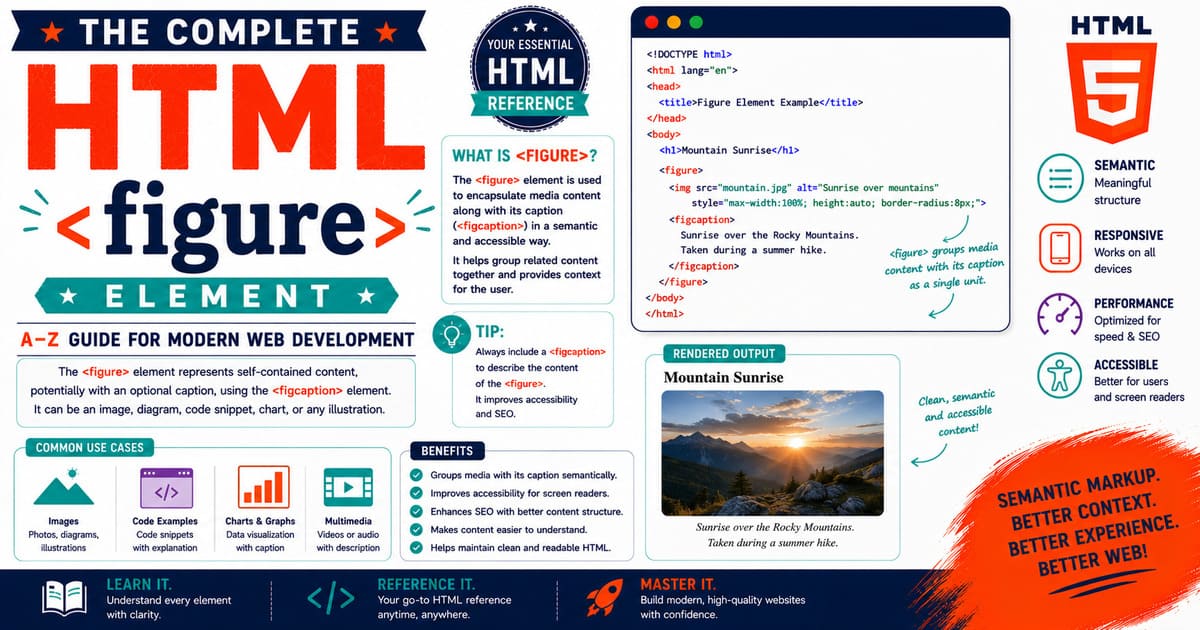
Chapter 5.16 — The <figure> Element
Among all semantic HTML elements introduced in HTML5, the <figure> element is one of the most versatile and widely adopted. It provides a meaningful way to group self-contained content—such as images, diagrams, code examples, charts, tables, videos, illustrations, and maps—along with an optional caption.
Before HTML5, developers commonly used generic <div> elements to wrap images and their captions. While this worked visually, it lacked semantic meaning. Browsers, search engines, and assistive technologies could not determine whether a piece of content was simply decorative or represented an independent figure with its own caption.
The introduction of <figure> solved this problem by giving authors a dedicated semantic element for self-contained content that can be referenced independently from the main document flow.
Today, the <figure> element is used extensively in:
- News websites
- Technical documentation
- Educational platforms
- Scientific publications
- Blogs
- Product documentation
- Data dashboards
- Research papers
- Digital books
- Portfolio websites
If you’ve ever seen an image with a caption such as “Figure 3: Network Architecture”, you’ve encountered one of the primary uses of the <figure> element.
Why This Element Matters in Real Projects
The <figure> element is not limited to photographs.
Professional developers use it to present:
- Screenshots in software documentation.
- Architecture diagrams.
- Flowcharts.
- Data visualizations.
- Infographics.
- Maps.
- Source code examples.
- Mathematical formulas.
- Embedded videos.
- Product photographs.
For example:
- A technology blog may wrap every screenshot inside a
<figure>. - A scientific journal may wrap every graph inside a
<figure>. - A news website may place every news photograph inside a
<figure>with a descriptive caption. - A programming tutorial may wrap code output images with explanatory captions.
Using semantic HTML improves both readability and maintainability.
5.16.1 Introduction to the <figure> Element
The <figure> element represents self-contained content that can be moved to another part of the document without changing the meaning of the surrounding text.
Basic syntax:
1
2
3
4
5
6
7
<figure>

<img
src="mountain.jpg"
alt="Snow-covered mountain">

</figure>
Although this is valid, a figure is often accompanied by a caption.
Example:
1
2
3
4
5
6
7
8
9
10
11
12
13
<figure>

<img
src="mountain.jpg"
alt="Snow-covered mountain">

<figcaption>

Snow-covered mountain during sunrise.

</figcaption>

</figure>
The caption provides context for the content inside the figure.
Understanding the Relationship
The <figure> element acts as a semantic container.
Visual representation:
1
2
3
4
5
Figure

├── Image

└── Caption
Or:
1
2
3
4
5
Figure

├── Diagram

└── Caption
Or:
1
2
3
4
5
Figure

├── Code Listing

└── Caption
The content is self-contained and understandable even when separated from the main article.
Image Example
1
2
3
4
5
6
7
8
9
10
11
12
13
14
<figure>

<img
src="earth.jpg"
alt="Planet Earth">

<figcaption>

Figure 1.
Planet Earth viewed from space.

</figcaption>

</figure>
This is one of the most common uses of <figure>.
Code Example
A <figure> may also contain source code.
1
2
3
4
5
6
7
8
9
10
11
12
13
14
15
<figure>

<pre><code>

console.log("Hello World");

</code></pre>

<figcaption>

Example of JavaScript output.

</figcaption>

</figure>
This is common in programming books and technical documentation.
Table Example
1
2
3
4
5
6
7
8
9
10
11
12
13
14
15
16
17
18
19
20
21
22
23
24
25
26
27
28
29
<figure>

<table>

<tr>

<th>Language</th>

<th>Creator</th>

</tr>

<tr>

<td>HTML</td>

<td>WHATWG</td>

</tr>

</table>

<figcaption>

Table showing web technologies.

</figcaption>

</figure>
Although tables can stand alone, grouping them inside a <figure> provides a caption and semantic context.
Diagram Example
1
2
3
4
5
6
7
8
9
10
11
12
13
<figure>

<img
src="network.svg"
alt="Network diagram">

<figcaption>

Corporate network topology.

</figcaption>

</figure>
Technical documentation frequently uses this pattern.
Embedded Video Example
1
2
3
4
5
6
7
8
9
10
11
12
13
14
15
16
17
<figure>

<video controls>

<source
src="demo.mp4"
type="video/mp4">

</video>

<figcaption>

Product demonstration video.

</figcaption>

</figure>
The <figure> element can wrap multimedia just as effectively as images.
Can a Figure Exist Without a Caption?
Yes.
A caption is optional.
Example:
1
2
3
4
5
6
7
<figure>

<img
src="city.jpg"
alt="City skyline">

</figure>
However, adding a <figcaption> is recommended whenever additional context benefits readers.
Pro Tip
Think of <figure> as a reusable content block.
If you can move the entire block—including its caption—to another page and it still makes sense, it is an excellent candidate for the <figure> element.
Common Mistakes
Mistake 1
Using <figure> only for photographs.
A <figure> can contain many kinds of content beyond images.
Mistake 2
Using <figure> purely for layout.
The element should represent meaningful, self-contained content—not simply act as another <div>.
Mistake 3
Forgetting the alt attribute on images.
The <figure> element does not replace the need for meaningful alternative text.
Mistake 4
Writing excessively long captions.
A caption should describe or identify the figure. Detailed explanations belong in the surrounding article.
Accessibility Note
When a <figure> contains an image:
- Always provide a meaningful
altattribute. - Use
<figcaption>to add explanatory context. - Keep captions concise and informative.
- Avoid repeating the exact same text in both the
altattribute and the caption unless necessary.
Together, alt text and captions provide a richer experience for users of assistive technologies.
SEO Note
Search engines analyze images together with their surrounding content.
A properly structured <figure> with:
- Descriptive
alttext, - A meaningful
<figcaption>, - Relevant surrounding article content,
helps search engines better understand the purpose of media on your page.
This is particularly valuable for tutorials, documentation, educational websites, and blogs.
Practical Exercise
Create a file named:
1
figure-introduction.html
Create three separate figures:
- A photograph with a caption.
- A code example with a caption.
- A table with a caption.
Observe how each type of content benefits from being wrapped inside a semantic <figure> element.
Did You Know?
The
<figure>element is not limited to visual content. It can also contain code listings, mathematical formulas, tables, poems, maps, or any other self-contained content that can be referenced independently from the surrounding text.
Summary
In this section, you learned:
- What the
<figure>element is. - Why HTML5 introduced it.
- How it differs from a generic
<div>. - Real-world applications.
- Images, videos, tables, and code examples.
- The purpose of
<figcaption>. - Accessibility considerations.
- SEO benefits.
- Common mistakes.
- Professional best practices.
Coming Up Next — Section 5.16.2
In the next section, we’ll explore:
- HTML Living Standard definition.
- Content categories.
- Content model.
- Browser parsing.
- DOM representation.
HTMLElementinterface.- Browser rendering.
- Accessibility semantics.
- Professional implementation techniques.
We’ll also examine how browsers internally process <figure> elements and why they play a crucial role in semantic HTML.
5.16.2 HTML Living Standard, Content Categories, Content Model, Browser Parsing, DOM Representation, and Accessibility of <figure>
In the previous section, you learned that the <figure> element represents self-contained content that can be moved away from the main flow of a document without losing its meaning. You also explored common real-world examples such as photographs, diagrams, videos, tables, and source code.
In this section, we’ll examine how the HTML Living Standard defines the <figure> element, how browsers parse it, how it appears in the Document Object Model (DOM), and why it plays an important role in semantic HTML.
Understanding these internal behaviors will help you write HTML that is not only valid but also easier to maintain, more accessible, and better understood by browsers and search engines.
Why This Matters in Real Projects
Consider a software documentation website.
A page explaining CSS Grid may contain:
- A screenshot
- A diagram
- A code listing
- A rendered output
Each of these can be wrapped inside its own <figure> with a <figcaption>.
Later, the documentation team may reuse the same figure in another article without modifying its meaning.
This reusability is exactly why the <figure> element exists.
5.16.2.1 HTML Living Standard Definition
According to the HTML Living Standard, the <figure> element represents self-contained flow content, optionally with a caption, that is referenced as a single unit from the main content.
A figure may be moved elsewhere in the document, an appendix, or another publication while still remaining meaningful.
This characteristic distinguishes <figure> from ordinary layout containers such as <div>.
Content Categories
The <figure> element belongs to the following content categories:
| Content Category | Included |
|---|---|
| Flow Content | Yes |
| Sectioning Root | Yes |
| Palpable Content* | Yes |
*When the figure contains visible content.
Because <figure> is flow content, it can appear almost anywhere flow content is permitted.
Permitted Parent Elements
The <figure> element may appear inside many parent elements.
Examples include:
<body><article><section><main><aside><div><li><dd>
Example:
1
2
3
4
5
6
7
8
9
10
11
12
13
14
15
16
17
18
19
<article>

<h2>Earth</h2>

<figure>

<img
src="earth.jpg"
alt="Earth">

<figcaption>

Earth viewed from space.

</figcaption>

</figure>

</article>
Permitted Content
The <figure> element accepts flow content.
Common examples include:
- Images
- Videos
- Audio players
- Tables
- Code examples
- SVG graphics
- Canvas drawings
- Mathematical formulas
- Lists
- Paragraphs
The optional <figcaption> may appear as the first or last child.
Correct:
1
2
3
4
5
6
7
8
9
10
11
12
13
<figure>

<figcaption>

Figure Caption

</figcaption>

<img
src="lake.jpg"
alt="Lake">

</figure>
Also correct:
1
2
3
4
5
6
7
8
9
10
11
12
13
<figure>

<img
src="lake.jpg"
alt="Lake">

<figcaption>

Figure Caption

</figcaption>

</figure>
Content Model
The content model can be summarized as:
1
2
3
4
5
6
7
8
9
Optional <figcaption>

↓

Flow Content

↓

Optional <figcaption>
Only one <figcaption> is permitted within a <figure>.
Browser Parsing
Example:
1
2
3
4
5
6
7
8
9
10
11
12
13
<figure>

<img
src="diagram.svg"
alt="Architecture">

<figcaption>

Application Architecture

</figcaption>

</figure>
Simplified parsing process:
1
2
3
4
5
6
7
8
9
10
11
12
13
14
15
16
17
18
19
20
21
22
23
24
25
Read <figure>

↓

Create Figure Element

↓

Read Image

↓

Associate Image

↓

Read Caption

↓

Associate Caption

↓

Close Figure
The browser understands that the caption belongs specifically to the figure.
DOM Representation
HTML:
1
2
3
4
5
6
7
8
9
10
11
12
13
<figure>

<img
src="mountain.jpg"
alt="Mountain">

<figcaption>

Mountain Landscape

</figcaption>

</figure>
Simplified DOM tree:
1
2
3
4
5
6
7
8
9
10
11
Document

└── html

    └── body

        └── figure

            ├── img

            └── figcaption
Every child becomes its own DOM node.
DOM Interface
The <figure> element uses the standard DOM interface:
1
HTMLElement
Inheritance hierarchy:
1
2
3
4
5
6
7
8
9
10
11
12
13
EventTarget

↓

Node

↓

Element

↓

HTMLElement
There is no dedicated HTMLFigureElement interface.
Instead, it inherits all functionality from HTMLElement.
Default Browser Rendering
Most browsers display <figure> approximately as:
- Block-level element
- Vertical margins
- Full available width
- Caption positioned according to document order
Example default appearance:
1
2
3
[ Image ]

Figure Caption
Because browser defaults differ slightly, production websites almost always apply custom CSS.
Association with <figcaption>
The <figcaption> element provides an accessible caption for its parent figure.
Example:
1
2
3
4
5
6
7
8
9
10
11
12
13
14
<figure>

<img
src="bird.jpg"
alt="Flying eagle">

<figcaption>

Figure 2.
Golden Eagle in flight.

</figcaption>

</figure>
Browsers and assistive technologies recognize this relationship automatically.
Multiple Figures
Documents may contain many independent figures.
Example:
1
2
3
4
5
6
7
8
9
10
11
12
13
14
15
16
17
18
19
20
21
22
23
24
25
26
27
<figure>

<img
src="cpu.png"
alt="CPU">

<figcaption>

Processor Diagram

</figcaption>

</figure>

<figure>

<img
src="ram.png"
alt="RAM">

<figcaption>

Memory Module

</figcaption>

</figure>
Each figure remains an independent semantic object.
Pro Tip
Treat every <figure> as a reusable information component.
If another article could reuse the entire figure—including its caption—without editing it, you’ve likely structured it correctly.
This approach is widely used in technical books, engineering manuals, and scientific journals.
Accessibility Note
The <figure> element alone does not replace image accessibility.
Always:
- Write meaningful
alttext. - Add
<figcaption>when additional explanation is useful. - Ensure diagrams are understandable without relying solely on color.
- Provide accessible alternatives for complex charts.
Remember:
altdescribes the image.figcaptionexplains the figure.
These serve different purposes.
SEO Note
For image-heavy articles, search engines analyze:
- Image filename
altattribute<figcaption>- Nearby headings
- Surrounding paragraph text
Using all of these together creates stronger semantic context than using an image alone.
For your Beyond Borders View HTML Reference, this is especially valuable because screenshots, diagrams, and illustrations can rank in Google Images when properly described.
Common Mistakes
Mistake 1
Using <figure> only because an image exists.
Not every image needs a <figure>. Decorative images often do not.
Mistake 2
Adding multiple <figcaption> elements.
A <figure> may contain only one <figcaption>.
Mistake 3
Using <figure> as a generic page container.
It is intended for self-contained content—not page layout.
Mistake 4
Writing captions that simply repeat the alt text.
Use captions to provide additional context rather than duplication.
Practical Exercise
Create a file named:
1
figure-dom-example.html
Inside the file:
- Create three
<figure>elements. Add different content to each:
- An image
- A table
- A code block
- Add captions to each figure.
- Open your browser’s Developer Tools.
- Inspect the DOM tree and observe how the
<figure>and<figcaption>elements are represented.
This exercise will reinforce both semantic HTML and DOM structure.
Did You Know?
Many publishing systems—including academic journals, technical standards, engineering manuals, and scientific papers—automatically number every
<figure>(“Figure 1”, “Figure 2”, etc.) during the publishing process. HTML intentionally leaves numbering to CSS, JavaScript, or publishing tools rather than the<figure>element itself.
Summary
In this section, you learned:
- The HTML Living Standard definition of
<figure>. - Content categories.
- Content model.
- Browser parsing.
- DOM representation.
- The
HTMLElementinterface. - Relationship with
<figcaption>. - Accessibility semantics.
- SEO considerations.
- Professional implementation techniques.
- Common development mistakes.
Coming Up Next — Section 5.16.3
In the next section, you’ll learn how to style <figure> elements using modern CSS, build responsive image layouts, create professional galleries, implement interactive figures with JavaScript, optimize media presentation, and apply production-ready UI patterns used in blogs, documentation sites, news portals, and enterprise applications.
5.16.3 CSS Styling, Responsive Design, JavaScript Manipulation, UI Patterns, Performance Optimization, and Professional Development with <figure>
In the previous section, you learned how browsers interpret the <figure> element according to the HTML Living Standard, how it appears in the Document Object Model (DOM), and how it establishes a semantic relationship with an optional <figcaption>.
While the default browser rendering of <figure> is perfectly functional, professional websites rarely leave it unstyled. Modern blogs, news portals, technical documentation, e-commerce platforms, online learning systems, and portfolio websites all customize figures to improve readability, visual appeal, responsiveness, and user engagement.
In this section, you’ll learn how professional developers transform ordinary <figure> elements into polished, production-ready components using CSS and JavaScript.
Why This Matters in Real Projects
Open almost any professionally designed website and you’ll find <figure> elements everywhere.
Examples include:
- A travel blog displaying destination photographs.
- A programming tutorial presenting screenshots with explanations.
- A news website showing featured images beneath headlines.
- An e-commerce website displaying product photographs.
- A university website presenting research charts.
- A scientific paper illustrating experimental results.
Although these examples look very different, they all rely on the same semantic HTML element.
5.16.3.1 Default Browser Appearance
Browsers generally render <figure> as a block-level element with vertical margins.
Typical appearance:
1
2
3
[ Image ]

Caption
Most browsers also apply a default margin around the figure.
Because default styles vary slightly, production websites usually reset them.
Example:
1
2
3
4
5
6
7
figure{

margin:0;

padding:0;

}
This provides a consistent starting point across browsers.
Styling Images Inside Figures
A common requirement is making images responsive.
1
2
3
4
5
6
7
8
9
10
11
figure img{

display:block;

max-width:100%;

height:auto;

border-radius:10px;

}
Benefits include:
- Responsive scaling.
- Improved appearance.
- Prevention of image overflow.
- Better mobile support.
This is one of the most widely used CSS patterns in modern web development.
Styling Captions
Captions should complement—not compete with—the main content.
Example:
1
2
3
4
5
6
7
8
9
10
11
12
13
figcaption{

margin-top:12px;

font-size:0.95rem;

color:#6b7280;

text-align:center;

font-style:italic;

}
Professional documentation often uses smaller text for captions while maintaining sufficient contrast for readability.
Adding Borders and Shadows
To make figures stand out from surrounding content:
1
2
3
4
5
6
7
8
9
10
11
12
13
figure{

border:1px solid #d1d5db;

border-radius:12px;

padding:16px;

box-shadow:0 4px 12px rgba(0,0,0,.08);

background:#ffffff;

}
This design is commonly found in:
- Knowledge bases
- Developer documentation
- Online courses
- Digital magazines
Hover Effects
Interactive effects improve user engagement.
1
2
3
4
5
6
7
8
9
10
11
figure{

transition:transform .3s ease;

}

figure:hover{

transform:translateY(-4px);

}
Subtle animations are generally preferable to dramatic visual effects.
Responsive Figures
A figure should adapt gracefully to different screen sizes.
1
2
3
4
5
6
7
figure{

max-width:900px;

margin:2rem auto;

}
This keeps large images readable while preventing them from stretching across very wide screens.
Image Gallery Layout
Multiple figures can be arranged using CSS Grid.
1
2
3
4
5
6
7
8
9
10
.gallery{

display:grid;

grid-template-columns:
repeat(auto-fit,minmax(280px,1fr));

gap:24px;

}
HTML:
1
2
3
4
5
6
7
8
9
10
11
12
13
14
15
16
17
18
19
<div class="gallery">

<figure>

<img src="one.jpg" alt="Image One">

<figcaption>First Image</figcaption>

</figure>

<figure>

<img src="two.jpg" alt="Image Two">

<figcaption>Second Image</figcaption>

</figure>

</div>
This pattern is frequently used in photography portfolios and documentation websites.
Figures Containing Code
The <figure> element is ideal for presenting source code together with an explanation.
1
2
3
4
5
6
7
8
9
10
11
12
13
14
15
16
<figure>

<pre><code>

const pi = 3.14159;

</code></pre>

<figcaption>

Listing 1.
Declaring a constant.

</figcaption>

</figure>
Many programming books and API references follow this pattern.
Responsive Tables Inside Figures
Tables can overflow on small screens.
Example:
1
2
3
4
5
figure{

overflow-x:auto;

}
This allows wide tables to scroll horizontally rather than breaking the page layout.
JavaScript Manipulation
Selecting every figure:
1
2
3
4
const figures =
document.querySelectorAll("figure");

console.log(figures.length);
Selecting a caption:
1
2
3
4
const caption =
document.querySelector("figcaption");

console.log(caption.textContent);
Updating Captions Dynamically
1
2
3
4
5
const caption =
document.querySelector("figcaption");

caption.textContent =
"Updated automatically.";
This technique is useful for live dashboards and interactive educational content.
Creating Figures Dynamically
1
2
3
4
5
6
7
8
9
10
11
12
13
const figure =
document.createElement("figure");

const image =
document.createElement("img");

image.src="earth.jpg";

image.alt="Earth";

figure.appendChild(image);

document.body.appendChild(figure);
Developers often generate figures dynamically when displaying media fetched from APIs.
Lazy Loading Images
For image-heavy websites:
1
2
3
4
5
6
7
8
9
10
11
12
13
14
15
16
17
<figure>

<img

src="mountain.jpg"

loading="lazy"

alt="Mountain">

<figcaption>

Mountain Landscape

</figcaption>

</figure>
Lazy loading delays image downloads until they are close to entering the viewport.
This improves page performance and reduces unnecessary bandwidth usage.
Historical Note
The <figure> element was introduced with HTML5 to replace the widespread practice of wrapping images and captions inside generic <div> elements.
Before HTML5, developers often wrote code like this:
1
2
3
4
5
6
7
8
9
10
11
<div class="image">

<img src="example.jpg" alt="Example">

<p class="caption">

Example Caption

</p>

</div>
Although visually effective, this structure lacked semantic meaning. HTML5 introduced <figure> and <figcaption> to provide a dedicated, standardized solution.
Pro Tip
Think beyond photographs.
Professional developers also use <figure> for:
- UML diagrams
- Database schemas
- Flowcharts
- Mathematical equations
- Network topology diagrams
- Terminal screenshots
- Browser comparison charts
- Performance graphs
Whenever the content is self-contained and benefits from a caption, <figure> is usually the right choice.
Accessibility Note
When using figures:
- Always provide meaningful
alttext for images. - Ensure caption text is readable.
- Maintain sufficient color contrast.
- Avoid placing essential information only inside images.
- Use descriptive captions that complement—not duplicate—the alternative text.
If the figure contains a complex diagram, consider linking to a longer textual explanation.
SEO Note
Well-structured figures can contribute significantly to image search visibility.
For best results:
- Use descriptive filenames.
- Write meaningful
altattributes. - Add informative captions.
- Surround the figure with relevant explanatory text.
- Compress images appropriately.
- Use modern image formats where supported.
This combination helps search engines understand both the media and its context.
Common Mistakes
Mistake 1
Wrapping decorative icons inside <figure>.
Decorative content usually does not require a semantic figure.
Mistake 2
Using captions as image titles.
A caption should explain or provide context—not merely repeat a filename.
Mistake 3
Using fixed-width images.
Always make images responsive unless there is a specific design requirement.
Mistake 4
Applying excessive animations.
Subtle transitions enhance usability, whereas large animations can distract readers and reduce accessibility.
Practical Exercise
Create a file named:
1
professional-figure-gallery.html
Build a responsive gallery containing:
- Four figures.
- Responsive images.
- Captions.
- Hover animations.
- Rounded corners.
- Lazy loading.
- CSS Grid layout.
Then:
- Test the page on desktop.
- Resize the browser window.
- Test on a mobile device.
- Verify that images remain responsive and captions readable.
This exercise mirrors the workflow used when developing modern blogs and documentation websites.
Did You Know?
Many Content Management Systems (CMSs), including blogging platforms and documentation generators, automatically wrap uploaded images inside
<figure>elements with<figcaption>support. This allows authors to add captions without writing HTML manually while preserving semantic structure.
Summary
In this section, you learned:
- Default browser styling.
- Professional CSS techniques.
- Responsive image layouts.
- CSS Grid galleries.
- JavaScript manipulation.
- Dynamic figure creation.
- Lazy loading.
- Historical background.
- Accessibility best practices.
- SEO optimization.
- Professional development patterns.
Coming Up Next — Section 5.16.4
In the next section, we’ll explore DOM APIs, Browser Compatibility, Accessibility APIs, SEO, Performance Optimization, Security Considerations, Professional Publishing Workflows, Browser Support History, and Interview Questions for the <figure> element.
You’ll also learn how modern browsers expose <figure> through the DOM, how publishing systems process figures, and how professional documentation teams manage thousands of figures across large-scale technical websites.
5.16.4 DOM APIs, Browser Compatibility, Accessibility APIs, SEO, Performance Optimization, Security Considerations, Professional Publishing Workflows, Browser Support History, and Interview Questions
In the previous section, you learned how to style the <figure> element using CSS, build responsive layouts, optimize media presentation, and manipulate figures with JavaScript.
This section explores how browsers expose <figure> through the Document Object Model (DOM), how assistive technologies interpret figures and captions, browser compatibility, performance considerations, security practices, and professional workflows used by technical documentation teams.
Understanding these topics will help you use <figure> effectively in both small websites and enterprise-scale documentation systems.
5.16.4.1 DOM Representation
Every <figure> element becomes an independent node in the Document Object Model.
Example:
1
2
3
4
5
6
7
8
9
10
11
<figure>

<img src="ocean.jpg" alt="Ocean">

<figcaption>

Ocean at Sunset

</figcaption>

</figure>
DOM Tree:
1
2
3
4
5
6
7
8
9
10
11
Document

└── html

    └── body

        └── figure

            ├── img

            └── figcaption
Each child element can be accessed individually using standard DOM methods.
DOM Interface
The <figure> element is represented by the standard DOM interface:
1
HTMLElement
Inheritance:
1
2
3
4
5
6
7
8
9
10
11
12
13
EventTarget

↓

Node

↓

Element

↓

HTMLElement
Unlike certain form controls, there is no dedicated HTMLFigureElement interface.
Selecting Figures
Select the first figure:
1
2
const figure =
document.querySelector("figure");
Select every figure:
1
2
const figures =
document.querySelectorAll("figure");
Loop through all figures:
1
2
3
4
5
figures.forEach(function(item){

console.log(item);

});
Accessing the Caption
1
2
3
4
const caption =
document.querySelector("figcaption");

console.log(caption.textContent);
Output:
1
Ocean at Sunset
Accessing the Image
1
2
3
4
const image =
document.querySelector("figure img");

console.log(image.src);
This allows developers to modify image sources dynamically.
Updating Captions
1
2
3
4
5
const caption =
document.querySelector("figcaption");

caption.textContent =
"Updated Figure Caption";
Dynamic captions are useful in:
- Image galleries
- Dashboards
- Scientific applications
- Interactive tutorials
Creating Figures Dynamically
1
2
3
4
5
6
7
8
9
10
11
12
13
14
15
16
17
18
19
20
21
const figure =
document.createElement("figure");

const image =
document.createElement("img");

image.src="earth.jpg";

image.alt="Earth";

const caption =
document.createElement("figcaption");

caption.textContent=
"Planet Earth";

figure.append(image);

figure.append(caption);

document.body.append(figure);
This approach is widely used when content is retrieved from APIs or databases.
Browser Compatibility
The <figure> element has excellent support across modern browsers.
| Browser | Support |
|---|---|
| Chrome | Yes |
| Firefox | Yes |
| Safari | Yes |
| Edge | Yes |
| Opera | Yes |
| Android Browser | Yes |
| iOS Safari | Yes |
It has been supported by all major browsers for many years and is considered production-ready.
Browser Support History
The <figure> element was introduced as part of HTML5.
Its adoption encouraged developers to replace generic <div> wrappers with semantic markup.
Today it is considered a standard component of modern HTML development.
Accessibility APIs
Assistive technologies recognize the relationship between:
<figure><figcaption>
When both are present, screen readers can expose the caption as descriptive information associated with the figure.
This improves navigation for users who rely on assistive technologies.
Accessibility Note
Always remember:
- The
altattribute describes an image. <figcaption>provides additional context.- These serve different purposes.
- Neither should automatically duplicate the other.
For complex diagrams, include a detailed explanation within the article body.
SEO Note
Well-structured figures improve content quality.
Search engines evaluate:
- Image filename
- Alt text
- Caption
- Nearby headings
- Nearby paragraphs
- Structured page content
Together, these help establish stronger topical relevance.
Performance Optimization
Large image collections can affect page performance.
Recommended practices include:
- Lazy loading.
- Responsive images.
- Image compression.
- Modern image formats.
- Appropriate dimensions.
- CDN delivery where applicable.
These optimizations reduce loading time and improve user experience.
Security Considerations
The <figure> element itself introduces no security concerns.
Problems occur only when dynamically inserting untrusted HTML.
Unsafe:
1
2
figure.innerHTML =
userInput;
Safer:
1
2
caption.textContent =
userInput;
Always sanitize user-generated HTML before rendering it.
Professional Publishing Workflow
Technical documentation teams commonly follow this workflow:
- Create media assets.
- Optimize image size.
- Add descriptive filenames.
- Write meaningful alt text.
- Write concise captions.
- Insert figures into documentation.
- Validate accessibility.
- Test responsive layouts.
- Publish.
This process ensures consistency across hundreds or even thousands of figures.
Best Practices
Professional developers generally follow these guidelines:
- One logical subject per figure.
- One caption per figure.
- Keep captions concise.
- Use semantic HTML instead of generic containers.
- Optimize every image.
- Maintain consistent spacing.
- Test accessibility.
- Verify responsiveness.
Common Mistakes
Mistake 1
Using <figure> as a generic layout container.
Use it only for self-contained content.
Mistake 2
Adding captions that merely repeat the image filename.
Captions should explain the figure, not describe the file.
Mistake 3
Ignoring responsive behavior.
Large fixed-width figures often create poor mobile experiences.
Mistake 4
Uploading oversized images.
Always optimize media before publication.
Interview Questions
Question 1
What is the primary purpose of the <figure> element?
Answer:
To represent self-contained content that may optionally include a caption.
Question 2
Can a <figure> contain elements other than images?
Answer:
Yes. It can contain videos, tables, code listings, diagrams, SVG graphics, mathematical formulas, and many other types of flow content.
Question 3
Which element provides the caption for a figure?
Answer:
<figcaption>
Question 4
Which DOM interface represents <figure>?
Answer:
HTMLElement
Question 5
Can a figure exist without a caption?
Answer:
Yes. A <figcaption> is optional.
Practical Exercise
Create a file named:
1
figure-dom-practice.html
Build a page containing:
- Five figures.
- Different types of content.
- Responsive images.
- Captions.
- JavaScript that updates one caption dynamically.
- Lazy loading enabled for images.
Inspect the page using browser Developer Tools and observe the DOM hierarchy.
Did You Know?
Many publishing systems automatically generate lists of figures for books and technical manuals. Although HTML does not generate these lists automatically, semantic <figure> elements make such automation possible through JavaScript, static site generators, or publishing software.
Summary
In this section, you learned:
- DOM representation.
- DOM APIs.
- Browser compatibility.
- Accessibility APIs.
- SEO considerations.
- Performance optimization.
- Security practices.
- Professional publishing workflows.
- Browser support history.
- Best practices.
- Interview questions.
Coming Up Next — Section 5.16.5
The final section of the <figure> chapter will cover advanced real-world implementations, Markdown integration, Jekyll best practices, complete technical reference tables, production checklists, comparison with similar elements, chapter summary, and preparation for the next chapter: The <figcaption> Element.
5.16.5 Advanced Examples, Markdown Integration, Jekyll Implementation, Security, Complete Technical Reference, Publishing Checklist, Comparison with Similar Elements, and Chapter Summary
You have now reached the final section of the <figure> chapter.
Throughout this chapter, you have learned that the <figure> element is much more than a container for images. It is a semantic HTML element designed to group self-contained content together with an optional caption, making that content understandable even when separated from the surrounding article.
Modern websites, online documentation, scientific publications, blogs, educational platforms, and enterprise applications all make extensive use of <figure> because it improves document structure, accessibility, and maintainability.
This final section focuses on real-world implementation, Jekyll integration, publishing recommendations, and professional development practices.
5.16.5.1 Real-World Example — Technical Documentation
Developer documentation frequently contains screenshots accompanied by explanations.
Example:
1
2
3
4
5
6
7
8
9
10
11
12
13
<figure>

<img
src="developer-tools.png"
alt="Browser Developer Tools">

<figcaption>

Figure 1. Browser Developer Tools showing the HTML DOM.

</figcaption>

</figure>
Readers can immediately understand the purpose of the image without reading the surrounding paragraphs.
Real-World Example — Scientific Publication
Research papers often include charts and graphs.
1
2
3
4
5
6
7
8
9
10
11
12
13
<figure>

<img
src="population-growth.svg"
alt="Population growth chart">

<figcaption>

Figure 4. Global population growth between 1950 and 2025.

</figcaption>

</figure>
The caption provides context while the surrounding article discusses the analysis.
Real-World Example — Programming Tutorial
Figures are useful even when displaying source code.
1
2
3
4
5
6
7
8
9
10
11
12
13
14
15
16
<figure>

<pre><code>

fetch("/api/users")
.then(response => response.json());

</code></pre>

<figcaption>

Listing 2. Fetching data from an API.

</figcaption>

</figure>
This creates a clear association between the code sample and its explanation.
Markdown Integration
Standard Markdown has no dedicated syntax for the <figure> element.
Fortunately, Jekyll allows raw HTML.
Example:
1
2
3
4
5
6
7
8
9
10
11
12
13
14
15
## Responsive Images

<figure>

<img
src="/assets/img/html/dom-tree.webp"
alt="DOM Tree">

<figcaption>

Simplified DOM Tree

</figcaption>

</figure>
The HTML is preserved during site generation.
Jekyll Implementation
For your Beyond Borders View HTML Reference, a reusable figure style is recommended.
Example CSS:
1
2
3
4
5
6
7
8
9
10
11
12
13
14
15
16
17
18
19
20
21
22
23
24
25
26
27
28
29
.post-content figure{

margin:2rem auto;

text-align:center;

}

.post-content figure img{

max-width:100%;

height:auto;

border-radius:8px;

}

.post-content figcaption{

margin-top:.75rem;

font-size:.9rem;

font-style:italic;

color:#6b7280;

}
Applying a consistent style across every chapter gives the reference a professional appearance and improves readability.
Using Figures with Responsive Images
Example:
1
2
3
4
5
6
7
8
9
10
11
12
13
14
15
16
17
18
19
20
21
<figure>

<picture>

<source
srcset="diagram.webp"
type="image/webp">

<img
src="diagram.jpg"
alt="Application Architecture">

</picture>

<figcaption>

Application Architecture Diagram

</figcaption>

</figure>
Combining <picture> and <figure> allows browsers to select the most appropriate image format while preserving semantic meaning.
Security Considerations
The <figure> element itself does not introduce security vulnerabilities.
However, caution is required when displaying user-generated content.
Unsafe:
1
2
figure.innerHTML =
externalContent;
Safer:
1
2
caption.textContent =
externalContent;
When HTML from external sources must be displayed, always sanitize it before insertion.
Best Practice
When working with figures in large projects:
- Use descriptive image filenames.
- Provide concise but informative captions.
- Compress media before uploading.
- Use modern image formats when possible.
- Maintain consistent spacing.
- Keep captions close to the associated content.
- Test the layout on multiple screen sizes.
- Validate accessibility before publishing.
Following these practices improves maintainability and user experience.
Accessibility Note
For complex diagrams:
- Provide meaningful
alttext. - Use
<figcaption>for a concise explanation. - Include a detailed explanation in the surrounding article if the figure contains essential information.
Users should never be required to interpret a complex image without textual support.
SEO Note
Figures contribute more value when they are part of a well-structured article.
To maximize SEO benefits:
- Use descriptive filenames.
- Write meaningful alternative text.
- Add useful captions.
- Place figures near related content.
- Compress images to improve loading speed.
- Avoid duplicate captions throughout the website.
Semantic organization helps search engines understand relationships between text and media.
Comparison with Similar Elements
| Element | Purpose |
|---|---|
<figure> | Groups self-contained content with an optional caption. |
<div> | Generic container without semantic meaning. |
<picture> | Supplies multiple image sources for responsive images. |
<img> | Embeds an image. |
<figcaption> | Provides the caption for a figure. |
Choosing the correct element improves semantics and document structure.
Common Mistakes
Mistake 1
Using <div> instead of <figure> for meaningful media.
Whenever the content is self-contained and benefits from a caption, prefer <figure>.
Mistake 2
Using decorative icons inside <figure>.
Decorative graphics usually do not require a semantic figure.
Mistake 3
Adding multiple captions.
Only one <figcaption> is allowed within a <figure> element.
Mistake 4
Using captions as replacements for alternative text.
Remember:
altdescribes the image.<figcaption>provides additional context.
Professional Publishing Checklist
Before publishing a page containing figures, verify that:
- Every important image has meaningful alternative text.
- Captions are concise and informative.
- Images are compressed.
- Responsive behavior has been tested.
- Lazy loading is enabled where appropriate.
- Figures are positioned near relevant content.
- Internal links point to related HTML Reference chapters.
- Accessibility has been reviewed.
Complete Technical Reference
| Property | Value |
|---|---|
| Element | <figure> |
| Purpose | Represents self-contained content |
| Content Category | Flow Content, Sectioning Root, Palpable Content* |
| Permitted Parent | Any element accepting flow content |
| Permitted Content | Flow Content (optional <figcaption>) |
| Closing Tag | Required |
| DOM Interface | HTMLElement |
| HTML Version | HTML5, HTML Living Standard |
| Browser Support | Universal |
*When the figure contains visible content.
Interview Questions
Question 1
What is the purpose of the <figure> element?
Answer:
To group self-contained content that may optionally include a caption.
Question 2
Can a figure contain elements other than images?
Answer:
Yes. It can contain tables, videos, code listings, diagrams, SVG graphics, mathematical formulas, and other types of flow content.
Question 3
Where may the <figcaption> element appear?
Answer:
As the first or last child of the <figure> element.
Question 4
Can a <figure> exist without a caption?
Answer:
Yes. The <figcaption> element is optional.
Question 5
Why is <figure> preferred over <div>?
Answer:
Because <figure> provides semantic meaning, improving accessibility, maintainability, and machine readability.
Practical Exercise
Create a file named:
1
complete-figure-demo.html
Build a page containing:
- An image figure.
- A code listing figure.
- A table figure.
- A video figure.
- Responsive styling.
- Hover effects.
- Lazy-loaded images.
- Accessible captions.
Validate the page using browser Developer Tools and an HTML validator.
Did You Know?
Many digital publishing systems automatically generate a List of Figures for books and technical manuals. Because HTML uses semantic <figure> elements, static site generators and documentation tools can identify figures programmatically without relying on custom classes.
Chapter Summary
During this chapter, you learned:
Fundamentals
- Purpose of
<figure> - Self-contained content
- Relationship with
<figcaption>
Browser Internals
- HTML Living Standard definition
- Content model
- Browser parsing
- DOM representation
HTMLElementinterface
Practical Development
- CSS styling
- Responsive layouts
- JavaScript manipulation
- Performance optimization
- Accessibility
- SEO
Professional Publishing
- Markdown integration
- Jekyll implementation
- Security considerations
- Publishing workflow
- Best practices
- Technical reference
Chapter 5 Progress Update
Completed elements:
<br><hr><wbr><pre><blockquote><ol><ul><li><dl><dt><dd><figure>
Coming Up Next — Chapter 5.17 — The <figcaption> Element
The next chapter explores the companion element to <figure>:
1
<figcaption>
You’ll learn:
- HTML Living Standard definition
- Caption placement rules
- Browser behavior
- DOM APIs
- Accessibility
- SEO
- Styling techniques
- JavaScript manipulation
- Jekyll integration
- Professional publishing workflows
- Complete technical reference
Understanding <figcaption> completes one of the most important semantic media structures in modern HTML.
End of Chapter 5.16 — The <figure> Element
Status: Complete
The HTML <figure> element has now been fully documented as part of The Complete HTML Reference: A–Z Guide for Modern Web Development.