Chapter 5.15 — The `<dd>` Element
Complete guide to the HTML `<dd>` element including description details, semantics, browser behavior, DOM, CSS, JavaScript, accessibility, SEO, and professional best practices.
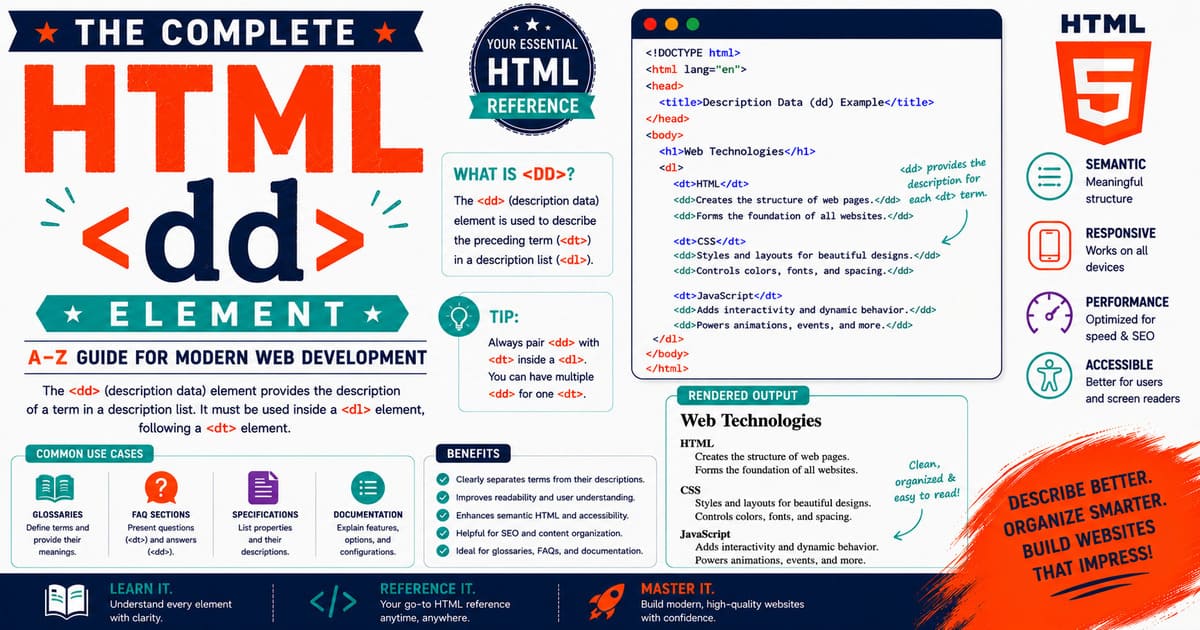
Chapter 5.15 — The <dd> Element
After completing the <dl> (Description List) and <dt> (Description Term) elements, we arrive at the final member of the description list family:
1
<dd>
The letters “dd” stand for:
Description Details
The <dd> element contains the description, definition, value, or details associated with one or more <dt> (Description Term) elements inside a <dl> (Description List).
Think of the relationship like this:
1
2
3
4
5
<dl>  →  The Container

<dt>  →  The Question / Term / Name

<dd>  →  The Answer / Description / Value
Together, these three elements create one of HTML’s most semantically meaningful structures.
Unlike a paragraph (<p>), which simply presents text, the <dd> element explicitly tells browsers, search engines, and assistive technologies:
“This information explains or describes the term immediately before it.”
Because of this semantic relationship, <dd> is widely used in:
- Technical documentation
- Product specifications
- Programming glossaries
- API documentation
- FAQ pages
- Configuration references
- Software manuals
- Dictionaries
- Medical terminology
- Legal references
- Metadata panels
5.15.1 Introduction to the <dd> Element
The <dd> element defines the description or details associated with a term (<dt>).
Basic syntax:
1
2
3
4
5
6
7
<dl>

<dt>HTML</dt>

<dd>HyperText Markup Language.</dd>

</dl>
In this example:
<dl>creates the description list.<dt>identifies the subject.<dd>explains the subject.
The browser understands that the description belongs specifically to the preceding term.
Understanding the Relationship
Visual representation:
1
2
3
4
5
6
7
8
9
10
Programming Languages

HTML
 └── HyperText Markup Language

CSS
 └── Cascading Style Sheets

JavaScript
 └── Programming language for interactive websites
Each description is logically connected to its corresponding term.
Basic Example
1
2
3
4
5
6
7
8
9
10
11
12
13
14
15
<dl>

<dt>CPU</dt>

<dd>Central Processing Unit.</dd>

<dt>RAM</dt>

<dd>Random Access Memory.</dd>

<dt>SSD</dt>

<dd>Solid State Drive.</dd>

</dl>
This creates a clean, semantic glossary of computer hardware terms.
Product Specification Example
1
2
3
4
5
6
7
8
9
10
11
12
13
14
15
<dl>

<dt>Display</dt>

<dd>15.6-inch IPS LCD</dd>

<dt>Memory</dt>

<dd>32 GB DDR5</dd>

<dt>Storage</dt>

<dd>1 TB NVMe SSD</dd>

</dl>
Many e-commerce websites use this structure to present product specifications.
API Documentation Example
1
2
3
4
5
6
7
8
9
10
11
12
13
14
15
<dl>

<dt>Endpoint</dt>

<dd>The destination URL for API requests.</dd>

<dt>Method</dt>

<dd>The HTTP request method such as GET or POST.</dd>

<dt>Response</dt>

<dd>The data returned by the server.</dd>

</dl>
Professional API documentation often relies on <dd> elements to describe parameters and responses.
Frequently Asked Questions
1
2
3
4
5
6
7
8
9
10
11
12
13
14
15
16
17
18
19
20
21
22
23
24
25
26
27
<dl>

<dt>

What is HTML?

</dt>

<dd>

HTML is the standard markup language used to create web pages.

</dd>

<dt>

Who maintains HTML?

</dt>

<dd>

The HTML Living Standard is maintained by the WHATWG.

</dd>

</dl>
Each answer naturally becomes a description.
One Term with Multiple Descriptions
The HTML specification allows multiple <dd> elements for one <dt>.
Example:
1
2
3
4
5
6
7
8
9
10
11
<dl>

<dt>HTML</dt>

<dd>Markup language.</dd>

<dd>Introduced in 1991.</dd>

<dd>Maintained as the HTML Living Standard.</dd>

</dl>
Each description provides additional information about the same term.
Rich Content Inside <dd>
Unlike <dt>, which usually contains short labels, <dd> may contain extensive content.
Example:
1
2
3
4
5
6
7
8
9
10
11
12
13
14
15
16
17
18
19
20
21
<dl>

<dt>HTML</dt>

<dd>

<p>

HTML provides the structure of web pages.

</p>

<p>

It works together with CSS and JavaScript.

</p>

</dd>

</dl>
A <dd> may contain:
- Paragraphs
- Images
- Lists
- Tables
- Code blocks
- Links
- Videos
- Figures
- Blockquotes
- Forms
- Interactive content
This makes it one of the most flexible elements inside semantic HTML.
Real-World Uses
Professional websites use <dd> for:
- Linux manual pages
- MDN documentation
- Product catalogs
- Medical references
- Scientific glossaries
- Browser documentation
- Enterprise dashboards
- Configuration panels
- Knowledge bases
- Educational websites
💡 Pro Tip
Use <dd> whenever information explains, defines, or describes a preceding term.
Many developers incorrectly use <div> elements for this purpose. Choosing <dd> instead gives your HTML meaningful structure, improves accessibility, and makes your content easier for search engines to understand.
⚠️ Common Mistakes
Mistake 1
Using <dd> outside a <dl>.
Incorrect:
1
<dd>HyperText Markup Language</dd>
Correct:
1
2
3
4
5
6
7
<dl>

<dt>HTML</dt>

<dd>HyperText Markup Language</dd>

</dl>
Mistake 2
Using <dd> as a normal paragraph.
A description should always relate directly to a preceding <dt>.
Mistake 3
Replacing <dd> with <div>.
Although visually similar after CSS styling, <div> provides no semantic relationship.
♿ Accessibility Note
Screen readers announce <dd> as the description belonging to the current term.
This makes glossary pages, FAQs, API references, and product specifications much easier to navigate for users relying on assistive technologies.
Using semantic HTML also reduces the need for additional ARIA attributes in many cases.
🔍 SEO Note
Search engines increasingly analyze semantic relationships within HTML documents.
Using <dd> correctly helps search engines understand:
- Product attributes
- Technical definitions
- Question-and-answer relationships
- Metadata
- Configuration values
- Documentation structure
While <dd> alone does not improve rankings, it contributes to a clearer and more machine-readable document.
Practical Exercise
Create a file named:
1
description-details.html
Example:
1
2
3
4
5
6
7
8
9
10
11
12
13
14
15
16
17
18
19
20
21
22
23
24
25
26
27
28
29
30
31
32
33
<!DOCTYPE html>

<html lang="en">

<head>

<title>Description Details Example</title>

</head>

<body>

<h2>Web Technologies</h2>

<dl>

<dt>HTML</dt>

<dd>Defines the structure of web pages.</dd>

<dt>CSS</dt>

<dd>Controls the presentation of web pages.</dd>

<dt>JavaScript</dt>

<dd>Adds dynamic behavior and interactivity.</dd>

</dl>

</body>

</html>
Open the file in your browser.
Then:
- Add multiple
<dd>elements for one<dt>. - Insert a paragraph inside a
<dd>. - Add a hyperlink and an image inside a
<dd>. - Observe how the browser preserves the semantic relationship while allowing rich content.
Did You Know?
Unlike ordinary paragraphs, the
<dd>element can legally contain entire sections of rich content—including lists, tables, code examples, images, and multiple paragraphs—making it one of the most versatile semantic elements in HTML.
Summary
In this section, you learned:
- The purpose of the
<dd>element. - Its relationship with
<dl>and<dt>. - Basic syntax.
- Multiple-description support.
- Rich content capabilities.
- Real-world applications.
- Accessibility benefits.
- SEO considerations.
- Common mistakes.
- Professional best practices.
Coming Up Next — Section 5.15.2
In the next section, we’ll explore:
- HTML Living Standard definition.
- Content categories.
- Content model.
- Browser parsing.
- DOM representation.
HTMLElementinterface.- Accessibility semantics.
- Professional implementation techniques.
You’ll gain a deep understanding of how browsers interpret the <dd> element internally and why it is an essential building block for semantic HTML documentation.
5.15.2 HTML Living Standard, Content Categories, Content Model, Browser Parsing, DOM Representation, and Accessibility of <dd>
In the previous section, you learned that the <dd> element represents the description, definition, or value associated with one or more <dt> (Description Term) elements inside a <dl> (Description List).
Although <dd> often appears visually similar to an indented paragraph, browsers, search engines, and assistive technologies treat it as a semantic relationship, not merely a formatting element.
Understanding how browsers interpret <dd> according to the HTML Living Standard helps developers create documentation, glossaries, FAQs, product specifications, and API references that are both machine-readable and accessible.
HTML Living Standard Definition
According to the HTML Living Standard, the <dd> element represents the value, definition, or description associated with one or more preceding <dt> elements within a description list.
Each <dd> belongs to an association group created inside a <dl> element.
Unlike a normal paragraph, a <dd> always derives its meaning from the <dt> element that precedes it.
Understanding Association Groups
Consider the following example:
1
2
3
4
5
6
7
8
9
10
11
<dl>

<dt>HTTP</dt>

<dd>Hypertext Transfer Protocol.</dd>

<dt>HTTPS</dt>

<dd>Secure version of HTTP.</dd>

</dl>
The browser internally interprets the structure like this:
1
2
3
4
5
6
7
8
9
10
11
12
13
14
15
16
17
Association Group 1

Term:
HTTP

Description:
Hypertext Transfer Protocol.

────────────────────────

Association Group 2

Term:
HTTPS

Description:
Secure version of HTTP.
Each description belongs exclusively to its associated term.
Multiple Descriptions for One Term
One <dt> may have several <dd> elements.
Example:
1
2
3
4
5
6
7
8
9
10
11
<dl>

<dt>HTML</dt>

<dd>Markup language.</dd>

<dd>Originally created by Tim Berners-Lee.</dd>

<dd>Maintained as the HTML Living Standard.</dd>

</dl>
Internally:
1
2
3
4
5
6
7
HTML

├── Markup language.

├── Originally created by Tim Berners-Lee.

└── Maintained as the HTML Living Standard.
This allows authors to provide multiple pieces of related information without repeating the term.
Content Categories
Unlike many HTML elements, <dd> does not belong to any content category.
| Content Category | Included |
|---|---|
| None | ❌ |
Its semantic meaning comes entirely from its placement inside a <dl>.
Permitted Parent Element
The only valid parent element is:
1
<dl>
Correct example:
1
2
3
4
5
6
7
<dl>

<dt>CPU</dt>

<dd>Central Processing Unit.</dd>

</dl>
Incorrect example:
1
2
3
4
5
<section>

<dd>Central Processing Unit.</dd>

</section>
Using <dd> outside a description list results in invalid HTML.
Permitted Content
Unlike <dt>, the <dd> element may contain flow content.
This makes it one of the most flexible semantic elements in HTML.
Allowed examples include:
- Paragraphs
- Headings
- Images
- Tables
- Lists
- Videos
- Figures
- Forms
- Code blocks
- Blockquotes
- Embedded media
Example:
1
2
3
4
5
6
7
8
9
10
11
12
13
14
15
16
17
18
19
<dd>

<p>

HTML provides the structure of web pages.

</p>

<ul>

<li>Semantic</li>

<li>Accessible</li>

<li>Portable</li>

</ul>

</dd>
This rich content capability distinguishes <dd> from many other inline semantic elements.
Content Model
The content model for <dd> is:
1
Flow Content
This means almost any content that can appear inside the <body> may also appear inside a <dd>, provided the overall document remains valid.
Browser Parsing
Example HTML:
1
2
3
4
5
6
7
<dl>

<dt>CSS</dt>

<dd>Cascading Style Sheets.</dd>

</dl>
Simplified browser parsing:
1
2
3
4
5
6
7
8
9
10
11
12
13
14
15
16
17
18
19
20
21
22
23
24
25
26
27
28
29
Read <dl>

↓

Create Description List

↓

Read <dt>

↓

Create Description Term

↓

Read <dd>

↓

Create Description Details

↓

Associate with previous term

↓

Close <dl>
The browser automatically links the description with the nearest appropriate term.
DOM Representation
HTML:
1
2
3
4
5
6
7
<dl>

<dt>API</dt>

<dd>Application Programming Interface.</dd>

</dl>
Simplified DOM tree:
1
2
3
4
5
6
7
8
9
10
11
12
13
14
15
Document

└── html

    └── body

        └── dl

            ├── dt

            │   └── "API"

            └── dd

                └── "Application Programming Interface."
Every <dd> becomes its own DOM node.
DOM Interface
The <dd> element uses the generic DOM interface:
1
HTMLElement
Inheritance hierarchy:
1
2
3
4
5
6
7
8
9
10
11
12
13
EventTarget

↓

Node

↓

Element

↓

HTMLElement
There is no dedicated HTMLDDElement interface.
Instead, all standard DOM methods are inherited from HTMLElement.
Browser Rendering
By default, browsers generally display <dd> elements with:
- Left alignment.
- Indentation relative to the associated
<dt>. - Block-level layout.
- Vertical spacing.
The exact indentation depends on each browser’s default stylesheet.
💡 Pro Tip
Avoid relying on the browser’s default indentation.
Professional websites almost always customize <dd> using CSS to create consistent spacing, typography, and responsive layouts that match the site’s design system.
♿ Accessibility Note
Screen readers announce <dd> as the description belonging to the active term.
For example:
1
2
3
4
5
6
7
8
9
Description list.

Term:

HTML.

Description:

HyperText Markup Language.
This semantic pairing helps users understand the relationship without additional explanation.
🔍 SEO Note
Semantic description lists help search engines understand:
- Glossary entries.
- Product specifications.
- Configuration settings.
- API documentation.
- Frequently Asked Questions.
- Metadata relationships.
Although <dd> is not a ranking signal by itself, proper semantic structure contributes to clearer indexing and richer content understanding.
⚠️ Common Mistakes
Mistake 1
Using <dd> without a preceding <dt>.
A description must always correspond to a term.
Mistake 2
Using <dd> purely for indentation.
Indentation is a visual effect, not the purpose of the element.
Mistake 3
Replacing semantic <dd> elements with generic <div> elements.
This removes the meaningful relationship between terms and descriptions.
Mistake 4
Adding unrelated content between associated <dt> and <dd> elements.
Keep each association group logically connected.
Practical Exercise
Create a file named:
1
browser-parsing-dd.html
Experiment with:
- One
<dt>and one<dd>. - One
<dt>with multiple<dd>elements. - Multiple
<dt>elements sharing one<dd>. - Rich content such as lists and images inside
<dd>.
Use your browser’s Developer Tools to inspect the generated DOM tree and observe how each description remains associated with its corresponding term.
Did You Know?
The flexibility of the
<dd>element allows it to contain almost any type of flow content. This is why many professional documentation systems place code samples, tables, diagrams, and even interactive examples directly inside<dd>elements instead of using separate page sections.
Summary
In this section, you learned:
- The HTML Living Standard definition of
<dd>. - Association groups.
- Content categories.
- Permitted parent element.
- Flow content model.
- Browser parsing.
- DOM representation.
HTMLElementinterface.- Accessibility semantics.
- SEO considerations.
- Professional authoring practices.
Coming Up Next — Section 5.15.3
In the next section, we’ll explore CSS Styling, Advanced Layout Techniques, JavaScript Manipulation, Responsive Design, Accessibility Enhancements, and Professional UI Patterns for the <dd> element.
You’ll learn how modern documentation websites, knowledge bases, API references, and enterprise applications transform ordinary descriptions into polished, responsive, and highly readable interfaces while preserving semantic HTML.
5.15.3 CSS Styling, Advanced Layout Techniques, JavaScript Manipulation, Responsive Design, Accessibility Enhancements, and Professional UI Patterns
In the previous section, you learned how browsers interpret the <dd> element according to the HTML Living Standard, how it participates in semantic association groups, and how it is represented in the Document Object Model (DOM).
By default, browsers display <dd> as a simple indented block of text. While this default presentation is functional, modern websites rarely rely on it. Professional documentation platforms, developer portals, e-commerce websites, enterprise dashboards, and knowledge bases typically apply custom CSS and JavaScript to create clean, responsive, and visually appealing description layouts.
In this section, you’ll learn how to transform ordinary <dd> elements into professional-quality components while preserving semantic HTML.
5.15.3.1 Default Browser Appearance
Most browsers apply a built-in stylesheet to <dd> elements.
Typical default characteristics include:
- Block-level display.
- Left indentation.
- Vertical spacing.
- Normal font weight.
- Full-width layout.
Example:
1
2
3
4
5
6
7
<dl>

<dt>HTML</dt>

<dd>HyperText Markup Language.</dd>

</dl>
Typical rendering:
1
2
3
HTML

    HyperText Markup Language.
The exact indentation varies slightly across browsers because each browser uses its own default stylesheet.
Custom Typography
Professional documentation often improves readability by customizing typography.
Example:
1
2
3
4
5
6
7
8
9
10
11
dd{

font-size:1rem;

line-height:1.8;

color:#374151;

margin-bottom:1.5rem;

}
Benefits include:
- Better readability.
- Improved spacing.
- Cleaner visual hierarchy.
- Consistent appearance across browsers.
Creating a Two-Column Specification Layout
Description lists are ideal for product specifications.
Example CSS:
1
2
3
4
5
6
7
8
9
10
11
12
13
14
15
16
17
18
19
20
21
22
23
dl{

display:grid;

grid-template-columns:220px 1fr;

gap:16px 24px;

}

dt{

font-weight:700;

margin:0;

}

dd{

margin:0;

}
HTML:
1
2
3
4
5
6
7
8
9
10
11
12
13
14
15
<dl>

<dt>Processor</dt>

<dd>Intel Core Ultra 7</dd>

<dt>Memory</dt>

<dd>32 GB DDR5</dd>

<dt>Storage</dt>

<dd>1 TB NVMe SSD</dd>

</dl>
This layout is commonly seen on product pages and technical specification sheets.
Highlighting Important Descriptions
Some descriptions deserve additional visual emphasis.
Example:
1
2
3
4
5
6
7
8
9
10
11
dd.important{

background:#eff6ff;

padding:12px;

border-left:5px solid #2563eb;

border-radius:4px;

}
HTML:
1
2
3
4
5
<dd class="important">

Requires administrator privileges.

</dd>
This approach is useful for warnings, notes, and critical information.
Styling Code Examples Inside <dd>
Technical documentation frequently includes inline code.
Example:
1
2
3
4
5
6
7
8
9
<dd>

Use the

<code>display:grid</code>

property.

</dd>
CSS:
1
2
3
4
5
6
7
8
9
10
11
dd code{

background:#f3f4f6;

padding:2px 6px;

border-radius:4px;

font-family:monospace;

}
This improves readability for code snippets embedded within descriptions.
Rich Content Inside <dd>
A <dd> can contain multiple elements.
Example:
1
2
3
4
5
6
7
8
9
10
11
12
13
14
15
16
17
18
19
<dd>

<p>

HTML provides structure.

</p>

<ul>

<li>Semantic</li>

<li>Accessible</li>

<li>Flexible</li>

</ul>

</dd>
Professional documentation often combines paragraphs, lists, images, and code examples within a single description.
Responsive Layouts
Large two-column layouts should adapt gracefully to smaller screens.
Example:
1
2
3
4
5
6
7
8
9
@media (max-width:768px){

dl{

grid-template-columns:1fr;

}

}
On mobile devices, terms and descriptions stack vertically for improved readability.
Responsive Long Text
Technical documentation may include long URLs or identifiers.
Example:
1
2
3
4
5
6
7
dd{

overflow-wrap:anywhere;

word-break:break-word;

}
This prevents horizontal scrolling and keeps the layout responsive.
JavaScript Manipulation
Descriptions can be updated dynamically.
Example HTML:
1
2
3
4
5
<dd id="status">

Offline

</dd>
JavaScript:
1
2
3
4
5
const status =
document.getElementById("status");

status.textContent =
"Online";
The browser immediately updates the displayed content.
Creating Descriptions Dynamically
Example:
1
2
3
4
5
6
7
8
9
const description =
document.createElement("dd");

description.textContent =
"Automatically generated.";

document
.querySelector("dl")
.appendChild(description);
When creating <dd> elements dynamically, ensure they remain associated with the correct <dt>.
Expanding and Collapsing Descriptions
Interactive glossaries often allow descriptions to expand or collapse.
Example:
1
2
3
4
5
6
7
8
const descriptions =
document.querySelectorAll("dd");

descriptions.forEach(function(item){

item.hidden = true;

});
JavaScript can later reveal descriptions when users click their associated terms.
Styling Descriptions Dynamically
Example:
1
2
3
4
const description =
document.querySelector("dd");

description.classList.add("important");
This technique is useful for search highlighting or validation messages.
💡 Pro Tip
When designing technical documentation, keep visual styling on the <dd> element consistent throughout the website.
A uniform appearance helps readers quickly distinguish between terms and descriptions, especially in large reference manuals like this HTML Reference.
♿ Accessibility Note
If JavaScript is used to show or hide descriptions:
- Ensure the interaction is keyboard accessible.
- Update appropriate ARIA attributes when necessary.
- Do not hide essential information permanently.
- Preserve the logical order of
<dt>and<dd>elements.
Semantic HTML should remain intact even when interactive behaviors are added.
🔍 SEO Note
Rich descriptions inside <dd> often contain valuable keywords, code samples, and explanatory content.
Well-written descriptions can:
- Increase topical relevance.
- Improve user engagement.
- Reduce bounce rates.
- Encourage longer reading sessions.
Focus on writing helpful, original explanations rather than repeating the term unnecessarily.
Professional UI Patterns
The <dd> element is commonly used in:
- Developer documentation.
- API references.
- Product specification pages.
- Enterprise administration panels.
- Technical glossaries.
- Knowledge management systems.
- University course materials.
- Medical reference websites.
- Configuration documentation.
- Frequently Asked Questions.
These interfaces rely on semantic HTML while applying modern CSS frameworks and design systems.
⚠️ Common Mistakes
Mistake 1
Applying excessive left margins that create inconsistent layouts.
Prefer controlled spacing using CSS Grid or Flexbox.
Mistake 2
Using <dd> without a matching <dt>.
Descriptions should always belong to an associated term.
Mistake 3
Using <dd> for general page layout.
The element is intended for semantic descriptions, not generic content containers.
Mistake 4
Embedding very large amounts of unrelated content inside one <dd>.
If the content becomes a standalone section, consider restructuring the page using headings and additional semantic elements.
Practical Exercise
Create a file named:
1
styled-description-details.html
Experiment with:
- Custom typography.
- Grid layouts.
- Highlighted descriptions.
- Responsive design.
- Interactive show/hide behavior.
- Inline code formatting.
- Rich content such as lists and tables.
Test the page on both desktop and mobile devices to observe how responsive styling affects readability.
Did You Know?
Many documentation generators, including those used for API references and programming language manuals, build their specification pages with semantic
<dl>,<dt>, and<dd>elements before applying sophisticated CSS layouts. This approach preserves accessibility while allowing complete visual customization.
Summary
In this section, you learned:
- Default browser rendering of
<dd>. - Professional typography techniques.
- Grid-based layouts.
- Responsive design.
- JavaScript manipulation.
- Dynamic styling.
- Accessibility enhancements.
- SEO considerations.
- Professional UI patterns.
- Common development mistakes.
Coming Up Next — Section 5.15.4
In the next section, we’ll explore DOM APIs, Browser Compatibility, Accessibility APIs, SEO, Performance, Advanced JavaScript, Professional Best Practices, and Interview Questions for the <dd> element.
You’ll also learn how browsers expose <dd> through the DOM, how assistive technologies interpret description details, and how professional developers manage large semantic documentation systems efficiently.
5.15.4 DOM APIs, Browser Compatibility, Accessibility APIs, SEO, Performance, Advanced JavaScript, Professional Best Practices, and Interview Questions
In the previous section, you learned how to style the <dd> element using CSS, create responsive layouts, manipulate description details with JavaScript, and build professional documentation interfaces.
In this section, we’ll explore how browsers expose <dd> through the Document Object Model (DOM), how accessibility APIs interpret description details, browser compatibility, performance optimization, advanced JavaScript techniques, and best practices used by experienced front-end developers.
Understanding these concepts will help you write HTML that is not only valid but also maintainable, accessible, and scalable for large documentation projects.
5.15.4.1 DOM Representation of <dd>
When a browser parses a description list, each <dd> becomes an independent node in the DOM tree.
Example HTML:
1
2
3
4
5
6
7
8
9
10
11
<dl>

<dt>HTML</dt>

<dd>HyperText Markup Language.</dd>

<dt>CSS</dt>

<dd>Cascading Style Sheets.</dd>

</dl>
Simplified DOM Tree:
1
2
3
4
5
6
7
8
9
10
11
12
13
14
15
16
17
18
19
20
21
22
23
Document

└── html

    └── body

        └── dl

            ├── dt

            │   └── "HTML"

            ├── dd

            │   └── "HyperText Markup Language."

            ├── dt

            │   └── "CSS"

            └── dd

                └── "Cascading Style Sheets."
Each <dd> exists as a separate node and can be accessed or modified independently.
DOM Interface
The <dd> element uses the generic DOM interface:
1
HTMLElement
Inheritance hierarchy:
1
2
3
4
5
6
7
8
9
10
11
12
13
EventTarget

↓

Node

↓

Element

↓

HTMLElement
Unlike some HTML elements, there is no specialized HTMLDDElement interface.
Selecting <dd> Elements
Select the first description:
1
2
3
4
const description =
document.querySelector("dd");

console.log(description.textContent);
Output:
1
HyperText Markup Language.
Select all descriptions:
1
2
3
4
const descriptions =
document.querySelectorAll("dd");

console.log(descriptions.length);
Output:
1
2
The result is a NodeList containing every <dd> element in the document.
Accessing the Associated Term
Example:
1
2
3
4
5
6
7
<dl>

<dt>HTML</dt>

<dd>Markup language.</dd>

</dl>
JavaScript:
1
2
3
4
5
6
7
const description =
document.querySelector("dd");

const term =
description.previousElementSibling;

console.log(term.textContent);
Output:
1
HTML
Since the <dt> appears immediately before its description, previousElementSibling is often sufficient.
Updating Description Content
Example:
1
2
3
4
5
const description =
document.querySelector("dd");

description.textContent =
"The standard language for creating web pages.";
The browser immediately updates the page without reloading.
Creating Description Elements
Example:
1
2
3
4
5
6
7
8
9
const description =
document.createElement("dd");

description.textContent =
"Supports semantic markup.";

document
.querySelector("dl")
.appendChild(description);
For semantic correctness, always insert the corresponding <dt> before adding a new <dd>.
Removing Descriptions
Example:
1
2
3
4
const description =
document.querySelector("dd");

description.remove();
When removing a <dd>, verify that its associated <dt> still has at least one valid description.
Browser Compatibility
The <dd> element has universal browser support.
| Browser | Support |
|---|---|
| Chrome | ✅ |
| Firefox | ✅ |
| Safari | ✅ |
| Microsoft Edge | ✅ |
| Opera | ✅ |
| Android Browser | ✅ |
| iOS Safari | ✅ |
The element has been supported since the earliest HTML specifications, making it safe for virtually every modern web project.
Accessibility APIs
Screen readers expose <dd> as the description belonging to the current term.
Typical announcement:
1
2
3
4
5
6
7
8
9
Description list.

Term:

HTML.

Description:

HyperText Markup Language.
This semantic relationship helps users navigate structured information more efficiently than if generic <div> elements were used.
♿ Accessibility Note
When adding interactivity:
- Ensure descriptions remain reachable by keyboard users.
- Avoid hiding essential content without an accessible alternative.
- If descriptions expand or collapse, update
aria-expandedon the control element when appropriate. - Preserve the logical order of
<dt>and<dd>pairs.
Semantic HTML should remain the foundation of your implementation.
🔍 SEO Note
Search engines analyze semantic relationships when interpreting documentation pages.
Well-structured <dd> elements can improve the clarity of:
- Product specifications.
- Technical glossaries.
- API documentation.
- Configuration guides.
- Question-and-answer content.
Write descriptions that are informative and unique rather than repeating the associated term verbatim.
Performance Considerations
The <dd> element itself has negligible performance overhead.
Performance concerns typically arise only when:
- Thousands of entries are rendered simultaneously.
- Content is loaded dynamically.
- Search and filtering occur in real time.
For very large documentation sites, consider:
- Pagination.
- Client-side filtering.
- Lazy rendering.
- Virtual scrolling.
These techniques improve responsiveness while preserving semantic HTML.
Advanced JavaScript Example
Highlight descriptions containing a keyword.
1
2
3
4
5
6
7
8
9
10
11
12
const descriptions =
document.querySelectorAll("dd");

descriptions.forEach(function(item){

if(item.textContent.includes("HTML")){

item.classList.add("highlight");

}

});
CSS:
1
2
3
4
5
6
7
.highlight{

background:#fef3c7;

padding:4px;

}
This technique is useful in search interfaces and interactive documentation.
💡 Pro Tip
When generating documentation automatically from databases or APIs, always create complete <dt>/<dd> pairs instead of separate unrelated elements.
Maintaining semantic relationships improves accessibility, simplifies styling, and makes your content easier to maintain.
Professional Best Practices
Experienced developers generally follow these guidelines:
- Keep descriptions concise but complete.
- Use multiple
<dd>elements instead of one excessively long description when appropriate. - Include code examples within
<dd>for technical documentation. - Keep associated
<dt>and<dd>elements together. - Style consistently across the entire website.
- Test layouts on desktop, tablet, and mobile devices.
Consistency improves both usability and maintainability.
⚠️ Common Mistakes
Mistake 1
Adding multiple unrelated topics inside a single <dd>.
Each description should remain focused on the associated term.
Mistake 2
Using <dd> for page layout.
The purpose of <dd> is semantic description, not visual positioning.
Mistake 3
Separating <dt> and <dd> with unrelated elements.
This weakens the semantic association and can confuse assistive technologies.
Mistake 4
Replacing description lists with tables when no tabular relationship exists.
Use <table> only when data is genuinely organized into rows and columns.
Interview Questions
Question 1
What is the primary purpose of the <dd> element?
Answer:
To provide the description, definition, or value associated with one or more <dt> elements inside a <dl>.
Question 2
Can a <dd> contain block-level elements?
Answer:
Yes. Since <dd> accepts flow content, it may contain paragraphs, lists, images, tables, forms, code blocks, and many other HTML elements.
Question 3
Which DOM interface represents <dd>?
Answer:
HTMLElement
Question 4
Can one <dt> have multiple <dd> elements?
Answer:
Yes. The HTML specification explicitly allows multiple descriptions for a single term.
Question 5
Is <dd> valid outside a <dl> element?
Answer:
No. A <dd> element must always appear inside a description list.
Practical Exercise
Extend the previous chapter’s example by creating a searchable glossary.
Requirements:
- Add five programming terms.
- Provide detailed descriptions for each term.
- Use JavaScript to filter descriptions based on user input.
- Highlight matching results.
- Ensure keyboard accessibility is preserved.
This exercise combines semantic HTML, CSS, and JavaScript into a practical mini-project.
Did You Know?
Many documentation systems—including programming language references, enterprise API portals, and technical standards—generate thousands of
<dd>elements automatically from structured data. Semantic HTML allows these systems to remain accessible while scaling to enormous documentation collections.
Summary
In this section, you learned:
- DOM representation of
<dd>. - The
HTMLElementinterface. - DOM selection and manipulation.
- Browser compatibility.
- Accessibility APIs.
- SEO considerations.
- Performance optimization.
- Advanced JavaScript examples.
- Professional development practices.
- Common interview questions.
Coming Up Next — Section 5.15.5 (Final Section)
In the final section of the <dd> chapter, we’ll cover:
- Advanced real-world examples.
- Markdown integration.
- Jekyll implementation.
- Security considerations.
- Professional publishing checklist.
- Complete technical reference.
- Comprehensive chapter summary.
- Chapter completion and roadmap to the next HTML element.
By the end of Section 5.15.5, the entire Description List family (<dl>, <dt>, and <dd>) will be fully documented, completing one of the most important semantic groups in HTML.
5.15.5 Advanced Examples, Markdown Integration, Jekyll Implementation, Security, Complete Technical Reference, Publishing Checklist, and Chapter Summary
Congratulations! You have reached the final section of the <dd> chapter.
Throughout this chapter, you’ve learned how the <dd> element provides semantic descriptions for terms defined by <dt> elements within a <dl>.
Although it may appear simple, <dd> is one of HTML’s most flexible semantic elements because it can contain almost any type of flow content. Modern documentation systems, developer portals, e-commerce websites, technical manuals, and enterprise applications rely heavily on <dd> to present structured information in an accessible and meaningful way.
In this final section, you’ll explore advanced real-world implementations, Markdown and Jekyll integration, security considerations, publishing tips, and a complete technical reference.
5.15.5.1 Real-World Project Example — Product Specification Page
One of the most common professional uses of <dd> is displaying product specifications.
Example:
1
2
3
4
5
6
7
8
9
10
11
12
13
14
15
<dl class="product-specs">

<dt>Processor</dt>
<dd>Intel Core Ultra 7 265H</dd>

<dt>Memory</dt>
<dd>32 GB DDR5 RAM</dd>

<dt>Storage</dt>
<dd>1 TB NVMe PCIe SSD</dd>

<dt>Operating System</dt>
<dd>Windows 11 Pro</dd>

</dl>
This approach provides a clean, semantic structure that is easier to style than traditional tables when presenting simple name–value pairs.
Real-World Project Example — API Documentation
Professional API documentation often combines paragraphs, code blocks, and hyperlinks within <dd> elements.
1
2
3
4
5
6
7
8
9
10
11
12
13
14
15
16
17
<dl>

<dt>Authorization</dt>

<dd>

<p>
Include a Bearer Token in the request header.
</p>

<pre><code>
Authorization: Bearer YOUR_TOKEN
</code></pre>

</dd>

</dl>
Notice that <dd> can contain multiple block-level elements while preserving the semantic relationship with its corresponding term.
Real-World Project Example — Frequently Asked Questions
1
2
3
4
5
6
7
8
9
10
11
12
13
14
15
16
17
18
19
20
21
<dl>

<dt>Can HTML work without CSS?</dt>

<dd>

Yes.
HTML defines the document structure, while CSS controls presentation.

</dd>

<dt>Can HTML work without JavaScript?</dt>

<dd>

Yes.
Static websites can function perfectly without JavaScript.

</dd>

</dl>
Using <dl>, <dt>, and <dd> for FAQs creates a logical structure that benefits both readers and assistive technologies.
Markdown Integration
Markdown does not provide native syntax for description lists in most implementations.
Fortunately, Jekyll allows raw HTML.
Example:
1
2
3
4
5
6
7
8
9
10
11
12
13
14
15
16
17
## HTML Glossary

<dl>

<dt>DOM</dt>

<dd>
Document Object Model.
</dd>

<dt>CSSOM</dt>

<dd>
CSS Object Model.
</dd>

</dl>
Kramdown preserves this HTML exactly as written.
Jekyll Integration
Description lists work exceptionally well in Jekyll-based documentation sites.
Example:
1
2
3
4
5
6
7
8
9
10
11
12
13
14
15
16
17
18
---
layout: post
title: HTML Glossary
---

## Common Terms

<dl>

<dt>Semantic HTML</dt>

<dd>

HTML that clearly describes the meaning of content.

</dd>

</dl>
This approach is ideal for:
- Developer documentation
- Tutorials
- Configuration guides
- Reference manuals
- Knowledge bases
Styling Description Lists in Jekyll
Example:
1
2
3
4
5
6
7
8
9
10
11
12
13
14
15
16
17
18
19
20
21
22
23
.post-content dl{

margin:2rem 0;

}

.post-content dt{

font-weight:700;

margin-top:1.5rem;

}

.post-content dd{

margin-left:2rem;

line-height:1.8;

color:#4b5563;

}
For your Beyond Borders View HTML Reference, maintaining consistent styling across every chapter will give readers a professional reading experience.
Security Considerations
The <dd> element itself introduces no security risks.
However, problems arise when inserting untrusted content.
Unsafe example:
1
2
description.innerHTML =
userInput;
If userInput contains malicious HTML or JavaScript, your page could become vulnerable to Cross-Site Scripting (XSS).
Safer Alternative
Prefer textContent whenever displaying user-supplied data.
1
2
description.textContent =
userInput;
Always sanitize HTML if rich content from external sources must be displayed.
💡 Pro Tip
When building documentation websites, keep each <dd> focused on a single concept.
If a description becomes several pages long, create a dedicated article and summarize it within the <dd>, linking to the full content. This improves readability and site navigation.
♿ Accessibility Note
Description lists are naturally supported by screen readers.
To maximize accessibility:
- Keep each description directly after its associated term.
- Write clear, concise descriptions.
- Avoid empty
<dd>elements. - Ensure interactive content inside
<dd>is keyboard accessible. - Test with browser accessibility tools whenever possible.
Semantic HTML reduces the need for additional ARIA attributes.
🔍 SEO Note
High-quality descriptions within <dd> can improve the topical depth of your pages.
For best results:
- Write original explanations.
- Include relevant terminology naturally.
- Avoid keyword stuffing.
- Use meaningful internal links.
- Structure long documentation into logical sections.
Google increasingly rewards content that demonstrates expertise, clarity, and usefulness.
Professional Publishing Checklist
Before publishing a page that uses description lists, verify the following:
✅ Every <dt> has at least one <dd>.
✅ Every description belongs to the correct term.
✅ Rich content is organized logically.
✅ CSS maintains a clear distinction between terms and descriptions.
✅ The layout is responsive.
✅ Accessibility has been tested.
✅ Internal links point to related HTML Reference chapters.
✅ Code examples have been validated in modern browsers.
Following this checklist helps maintain a consistent quality standard across your HTML Reference.
Common Mistakes
Mistake 1
Using description lists for page layout instead of semantic relationships.
Better Approach: Use <dl> only for genuine name–value or term–description pairs.
Mistake 2
Creating excessively long descriptions without structure.
Better Approach: Break content into paragraphs, lists, code examples, or separate articles.
Mistake 3
Mixing unrelated topics inside a single <dd>.
Each description should remain focused on its associated term.
Mistake 4
Ignoring mobile responsiveness.
Always test description lists on phones, tablets, and desktop screens.
Complete Technical Reference
| Property | Value |
|---|---|
| Element | <dd> |
| Full Name | Description Details |
| Purpose | Provides the description, definition, or value of a term |
| Parent Element | <dl> |
| Associated Element | <dt> |
| Content Model | Flow Content |
| Permitted Content | Flow Content |
| End Tag | Required |
| Void Element | No |
| DOM Interface | HTMLElement |
| HTML Version | HTML2 → HTML Living Standard |
| Browser Support | Universal |
Interview Questions
1. What is the purpose of the <dd> element?
Answer: It provides the description, definition, or value associated with one or more <dt> elements inside a <dl>.
2. Can a <dd> contain another list?
Answer: Yes. Because <dd> accepts flow content, it may contain ordered lists, unordered lists, nested description lists, tables, images, and other block-level elements.
3. Does <dd> have its own DOM interface?
Answer: No. It is represented by the generic HTMLElement interface.
4. Is <dd> suitable for page layout?
Answer: No. It should only be used for semantic term–description relationships.
5. Why is <dd> preferred over a <div> for glossary content?
Answer: Because <dd> communicates semantic meaning to browsers, search engines, and assistive technologies.
Chapter 5.15 Final Summary — The <dd> Element
You have now completed a comprehensive study of the HTML <dd> element.
During this chapter, you learned:
Fundamentals
- Purpose of
<dd> - Relationship with
<dl>and<dt> - Basic syntax
- Rich content support
Browser Internals
- HTML Living Standard definition
- Association groups
- Browser parsing
- DOM representation
HTMLElementinterface
Practical Development
- CSS styling
- Responsive layouts
- JavaScript manipulation
- Accessibility
- SEO
- Performance optimization
Professional Publishing
- Markdown integration
- Jekyll integration
- Security considerations
- Publishing checklist
- Technical reference
Description List Family — Completed
Congratulations! You have now mastered the complete Description List family in HTML.
| Element | Status |
|---|---|
<dl> | ✅ Complete |
<dt> | ✅ Complete |
<dd> | ✅ Complete |
These three elements work together to create one of the most semantically rich structures in HTML.
Chapter 5 Progress Update
Completed elements:
- ✅
<br> - ✅
<hr> - ✅
<wbr> - ✅
<pre> - ✅
<blockquote> - ✅
<ol> - ✅
<ul> - ✅
<li> - ✅
<dl> - ✅
<dt> - ✅
<dd>
Coming Up Next — Chapter 5.16 — The <figure> Element
The next chapter explores one of HTML’s most important semantic media elements:
1
<figure>
You’ll learn:
- What the
<figure>element is. - How it differs from
<div>. - Images, diagrams, code listings, and illustrations.
- Relationship with
<figcaption>. - Accessibility.
- SEO.
- Responsive images.
- Lazy loading.
- Modern web development practices.
- Professional publishing examples.
- Jekyll integration.
The <figure> element is widely used in technical documentation, blogs, news websites, scientific publications, and educational content, making it an essential part of modern HTML.
End of Chapter 5.15 — The <dd> Element
Status: ✅ Complete
The HTML <dd> element is now fully documented as part of The Complete HTML Reference: A–Z Guide for Modern Web Development.